
Looking to convert handwritten documents to digital text using Python? In this comprehensive guide, I’ll show you how to build a Python script that processes handwritten documents with 97%+ accuracy using modern AI-powered OCR. We’ll process a real handwritten recipe card, and I’ll walk you through everything step by step, from basic transcription to extracting structured data from forms.
Whether you’re a data scientist digitizing research notes, a developer building document automation tools, or someone frustrated with pytesseract’s poor handwriting recognition accuracy, this tutorial will show you how to implement production-ready handwriting OCR in Python.
Quick summary
By the end of this guide, you’ll have working Python code that can:
- Upload handwritten PDFs and images
- Extract full text with near-perfect accuracy
- Process batches of documents efficiently
- Extract structured data from forms (bonus section)
- Understand why Tesseract fails on handwriting and what works instead
Project Setup with uv
I’m using uv for this project instead of the traditional pip/venv workflow. If you haven’t tried uv yet, you’re missing out - it’s significantly faster and handles virtual environments automatically.
First, install uv if you don’t have it:
curl -LsSf https://astral.sh/uv/install.sh | shNow let’s create our project:
# Create a new directory
mkdir handwriting-ocr-demo
cd handwriting-ocr-demo

# Initialize the project (creates virtual env automatically)
uv init

# Add dependencies
uv add requests python-dotenv
That’s it. No python -m venv, no source venv/bin/activate - uv handles all of that for you. It created a pyproject.toml and a virtual environment in one command.
Get Your API Key
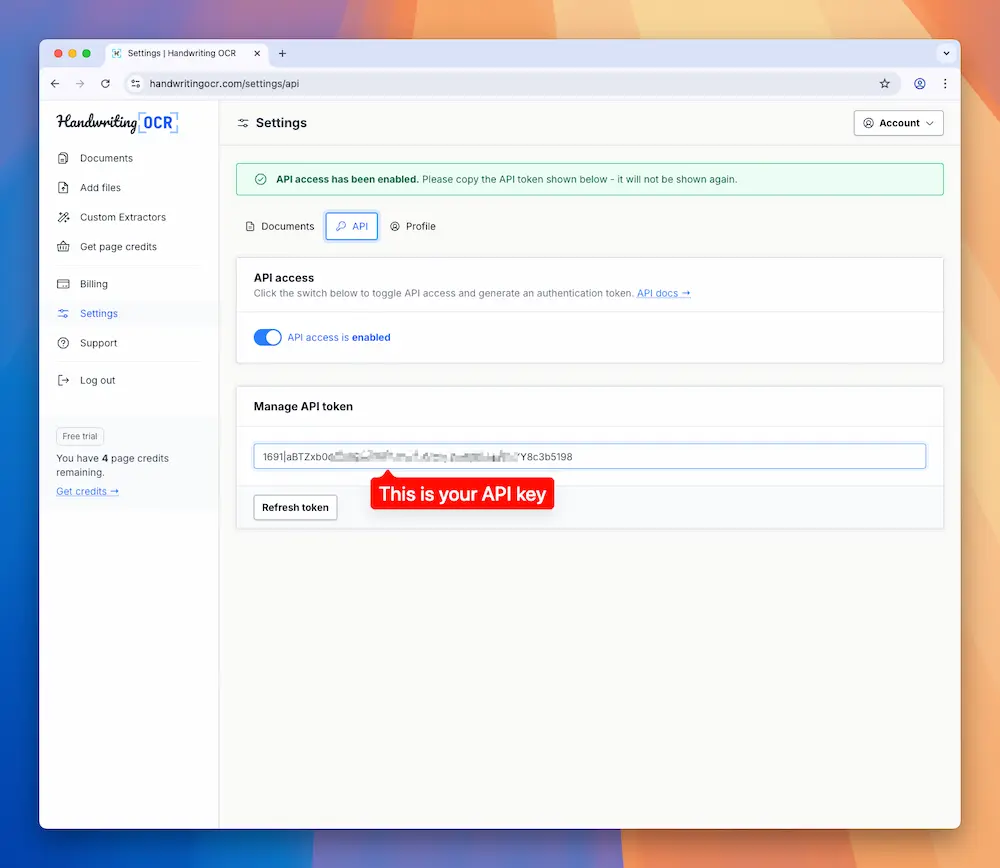
Before we write any code, you need an API key:
- Sign up at handwritingocr.com
- Go to Settings → API
- Click “Generate API Token”
- Copy your token
Now let’s store it securely as an environment variable. Create a .env file in your project root:
nano .envNow add your API key to the newly-created .env file:
# .env
HANDWRITING_OCR_KEY=your_api_token_here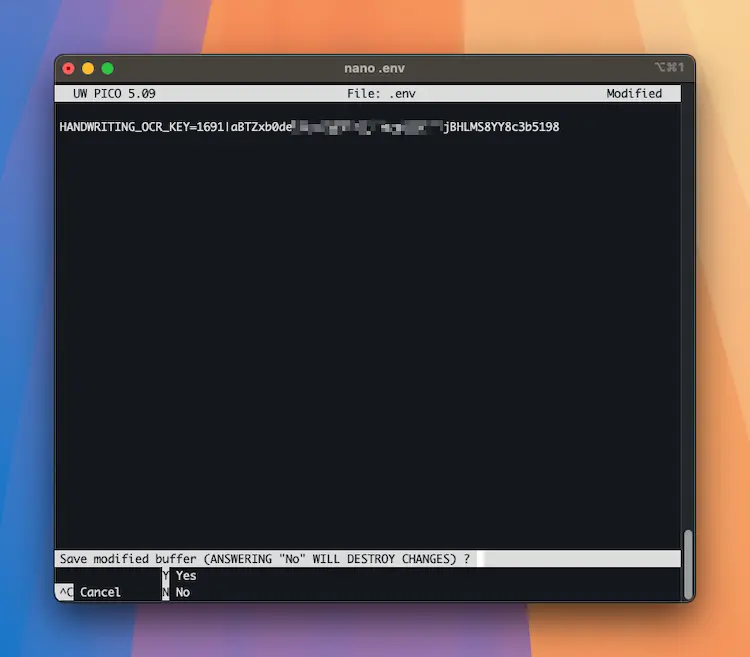
💡 Important: If you’re using Git for source control, add .env to your .gitignore so you don’t accidentally commit your API key:
echo ".env" >> .gitignoreThe Sample Document
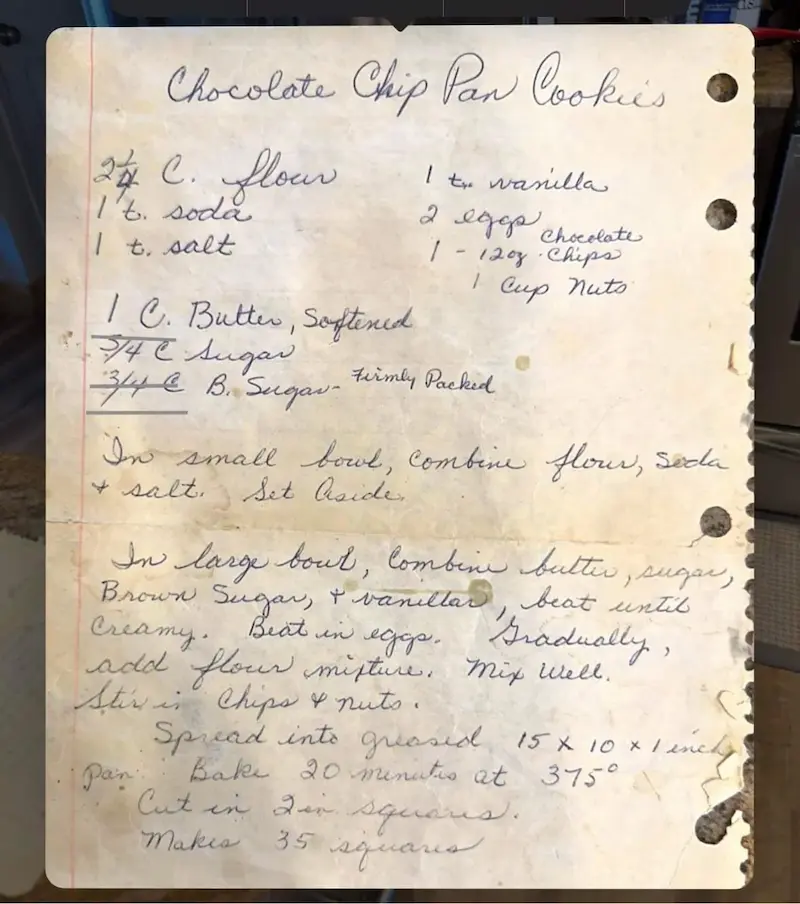
For this tutorial, I’m processing a handwritten recipe card. It’s got messy handwriting, mixed print and cursive, and some abbreviations - exactly the kind of real-world document that breaks traditional OCR tools like Tesseract.
The goal is to extract all the text so we can search it, analyze it, or feed it into other systems.
Basic Transcription Script
Let’s start with a simple script that uploads the document, waits for processing, and downloads the result. I’ll walk through each part.
First, create the file transcribe.py in your project root:
nano transcribe.pyNext, paste the following code into the new file, and save it.
# transcribe.py
import os
import sys
import requests
import time
from dotenv import load_dotenv

load_dotenv()

API_KEY = os.getenv('HANDWRITING_OCR_KEY')
BASE_URL = 'https://api.handwritingocr.com/v3'

def transcribe_document(file_path):
    """
    Upload a handwritten document and return the transcribed text.

    Args:
        file_path: Path to your PDF or image file

    Returns:
        str: The transcribed text
    """
    # Check file exists
    if not os.path.exists(file_path):
        raise FileNotFoundError(f"File not found: {file_path}")

    print(f"📄 Uploading {file_path}...")

    # Step 1: Upload the document
    with open(file_path, 'rb') as f:
        response = requests.post(
            f'{BASE_URL}/documents',
            headers={
                'Authorization': f'Bearer {API_KEY}',
                'Accept': 'application/json'
            },
            files={'file': f},
            data={'action': 'transcribe'}
        )

    response.raise_for_status()

    doc_id = response.json()['id']
    print(f"✓ Document uploaded successfully!")
    print(f"  Document ID: {doc_id}")
    print(f"  Status: {response.json()['status']}")

    # Step 2: Poll for completion
    print("\n⏳ Processing document...")
    while True:
        status_response = requests.get(
            f'{BASE_URL}/documents/{doc_id}',
            headers={
                'Authorization': f'Bearer {API_KEY}',
                'Accept': 'application/json'
            }
        )
        status_response.raise_for_status()

        doc_data = status_response.json()
        status = doc_data['status']

        if status == 'processed':
            print("✓ Processing complete!")
            break
        elif status == 'failed':
            raise Exception("OCR processing failed")

        print(f"  Status: {status}... checking again in 2 seconds")
        time.sleep(2)

    # Step 3: Download the transcribed text
    print("\n📥 Downloading transcription...")
    result = requests.get(
        f'{BASE_URL}/documents/{doc_id}.txt',
        headers={'Authorization': f'Bearer {API_KEY}'}
    )
    result.raise_for_status()

    print(f"✓ Success! Downloaded {len(result.text):,} characters")
    return result.text

def main():
    """Main entry point"""
    # Check for command line argument
    if len(sys.argv) != 2:
        print("Usage: python transcribe.py <file_path>")
        print("\nExample:")
        print("  python transcribe.py inspection_report.pdf")
        sys.exit(1)

    input_file = sys.argv[1]

    # Generate output filename (same name, .txt extension)
    base_name = os.path.splitext(os.path.basename(input_file))[0]
    output_file = f'{base_name}_transcription.txt'

    try:
        # Transcribe the document
        text = transcribe_document(input_file)

        # Save the result
        with open(output_file, 'w') as f:
            f.write(text)

        # Show a preview
        print("\n" + "="*60)
        print("TRANSCRIBED TEXT (first 500 characters)")
        print("="*60)
        print(text[:500])
        if len(text) > 500:
            print("...")

        print(f"\n✓ Full transcription saved to {output_file}")

    except FileNotFoundError as e:
        print(f"\n❌ Error: {e}", file=sys.stderr)
        sys.exit(1)
    except Exception as e:
        print(f"\n❌ Error: {e}", file=sys.stderr)
        sys.exit(1)

if __name__ == '__main__':
    main()
Let’s break down what’s happening here…
Step 1: Upload
response = requests.post(
    f'{BASE_URL}/documents',
    headers={
        'Authorization': f'Bearer {API_KEY}',
        'Accept': 'application/json'
    },
    files={'file': f},
    data={'action': 'transcribe'}
)
I’m sending a POST request to the /documents endpoint with:
- Authentication header: Your API key using Bearer token scheme
- File: The PDF or image file
- Action:
transcribetells the API we want full text extraction (there are other actions liketablesandextractorwe’ll explore later)
The API responds immediately with a document ID and queues the document for processing.
Step 2: Poll for Status
while True:
    status_response = requests.get(
        f'{BASE_URL}/documents/{doc_id}',
        headers={
            'Authorization': f'Bearer {API_KEY}',
            'Accept': 'application/json'
        }
    )

    status = status_response.json()['status']

    if status == 'processed':
        break

    time.sleep(2)
I’m checking the status every 2 seconds. The status will be:
queued- Waiting to startprocessing- Currently being processedprocessed- Done! Ready to downloadfailed- Something went wrong
For a single-page document like our recipe card, processing usually takes 5-15 seconds.
Step 3: Download
result = requests.get(
    f'{BASE_URL}/documents/{doc_id}.txt',
    headers={'Authorization': f'Bearer {API_KEY}'}
)
Notice I’m adding .txt to the document ID. This tells the API I want plain text format. The API supports multiple formats - we’ll look at those in a minute.
Running the Script
To run this script with a document, we simply need to run the following command from the terminal:
uv run python transcribe.py [path_to_your_file]For example, using our sample file that is in our project root, we would use:
uv run python transcribe.py recipe.pdfHere’s what you’ll see:
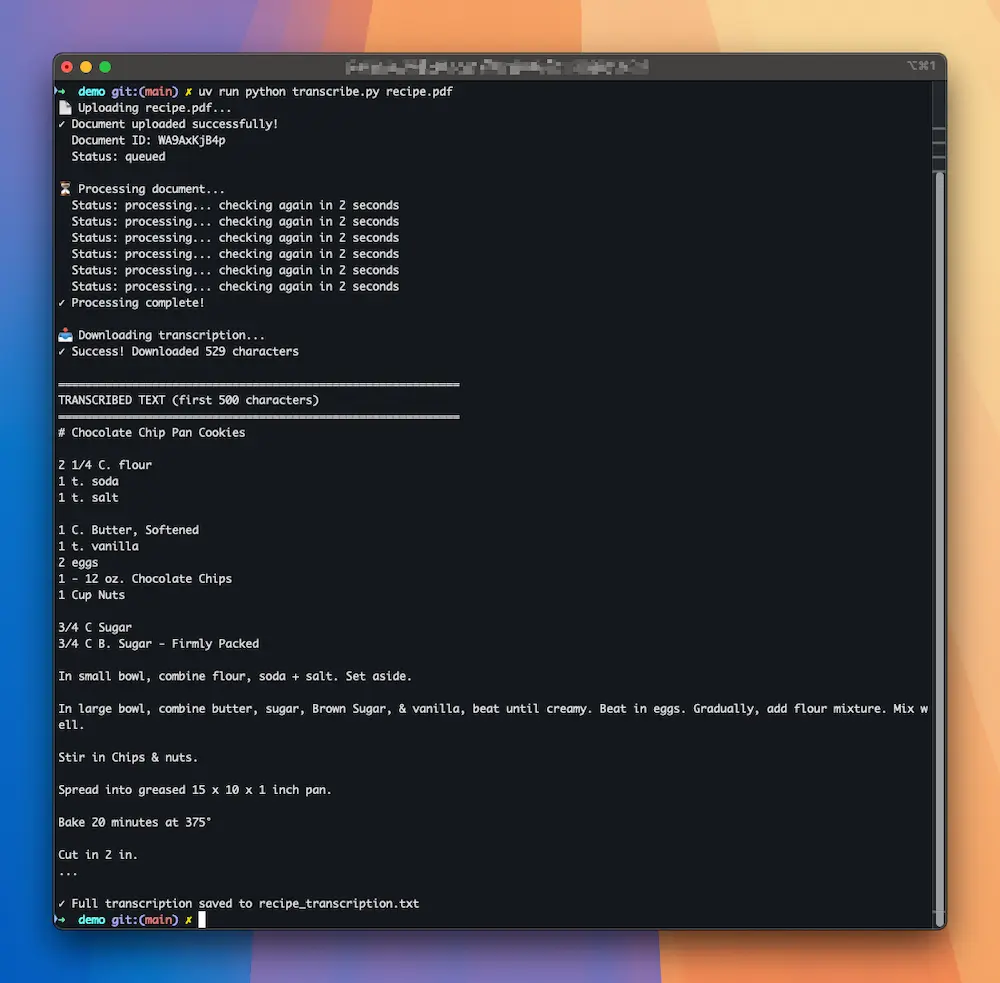
And that’s it! You now have a clean text file with all the handwritten content accurately transcribed. The script automatically named the output file based on your input (recipe.pdf → recipe_transcription.txt).
You can process any supported file type:
# PDFs
uv run python transcribe.py document.pdf

# Images
uv run python transcribe.py handwritten_notes.jpg
uv run python transcribe.py scanned_form.png

# Other formats
uv run python transcribe.py photo.heic
uv run python transcribe.py scan.tiff
Why Not Tesseract? Understanding Handwriting OCR Limitations
If you’re familiar with Python OCR, you might be thinking: “Why use an API when I could just use PyTesseract or Tesseract for free?”
Fair question. Let me show you exactly why Tesseract doesn’t work for handwritten documents - and when you should use it instead.
Quick Tesseract Test
Let’s run Tesseract on the same recipe card and compare the results. First, install Tesseract:
# Mac
brew install tesseract

# Ubuntu/Debian
sudo apt-get install tesseract-ocr

# Windows
# Download from https://github.com/tesseract-ocr/tesseract
Now let’s try using PyTesseract (the Python wrapper for Tesseract) on our handwritten recipe:
# First install pytesseract
uv add pytesseract pillow

# Try to run Tesseract on the PDF
tesseract recipe.pdf tesseract_output
Oops:
Error: Tesseract doesn't support PDF files directlyRight, Tesseract can’t read PDFs. So now we need to convert it to an image first. Let’s install more tools:
# Install ImageMagick for PDF conversion
# Mac
brew install imagemagick

# Ubuntu/Debian
sudo apt-get install imagemagick

# Windows
# Download from https://imagemagick.org/
Now convert the PDF to an image:
# Convert PDF to PNG
magick -density 300 recipe.pdf recipe.png

# Now try Tesseract again
tesseract recipe.png tesseract_output
You’ll see a bunch of warnings:
Estimating resolution as 1057
Detected 199 diacritics
Image too small to scale!! (2x36 vs min width of 3)
Line cannot be recognized!!
Image too small to scale!! (2x36 vs min width of 3)
Line cannot be recognized!!
Tesseract is literally telling you it can’t process parts of the document. Not a great sign.
Now let’s look at what it managed to extract:
cat tesseract_output.txt

I'S.

S Cheeebate
t, Aalt  - (Qey -Chipa
Ceeg? Nita
i @. Butter 1 Sopflned
SFL ce
"s a= _@ B Sa tirmls i, foiiel

Sw Large teeth Te TS Sars
BpAcwwW Sure wy, rem LD, Aeat . 2acl
Crea A, = I; Mn) LO GGx- me ay |
clot Cocer . ane plc ihs, Nig lieth,

OA <a Chips Y Nilo.
| | yr 2nrd inte Vrre Ne BN 4
he , Bake XO 4k»
ake oe
This result makes no sense at all, and is not usable. Tesseract is fantastic for printed text, but it was never designed for handwriting recognition. I’ve seen it achieve maybe 40-50% accuracy on handwritten documents at best, which is basically unusable for any real application.
Tesseract OCR achieves only 40-50% accuracy on handwriting, while modern AI-powered handwriting OCR systems consistently hit 97%+ accuracy.
!Tesseract performs poorly with handwritten text
Understanding the Technology Gap
This isn’t Tesseract’s fault - it’s doing exactly what it was designed to do. Tesseract uses traditional pattern matching optimized for printed fonts. [Handwritten text recognition requires fundamentally different AI models trained on millions of examples of real handwriting variations.
Modern AI-powered OCR systems use deep learning models specifically trained on handwritten text. These models understand:
- Natural writing variations and inconsistencies
- Cursive and connected letterforms
- Context to disambiguate unclear characters
- Document layout and structure
Your documents remain private and are processed only to deliver your results. They are not used to train models or shared with anyone else.
HandwritingOCR is purpose-built for handwriting and reads it with astonishing accuracy. It offers an easy-to-use API, so there’s no model training, no preprocessing, no fiddling with image thresholds. You just send the document and get back clean text a few seconds later.
When to Use Tesseract vs. AI OCR
Here’s a quick comparison of Tesseract and modern AI-powered handwriting OCR for Python projects:
| Feature | Tesseract (pytesseract) | AI Handwriting OCR |
|---|---|---|
| Handwriting Accuracy | 40-50% | 97%+ |
| Printed Text Accuracy | 97%+ | 98%+ |
| Setup Complexity | High (requires ImageMagick, system dependencies) | Low (simple API) |
| PDF Support | No (requires conversion) | Yes (native) |
| Preprocessing Required | Yes (manual image optimization) | No (automatic) |
| Structured Data Extraction | No | Yes (Custom Extractors) |
| Batch Processing | Manual implementation | Built-in |
| Cost | Free (self-hosted) | Pay per page |
Use Tesseract when:
- ✅ You’re processing printed text (books, invoices, typed forms)
- ✅ Text is machine-generated and clearly printed
- ✅ You need a free, self-hosted solution for simple documents
- ✅ Documents have consistent fonts and good quality
Use AI-powered handwriting OCR when:
- ✅ Processing any handwritten content
- ✅ Dealing with cursive or mixed handwriting styles
- ✅ Accuracy matters (97%+ vs. 40-50%)
- ✅ You want to extract structured data from forms
- ✅ Processing historical documents or personal notes
HandwritingOCR handles Python handwriting OCR at production scale. The API processes documents with 97%+ accuracy, supports batch operations, and exports to multiple formats.
For a detailed comparison of accuracy rates, processing capabilities, and use cases, check out our guide on Tesseract vs. AI OCR for handwriting.
Extracting Structured Data with Custom Extractors
Okay, here’s where things get really powerful. What if you don’t want the full text, but just specific data from the document?
Let’s say you’ve got hundreds of these handwritten recipe cards - maybe you inherited your grandmother’s recipe box, or you run a restaurant with decades of handwritten recipes. You want to digitize them all and create a searchable database with:
- Recipe name
- List of ingredients with quantities
- Cooking instructions
You could transcribe everything and then parse the text, but that’s tedious and error-prone. Instead, let’s use a Custom Extractor to get structured data directly.
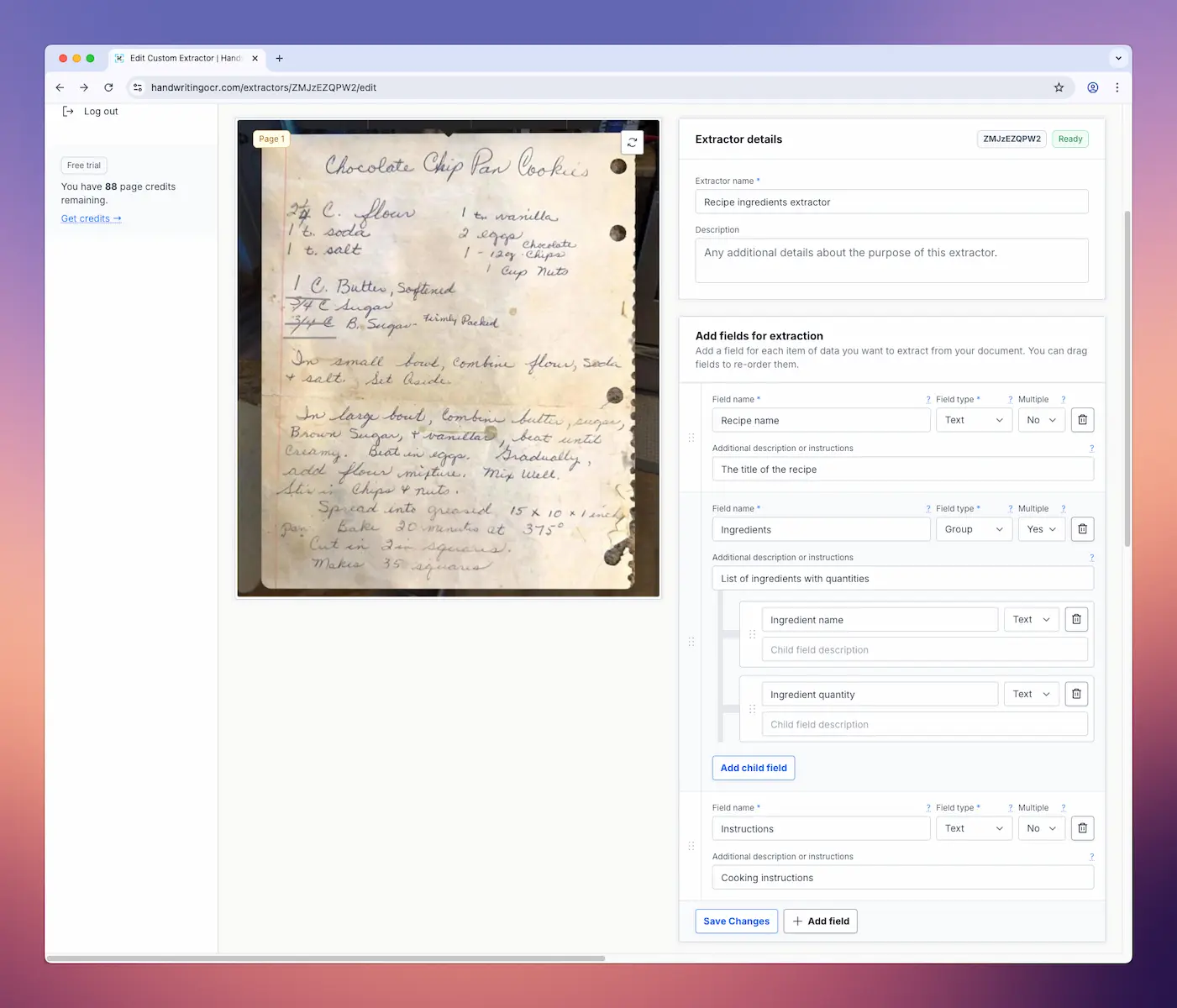
Step 1: Create Your Extractor
Head over to handwritingocr.com/extractors and click “Create New Extractor”.
Give your extractor a name (in my case, “Recipe ingredients extractor”). Next, upload your sample recipe card to test against. Now define the fields you want to extract. For our recipe cards, I’m creating:
Field 1: Recipe Name
- Field name:
recipe_name - Type: Text
- Description: The title of the recipe
Field 2: Ingredients
- Field name:
ingredients - Type: Group
- Description: List of ingredients with quantities
- Child fields:
- Ingredient name (text)
- Ingredient quantity (text)
Field 3: Instructions
- Field name:
instructions - Type: Text
- Description: Cooking instructions
The extractor uses AI to understand the document structure and pull out exactly these fields. Click “Test” to see how it performs on your sample:
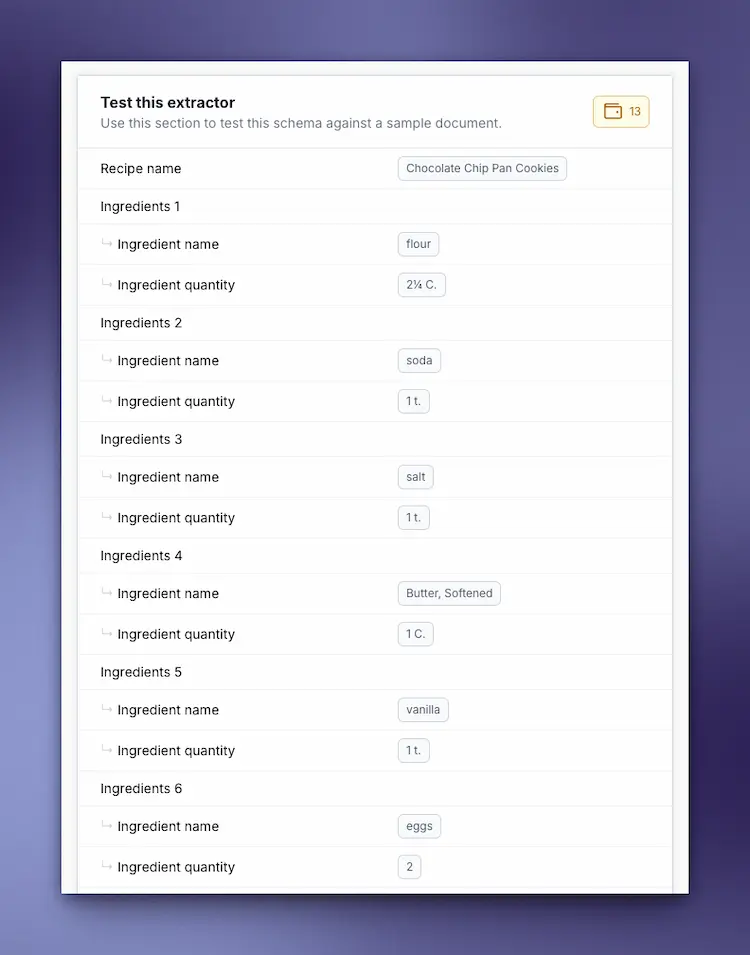
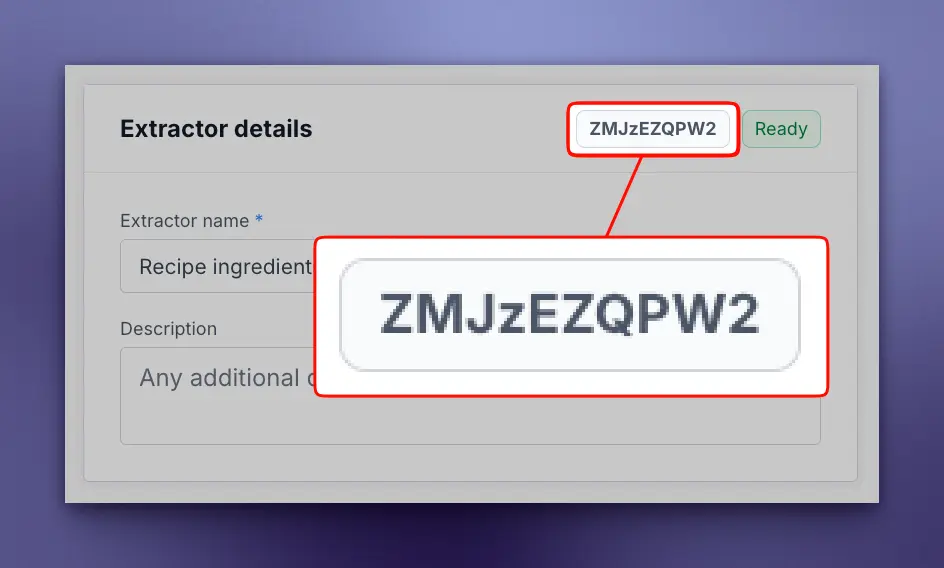
Looks good! Now save the extractor. In the top right corner, you’ll see your Extractor ID - that’s what we need for the API.
Copy that ID - we’ll use it in our Python script.
Step 2: Extract Data with Python
Now let’s write a script that uses this extractor:
# extractor.py
import os
import sys
import requests
import time
import json
from dotenv import load_dotenv

load_dotenv()

API_KEY = os.getenv('HANDWRITING_OCR_KEY')
BASE_URL = 'https://api.handwritingocr.com/v3'

def extract_data(file_path, extractor_id):
    """
    Extract structured data using a Custom Extractor.

    Args:
        file_path: Path to document (PDF, image, etc.)
        extractor_id: Your 10-character extractor ID

    Returns:
        dict: Extracted structured data
    """
    if not os.path.exists(file_path):
        raise FileNotFoundError(f"File not found: {file_path}")

    print(f"📄 Uploading {file_path}...")

    # Upload with extractor action
    with open(file_path, 'rb') as f:
        response = requests.post(
            f'{BASE_URL}/documents',
            headers={
                'Authorization': f'Bearer {API_KEY}',
                'Accept': 'application/json'
            },
            files={'file': f},
            data={
                'action': 'extractor',  # Use extractor instead of transcribe
                'extractor_id': extractor_id
            }
        )

    response.raise_for_status()
    doc_id = response.json()['id']
    print(f"✓ Document uploaded: {doc_id}")

    # Poll for completion
    print("\n🔍 Extracting structured data...")
    while True:
        status_response = requests.get(
            f'{BASE_URL}/documents/{doc_id}',
            headers={
                'Authorization': f'Bearer {API_KEY}',
                'Accept': 'application/json'
            }
        )
        status_response.raise_for_status()

        status = status_response.json()['status']

        if status == 'processed':
            print("✓ Extraction complete!")
            break
        elif status == 'failed':
            raise Exception("Extraction failed")

        print(f"  Status: {status}...")
        time.sleep(2)

    # Download as JSON
    result = requests.get(
        f'{BASE_URL}/documents/{doc_id}.json',
        headers={'Authorization': f'Bearer {API_KEY}'}
    )
    result.raise_for_status()

    return result.json()

def main():
    if len(sys.argv) != 3:
        print("Usage: python extractor.py <extractor_id> <file_path>")
        print("\nExample:")
        print("  python extractor.py Ks08XVPyMd recipe.pdf")
        print("\nGet your extractor ID from: https://www.handwritingocr.com/extractors")
        sys.exit(1)

    extractor_id = sys.argv[1]
    input_file = sys.argv[2]

    try:
        # Extract structured data
        data = extract_data(input_file, extractor_id)

        # Pretty print
        print("\n" + "="*60)
        print("EXTRACTED DATA")
        print("="*60)
        print(json.dumps(data, indent=2))

        # Save to file
        base_name = os.path.splitext(os.path.basename(input_file))[0]
        output_file = f'{base_name}_data.json'

        with open(output_file, 'w') as f:
            json.dump(data, f, indent=2)

        print(f"\n✓ Data saved to {output_file}")

        # Show structured access (if recipe data)
        if 'recipe_name' in data:
            print("\n" + "="*60)
            print("RECIPE DETAILS")
            print("="*60)
            print(f"Recipe: {data['recipe_name']}")
            if 'ingredients' in data:
                print(f"\nIngredients ({len(data['ingredients'])} items):")
                for ingredient in data['ingredients']:
                    print(f"  - {ingredient}")
            if 'instructions' in data:
                print(f"\nInstructions: {data['instructions'][:100]}...")

    except FileNotFoundError as e:
        print(f"\n❌ Error: {e}", file=sys.stderr)
        sys.exit(1)
    except Exception as e:
        print(f"\n❌ Error: {e}", file=sys.stderr)
        sys.exit(1)

if __name__ == '__main__':
    main()
Run it with your extractor ID and file path:
uv run python extractor.py Ks08XVPyMd recipe.pdfAnd here’s the result - printed to your terminal, and saved to your project root as recipe_data.json.
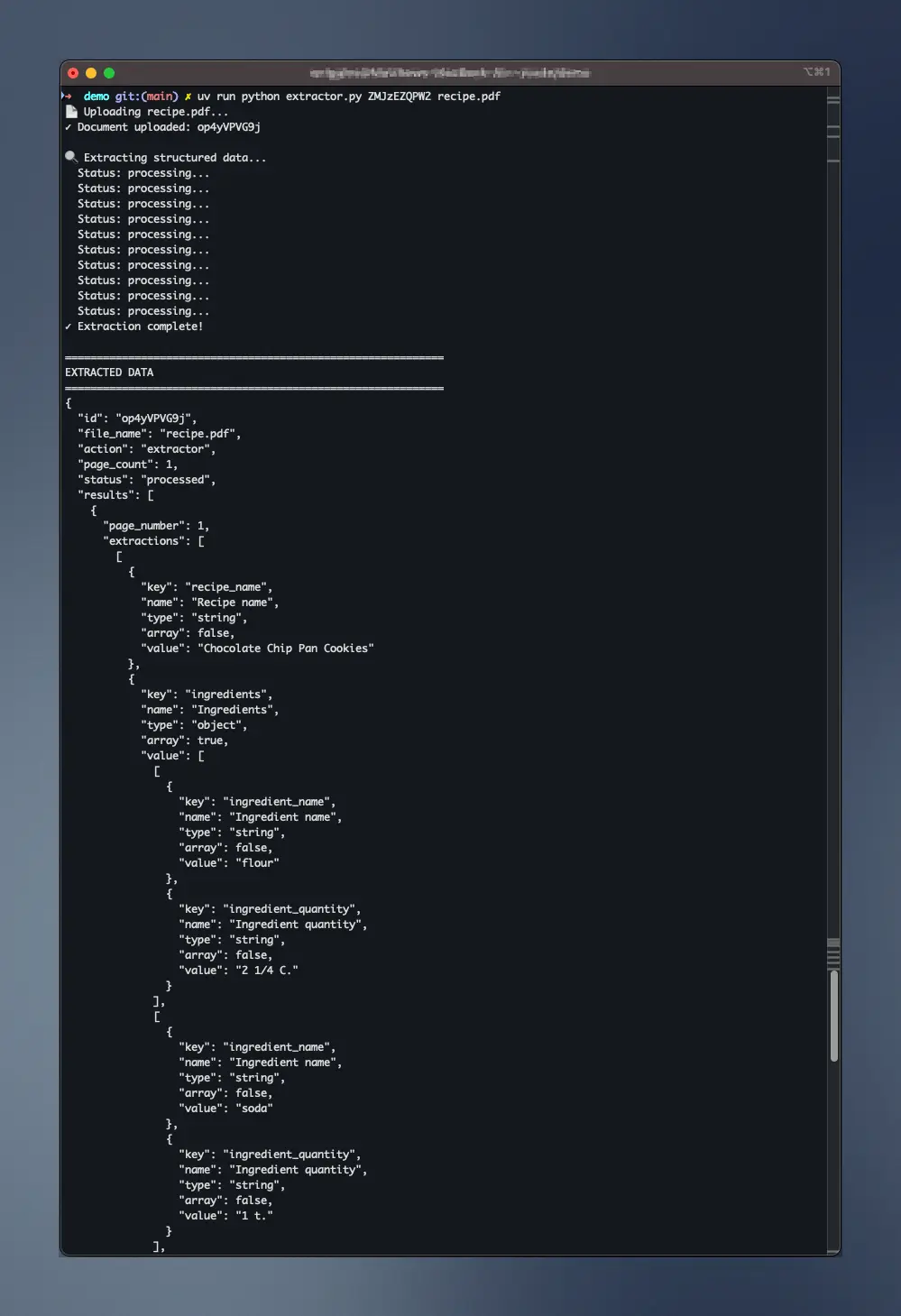
Perfect! Now you have clean, structured data that you can:
- Store in a database
- Display on a recipe website
- Export to a recipe app
- Analyze (most common ingredients, etc.)
Processing Your Entire Recipe Box
Got 200 recipe cards to digitize? Create a batch processing script:
# batch_extractor.py
import os
import sys
from pathlib import Path
import json

# Same extract_data function from extractor.py
# ... (copy the extract_data function here)

def batch_extract(input_dir, extractor_id):
    """Process all documents in a directory"""
    input_dir = Path(input_dir)
    all_data = []

    # Find all image/PDF files
    patterns = ['*.pdf', '*.jpg', '*.jpeg', '*.png']
    files = []
    for pattern in patterns:
        files.extend(input_dir.glob(pattern))

    print(f"Found {len(files)} document(s) to process\n")

    for i, file_path in enumerate(files, 1):
        print(f"\n[{i}/{len(files)}] Processing {file_path.name}...")

        try:
            data = extract_data(str(file_path), extractor_id)
            all_data.append({
                'file': file_path.name,
                'data': data
            })

            # Show what was extracted
            if 'recipe_name' in data:
                print(f"  ✓ Extracted: {data['recipe_name']}")
            else:
                print(f"  ✓ Extracted data from {file_path.name}")

        except Exception as e:
            print(f"  ✗ Failed: {e}")

    # Save all results to one JSON file
    with open('extracted_data_all.json', 'w') as f:
        json.dump(all_data, f, indent=2)

    print(f"\n✓ Processed {len(all_data)}/{len(files)} documents")
    print(f"  Saved to extracted_data_all.json")

def main():
    if len(sys.argv) != 3:
        print("Usage: python batch_extractor.py <extractor_id> <input_dir>")
        print("\nExample:")
        print("  python batch_extractor.py Ks08XVPyMd recipe_cards/")
        print("\nGet your extractor ID from: https://www.handwritingocr.com/extractors")
        sys.exit(1)

    extractor_id = sys.argv[1]
    input_dir = sys.argv[2]

    batch_extract(input_dir, extractor_id)

if __name__ == '__main__':
    main()
Run it:
# Put all your recipe cards in a folder
mkdir recipe_cards
cp *.pdf recipe_cards/

# Extract data from all of them
uv run python batch_extractor.py Ks08XVPyMd recipe_cards/
You’ll get:
Found 47 document(s) to process

[1/47] Processing chocolate_chip_cookies.pdf...
  ✓ Extracted: Grandma's Chocolate Chip Cookies

[2/47] Processing apple_pie.pdf...
  ✓ Extracted: Classic Apple Pie

[3/47] Processing beef_stew.pdf...
  ✓ Extracted: Hearty Beef Stew

...

✓ Processed 47/47 documents
  Saved to extracted_data_all.json
Now you have a complete digital archive of your recipe collection in structured JSON format.
Export to CSV for Spreadsheet Analysis
Want to analyze your recipes in Excel? Export as CSV:
# Download as CSV instead
result = requests.get(
    f'{BASE_URL}/documents/{doc_id}.csv',
    headers={'Authorization': f'Bearer {API_KEY}'}
)

with open('recipes.csv', 'w') as f:
    f.write(result.text)
Or Excel format:
# Download as Excel
result = requests.get(
    f'{BASE_URL}/documents/{doc_id}.xlsx',
    headers={'Authorization': f'Bearer {API_KEY}'}
)

with open('recipes.xlsx', 'wb') as f:
    f.write(result.content)
Now you can open it in Excel and:
- Sort recipes by type
- Filter by ingredients (find all recipes with chocolate)
- Count ingredient frequencies
- Share with family members
When to Use Custom Extractors
Use extractors when:
- ✅ You need specific fields from forms or documents
- ✅ You’re processing many similar documents (recipes, invoices, forms)
- ✅ You want data in CSV/Excel for analysis
- ✅ You need to feed data into other systems (databases, websites, apps)
Use plain transcription when:
- ✅ You need the complete text
- ✅ Documents vary significantly in structure
- ✅ You’re digitizing for archival or search purposes
- ✅ You don’t know in advance what fields you need
For our recipe box example, Custom Extractors are perfect - we know exactly what data we want (name, ingredients, instructions), and we’re processing hundreds of similar documents.
Wrapping Up
We’ve covered a lot of ground in this Python handwriting OCR tutorial. You now know how to:
- ✅ Set up a Python project with
uvfor fast dependency management - ✅ Transcribe handwritten documents to plain text with 97%+ accuracy
- ✅ Handle PDFs directly without conversion hassles
- ✅ Understand why Tesseract and PyTesseract fail on handwriting
- ✅ Choose the right OCR tool for printed vs. handwritten text
- ✅ Extract structured data from forms using Custom Extractors
- ✅ Process entire batches of documents efficiently
- ✅ Export results in multiple formats (TXT, JSON, CSV, XLSX)
Throughout these examples, we’ve been downloading results as plain text (.txt) and JSON (.json), but the API supports several other formats depending on your needs. You can download transcriptions as Word documents (.docx) for better formatting preservation, or extract data as CSV (.csv) and Excel (.xlsx) files for spreadsheet analysis. For the complete list of available formats and advanced features like webhooks, check out the full API documentation.
The HandwritingOCR API makes it dead simple to add handwriting recognition to your Python projects. No model training, no image preprocessing, no wrestling with Tesseract and ImageMagick dependencies. Just send your document and get back accurate, structured results in seconds.
Whether you’re building a document digitization pipeline, extracting data from historical archives, or processing handwritten forms at scale, HandwritingOCR gives you production-ready handwriting recognition with just a few lines of Python code. Ready to start? Try HandwritingOCR free with complimentary credits.
Next Steps
Ready to start?
- Sign up for a free account - Get free credits on creating an account
- Generate your API token - Takes 30 seconds
- Create Custom Extractors - For structured data extraction
- View the full API docs - Complete reference with all available formats and features
Email us at support@handwritingocr.com - We’re always happy to help.
Frequently asked questions
Which Python libraries are best for interfacing with handwriting OCR APIs?
We recommend using the 'requests' library for simple API calls or 'httpx' for asynchronous processing. For image preparation before OCR, 'OpenCV' (cv2) and 'Pillow' (PIL) are essential for resizing, grayscaling, and contrast enhancement.
How do I handle batch processing of images using Python scripts?
The most efficient way is to use Python's 'concurrent.futures' or 'asyncio' to send multiple API requests simultaneously. This allows you to process hundreds of handwritten pages in the time it would take to process one sequentially.
Can I use Tesseract with Python for handwriting?
While you can use the 'pytesseract' wrapper, Tesseract's accuracy for handwriting is significantly lower than AI-based APIs. For production-quality handwriting recognition in Python, we recommend using a specialized HTR API.