
You have a stack of cursive letters and no way to read them. Maybe it’s a wartime letter from a grandparent, a Victorian journal full of looped Spencerian script, a handwritten recipe card, or your own notebook pages from before you typed everything. The scanner’s built-in OCR returns gibberish. ChatGPT does well on one paragraph and then quietly fabricates the next. Google Translate refuses to engage with handwriting at all.
A cursive translator, also called a cursive reader, is the purpose-built tool for this job: it converts cursive to text straight from a photo. Upload a picture or scan, wait under a minute, get clean editable text back, then translate it if the original wasn’t in your language. And rather than just claim it works, we show it: further down you can watch it run against real letters, compared word for word with expert human transcribers.
Quick takeaways
- Reads connected cursive from a phone photo at around 95% to 99% on legible modern hands (lower on faded or historical scripts), versus under 50% for traditional OCR.
- A document converts in 15 to 30 seconds, pages processed in parallel; for a large archive your time goes into review, not processing.
- Handles cursive in 300+ languages and translates the result in one workflow, with no copy-pasting between tools.
- Free trial credits (5 pages), no card. After that, pay as you go at $15 per 100 pages, or subscribe from $19 a month for 250.
How accurate is cursive to text conversion in practice
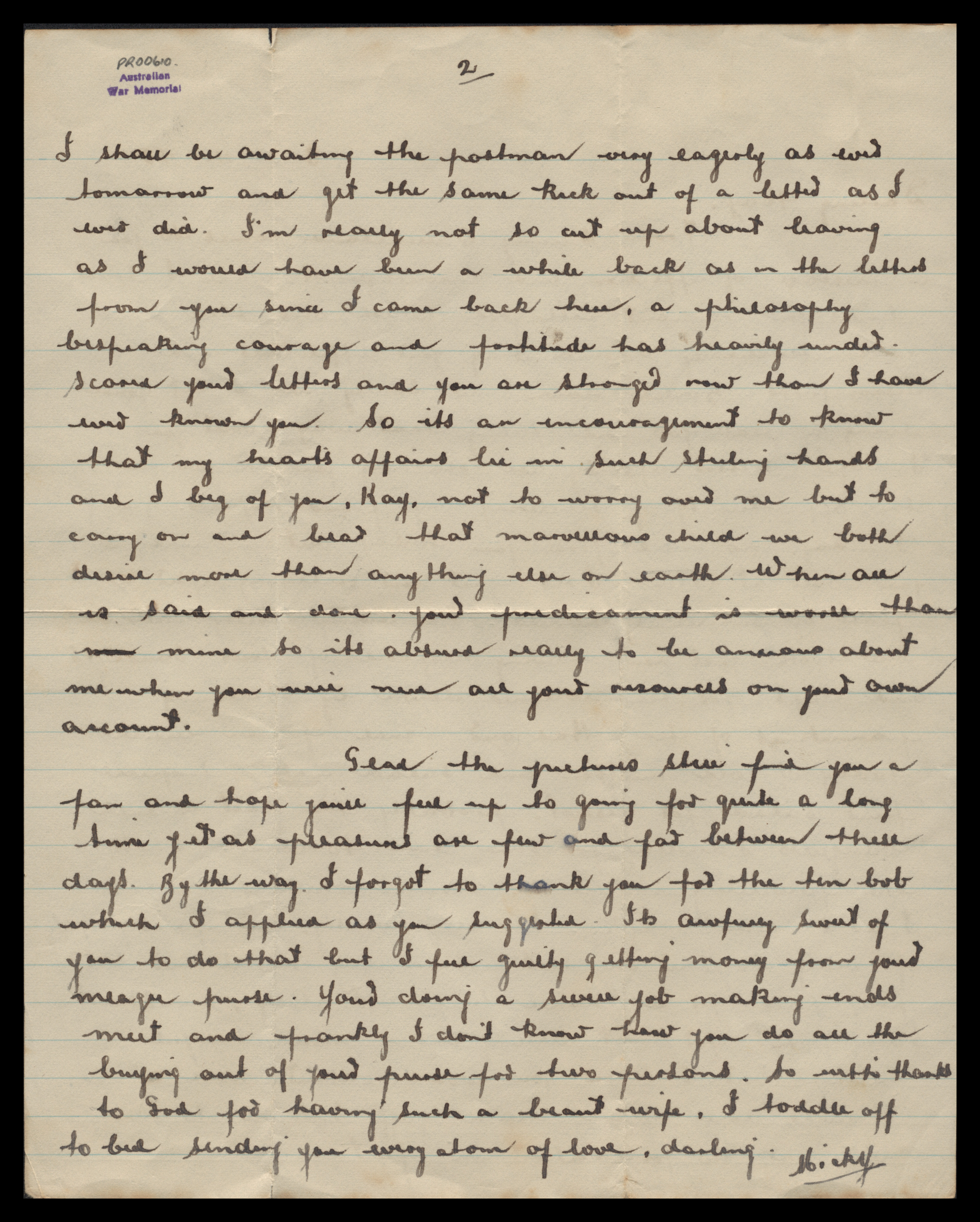
We’d rather show than assert. We ran real cursive through Handwriting OCR and compared it word for word against expert human transcriptions. Here are two, errors and all: a 1940s wartime letter from the Australian War Memorial’s archive, crossed-out words included, and a doctor’s note so illegible its recipient had posted it online asking strangers to help read it.
 Click to enlarge
 I shall be awaiting the postman very eagerly as ever tomorrow and get the same kick out of a letter as I ever did. I'm really not so cut up about leaving as I would have been a while back as in the letters from you since I came back here, a philosophy bespeaking courage and fortitude has heavily under scored your letters and you are stronger now than I have ever known you. So its an encouragement to know that my heart's affairs lie in such sterling hands and I beg of you, Kay, not to worry over me but to carry on and bear that marvellous child we both desire more than anything else on earth. When all is said and done, your predicament is worse than min mine so its absurd really to be anxious about me when you will need all your resources on your own account.
Glad the pictures still find you a fan and hope you'll feel up to going for quite a long time yet as pleasures are few and far between these days. By the way, I forgot to thank you for the ten bob which I applied as you suggested. Its awfully sweet of you to do that but I feel guilty getting money from your meagre purse. Your doing a swell job making ends meet and frankly I don't know how you do all the buying out of your purse for two persons. So with thanks to God for having such a beaut wife, I toddle off to bed sending you every atom of love, darling. Micky
I shall be awaiting the postman very eagerly as ever tomorrow and get the same kick out of a letter as I ever did. I’m really not so cut up about leaving as I would have been a while back as in the letters from you since I came back here, a philosophy bespeaking courage and fortitude has heavily ended. I read your letters and you are stronger now than I have ever known you. So its an encouragement to know that my heart’s affairs lie in such sterling hands and I beg of you, Kay, not to worry over me but to carry on and bear that marvellous child we both desire more than anything else on earth. When all is said and done your predicament is worse than now mine so its absurd really to be anxious about me when you will need all your resources on your own account.
Glad the pictures still find you a fan and hope you’ll feel up to going for quite a long time yet as pleasures are few and far between these days. By the way, I forgot to thank you for the ten bob which I applied as you suggested. Its anyway sweet of you to do that but I feel guilty getting money from your meagre purse. You’re doing a swell job making ends meet and frankly I don’t know how you do all the buying out of your purse for two persons. So with thanks to God for having such a beaut wife, I toddle off to bed sending you every atom of love, darling. Mickey
Notes
- The writer's crossed-out words show struck through, exactly as left. Keeping struck text is a user option; Handwriting OCR can also exclude it entirely. The AI and the AWM transcribers even differ on a mark or two here.
- Two genuine misreads on a hard hand: “underscored” read as “ended. I read”, and “awfully” as “anyway”.
- Spelling follows the document's language setting (British English here), so it tracks the source. The only other differences are a normalised name (Micky to Mickey) and the writer's own “Your” tidied to “You're”.
Source: Australian War Memorial
On a hard wartime hand, our AI lands within a couple of words of the Australian War Memorial’s own transcribers, and faithfully marks the words the writer crossed out (keep them, as here, or drop struck text entirely). The two red words are genuine misreads; almost everything else is a dead heat with the human experts.
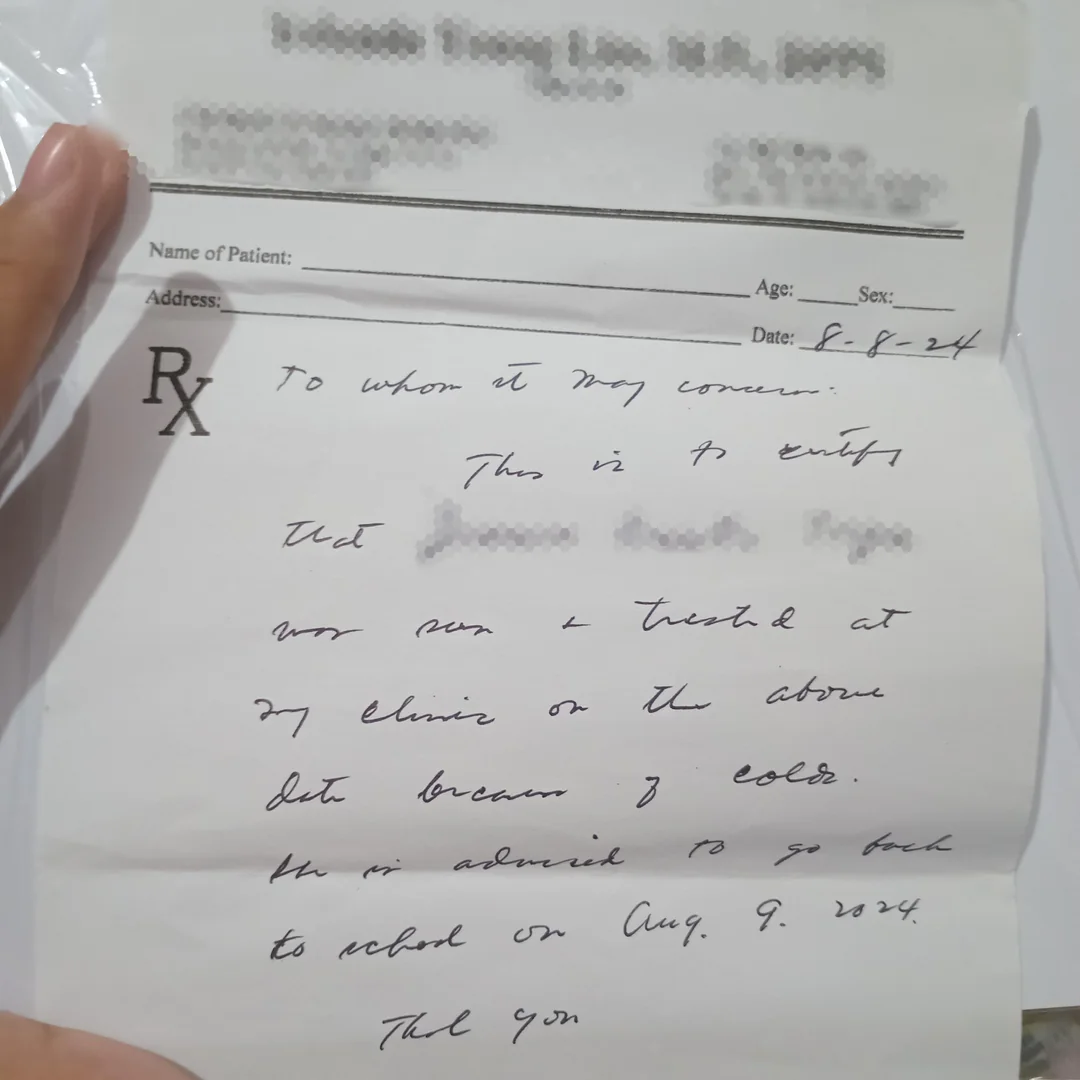
The doctor’s note is the honest stress test: a real clinic note whose recipient couldn’t read it and asked r/Transcription for help. Our transcription came back with no confirmed errors. The two words flagged below are genuinely ambiguous rather than wrong, including a pronoun the AI would normally read from the patient’s name, which was redacted here for privacy.
 Click to enlarge
 To whom it may concern:
This is to certify that [name] was seen & treated at my clinic on the above date because of colds.
She is advised to go back to school on Aug. 9, 2024.
Thank you
To whom it may concern:
This is to certify that [name] was seen & treated at my clinic on the above date because of cold.
He is advised to go back to school on Aug. 9, 2024.
Thank you
Notes
- “He” vs the presumed “She”: arguably not an error at all. The patient's name, which signals the pronoun, was redacted for privacy, so the correct word can't be confirmed either way, and it's exactly the context our AI normally uses to resolve a word like this.
- “cold” vs “colds”: a trailing letter even the note’s own recipient wasn’t sure of.
Source: r/Transcription
So the honest picture: on real letters our AI reads within a word or two of expert human transcribers, even on hard hands and crossed-out text. It dips on badly degraded passages and unfamiliar historical scripts (heavy ink fade, torn pages, German Sütterlin and Kurrent), where you’ll correct more by hand. The output is editable either way, so the free trial is the fastest way to see how it does on your document.
How it works
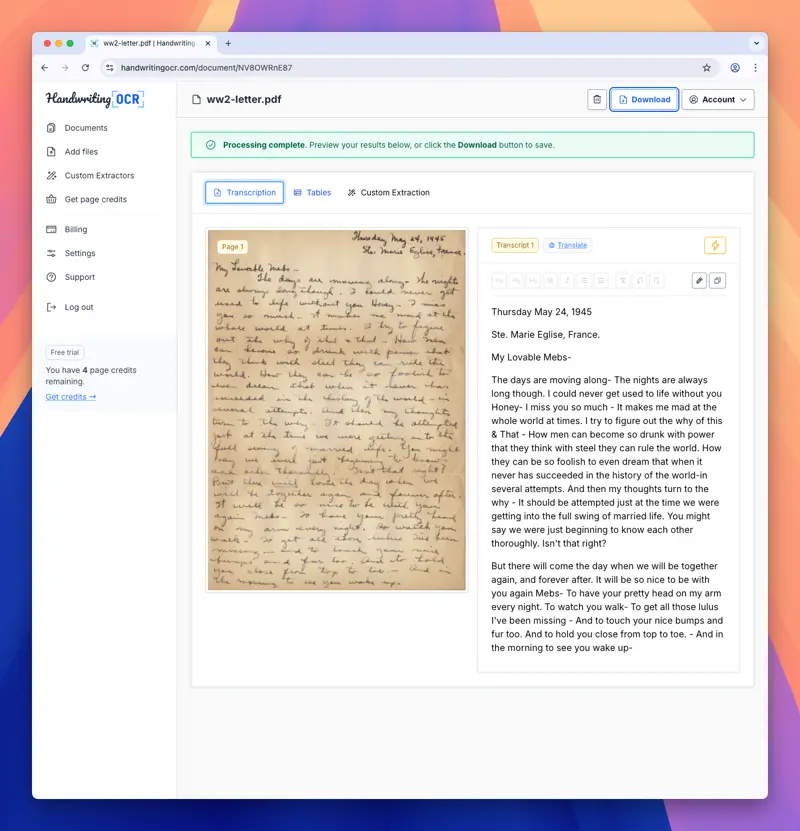
Three steps: photograph or scan the page, upload it at handwritingocr.com (free trial credits, no card), and choose Extract full text. A document comes back as editable text in 15 to 30 seconds, with pages processed in parallel, so a long archive is back almost as fast as a single page. Edit it, translate it into English or any of 300+ languages in the same flow, then export to Word, PDF or plain text. “Cursive reader”, “cursive translator” and “cursive decoder” all describe the same job: the right word just depends on whether you also need a language change, or are facing a particularly hard, historical hand.
Common cursive translation use cases
People bring us family letters and genealogy records, old diaries and journals, research archives, and handwritten legal documents. If one of those is your project, the genealogy, personal, research and legal pages go deeper.
When to use a cursive translator vs other tools
| Tool | Best for | Where it falls short on cursive |
|---|---|---|
| Handwriting OCR (this site) | Cursive of any era, any of 300+ languages, multi-page documents, translation pipeline. | Cloud-only, internet required. |
| Phone camera Live Text (iOS) / Google Lens | Quick printed text from signs, menus, business cards. | Fails on connected cursive and historical scripts. |
| ChatGPT or Claude vision | One paragraph of modern cursive. | Hallucinates on long documents, no batch workflow, no language pipeline. |
| Transkribus | Researchers training a custom model on a single archive. | Public models work out of the box; the best results need model training and setup. |
| Scanner built-in OCR | Clean printed text. | Designed for print, treats cursive as noise. |
| Hand-transcription | Documents under one page. | 30 to 60 minutes per page. |
For long documents, foreign-language documents, historical documents, or any workflow where you want the original photo and the typed text side by side, a purpose-built cursive translator is the right tool. For a single sentence of clearly-printed text on a sign, your phone’s camera is faster.
Reading particularly difficult cursive
For the hardest material (faded 1800s hands, German Sütterlin and Kurrent, or genuinely illegible writing), those linked guides go deeper.
Cursive to print conversion
“Cursive to print” usually means exactly what this tool does: take connected cursive handwriting and turn it into clean, printed text you can read, edit, and search. Upload a photo or scan of the cursive and you get printed, typed text back in seconds, the same workflow as everything else on this page.
What this tool will not do
- We do not return confidence scores or per-word bounding boxes. The underlying AI does not produce them.
- We do not improve from your specific documents over time. Your files are not used as training data. The model is the same for every user.
- Accuracy on ink-bled or torn passages can drop sharply. If the writing is invisible to the human eye, the AI cannot recover it either.
- Real-time is not realistic. Processing takes 15 to 30 seconds per document, with pages handled in parallel. Faster than typing, slower than instantaneous.
Ready to translate your cursive
Most people land on this page with one specific document in mind: a letter, a journal, a recipe card. Start there.
Sign up for free trial credits (no card required), upload your first page, and see whether the output matches what you can decipher yourself. If it does, the rest of the stack runs the same way.
If you have a tricky document or a large archive and want a recommendation before you start, get in touch with a sample image. We’ll tell you what to expect before you commit.
Frequently asked questions
What is a cursive translator?
A cursive translator is an AI tool that reads cursive handwriting from a photo or scan and converts it into clean digital text you can edit, search and translate. Unlike traditional OCR (which only reliably reads printed text), a cursive translator is trained on connected, flowing letterforms, including the way the same letter changes shape depending on what comes before and after it. The output is typed text in your browser, ready to copy, export to Word or PDF, or translate to another language.
How do I translate cursive from a photo?
Take a clear photo of the page (or scan it), upload it to handwritingocr.com, choose "Extract full text" and wait around 15 to 30 seconds per document, as pages are processed in parallel. The AI converts the cursive to typed text. You then review and download as Word, PDF, plain text or copy it straight from the page. No app install is required and the whole flow runs in your browser.
Can AI actually read cursive handwriting accurately?
Yes. On legible cursive, modern or historical, current AI models routinely hit the high 90s for word accuracy, as the comparisons on this page show. Faded, torn, or unfamiliar historical scripts (Kurrent, Sütterlin) are harder and need more correction by hand. Traditional OCR, by contrast, usually scores under 50% on cursive because it expects isolated, separated letters.
Is there a free cursive translator?
Handwriting OCR gives every new account free trial credits (5 pages) with no credit card, enough to try it on a few pages of cursive before you decide whether to pay. After that you can pay as you go at $15 per 100 pages, or subscribe from $19 a month for 250 pages. For one-off jobs (a single letter, a recipe card, a short journal entry) the free trial is normally enough on its own.
Will it work on a picture of cursive I took with my phone?
Yes. A phone photo is the most common input. For best results, hold the phone parallel to the page, use natural daylight where you can, and make sure the whole text block is in frame. Slight shadows, paper creases and off-angle photos are handled fine. The same upload flow accepts JPG, PNG, HEIC and multi-page PDFs.
Can it translate cursive from one language to another?
Yes. The same workflow handles both steps. First the AI reads the cursive into text in the original language (Spanish, German, French, Italian, Portuguese, Polish, Dutch and 290+ others). Then you click Translate to render the result in English (or any of the supported target languages). A French wartime letter or a Spanish-language family journal becomes English plain text without copy-pasting between two separate tools.
Does it work on left-handed or back-slanted cursive?
Yes. The AI is trained on a wide spread of natural writing styles, including back-slanted, near-vertical and heavily right-slanted hands. Slant direction is not a meaningful factor in modern handwriting recognition: letter shape and connection patterns matter much more.
Does the cursive translator work offline?
No. The AI models are too large to run locally and live in the cloud, so an internet connection is required. Uploads are encrypted in transit and at rest. Files are kept only as long as needed to process them and can be deleted from your dashboard at any time.