
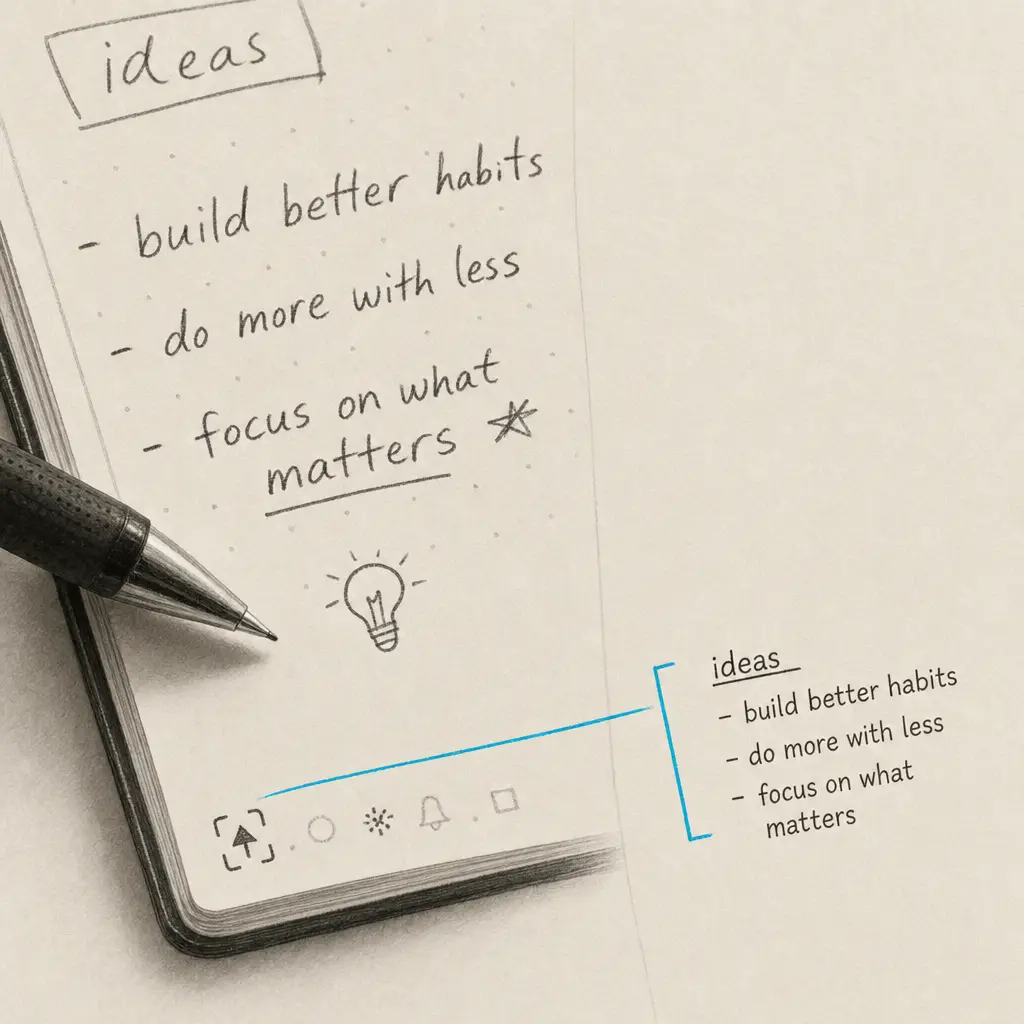
Rocketbook offers a clever solution for digitizing handwritten notes, combining the tactile experience of pen and paper with modern cloud connectivity. The reusable smart notebook has built-in OCR capabilities through its mobile app, but understanding how well it converts handwriting to text and when you might need alternatives is important for getting the best results.
Quick Takeaways
- Rocketbook includes OCR features in its mobile app to convert handwriting to text after scanning
- The system works best with clear, print-style handwriting and requires cloud connectivity
- Accuracy varies significantly based on handwriting quality and style
- Dedicated OCR services often provide better accuracy for challenging handwriting or important documents
- You can process existing Rocketbook scans through specialized OCR tools for improved results
How Rocketbook’s Handwriting to Text Conversion Works
Rocketbook combines physical notebooks with digital technology through a mobile app that scans your handwritten pages. The system uses special page markers to align scans properly, then applies OCR to convert handwriting to text.
The conversion process happens in several stages. When you scan a page with the Rocketbook app, it captures a high-contrast image of your notes. The app then sends this image to cloud-based OCR services that process the handwriting and return editable text. This cloud-based approach means you need an internet connection for text conversion to work.
Rocketbook’s OCR processes handwriting through cloud services, requiring an active internet connection for text conversion features.
The Rocketbook Scanning Process
Understanding how Rocketbook scans and converts your notes helps you get better results from the system.
Writing and Scanning:
- Write notes in your Rocketbook using compatible Frixion pens
- Open the Rocketbook mobile app on your smartphone
- Position the page within the app’s scanning frame
- The app automatically detects page markers and captures the image
- Select your destination services (email, cloud storage, etc.)
Text Conversion:
- Enable OCR in your destination settings
- The app sends the scanned image to cloud OCR services
- Handwriting gets processed and converted to searchable text
- Converted text saves to your selected destinations
- Original scanned images remain available alongside the text
The system prioritizes convenience and integration with popular cloud services. You can send notes directly to Google Drive, Dropbox, Evernote, or email without manual file transfers.
Rocketbook OCR Accuracy and Limitations
While Rocketbook provides convenient handwriting conversion, several factors affect how accurately it converts handwriting to text.
Handwriting Style Impact
Print-style handwriting with clear letter separation produces the best OCR results with Rocketbook. Cursive writing, connected letters, and personal shorthand often result in lower accuracy or failed recognition.
The system struggles with:
- Highly stylized or decorative handwriting
- Small or cramped writing that fills the entire page
- Light pen pressure that creates faint marks
- Mixed languages or specialized notation
- Mathematical equations or chemical formulas
- Diagrams with embedded text labels
Technical Limitations
Rocketbook’s OCR relies on cloud processing, which introduces several constraints:
| Limitation | Impact |
|---|---|
| Internet dependency | Cannot convert handwriting to text offline |
| Processing speed | Conversion takes several seconds per page |
| Batch processing | Must scan and convert pages individually |
| Privacy concerns | Notes are sent to third-party cloud services |
| Format options | Limited control over output formatting |
| Revision capabilities | Cannot edit or improve recognition after conversion |
Comparison with Dedicated OCR Services
For important documents or challenging handwriting, dedicated OCR services typically provide better results than Rocketbook’s built-in features.
Dedicated handwriting OCR services often achieve accuracy rates above 95% even on difficult handwriting, compared to variable results from app-based solutions.
When to consider dedicated OCR:
- Processing historical documents or old handwriting styles
- Converting medical, legal, or technical notes requiring high accuracy
- Batch processing multiple pages or notebooks at once
- Working with sensitive documents that shouldn’t be sent to third-party services
- Need for specific output formats (Word, Excel, structured data)
Converting Rocketbook Scans with Specialized OCR
If you have existing Rocketbook scans saved as PDFs or images, or if you need better accuracy than the app provides, you can process them through dedicated handwriting recognition services.
Using HandwritingOCR for Better Results
HandwritingOCR provides specialized processing for handwritten documents, including Rocketbook scans. The service processes documents with high accuracy while keeping your data private.
Advantages for Rocketbook users:
- Upload existing scans in PDF or image format
- Higher accuracy on challenging handwriting styles
- Batch process entire notebooks at once
- Export to Word, plain text, or other formats
- No third-party cloud service dependency
- Documents processed securely without training on your data
The process is straightforward. Save your Rocketbook scans as PDFs or images, then upload them to HandwritingOCR. The service handles the conversion and provides downloadable results in your preferred format.
Your documents remain private throughout processing. HandwritingOCR doesn’t use your data to train models or share it with third parties, addressing privacy concerns that come with cloud-based app solutions.
Best Practices for Rocketbook Text Conversion
Whether using Rocketbook’s built-in OCR or dedicated services, following best practices improves your results.
Writing for Better Recognition
How you write in your Rocketbook directly affects conversion accuracy.
Optimize your handwriting:
- Use clear print letters rather than cursive when accuracy matters
- Leave adequate spacing between words and lines
- Write larger than you normally would
- Use dark, consistent pen pressure
- Avoid crossing out or heavily editing on the page
- Keep text away from page edges and markers
Scanning Techniques
Proper scanning creates better source images for OCR processing.
Improve your scans:
- Ensure good lighting without shadows or glare
- Hold your phone steady and parallel to the page
- Let the app auto-detect rather than manually triggering
- Clean the Rocketbook page before scanning if smudged
- Scan pages before they fill completely to the margins
- Re-scan if the app doesn’t capture cleanly on first try
Choosing the Right Conversion Method
Different situations call for different approaches to convert handwriting to text.
Use Rocketbook’s built-in OCR when:
- You need quick conversion for casual notes
- Handwriting is clear and print-style
- Immediate cloud integration is valuable
- Perfect accuracy isn’t critical
- Processing a few pages at a time
Use dedicated OCR services when:
- Accuracy is important (work documents, research notes)
- Processing challenging handwriting or older notes
- Converting multiple notebooks or large volumes
- Privacy is a concern with sensitive information
- Specific output formats are required
- You need to process existing scans retroactively
Integration with Note-Taking Workflows
Rocketbook’s text conversion works within broader digital note-taking systems.
Cloud Service Integration
Rocketbook connects with popular productivity platforms, and understanding how OCR fits into these integrations helps you build efficient workflows.
After scanning and converting your handwritten notes to text, you can route them to services like Evernote or Google Keep. These platforms have their own handwriting conversion capabilities for notes created within their apps. For details on these alternatives, see our guides on how to convert handwriting to text in Evernote and how to convert handwriting to text in Google Keep.
The advantage of Rocketbook is maintaining the physical writing experience while still feeding notes into your digital systems. However, you’re not limited to Rocketbook’s OCR. You can scan pages as images and process them through better OCR tools before importing to your note-taking platform.
Hybrid Workflows
Many people combine Rocketbook with dedicated OCR services for optimal results.
Example workflow:
- Write meeting notes or research findings in Rocketbook
- Scan pages with the Rocketbook app for quick backup
- For important notes requiring accuracy, save scans as PDFs
- Process PDF batches through HandwritingOCR weekly
- Import high-accuracy text to your knowledge management system
- Erase and reuse Rocketbook pages
This approach gives you the convenience of Rocketbook’s reusable notebooks with the accuracy of specialized OCR when it matters.
Alternatives and Complementary Solutions
While Rocketbook provides an integrated solution, understanding alternatives helps you choose the right tools for different situations.
Direct Digital Note-Taking
Tablets with stylus support offer another approach to digitizing handwritten notes.
Digital note-taking advantages:
- Instant text conversion without scanning
- Easier editing and reorganization
- Better search capabilities across all notes
- No consumables like special pens
Where Rocketbook excels:
- No device battery concerns
- Familiar pen and paper feel
- Works anywhere without electronics
- Lower initial cost than tablets
- No learning curve for software
Dedicated Handwriting Recognition Software
For users who need to regularly convert handwriting to text at scale, dedicated OCR software provides advantages over app-based solutions.
Services like HandwritingOCR handle larger volumes efficiently and provide better accuracy across different handwriting styles. If you’re processing historical documents, research notes, or professional materials where accuracy matters, dedicated tools deliver more reliable results than general-purpose apps.
The investment in proper OCR tools pays off when accuracy and efficiency are priorities. For comprehensive information on all conversion methods and when to use each approach, visit our complete guide on converting handwriting to text.
Getting Started with Rocketbook Text Conversion
If you’re new to Rocketbook or want to optimize your handwriting conversion process, here’s how to begin.
Initial Setup
Download the Rocketbook app and configure your destinations before your first scan. Set up integrations with the cloud services you already use, and test the OCR feature with a sample page to understand how your handwriting converts.
Practice writing in a style that balances your natural handwriting with OCR-friendly characteristics. You’ll quickly learn what works best for your use case.
When You Need Better Accuracy
If Rocketbook’s OCR doesn’t meet your accuracy needs, or if you have existing scans that need conversion, dedicated OCR services provide the solution.
Ready to convert your handwriting to text with professional accuracy? Try HandwritingOCR free with complimentary credits. Upload your Rocketbook scans or any handwritten documents and get accurate, editable text while keeping your data private. HandwritingOCR processes your notes securely without using your content for training or sharing it with third parties.
For a complete overview of all handwriting conversion methods and detailed comparisons, explore our comprehensive guide on converting handwriting to text.
Frequently asked questions
Can Rocketbook convert handwriting to text automatically?
Yes, Rocketbook includes OCR capabilities in its mobile app that can convert handwriting to text after scanning. However, accuracy depends on handwriting clarity and the app processes text through cloud services rather than on-device.
Is Rocketbook OCR accurate for messy handwriting?
Rocketbook OCR works best with clear, legible handwriting. Messy or cursive handwriting often produces lower accuracy results. For challenging handwriting, dedicated OCR services like HandwritingOCR typically provide better accuracy.
Do I need a subscription to use Rocketbook text conversion?
Basic OCR features are included with the free Rocketbook app, but cloud destination integrations and advanced features may require a subscription depending on which cloud services you use.
What format does Rocketbook save converted text in?
Rocketbook can save converted text to various cloud destinations including Google Drive, Dropbox, Evernote, email, and other integrated services. The text format depends on your chosen destination.
Can I convert old Rocketbook scans to text later?
Yes, if you have saved Rocketbook scans as images or PDFs, you can convert handwriting to text using dedicated OCR services like HandwritingOCR that support image and PDF processing.