
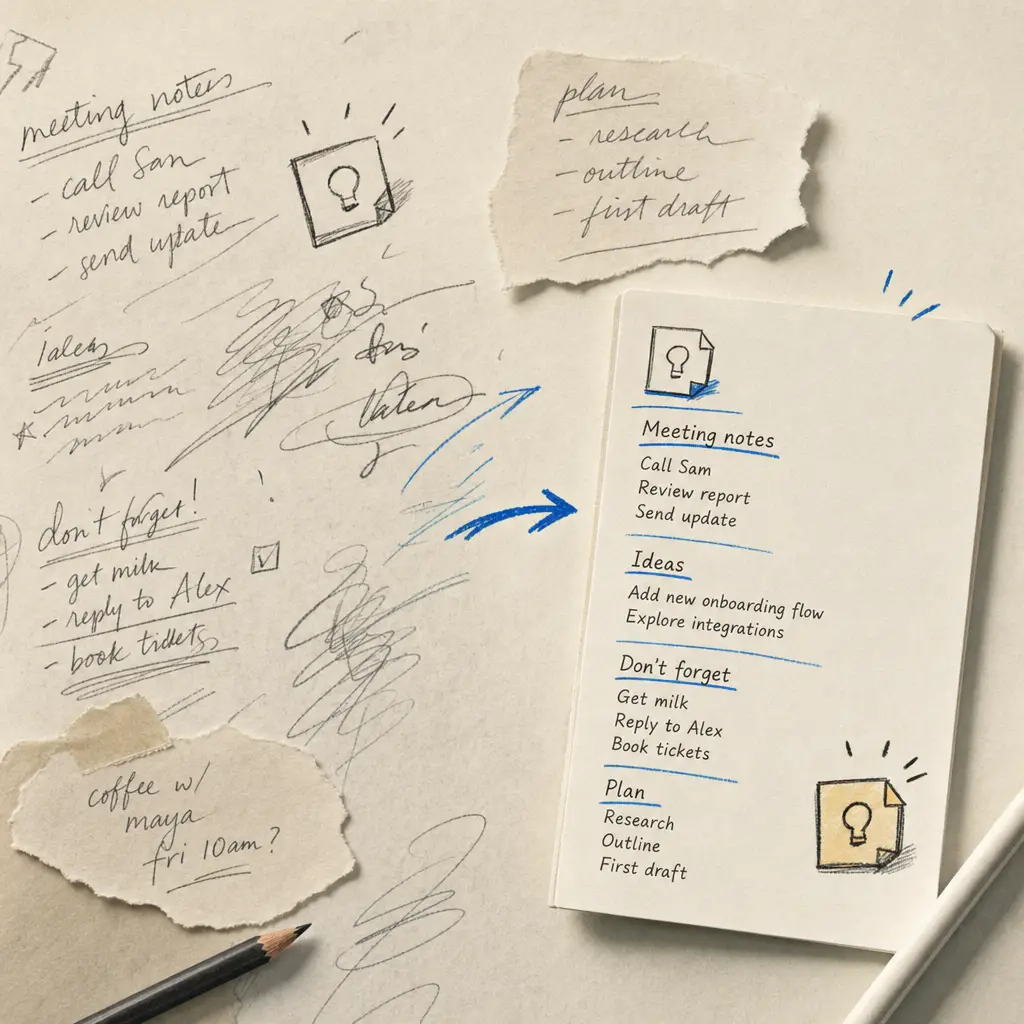
Google Keep offers a convenient way to digitize your handwritten notes using its built-in optical character recognition feature. If you’ve been photographing meeting notes, journal entries, or paper documents and wondering how to make them searchable and editable, Keep’s “Grab image text” feature can help. It’s one of several options available for converting handwriting to text, though it works best for clear, print-style writing.
This guide will walk you through exactly how the feature works, where it excels, and what to do when you need better accuracy or want to convert notes you’ve written directly in Keep with a stylus.
Quick Start: Convert Handwriting in 3 Steps
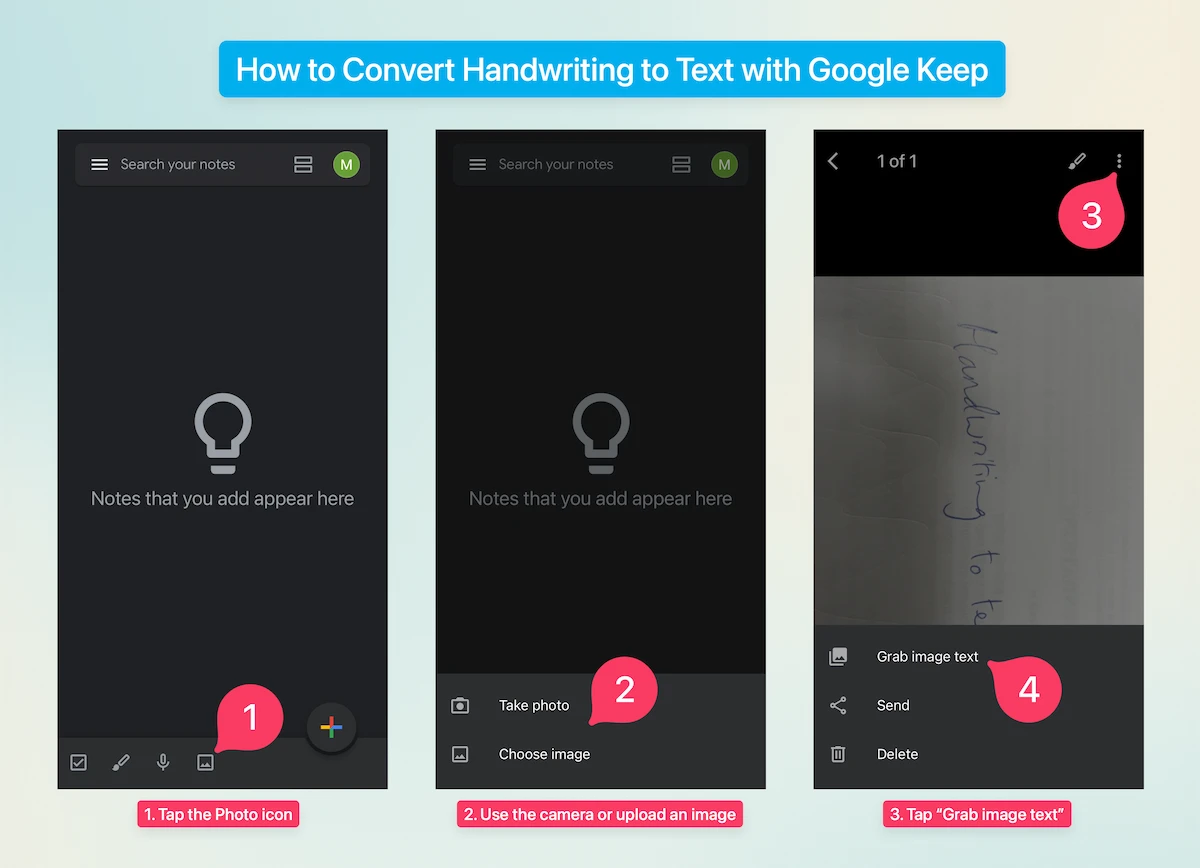
- Open Google Keep on your phone or tablet and tap the Photo icon
- Photograph your handwritten note - make sure it’s well-lit and in focus, then tap “Use photo”
- Extract the text - tap the image to open it, tap the three vertical dots, select “Grab image text”
- The text appears below your image in a few seconds. You can then edit it, copy it to Google Docs, or search through it later.
What is Google Keep’s Handwriting OCR Feature?
Google Keep includes a free OCR (Optical Character Recognition) tool that extracts text from images of handwritten documents. The feature, called “Grab image text,” has been available since around 2016 and works on both the mobile app and web version of Keep. When you photograph a handwritten note or upload an image containing handwriting, Keep analyzes the image and converts any recognized text into editable digital format.
The “Grab image text” feature in Google Keep converts handwritten notes into editable text in about 30 seconds, making your paper documents searchable and easy to organize.
The process typically takes about 30 seconds, after which the extracted text appears directly in your note alongside the original image. You can then edit the text, copy it to other applications like Google Docs, or search through it later. Keep supports common image formats including GIF, JPEG, JPG, PNG, and WEBP, though it’s important to note that PDF files aren’t directly supported and must be converted to image format first. The service also has size limitations, accepting files under 10MB and 25 megapixels.
In depth: Converting Photographed Notes
The most straightforward way to use Google Keep’s OCR is by photographing existing handwritten documents. This works particularly well for meeting notes on paper, journal entries, or any physical document you want to digitize.
On Android and iOS
Open the Google Keep app on your mobile device and tap the Photo icon at the bottom of the screen. Position your device over the handwritten note you want to convert, making sure the text is clearly visible and well-lit. When you’re satisfied with how it looks, tap “Use photo” to add it to your note.
Once the image is in your note, tap on it to view it full screen. You’ll see three dots in the top-right corner of the screen. Tap these dots to open a menu, then select “Grab image text” (wait a few seconds and try again if you do not see this option immediately).
Google Keep will now analyze the image, which usually takes around 30 seconds. When processing completes, the extracted text will appear below the image in your note. You can edit this text just like any other Keep note, and if you’re satisfied with the results, you can even remove the image by tapping the trash can icon next to it.
On Computer
If you prefer working on a computer, visit keep.google.com and sign in with your Google account. Click on “New note with image” which allows you to upload an image file from your computer. Select the image containing your handwritten text and let it upload. Once the image appears in your note, click the three dots menu and select “Grab image text.” The extracted text will appear in your note just as it does in the mobile version, ready for you to edit or copy to other applications.
Converting Existing Image Files
You might already have scanned documents or photos of handwritten notes saved on your device. Google Keep can process these just as easily as newly photographed images. The steps are nearly identical to taking a fresh photo, except you’ll start by selecting “Choose image” and selecting an existing file rather than using your camera.
This method is particularly useful if you’ve already scanned documents using a dedicated scanner app or if someone has shared handwritten notes with you via email or messaging apps. Just make sure your files are in a supported format (GIF, JPEG, JPG, PNG, or WEBP) and under the 10MB size limit.
Understanding Google Keep’s Strengths and Limitations
Google Keep’s OCR works remarkably well under the right conditions, but it’s important to understand when to rely on it and when you might need an alternative solution.
When Google Keep Works Best
The feature shines with clear, neat handwriting that resembles print. If someone writes deliberately and legibly, using block letters or simple print style, Google Keep typically achieves good accuracy. It handles well-lit photos with good contrast between the paper and ink, and it works particularly well on straightforward, single-column layouts without complex formatting.
For similar quick conversion workflows, you might also explore how to convert handwriting to text in Evernote or using Google Docs directly.
Short notes of a few paragraphs tend to process more accurately than lengthy documents, and Keep performs admirably when printed text and handwriting appear together in the same image. For quick meeting notes or simple grocery lists written clearly, the built-in OCR often provides satisfactory results without needing any additional tools.
Where Google Keep Struggles
The limitations become apparent when dealing with cursive handwriting. Accuracy can drop significantly on documents written in flowing cursive script. Messy or rushed writing similarly challenges the system, as does any heavily stylized handwriting that deviates significantly from standard letterforms.
Complex document layouts present another challenge. Multi-column formats, tables, or documents with text flowing around images confuse the recognition engine. Faded ink, poor lighting, or low-contrast images reduce accuracy substantially. Very long documents may not process as reliably as shorter ones, and Google Keep’s accuracy tends to deteriorate as the document length increases.
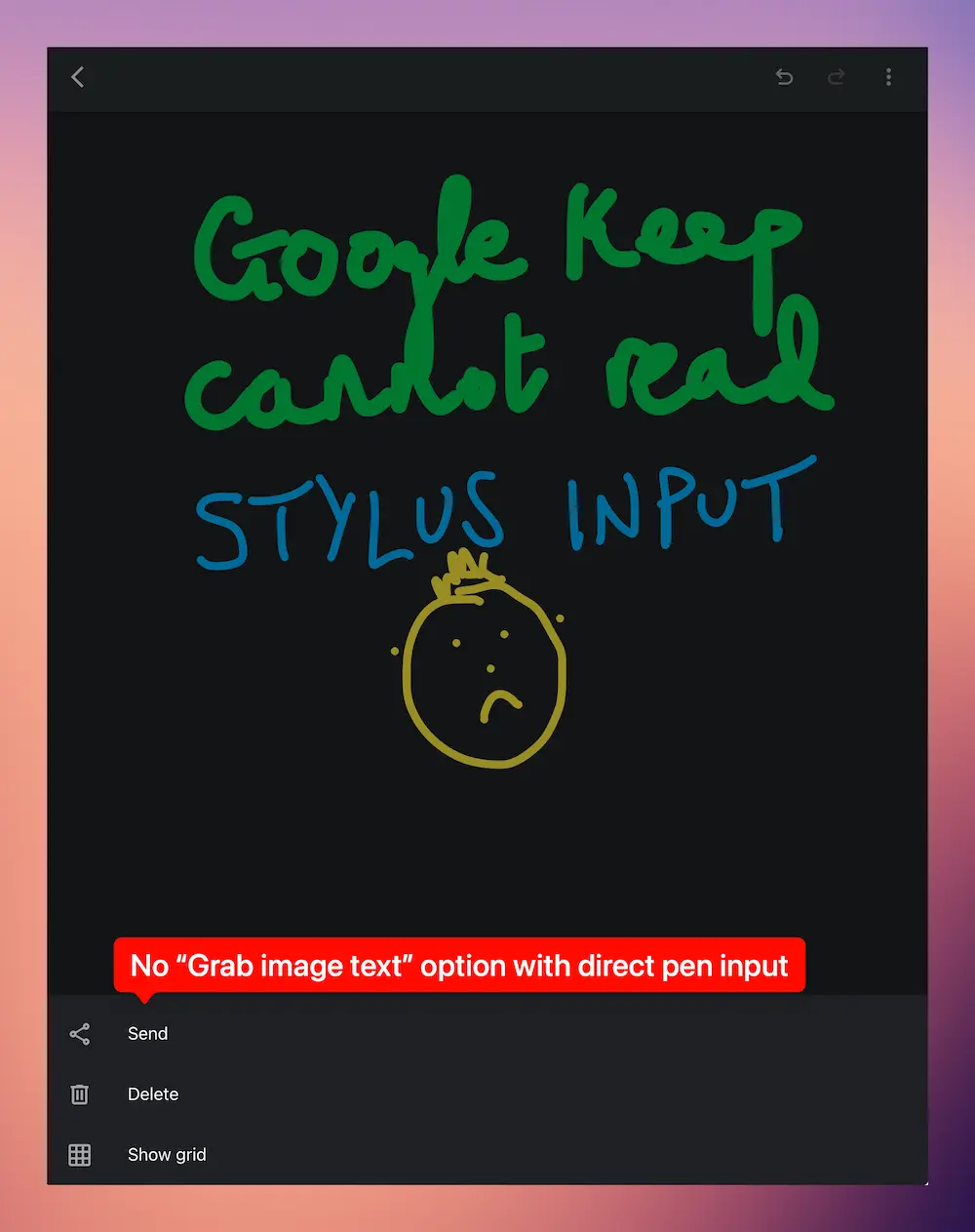
Google Keep’s “Grab image text” feature doesn’t work on drawings created within the app using a stylus or finger. The OCR option only appears for photographed or uploaded images.
Perhaps most importantly for tablet users, there’s a significant limitation that many people discover only after trying to use it. Google Keep cannot convert handwriting that you’ve drawn directly in the app using a stylus or your finger. The “Grab image text” feature only appears on photographed or uploaded images, not on drawings created within Keep itself.
The Stylus Drawing Problem
This limitation deserves special attention because it affects a significant portion of Google Keep users, particularly those with iPads, Android tablets, or devices like the Samsung Galaxy Note series. Many people want to write notes directly in Google Keep using an Apple Pencil, Samsung S Pen, or other stylus, expecting to convert those handwritten notes to text later. Unfortunately, this workflow doesn’t currently work.
When you create a drawing note in Google Keep using the pen tool, the “Grab image text” option simply doesn’t appear in the menu. This isn’t a bug. The feature genuinely doesn’t support OCR on drawings created within the app. Google is reportedly developing a new “handwriting mode” that will support text conversion for stylus input, but as of late 2025, this feature hasn’t launched publicly yet.
Workarounds for Stylus Input
If you’ve written notes in Google Keep using a stylus and need to convert them to text, you have a couple of options. The first is to export or screenshot the drawing, then upload it to a specialized OCR service like Handwriting OCR that can handle the conversion. You can export your note as an image, and then upload it to get an accurate transcription even on cursive or challenging handwriting.
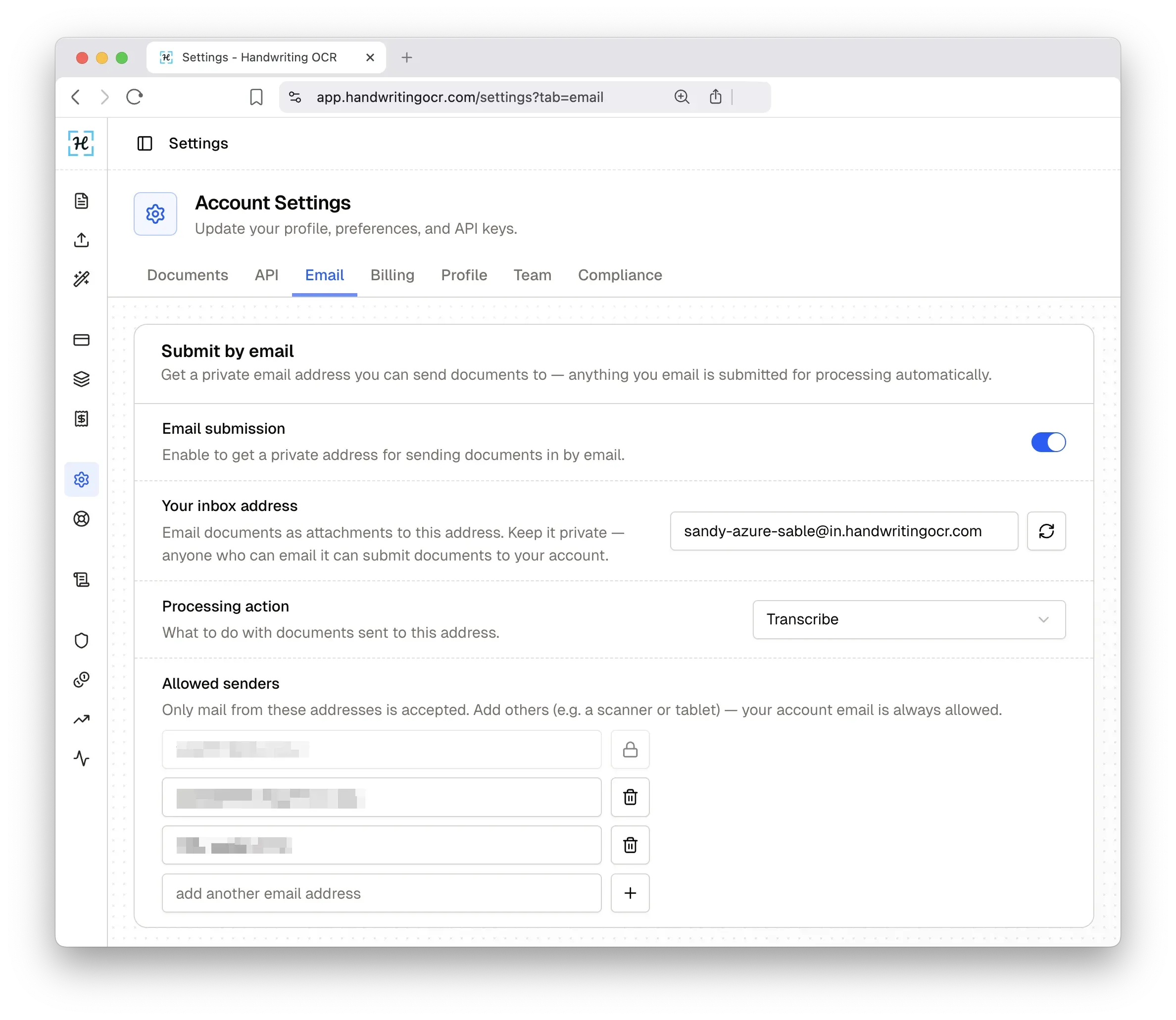
An even more seamless option is to email it in. Set up a private inbox under Settings → Email in Handwriting OCR (you get an address like smokey-amber-falcon@in.handwritingocr.com) and allow-list the account you send from, then export or screenshot your Keep drawing and email it to that address. The transcription appears in your Handwriting OCR dashboard within 15 to 20 seconds, not as an email reply, so you can keep writing naturally in Keep with your stylus and send notes over to be transcribed whenever you need them.
How to Export Notes from Google Keep
Whether you want to process your notes with a more accurate OCR tool or simply need to save them elsewhere, exporting from Google Keep is straightforward.
For individual notes, the quickest method is taking a screenshot, though the exact process varies by device. On most Android devices, you’ll press the power and volume-down buttons simultaneously. On iOS, the method depends on your model but typically involves pressing the power button with either the volume-up or home button.
Keep also provides built-in export options. Tap the three dots on any note and select “Send,” which gives you several sharing options. You can email the note as an attachment, which works particularly well if you’re sending it to an OCR processing service. Alternatively, you can select “Copy to Google Docs,” which creates a new Google Doc with your note’s content. From Google Docs, you have additional export options including PDF, which you can then process with tools that accept PDF input.
When You Need Better Accuracy
Google Keep’s free OCR is convenient for quick notes and clear handwriting, but many situations call for higher accuracy. If you’re working with cursive documents, historical papers with older handwriting styles, or any content where accuracy is critical, specialized handwriting OCR services deliver substantially better results.
| Feature | Google Keep | Handwriting OCR |
|---|---|---|
| Best For | Quick notes, clear handwriting | All handwriting types, especially cursive |
| Accuracy on Clear Handwriting | Good | Excellent |
| Accuracy on Cursive | Limited | Excellent |
| Stylus-Drawn Notes | ❌ Not supported | ✅ Supported (via export) |
| Processing Time | ~30 seconds | ~30 seconds |
| Cost | Free | $0.15 per page pay-as-you-go (less on a plan) |
| PDF Support | ❌ Must convert to image first | ✅ Native support |
| Multi-Page Documents | Process individually | Batch processing |
| Export Formats | Text only (in note) | TXT, DOCX, JSON, PDF |
| File Size Limit | 10MB, 25 megapixels | 100 MB |
| Integration | Google ecosystem (Docs, Drive) | Standalone service, API |
| Ideal Use Cases | Phone numbers, to-do lists, meeting notes | Cursive, journals, historical papers, business documents |
Google Keep excels for quick digitization within the Google ecosystem. It’s free, fast, and works well for straightforward handwriting. Handwriting OCR is purpose-built for challenging documents where accuracy is critical. Every day our recognition models read thousands of pages of real handwriting, so we know exactly where Keep’s free OCR runs out of road. The difference becomes particularly apparent with cursive writing: Keep’s limited cursive accuracy means extensive manual correction, while Handwriting OCR delivers excellent transcriptions that require minimal editing. For business documents, academic research, genealogy projects, or multi-page documents requiring consistency, the time saved on corrections typically justifies the per-page cost.
Tips for Better Recognition Results
Whether you’re using Google Keep’s built-in OCR or a specialized service, you can improve results by optimizing your images. Good lighting makes an enormous difference. Natural daylight or bright, even artificial light helps the OCR engine distinguish letters clearly. Avoid shadows falling across your document, and watch for glare or reflections if you’re photographing notes behind glass or with glossy paper.
Hold your device steady when photographing notes, or better yet, lay your phone or tablet on a flat surface and position the document beneath it. This eliminates the blur that can come from hand shake, especially in lower light. Fill the frame with your text, getting close enough that the handwriting is clearly visible but not so close that you cut off words at the edges.
Keep your text straight in the frame. Significantly tilted or rotated text can confuse recognition engines. Most modern phones have grid overlays in their camera apps that help you align documents properly. Pay attention to contrast as well. Dark ink on white or light-colored paper provides the clearest image for OCR. If you’re working with faded ink or pencil writing, increasing the exposure slightly when photographing can help, though be careful not to blow out the image and lose detail.
If you’re the one creating the handwritten notes that will later be digitized, writing with recognition in mind helps substantially. Write clearly and deliberately, taking your time with each letter. Adequate spacing between words prevents the OCR engine from running words together. Avoid overlapping text, heavy cross-outs, or decorative elements that might be mistaken for letters. Stick to one writing style throughout a document rather than mixing print and cursive, and use dark ink or pencil rather than lighter colors that photograph poorly.
Troubleshooting Common Problems
”Grab Image Text” is Grayed Out
If “Grab image text” appears grayed out and won’t activate, try closing the note completely and reopening it. Sometimes Keep needs to fully process the image before making the OCR option available. Verify that your file is under the 10MB and 25-megapixel limits, as larger files won’t process. Confirm you’re using a supported format (GIF, JPEG, JPG, PNG, or WEBP). If problems persist, try deleting the image from the note and re-uploading it, which sometimes resolves processing glitches.
”Grab Image Text” Option Doesn’t Appear
If the “Grab image text” option doesn’t appear at all, the first step is to just wait. It can take a few seconds before the “Grab image text” option appears, as Keep processes your captured or uploaded image in the background. If you still don’t see this option after waiting one minute, make sure you’re using the latest version of Keep by updating Google Keep through your device’s app store.
If you’re trying to convert a drawing note you created with a stylus in Keep itself, the option won’t appear because this feature isn’t supported yet. The solution is to screenshot or export the drawing, then process it with a specialized OCR tool. You can also try using the web version at keep.google.com if the mobile app isn’t showing the option, or vice versa, as sometimes the feature appears in one version when it’s temporarily unavailable in the other.
Poor Accuracy with Many Errors
When you’re getting poor accuracy with many errors in the transcription, the issue usually lies with the image quality rather than Keep’s capabilities. Retake the photo with better lighting, ensuring no shadows fall across the text and the image is sharp and in focus. If the handwriting is genuinely challenging, Keep may simply not be the right tool for the job. Consider using Handwriting OCR for more complex documents, or try breaking very long documents into smaller sections, which sometimes improves accuracy on each individual section.
Other tools worth knowing about
If Keep isn’t the right fit, a few alternatives are worth knowing. Microsoft OneNote and Apple Notes both convert handwriting you write directly in the app with a stylus, which Keep cannot do. Google Docs runs the same OCR engine as Keep but handles longer documents better. Evernote makes handwriting searchable rather than converting it, and Nebo turns your writing into text in real time as you write.
For the cases all of these struggle with, cursive, faded ink, historical scripts, or a backlog of pages, that is where Handwriting OCR comes in.
Getting Started with Handwriting Conversion
This concludes our guide to using Google Keep to convert handwritten text. The app provides an accessible entry point to handwriting OCR, particularly if you’re already invested in the Google ecosystem and need to digitize clearly-written notes quickly. It costs nothing, works on both mobile and desktop, and handles straightforward handwriting reasonably well.
When Google Keep is Your Best Choice
Use Keep’s built-in OCR when you need to:
✅ Quickly capture phone numbers or simple notes ✅ Digitize to-do lists and meeting notes in neat print ✅ Process short documents with clear handwriting ✅ Keep everything within the Google ecosystem
When to Use Specialized Tools
Consider Handwriting OCR when you’re working with:
✅ Cursive or mixed handwriting styles ✅ Historical documents or family letters ✅ Stylus-drawn notes from Google Keep ✅ Multi-page documents requiring consistency ✅ Business-critical documents where accuracy matters
The service integrates smoothly with Google Keep through simple export workflows. For most users, the right approach is using both tools strategically: Keep’s free OCR for quick, clear notes where occasional errors don’t matter, and specialized tools when you need reliable accuracy on challenging handwriting.
Ready to get started? Try Google Keep’s “Grab image text” feature on your next handwritten note, and for documents that need higher accuracy, start your free trial with Handwriting OCR to see the difference specialized processing makes.
For a complete overview of all handwriting conversion methods across different platforms and applications, visit our comprehensive guide on converting handwriting to text.
Frequently asked questions
Can Google Keep convert handwriting to text from stylus notes?
No, Google Keep's 'Grab image text' feature only works on photographed or uploaded images, not on drawings created within the app using a stylus. You'll need to export stylus notes and use a specialized OCR service.
What file formats does Google Keep support for OCR?
Google Keep supports GIF, JPEG, JPG, PNG, and WEBP image formats. PDF files aren't directly supported and must be converted to an image format first. Files must be under 10MB and 25 megapixels.
How accurate is Google Keep's handwriting OCR?
Google Keep typically achieves 70-85% accuracy on clear, print-style handwriting under good conditions. Accuracy drops to 40-50% for cursive writing. Specialized OCR services achieve higher accuracy on challenging handwriting.
How long does it take to convert handwriting in Google Keep?
Google Keep's 'Grab image text' feature typically processes images in about 30 seconds. Processing time may vary depending on image size and complexity.