
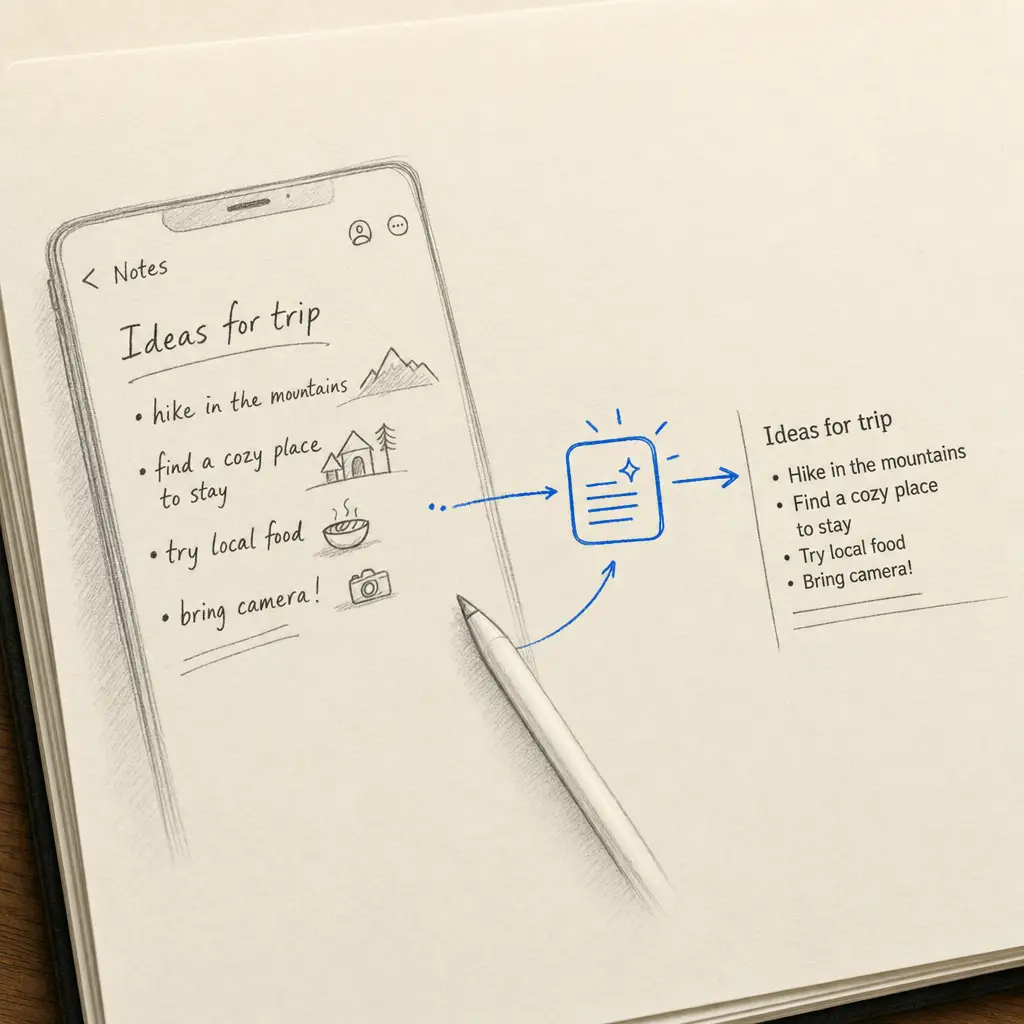
Apple Notes has four separate handwriting-to-text features in 2026, and which one you use depends entirely on where your handwriting actually lives. Writing on the iPad screen with Apple Pencil uses Scribble or Copy as Text. Tidying your ink in place uses Smart Script (iPadOS 18+). Capturing a paper page uses the built-in document scanner with Live Text. None of them is the right answer for everything, and none of them handles cursive on paper particularly well.
This guide walks through each one with real accuracy numbers, the exact steps, and the workflow that takes over when Apple’s recognition isn’t enough.
Quick takeaways
- Apple Notes has four handwriting features in 2026: Scribble, Copy as Text, Smart Script (iPadOS 18+), and the built-in scanner with Live Text.
- Accuracy is good on neat printing written directly on screen (90% to 95% with Apple Pencil), drops on cursive (80% to 90% on screen, 50% to 70% on paper), and falls below 40% on historical or faded scripts.
- iPhone supports finger writing in the markup tool and the document scanner, but not Scribble or Smart Script (those require an Apple Pencil on iPad).
- The Notes scanner is genuinely good for paper capture, but its OCR (Apple Live Text) was tuned for printed text. Cursive on paper still needs a dedicated handwriting OCR.
- All Apple Notes handwriting is already searchable across notes without conversion: the OCR runs in the background. Conversion only matters when you want typed text out.
Quick decider: which Apple Notes feature fits your situation
| You have | Recommended path | Realistic accuracy | What you need |
|---|---|---|---|
| Apple Pencil and a text field to fill (search, title, body) | Scribble | 90% to 95% on neat print | iPadOS 14+, compatible Apple Pencil |
| Apple Pencil and you want to write longhand but tidy | Smart Script | Visual tidying only | iPadOS 18+ |
| Handwriting already on a note, want it as typed text | Copy as Text | 90% to 95% on neat print, 70% to 80% on cursive | Any iPad on iPadOS 14+ |
| Finger writing on iPhone or iPad without a Pencil | Markup → Copy as Text | 80% to 90% (finger less precise) | Any iPad/iPhone on iOS 14+ |
| A piece of paper you want into Notes | Camera icon → Scan Documents | 70% to 85% via Live Text on print, 50% to 70% on cursive | iPhone or iPad with camera |
| Cursive on paper (any era) | Dedicated handwriting OCR + paste into Notes | 95%+ on legible cursive, 70% to 90% on historical | Browser; any device |
| You just want to find a handwritten note | Search in Notes | Background OCR handles indexing automatically | No conversion needed |
Method 1: Scribble (Apple Pencil, in any text field)
Scribble converts your handwriting to typed text in real time, in any text field across iPadOS. Tap a title field, body, search box or web form with your Apple Pencil and write; the ink converts a moment after each word.
Step by step:
- Open Settings → Apple Pencil → Scribble and confirm it’s on.
- In Apple Notes, tap any text field with your Apple Pencil and start writing.
- Words convert as you go. Pause briefly between words for the cleanest conversion.
Editing tricks Scribble supports:
- Scratch out: draw through a word to delete it.
- Insert text: write between existing lines and Scribble pushes the surrounding text apart.
- Select: circle words to select them.
- Join: draw a line between two words to close the space.
Where it shines: Short to medium bursts: a title, a search query, a sentence in a search bar, a quick reply.
Where it falls down: Long paragraphs. Connected cursive sometimes catches Scribble out mid-stroke. And it strictly requires an Apple Pencil; finger writing isn’t supported.
Method 2: Copy as Text (existing handwritten ink)
The most useful feature on this page if you already have notes you wrote by hand. Copy as Text turns a selection of handwritten ink into typed text on your clipboard.
Step by step:
- Open the existing handwritten note.
- Double-tap a word, or use the lasso tool (in the markup toolbar) to draw around the section you want to convert.
- Tap the selected ink. From the popup, choose Copy as Text.
- Paste anywhere: into Apple Notes itself, Pages, Mail, Slack, Word, Google Docs, anywhere.
Accuracy: 90% to 95% on neat printing. Around 70% to 80% on rushed or stylised cursive. Drops further on heavily slanted or unusual hands.
Works without an Apple Pencil. Finger writing in the markup tool produces ink that Copy as Text reads, just with slightly lower accuracy because finger control is less precise.
Method 3: Smart Script (iPadOS 18 and later)
Smart Script doesn’t convert ink to typed text. It tidies your handwriting in place: straightens lines, normalises spacing, balances letter sizes, while keeping everything as ink. It’s relevant on this page for two reasons:
- Smart Script ink looks neater when exported as PDF or shared, so downstream OCR (Live Text or a dedicated tool) works better on it.
- Running Copy as Text on Smart-Script-tidied ink typically returns 5 to 10 percentage points higher accuracy than on the raw ink, because the model has cleaner letterforms to read.
Smart Script is on by default on iPadOS 18 with a paired Apple Pencil. There’s nothing to install.
Method 4: Scanning paper notes into Apple Notes
The Notes app has a built-in document scanner that has been quietly excellent for years. It’s the right starting point when your handwriting is on paper, not on the iPad screen.
Step by step:
- Open or create a note in Apple Notes.
- Tap the camera icon in the toolbar and choose Scan Documents.
- Hold the device over the page. The scanner auto-detects edges, deskews and captures. Take multiple pages if needed.
- Save. The PDF appears in the note.
- Find the typed text: tap and hold on the PDF and Live Text highlights selectable text. Long-press a word to start a selection, then Copy.
Accuracy: Around 70% to 85% on neat printed handwriting; 50% to 70% on modern cursive; below 40% on historical or faded scripts.
Where the scanner shines: Receipts, business cards, printed forms, neat handwritten lists. Live Text was designed for these.
Where it falls down: Connected cursive, multi-page handwritten archives, languages outside the 25 or so Apple covers, anything where you need a Word file rather than a PDF.
When Apple’s recognition isn’t enough: a dedicated handwriting OCR
For cursive on paper, historical scripts, multi-page handwritten archives, or any document where the typed output really matters, the right tool is a dedicated handwriting OCR.
Why the gap exists: Apple’s Live Text engine was tuned for printed text on signs, receipts and screenshots; it adapts to handwriting but starts from a different design centre. A dedicated handwriting OCR is trained specifically on connected letterforms, faded ink and historical script families.
The workflow with Apple Notes:
- Capture the page with the Notes scanner (or just the camera). Export as PDF from Notes.
- Upload the PDF to Handwriting OCR. Free trial credits, no card required.
- Pick Extract full text. Output appears in 15 to 30 seconds per page.
- Copy the typed text and paste into Apple Notes, or download as Word and import.
| Document type | Apple Live Text (Notes scanner) | Dedicated handwriting OCR |
|---|---|---|
| Neat block-letter handwriting on paper | 70% to 85% | 95%+ |
| Modern cursive on paper | 50% to 70% | 95%+ |
| 1800s copperplate or Spencerian | 30% to 50% | 90%+ |
| Sütterlin / Kurrent (German cursive) | Below 30% | 70% to 85% |
| Mixed print and cursive | 60% to 75% | 95%+ |
| Languages supported | ~25 | 300+ |
You stay inside Apple Notes for capture and storage; you only step outside for the OCR step itself, and only when the document warrants it.
Apple Notes by device
The handwriting features in Apple Notes are tied to the input you have, not really to the model.
| Device | Scribble | Copy as Text | Smart Script | Notes scanner |
|---|---|---|---|---|
| iPad (any with Pencil support) | Yes, Apple Pencil only | Yes | iPadOS 18+ | Yes |
| iPhone | No (Pencil required) | Yes, finger or stylus | No | Yes |
| Mac | No (no touch input) | Yes, view-only on synced notes | No | Inherited via Continuity Camera |
If you’re buying a setup for handwriting work specifically, the binding decision is “Apple Pencil yes or no”, not which iPad model. The OCR is identical across the line.
Apple Notes vs other note-taking apps
| Tool | Best for | Where it falls short |
|---|---|---|
| Apple Notes | Free, default, integrated with iCloud and Apple ecosystem. | Limited export formats; OCR on paper is mid; no per-document tagging beyond folders. |
| GoodNotes | Searchable handwritten archives, exported as PDF or text. | Subscription. |
| Notability | Audio-synced handwriting (useful for lectures and meetings). | Subscription. |
| Microsoft OneNote | Cross-platform with Windows. | Mac version dropped Ink to Text. |
| Obsidian / Notion | After OCR, organising and linking the resulting typed notes. | Don’t do OCR themselves. |
For app-specific guides, see GoodNotes, Notability, OneNote and Microsoft Office.
Tips that move accuracy on Apple Notes
A few habits that move screen-written accuracy by 5 to 15 percentage points:
- Write a little larger and slightly slower. Both help the on-device model significantly.
- Pause briefly between words. Scribble in particular reads cleanly when there’s a clear gap.
- Keep consistent line spacing. Apple’s recognition uses line context.
- Avoid mid-page rotation. Writing at the same angle as the page beats angled writing.
- For the scanner: light the page evenly. Direct overhead lighting on glossy paper causes glare; side-lighting (a lamp at 45 degrees) is best.
- For Live Text on cursive: increase contrast in the scan. A high-contrast PDF gets noticeably better OCR than a dim one.
Bottom line
For handwriting you create on the iPad screen with Apple Pencil, Apple Notes’ built-in tools (Scribble for live conversion, Copy as Text for existing ink, Smart Script for tidied writing) are genuinely excellent and you won’t need anything else for normal note-taking.
For handwriting on paper, the Notes scanner gets you most of the way for printed text. For cursive, historical scripts, multi-page archives or foreign-language documents, the reliable answer is to scan into Notes (or any scanner), then run the PDF through a dedicated handwriting OCR, and paste the typed text back into Notes.
Try Handwriting OCR free on a single page of your hardest sample (no card required). If the output reads cleanly, the same will hold across the rest of the document. For tricky cases or large archives, get in touch and we’ll tell you what to expect before you start.
Frequently asked questions
Does Apple Notes convert handwriting to text?
Yes, four different ways in 2026. (1) Scribble converts ink to typed text in real time in any text field (Apple Pencil only, iPad). (2) Copy as Text converts a selection of existing handwritten ink into typed text on the clipboard (any input, iPad). (3) Smart Script (iPadOS 18+) tidies handwritten ink visually while keeping it as ink. (4) The built-in document scanner captures a paper page and makes the text selectable and searchable via Live Text.
How accurate is Apple Notes handwriting recognition?
On neat printed handwriting written directly on the iPad screen with Apple Pencil, Copy as Text typically returns 90% to 95% word accuracy. On cursive written on screen, accuracy drops to 80% to 90%. On photos or scans of paper handwriting (Live Text), accuracy is around 70% to 85% on neat print and 50% to 70% on cursive. For cursive on paper specifically, a dedicated handwriting OCR returns 95% or higher on the same input.
Can iPhone Apple Notes convert handwriting to text?
Yes, but with limits. iPhone supports finger writing in the markup tool and lets you use Copy as Text on the selection. Scribble (the live-conversion-in-any-text-field feature) is Apple-Pencil-only and so doesn't apply to iPhone. The iPhone Notes scanner does work for paper documents and runs the same Live Text OCR as iPad and Mac.
How do I turn existing handwritten notes into typed text in Apple Notes?
Open the note in Apple Notes. With Apple Pencil or your finger, double-tap or lasso the handwritten ink to select it. Tap the selection and choose "Copy as Text" from the popup. The typed version is now on your clipboard; paste anywhere. Accuracy is 90% to 95% on neat handwriting and 70% to 80% on rushed cursive.
Do I need an Apple Pencil to convert handwriting in Apple Notes?
Not strictly. Apple Pencil is required for Scribble (live in-field conversion) and for Smart Script. For Copy as Text, the document scanner and any general use of the markup tool, finger writing or a third-party capacitive stylus also work. The OCR model is the same; only the input precision changes.
What is Smart Script in Apple Notes and how is it different from Scribble?
Smart Script (introduced in iPadOS 18) tidies your handwritten ink as you write: straightens lines, normalises spacing, balances letter sizes. It keeps the result as ink, not typed text. Scribble converts ink directly into typed text. Use Smart Script if you prefer the handwritten look but want it neater; use Scribble if you want typed text. Running Copy as Text on Smart-Script ink usually improves accuracy by 5 to 10 percentage points.
How do I scan a handwritten paper note into Apple Notes?
Open Apple Notes, tap the camera icon in the toolbar and choose "Scan Documents". Position the page; the camera auto-detects the edges and captures. The scan becomes a PDF embedded in the note, and the text inside is selectable via Live Text. Tap and hold over handwriting to select and copy. Live Text handles neat print well and cursive less well.
Can Apple Notes read cursive handwriting?
Apple Notes can read cursive but with diminishing accuracy. On screen-written cursive (Apple Pencil), Copy as Text returns 80% to 90% accuracy. On photographed or scanned cursive (Live Text), accuracy drops to 50% to 70%. For old letters, 1800s scripts or Sütterlin-style historical cursive, a dedicated handwriting OCR is the reliable option.
What languages does Apple Notes handwriting recognition support?
Around 25 languages including English, Spanish, French, German, Italian, Portuguese, Dutch, Chinese (Simplified and Traditional), Japanese, Korean, Arabic, Hindi and Russian. Mixed-language writing within the same selection often reduces accuracy. For broader coverage (300+ languages, including historical scripts), a dedicated handwriting OCR handles the cases Apple Notes can't.
My handwriting isn't converting accurately. What can I fix?
First check the basics: iPadOS 14 or later, Apple Pencil paired and charged, Scribble enabled in Settings > Apple Pencil. Then writing-side fixes that move accuracy 5 to 10 percentage points: write a little larger and slightly slower, keep consistent line spacing, separate words clearly. On screen-written cursive, breaking long words into print mid-stroke also helps. If accuracy is still poor, the document is probably a candidate for a dedicated handwriting OCR rather than Apple's built-in tools.