
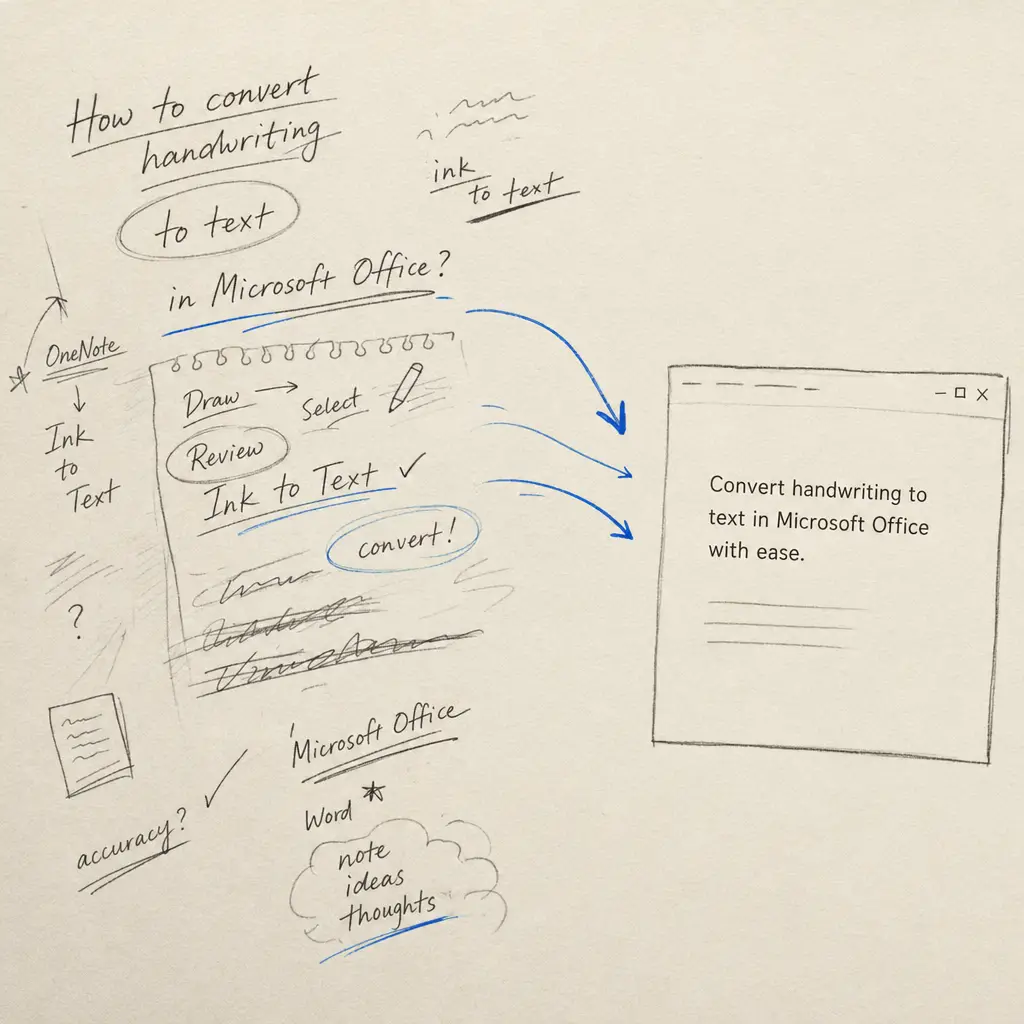
Microsoft Office has four separate paths for turning handwriting into typed text, and which one is right depends entirely on where your handwriting lives: on a Windows tablet screen, on a phone photo, on paper, or inside an existing Word document. None of them is a one-size answer, and the built-in tools all share the same weakness: cursive on real paper.
This guide covers each path, the accuracy you should expect, and the workflow that works for cursive, historical and multi-page documents.
Quick takeaways
- OneNote (Windows) has the strongest native handwriting recognition in the Microsoft stack: select handwritten ink with the lasso, run Draw → Ink to Text, and get typed text in place. Around 90% to 95% on neat printing, 60% to 80% on cursive.
- Microsoft Lens (the rebrand of Office Lens) is Microsoft’s free mobile scanner. It exports scans straight to Word, PDF, OneNote or PowerPoint. Good on printed text, mixed on handwriting.
- Word itself has no dedicated handwriting OCR. Word 365’s Insert → “Copy text from picture” works on inserted images, but accuracy on handwriting follows the same pattern: fine on neat print, weak on cursive.
- Microsoft 365 Copilot does not OCR handwriting. It polishes typed output once the OCR is done.
- For cursive, historical scripts, foreign-language handwriting, or any multi-page paper document, a dedicated handwriting OCR returns 95%+ on legible cursive and exports straight to .docx. Use the right tool for the right input.
Quick decider: which Microsoft path fits your situation
| You have | Recommended path | Realistic accuracy | When it works |
|---|---|---|---|
| Notes already written by hand on a Surface or pen-tablet in OneNote | OneNote → Draw → Ink to Text | 90% to 95% on print, 60% to 80% on cursive | Windows OneNote only |
| A single photo or scan of neat handwriting | Microsoft Lens → Export to Word | 75% to 90% on neat print | Light handwriting, single page |
| A handwritten image inserted in a Word document | Insert → Copy text from picture | 70% to 85% on neat print | Word 365 / Web |
| Cursive handwriting (any era) on paper | Dedicated handwriting OCR → Word export | 95%+ on legible cursive | Multi-page friendly |
| Foreign-language handwriting | Dedicated handwriting OCR (300+ languages) → Word | 95%+ on legible script | Includes Sütterlin / Kurrent / Cyrillic cursive |
| 50+ pages of handwritten notes | Dedicated handwriting OCR (batch) → Word | 95%+ | One PDF in, one Word file out |
| Handwriting you’re about to write on a Surface | OneNote → Ink to Text OR write directly into Word with the Draw tab | 90% to 95% | Stylus-friendly |
| You already have typed text and want it polished | Microsoft 365 Copilot in Word | Editing, not OCR | Post-OCR step |
Method 1: OneNote Ink to Text (Windows)
OneNote for Windows is Microsoft’s strongest native handwriting tool. It accepts pen input on any pen-enabled Windows device (Surface, Surface Pro, third-party tablets, hybrids) and converts the ink to typed text on demand.
Step by step:
- Open OneNote on Windows. Create a new page or open an existing handwritten page.
- With a pen or stylus, write directly on the canvas. If your handwriting is already on the page, skip to the next step.
- Open the Draw tab.
- Select Lasso Select and circle the handwriting you want to convert.
- Click Ink to Text (also on the Draw tab). The handwriting is replaced with typed text in the same position.
Accuracy: 90% to 95% on neat printing in English. Around 60% to 80% on cursive depending on writer style. Drops on rushed or heavily slanted hands.
Limits: OneNote for the Web has a narrower feature set. OneNote for Mac no longer supports Ink to Text in the same way (Microsoft removed it in the modern Mac version). Multi-page recognition is manual: select page by page.
Method 2: Microsoft Lens
Microsoft Lens (formerly Office Lens) is a free iOS and Android app that scans physical pages and exports them as Word, PDF, PowerPoint or OneNote pages, with OCR baked in.
Step by step:
- Install Microsoft Lens from the App Store or Google Play (free).
- Open the app and pick the Document mode.
- Capture the handwritten page. The app auto-detects edges, deskews and crops.
- Tap the share / save icon and choose Word.
- Lens uploads to your OneDrive and creates a .docx with the OCR result, typically within 10 to 20 seconds per page.
Accuracy: Around 75% to 90% on neat printed handwriting. Drops to 40% to 60% on cursive. Lens does well on receipts, business cards and whiteboards (its design target) and is uneven on handwritten letters and notebooks.
Languages: Microsoft Lens supports OCR in around 30 languages, including the major European and Asian ones. It does not handle historical script families.
Method 3: Word’s built-in “Copy text from picture”
Modern Word (Microsoft 365, Word for the Web, Word 2021 onwards) can extract text from images you insert directly into a document.
Step by step:
- Open Word and a new or existing document.
- Insert → Pictures and add your handwriting photo or scan.
- Right-click the inserted image and pick Copy text from picture.
- Click anywhere in the document and paste. The extracted text appears in line.
Accuracy: Comparable to Microsoft Lens, with the same handwriting caveats. The feature was tuned for printed text on receipts, screenshots and forms. Cursive is hit or miss.
Where it shines: Pulling printed text out of a screenshot or a clean handwritten note in one workflow with no extra app.
Where it falls down: Multi-page documents, faded ink, connected cursive, non-Latin scripts.
Method 4: Dedicated handwriting OCR (the reliable path for paper and cursive)
When the built-in tools are not accurate enough, the workflow is straightforward: run the handwriting through a dedicated OCR service and download the output as a .docx file ready for Word.
Step by step:
- Photograph or scan the page. Microsoft Lens’s document mode is good for this; so is the scanner in Apple Notes (if you’re on iPad) or a desktop scanner at 300 DPI or higher.
- Upload the JPG, PNG, HEIC or PDF to Handwriting OCR. Free trial credits, no card required.
- Pick Extract full text. Wait 15 to 30 seconds per page.
- Download as Word (.docx). Open directly in Word, Word for the Web, or paste into OneNote.
Accuracy on the same input:
| Document type | Microsoft built-in (Lens / Word) | Dedicated handwriting OCR |
|---|---|---|
| Neat block-letter handwriting on paper | 75% to 90% | 95%+ |
| Modern cursive on paper | 40% to 60% | 95%+ |
| 1800s copperplate / Spencerian | 30% to 50% | 90%+ |
| Sütterlin / Kurrent (German cursive) | Below 25% | 70% to 85% |
| Mixed print and cursive | 60% to 75% | 95%+ |
| Languages supported | ~30 | 300+ |
Why the gap exists: Microsoft’s OCR engines were built primarily for printed text and adapted for handwriting. Dedicated handwriting OCR is trained specifically on connected letterforms, faded ink, historical scripts and the writing variation that paper documents actually contain.
Where Microsoft 365 Copilot fits
Copilot does not read handwriting. It works on text that already exists in Word, OneNote or Outlook. The right way to use it with handwritten input is sequential:
- OCR the handwriting (any method above).
- Open the resulting Word file.
- Use Copilot to summarise, restructure, change tone, generate questions, or pull out action items from the converted text.
Copilot’s value compounds with handwriting workflows because most handwritten notes (meeting minutes, lecture notes, journal entries, research notes) become much more useful once they’re typed. The OCR step removes the bottleneck.
Multilingual handwriting in Word
If your handwriting is in German, French, Spanish, Italian, Portuguese, Polish, Arabic, Chinese or any of 290+ other languages, the practical limits stack up:
- Microsoft Lens covers around 30 languages reliably, mainly the major European and East Asian ones.
- OneNote Ink to Text language detection follows Windows display language and works best in the languages Microsoft has trained extensively (English, French, German, Spanish, Italian, Portuguese, Dutch, Chinese, Japanese).
- Word’s “Copy text from picture” has similar coverage.
- Dedicated handwriting OCR covers 300+ languages and, where the source language and the target Word audience differ, can translate in the same pass.
For German wartime letters destined for an English Word document, a Spanish-language family journal you want translated, or a Polish business archive going into Word for analysis, the OCR-plus-translation workflow saves a copy-paste step through Google Translate and avoids the accuracy compounding that happens when you OCR badly first and translate the broken text after.
Tips that help every method
A few habits that move accuracy 5 to 15 percentage points on any tool:
- Scan at 300 DPI or higher. Below 200 DPI, every OCR engine starts inventing characters.
- Dark ink on light paper. Pencil and faded ink cost accuracy. Bump contrast in your scanner or photo editor if the original is faint.
- Light from the side, not overhead. Glossy paper produces hot spots under direct overhead light, which the OCR reads as missing letters.
- Square the page. Lens and Notes do this automatically; a casual phone snap usually doesn’t. Keystone correction makes a measurable difference.
- Split long PDFs. OneNote, Word and Lens all degrade on long uploads. A dedicated handwriting OCR handles longer batches in one go.
- Write a little larger and a little slower. This applies to people writing on Surface tablets. It adds around 5 percentage points to Ink to Text accuracy.
Bottom line
For neat handwriting written directly on a Surface or other pen-tablet, OneNote’s Ink to Text is excellent and doesn’t need anything extra. For one-off photos of neat handwriting, Microsoft Lens is the easiest path and gets you a Word file in a couple of taps. For cursive, historical scripts, multi-page archives or foreign-language documents, the reliable answer is a dedicated handwriting OCR run alongside Word.
Try Handwriting OCR free (no card required) on one page of your hardest document. Compare the output to what the Microsoft tools gave you. If it reads cleanly, the rest of the workflow stays inside Word, OneNote and Copilot exactly as it does now.
For specific questions about a tricky document or a large batch, get in touch with a sample image and we’ll tell you what to expect before you commit.
For other office workflows, see how to convert handwriting to text in Google Docs, on iPad, and on iPhone.
Frequently asked questions
Can Microsoft Word convert handwriting to text?
Word does not have a dedicated handwriting OCR. Word 365 and Word 2016 onwards can use the Draw tab's "Ink to Text" feature for handwriting written directly on the canvas with a stylus or pen-enabled screen, and the "Copy text from picture" command on inserted images. For handwriting on paper (photos, scans, PDFs), the practical workflow is to OCR with a dedicated tool and paste into Word, or to use Microsoft Lens (mobile) which exports to Word.
Does OneNote convert handwriting to text?
Yes. OneNote for Windows has the strongest native handwriting conversion in the Microsoft stack via the Draw tab's "Ink to Text" command. Select your handwritten ink with the lasso and convert it to typed text in place. Accuracy on neat printing is around 90% to 95%; cursive drops to around 60% to 80% depending on the writer. OneNote for the Web has a narrower feature set and OneNote for Mac no longer supports Ink to Text directly.
How accurate is Microsoft's handwriting OCR?
On neat printed handwriting written directly on a Windows tablet (Surface or similar), OneNote's Ink to Text typically returns 90% to 95% word accuracy. Microsoft Lens on photos of neat print returns 75% to 90%. On cursive in either path, accuracy drops to 45% to 70%. On 1800s or historical scripts, all Microsoft tools drop below 40%. A dedicated handwriting OCR returns 95%+ on legible cursive and 70% to 90% on historical scripts.
What is Microsoft Lens and does it convert handwriting?
Microsoft Lens (formerly Office Lens) is Microsoft's free mobile scanning app for iOS and Android. It captures pages with automatic edge detection and deskewing, then exports as a Word document, PDF, PowerPoint or to OneNote. OCR runs server-side. On printed text it works well; on handwriting it covers neat block-letter cases and struggles with cursive. For mixed pages with handwriting that matters, a dedicated handwriting OCR is the more reliable choice.
How do I convert a scanned handwritten document into a Word file?
Three paths work. (1) Open Microsoft Lens on your phone, scan the page, choose "Word" as the export format. Lens uploads to OneDrive and creates a .docx with the OCR output. (2) Insert the image in Word and use Insert → "Copy text from picture" (Word for the Web and Microsoft 365). (3) Run the image or PDF through a dedicated handwriting OCR (which handles cursive and multi-page documents reliably) and download a Word file with the text. Path 3 is the reliable choice for anything beyond neat printed text.
Can Word for Mac convert handwriting to text?
Word for Mac includes the Draw tab and accepts trackpad or Sidecar-Apple-Pencil input, but the "Ink to Text" command is available only on Windows. On macOS, the practical workflow is to run a handwritten image or PDF through a dedicated handwriting OCR (or through Microsoft Lens on a phone or iPad with Sidecar) and paste the result into Word.
Does Microsoft 365 Copilot help with handwriting?
Copilot does not OCR handwriting itself. It can summarise, edit and reformat typed text that you already have in Word or OneNote. The intended workflow is: OCR the handwriting first (Microsoft Lens, OneNote Ink to Text, or a dedicated handwriting OCR), then use Copilot to polish, summarise or restructure the result.
How do I convert cursive handwriting into Word?
Microsoft's native tools all struggle with cursive (40% to 70% accuracy depending on hand and quality). The reliable path is to run the scanned or photographed page through a dedicated handwriting OCR (95%+ on legible cursive, supports 300+ languages) and download the result as a Word file. From there, normal Word editing, formatting and Copilot operations all work.
Can I convert handwriting to Word in another language (German, French, Spanish)?
Yes. Both Microsoft Lens and Microsoft Word recognise handwriting in a limited set of major languages. For broader coverage, including non-Latin scripts and historical script families (Sütterlin, Kurrent, Cyrillic cursive), a dedicated handwriting OCR service handles 300+ languages and offers a one-step translation pass before export.
Where does my handwriting go when I upload it?
Microsoft Lens uploads to your Microsoft 365 / OneDrive account under your existing Microsoft privacy terms. Handwriting OCR encrypts uploads in transit and at rest, processes them only to produce your output, and lets you delete files from your dashboard at any time. Neither service trains its model on your specific documents.