
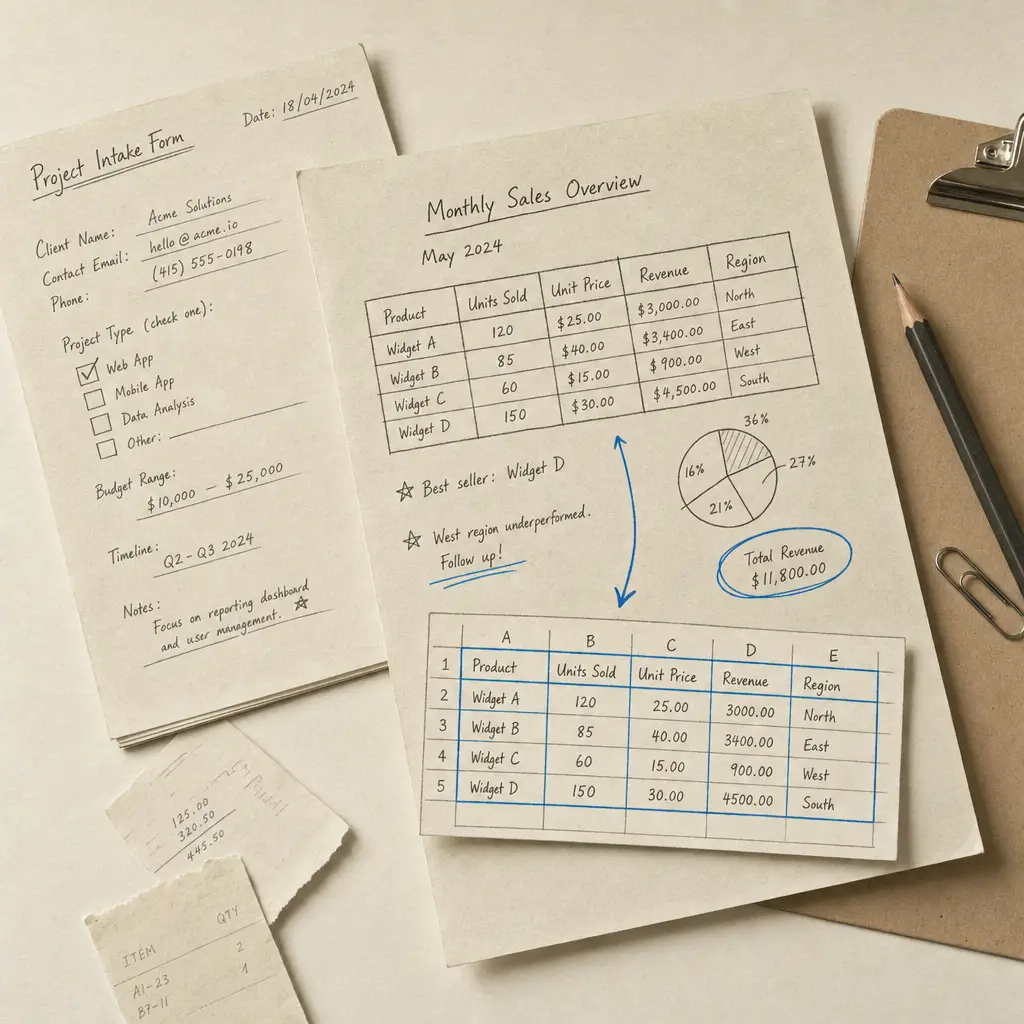
Handwritten PDF to Excel Converter | Extract Tables & Forms Fast | Handwriting OCR

Convert Handwritten PDF to Excel: Extract Tables & Forms with AI OCR

Last updated

You have handwritten tables, forms, or spreadsheet data trapped in PDF scans. Typing them into Excel by hand takes hours. Copy-pasting doesn't work because the text isn't selectable. Generic PDF converters fail because they can't read handwriting.

This is where specialized handwriting OCR changes everything. Instead of spending hours retyping rows and columns, you can upload a PDF and get an editable Excel file back in minutes.

Quick Takeaways

  • AI-powered OCR extracts handwritten tables, forms, and numerical data from PDFs into structured Excel files
  • Works with messy handwriting, cursive, faded ink, and complex table layouts that break traditional OCR tools
  • Converts scanned handwritten spreadsheets into editable Excel formats without manual retyping
  • Designed for surveys, forms, field notes, inventory sheets, and any document with tabular handwritten data
  • Privacy-focused processing means your documents remain yours and aren't used for training

Why Traditional PDF to Excel Tools Fail on Handwritten Documents

Most PDF-to-Excel converters assume your document contains printed text or digital text layers. When you upload a scan of handwritten notes or a filled-out form, these tools produce gibberish or blank cells.

The problem isn't the PDF format. The problem is handwriting recognition.

Standard optical character recognition (OCR) was designed for typed documents with clean fonts and consistent spacing. Handwriting introduces variables these systems can't handle: inconsistent letter shapes, connected cursive strokes, varying pen pressure, and irregular spacing between words and numbers.

Generic OCR tools achieve less than 60% accuracy on real-world handwriting. Modern AI-based systems reach 95%+ accuracy on the same documents.

If you've tried Adobe Acrobat, Google Drive OCR, or online PDF converters and gotten unusable results, the issue wasn't your handwriting. It was the tool.

What Makes Handwriting OCR Different

Handwriting recognition requires AI models trained specifically on handwritten documents, not printed text. These models learn to interpret:

  • Cursive connections where letters blend together
  • Inconsistent spacing between words, numbers, and table cells
  • Variable sizing where some words are larger or smaller
  • Corrections and cross-outs common in handwritten forms
  • Faded or light ink from old documents or poor-quality pens
  • Table structures drawn by hand with irregular lines

When you upload a handwritten PDF to a specialized OCR system, the AI analyzes each stroke, identifies letter shapes despite variations, and reconstructs the intended text. It then maps that text to the correct cells in your table structure.

The result is an Excel file where row 1 contains the data from row 1, column headers appear in the right place, and numerical data is formatted correctly for calculations.

Common Use Cases for Handwritten PDF to Excel Conversion

Handwritten Surveys and Questionnaires

Paper surveys return with handwritten responses. You need structured data for analysis, not 500 pages of scans. Converting survey PDFs to Excel puts all responses into columns where you can filter, sort, and analyze them without transcribing each answer manually.

Intake Forms and Registration Sheets

Medical offices, schools, and membership organizations collect handwritten forms. Converting these to Excel creates searchable databases where you can find specific entries, check completion rates, and import data into other systems.

Expense Reports and Receipts

Handwritten expense logs with dates, amounts, and categories need to become spreadsheets for accounting. OCR extracts the data and puts it into Excel columns for easy review and approval.

Field Notes and Data Collection Sheets

Researchers, inspectors, and field technicians record observations by hand. Those notebooks and clipboards full of measurements, counts, and notes become Excel files where you can perform calculations and generate reports.

Inventory and Stock Sheets

Warehouse counts, stocktaking sheets, and asset inventories written by hand convert to Excel where you can compare against system records, identify discrepancies, and update inventory databases.

Timesheets and Attendance Records

Handwritten timecards, sign-in sheets, and attendance logs convert to Excel for payroll processing and record-keeping without manual data entry for each employee and date.

How to Convert Handwritten Tables from PDF to Excel

The process is straightforward once you have the right tool.

Step 1: Prepare Your PDF

Scan your handwritten documents at 300 DPI or higher for best results. If your documents are already scanned, you can use them as-is. The system handles multi-page PDFs automatically.

Step 2: Upload Your Document

Visit HandwritingOCR and upload your PDF. The platform accepts scanned documents, photos converted to PDF, and any PDF containing handwritten content.

Step 3: Choose Your Output Format

Select Excel (XLSX) as your export format. If you need data in CSV format for importing into other systems, that option is available too. You can also export to JSON for programmatic use.

Step 4: Define Extraction Rules (Optional)

For complex forms or tables with specific structures, you can define extraction rules that tell the AI which fields to extract and how to organize them. This is useful for repeated forms where you process multiple documents with the same layout.

Learn more about extracting handwritten tables from PDFs with custom extraction rules.

Step 5: Download Your Excel File

Once processing completes (usually under two minutes), download your Excel file. The data appears in structured rows and columns, ready for analysis or import into other systems.

Handling Difficult Handwriting and Complex Tables

Not all handwritten documents are created equal. Some present unique challenges that require specialized processing.

Cursive and Connected Script

Cursive handwriting connects letters within words, making character boundaries unclear. Modern AI models trained on cursive samples handle this by analyzing stroke patterns and word context rather than trying to identify individual letters first.

If you're working with historical documents or older handwriting styles, converting handwritten PDFs to text first can help you review accuracy before exporting to Excel.

Mixed Content Tables

Many forms include both checkbox fields, handwritten text, and numerical entries. The OCR system identifies these different content types and formats them appropriately in Excel: checkboxes become Yes/No values, numbers are formatted as numbers, and text remains as text.

Irregular Table Structures

Hand-drawn tables don't always have perfectly straight lines or consistent cell spacing. The AI identifies table boundaries by analyzing content arrangement rather than relying on visible grid lines. This works even when lines are faint, crooked, or partially missing.

Multi-Page Tables

If your handwritten table spans multiple PDF pages, the system processes each page and combines the results into a single Excel file. Row numbering continues across pages, maintaining data integrity.

Understanding Accuracy and Quality Control

No OCR system achieves 100% accuracy on every document. What matters is getting accuracy high enough that reviewing and correcting a few cells takes minutes instead of hours.

For handwritten tables with clear writing and good scan quality, expect 95%+ accuracy on most content. Difficult handwriting, faded ink, or poor scans reduce accuracy but still provide a strong starting point that saves significant time compared to manual transcription.

Document Condition Expected Accuracy Time Savings vs Manual
Clear handwriting, good scan 95-98% 85-90% faster
Average handwriting, standard scan 90-95% 75-85% faster
Difficult handwriting, poor scan 80-90% 60-75% faster

After conversion, review the Excel file and correct any misread characters. Even at 85% accuracy, you've eliminated most of the typing work.

Privacy and Security for Handwritten Documents

Many handwritten forms contain sensitive information: medical records, financial data, personal details. You need confidence that uploading these documents doesn't expose private data.

Your documents remain private and are processed only to deliver your results. They are not used to train AI models, shared with third parties, or retained longer than necessary for processing.

Files are deleted shortly after you download your results. The system processes your documents to extract text and create your Excel file, then removes all traces of the original document.

This privacy-focused approach makes HandwritingOCR suitable for confidential business forms, patient records, legal documents, and any handwritten data that requires discretion.

Excel Format vs Other Export Options

Excel (XLSX) is the most common format for structured data, but HandwritingOCR supports multiple export formats depending on your workflow:

Excel (XLSX): Best for analysis, calculations, and sharing with others. Preserves formatting, supports formulas, and opens in Excel, Google Sheets, and other spreadsheet applications.

CSV: Simplest format for importing into databases, CRM systems, and analytics platforms. Plain text with comma-separated values.

JSON: Ideal for developers integrating OCR into applications or automated workflows. Structured data format that's easy to parse programmatically.

For most users converting handwritten forms and tables, Excel provides the right balance of functionality and compatibility.

Comparing Handwritten PDF to Excel Tools

Feature Generic PDF Tools Document Scanners HandwritingOCR
Reads handwriting No Limited Yes
Table structure recognition Printed only Printed only Handwritten too
Multi-page processing Yes Yes Yes
Custom extraction rules No No Yes
Privacy (no training) Varies Varies Yes
Cursive support No Poor Strong

Traditional PDF-to-Excel tools work well for converting printed documents or PDFs with embedded text layers. For handwritten content, specialized OCR makes the difference between unusable output and accurate data extraction.

Getting Started with Handwritten PDF to Excel Conversion

You don't need to install software or configure complex settings. The process is browser-based and works on any device.

Visit HandwritingOCR to try converting a handwritten PDF to Excel. Free credits let you test the system on your actual documents before committing to a subscription.

Upload a PDF, select Excel as your output format, and see how accurately the system extracts your handwritten data. If results meet your needs, you can process additional documents or set up automated workflows for repeated forms.

For users converting large volumes of handwritten forms, batch processing handles multiple PDFs simultaneously. Upload dozens of files, and the system processes them all, delivering individual Excel files for each document.

Converting 100 handwritten forms manually takes 40+ hours. With OCR, the same job completes in under an hour, including time for quality review.

When Manual Review Still Matters

OCR dramatically reduces transcription time but doesn't eliminate the need for human oversight. After converting handwritten PDFs to Excel, review the data for accuracy before using it in critical applications.

Look for common OCR errors:

  • Numbers that should be letters (O vs 0, l vs 1)
  • Missing decimal points or currency symbols
  • Names or technical terms spelled incorrectly
  • Empty cells where handwriting was too faint to read

Most documents need only spot-checking. Review a sample of rows, verify totals if you have them, and scan for obvious mistakes. This takes minutes compared to hours of original data entry.

For sensitive applications where accuracy is critical, implement a two-person review process where one person checks OCR output against the original documents while another verifies calculations and data integrity.

Alternative Approaches for Different Needs

If your handwritten documents aren't in PDF format, you have other options:

For JPG or PNG images: Convert handwriting images to text first, then export to Excel. This works well for photos taken with phones or individual scans saved as images.

For text extraction without tables: Use PDF to text conversion when you need plain text output rather than structured spreadsheet data. This is faster for documents that don't require table formatting.

For specific data extraction: Define custom fields and extraction rules to pull only the data you need rather than converting entire documents. This reduces processing time and gives you cleaner output.

Conclusion

Handwritten tables, forms, and spreadsheets don't need to stay trapped on paper. Converting handwritten PDFs to Excel transforms static scans into editable, analyzable data without hours of manual typing.

Modern AI-powered OCR handles messy handwriting, cursive script, and complex table layouts that break traditional PDF converters. The result is structured Excel files where you can filter, sort, calculate, and share data immediately.

Your documents remain private throughout the process. The system processes them only to deliver your results, never using your data for training or sharing it with others.

Try converting a handwritten PDF to Excel with HandwritingOCR. Free credits let you test the system on your actual documents and see results in minutes, not hours.

Frequently Asked Questions

Have a different question and can’t find the answer you’re looking for? Reach out to our support team by sending us an email and we’ll get back to you as soon as we can.

Can I convert a PDF with handwritten tables to Excel?

Yes. HandwritingOCR extracts handwritten tables from PDFs and converts them into structured Excel spreadsheets. The AI reads handwritten numbers, text, and table structures, then outputs them as editable Excel files you can analyze and modify.

Does this work with messy handwriting or handwritten numbers?

Yes. The AI is trained on real-world handwriting, including difficult cursive, messy notes, and handwritten numerical data. It handles faded ink, crossed-out entries, and inconsistent spacing better than traditional OCR tools.

How long does it take to convert a handwritten PDF to Excel?

Most single-page documents process in under 60 seconds. Multi-page PDFs take a few minutes depending on complexity. Upload your PDF, and the system extracts text and table structures automatically without manual data entry.

What types of handwritten forms can be converted to Excel?

Surveys, intake forms, inventory sheets, expense reports, field notes, inspection checklists, patient forms, timesheets, order forms, and any document with handwritten data you need in spreadsheet format.

Is my handwritten data private when I upload PDFs?

Yes. Your documents remain private and are processed only to deliver your results. They are not used to train AI models or shared with anyone. Files are deleted shortly after processing.