Microsoft OneNote offers comprehensive handwriting-to-text conversion capabilities across all platforms, including Android devices. This definitive guide covers everything you need to know about converting handwritten content to editable text in OneNote, whether you're using Android smartphones, tablets, iPads, Surface Pro devices, or any other supported platform.
Quick Takeaways
- OneNote includes built-in Ink to Text functionality for converting handwriting to text on Android devices
- Use the Lasso Select tool to select handwritten content, then tap Ink to Text to convert
- Writing clarity, lighting conditions, and stylus quality significantly impact recognition accuracy
- OneNote works well for general note-taking, but specialized tools offer higher accuracy for critical documents
- HandwritingOCR provides superior accuracy when precise conversion is essential
OneNote Handwriting Recognition: Core Capabilities
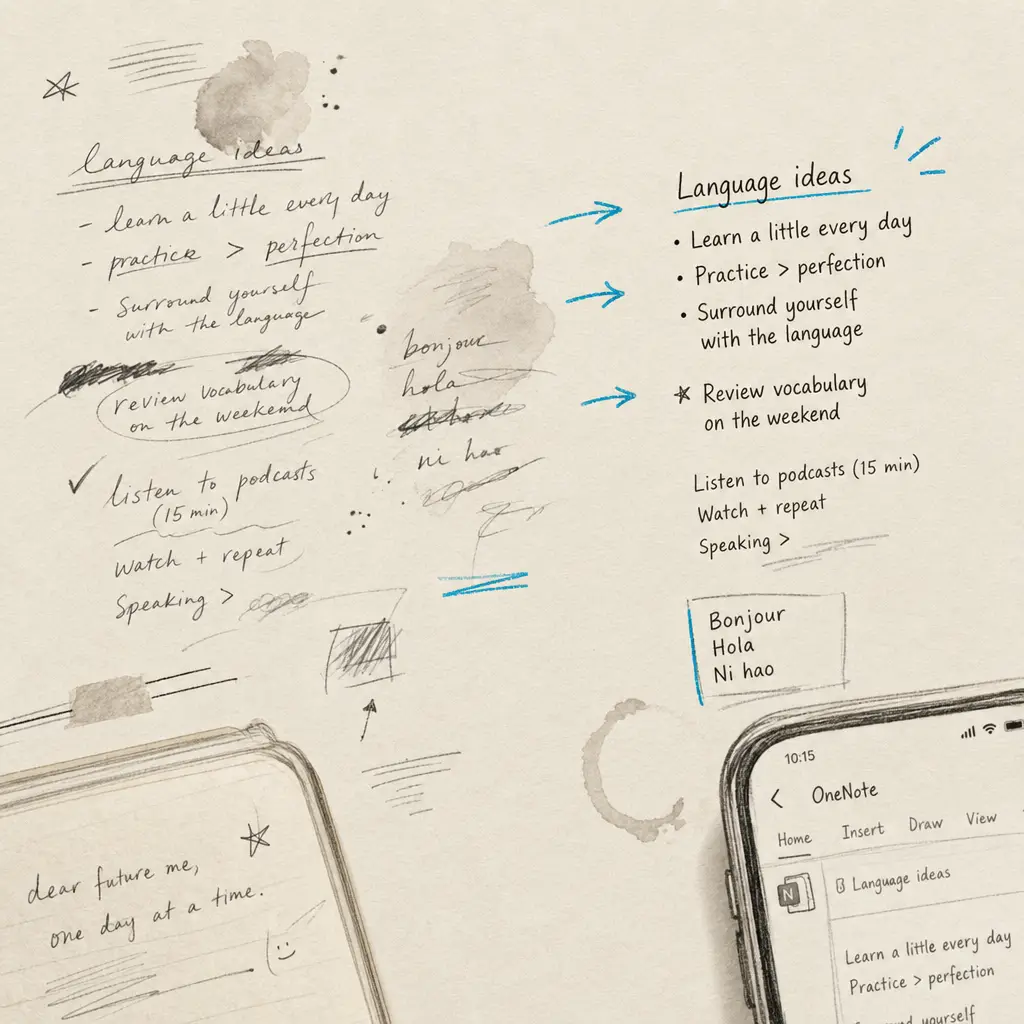
Microsoft OneNote includes built-in Optical Character Recognition (OCR) technology specifically designed for handwriting conversion. The Ink to Text feature can convert both handwritten notes created directly in OneNote and handwriting from imported images or photos, making it a versatile solution for digital note-taking and document processing.
OneNote's Ink to Text feature transforms handwritten notes into searchable, editable digital text across all your devices.
Supported Input Methods
- Direct handwriting with stylus, digital pen, or finger
- Imported photos containing handwritten text
- Scanned documents with handwriting
- Mixed content combining handwriting, drawings, and typed text
- Various handwriting styles including print and cursive
Convert Handwriting to Text on Android: Step-by-Step Guide
Standard Handwriting Conversion on Android
-
Launch OneNote:
- Open the Microsoft OneNote app on your Android device
- Ensure you're signed in to your Microsoft account for cloud synchronization
- Navigate to the notebook and page containing your handwritten content
-
Access Drawing Tools:
- Tap the Draw tab in the ribbon menu
- Familiarize yourself with the available tools (pens, highlighters, lasso selector)
- Ensure drawing mode is enabled for handwriting input
-
Select Handwritten Content:
- Choose the Lasso Select tool (circular dotted icon)
- Draw a selection boundary around the handwritten text you want to convert
- Ensure all relevant text is included within the selection area
- The selected content will be highlighted with selection handles
-
Convert to Text:
- With handwriting selected, look for the Ink to Text option
- This may appear in a context menu or as a button in the toolbar
- Tap Ink to Text to initiate the conversion process
- Wait for processing to complete (usually 1-3 seconds)
-
Review and Edit Results:
- Examine the converted text for accuracy
- Make necessary corrections using OneNote's text editing tools
- Adjust formatting, fonts, and styling as needed
- The original handwriting may be preserved alongside the converted text
Converting Photos and Images on Android
-
Import Image Content:
- Use OneNote's camera feature to capture handwritten documents
- Alternatively, insert existing photos from your device gallery
- Ensure images are clear, well-lit, and properly oriented
-
Access Image OCR Features:
- Tap on the inserted image to select it
- Look for OCR or text extraction options in the context menu
- Some versions may automatically detect and offer text extraction
-
Extract and Process Text:
- Initiate the text extraction process
- Review extracted text in a separate text box or overlay
- Copy extracted text to clipboard or insert directly into your notes
Platform-Specific Instructions
OneNote on iPad and iOS Devices
iPad Pro with Apple Pencil:
- Utilize pressure sensitivity and palm rejection for natural writing
- Access Ink to Text through the Draw tab after selecting handwritten content
- Take advantage of Apple Pencil's precision for improved recognition accuracy
- Use the double-tap gesture on Apple Pencil to quickly switch between tools
Standard iPad Setup:
- Enable finger writing in OneNote settings if using touch input
- Adjust touch sensitivity settings for optimal handwriting experience
- Use external stylus for better precision if available
- Consider handwriting practice for improved recognition results
iOS-Specific Features:
- Integration with iOS handwriting features and predictive text
- Scribble support for system-wide handwriting input
- Siri Shortcuts for quick note creation and conversion
- AirDrop integration for easy document sharing
OneNote on Surface Pro and Windows Devices
Surface Pen Integration:
- Full pressure sensitivity and tilt detection support
- Right-click functionality for quick access to conversion tools
- Windows Ink workspace integration
- Customizable pen buttons for frequently used functions
Windows-Specific Features:
- Desktop application with advanced OCR capabilities
- Batch processing options for multiple pages
- Integration with Windows Hello for secure access
- Advanced search capabilities across all notebooks
Touch and Pen Optimization:
- Configure palm rejection settings in Surface settings
- Adjust pen pressure curves for consistent writing experience
- Utilize Windows handwriting panel for system-wide input
- Enable handwriting-to-text conversion shortcuts
OneNote on Other Tablet Platforms
General Tablet Considerations:
- Ensure tablet supports pressure-sensitive stylus input
- Check OneNote version for latest handwriting features
- Optimize display settings for writing clarity
- Consider external keyboard for hybrid note-taking
Android Tablets:
- Similar functionality to Android phones with larger screen benefits
- Better precision for detailed handwriting and diagrams
- Improved selection tools for larger content areas
- Enhanced multitasking capabilities
Improving Handwriting to Text Recognition Accuracy
Writing Technique
- Maintain consistent letter size and spacing
- Use clear, distinct letterforms
- Avoid excessive cursive flourishes
- Write at moderate speed for better formation
- Keep lines straight and evenly spaced
Clear, consistent handwriting with adequate spacing between letters improves recognition accuracy by up to 40%.
Technical Optimization
- Ensure adequate lighting when photographing handwritten documents
- Use high-contrast writing instruments (dark ink on light paper)
- Maintain steady hand position and proper writing posture
- Clean device screen regularly for optimal touch responsiveness
- Calibrate stylus pressure settings if available
Content Preparation
- Pre-plan content organization for easier selection
- Use consistent handwriting style throughout documents
- Separate different types of content (text, diagrams, equations)
- Consider line spacing for easier selection and conversion
Language Support and International Considerations
Supported Languages
OneNote's handwriting recognition supports numerous languages including:
- Primary Support: English, Spanish, French, German, Italian, Portuguese
- Extended Support: Chinese (Simplified/Traditional), Japanese, Korean, Russian
- Regional Variants: Multiple English dialects, European language variants
- Mathematical Notation: Numbers, basic symbols, equations
Language-Specific Tips
Non-Latin Scripts:
- Ensure proper input method is selected
- Consider script-specific writing conventions
- Allow additional processing time for complex characters
- Verify font support for converted text display
Mixed Language Content:
- Process each language separately for better accuracy
- Use language tags or sections to organize content
- Consider manual language switching for optimal results
- Test recognition quality with sample content first
Troubleshooting Common Issues
Recognition Accuracy Problems
Symptoms and Solutions:
- Poor accuracy: Check handwriting clarity, lighting conditions, and stylus calibration
- Missing text: Ensure complete selection of handwritten content
- Incorrect characters: Review writing technique and consider manual corrections
- No conversion option: Verify OneNote version and update if necessary
Technical Diagnostics:
- Test with simple, clear handwriting samples
- Compare results across different devices and platforms
- Check internet connection for cloud-based processing features
- Verify sufficient device memory and processing power
Performance and Compatibility Issues
App Performance:
- Close unnecessary background applications
- Restart OneNote app if experiencing lag or freezing
- Clear app cache and temporary files
- Ensure adequate device storage space
Compatibility Concerns:
- Verify OneNote app version compatibility with device OS
- Check for pending app updates in device app store
- Ensure Microsoft account synchronization is functioning
- Test basic functionality with new notebook creation
Network and Synchronization:
- Verify internet connectivity for cloud features
- Check Microsoft service status for known outages
- Test offline functionality for local processing
- Resolve account authentication issues if present
Handwriting to Text Conversion Accuracy Comparison
| Method | Typical Accuracy | Best For | Processing Speed | Cost |
|---|---|---|---|---|
| OneNote Built-in | 75-85% | General note-taking | Fast (1-3 seconds) | Free with Microsoft account |
| HandwritingOCR | 90-95% | Critical documents, high accuracy needs | Very fast (2-5 seconds) | Pay per page or subscription |
| Manual typing | 100% | Small amounts of text | Slow | Time investment only |
| Local OCR software | 70-80% | Offline processing | Varies | One-time purchase |
When to Use HandwritingOCR Instead of OneNote
While OneNote provides excellent handwriting conversion capabilities for general use, certain scenarios benefit from specialized solutions. HandwritingOCR offers superior accuracy and privacy-focused processing for critical document conversion needs.
For documents requiring precision, privacy, or professional-grade accuracy, specialized OCR services deliver results that general-purpose tools cannot match.
High-Accuracy Requirements
When converting handwriting to text for legal documents, medical records, historical archives, or business-critical materials, accuracy matters. HandwritingOCR achieves 90-95% accuracy rates compared to OneNote's typical 75-85% accuracy, reducing time spent on manual corrections.
Privacy-Conscious Processing
HandwritingOCR processes your documents with privacy as a core principle. Your handwritten documents remain private and are processed only to deliver your results. They are not used to train models or shared with anyone else. This makes it ideal for sensitive personal documents, confidential business materials, or protected health information.
Volume Processing
For large-scale document conversion projects, batch processing capabilities, and consistent quality across hundreds or thousands of pages, dedicated OCR services provide workflow efficiencies that general note-taking apps lack.
Specialized Content
Mathematical equations, scientific notation, technical diagrams, or historical handwriting styles benefit from specialized processing that understands domain-specific conventions and terminology.
Business and Educational Applications
Enterprise Usage Scenarios
Meeting Notes and Documentation:
- Convert handwritten meeting notes to searchable text
- Share converted content with team members instantly
- Archive important discussions in digital format
- Create searchable knowledge bases from handwritten content
Field Work and Data Collection:
- Convert field notes and observations to digital format
- Process forms and surveys completed by hand
- Digitize inspection reports and checklists
- Create digital archives of handwritten documentation
Educational Applications
Student Benefits:
- Convert lecture notes for easier studying and searching
- Share notes with classmates in digital format
- Create study guides from handwritten materials
- Archive semester notes in organized digital libraries
Educator Advantages:
- Process student handwritten assignments and feedback
- Convert whiteboard content to digital lesson materials
- Create searchable databases of educational content
- Facilitate remote learning through digital note sharing
Privacy and Security Considerations
Data Privacy
Microsoft's Data Handling:
- Understand Microsoft's privacy policies for OneNote data
- Configure privacy settings appropriately for your needs
- Consider data residency requirements for sensitive content
- Review sharing and collaboration settings regularly
Security Best Practices
Account Security:
- Enable two-factor authentication on Microsoft accounts
- Use strong, unique passwords for account protection
- Regularly review account access and connected devices
- Monitor account activity for unauthorized access
Content Protection:
- Use OneNote's password protection features for sensitive notebooks
- Implement encryption for highly confidential content
- Control sharing permissions carefully
- Regular backup procedures for important notes
Conclusion: Choosing the Right Solution for Converting Handwriting to Text
Microsoft OneNote provides solid handwriting-to-text conversion capabilities across Android and all major platforms, making it a practical choice for digital note-taking and general document processing. Success with OneNote's handwriting recognition depends on understanding platform-specific features, optimizing writing techniques, and implementing efficient workflows.
When to Choose OneNote
- Integrated Workflows: When working within the Microsoft ecosystem
- Collaborative Notes: For team-based note-taking and sharing
- General Purpose: For most standard handwriting conversion needs
- Cross-Platform: When using multiple devices and platforms
When HandwritingOCR Delivers Better Results
- High Accuracy Requirements: For critical documents requiring 90-95% accuracy
- Privacy Concerns: When data privacy is paramount and you need guaranteed confidential processing
- Volume Processing: For large-scale document conversion projects
- Specialized Content: For complex handwriting, historical documents, or technical materials
Ready to convert your handwriting to text with professional-grade accuracy? Try HandwritingOCR free and experience the difference that specialized OCR technology makes for your important documents.
Frequently Asked Questions
Have a different question and can’t find the answer you’re looking for? Reach out to our support team by sending us an email and we’ll get back to you as soon as we can.
Does OneNote on Android support handwriting to text conversion?
Yes, OneNote on Android includes Ink to Text functionality. You can select handwritten content using the Lasso Select tool and convert it to editable text using the Ink to Text feature in the Draw tab.
What is the accuracy of OneNote handwriting recognition on Android?
OneNote provides good accuracy for clear, well-written handwriting. Results vary based on writing clarity, language, and handwriting style. For higher accuracy requirements, specialized services like HandwritingOCR may be more suitable.
Can I convert handwriting from photos in OneNote Android?
Yes, you can insert photos containing handwritten text into OneNote and use the OCR features to extract text from images. The app can process both handwriting created within OneNote and handwriting from imported photos.
Which languages does OneNote handwriting recognition support?
OneNote supports major languages including English, Spanish, French, German, Italian, Portuguese, Chinese, Japanese, Korean, and Russian, along with mathematical notation and symbols.