
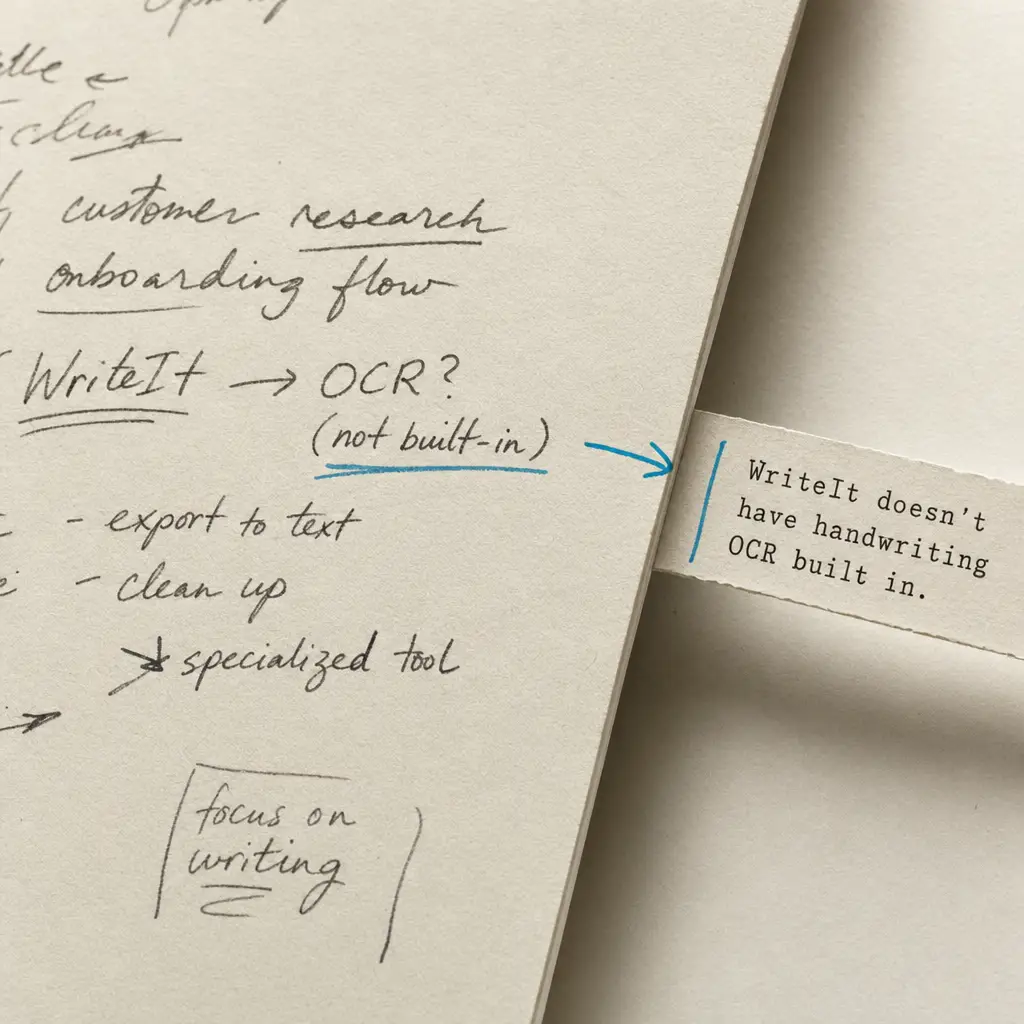
If you’re searching for ways to convert handwriting to text in WriteIt, you’re likely looking for a feature that WriteIt does not actually provide. This is a common source of confusion, so let’s clear things up.
WriteIt is primarily a writing and note-taking application designed for typed text input. It does not include built-in handwriting recognition or OCR capabilities. If you have handwritten documents, notes, or images that need converting handwriting to text, you’ll need a different approach.
Quick Takeaways
- WriteIt is a note-taking tool without handwriting OCR functionality
- To digitize handwritten content, use a specialized handwriting OCR service first
- HandwritingOCR.com offers accurate conversion for handwritten documents
- Once converted, you can import the digital text into WriteIt for organization
- Dedicated OCR tools provide better accuracy than general note-taking apps
What WriteIt Actually Does
WriteIt serves as a distraction-free writing environment focused on productivity and document organization. The application excels at helping you compose, edit, and manage typed text content.
Common WriteIt features include:
- Clean, minimalist writing interface
- Document organization and folder management
- Export options for various file formats
- Sync capabilities across devices
- Focus mode for distraction-free writing
None of these features, however, include the ability to process handwritten content or convert handwriting to text. The confusion often arises because users assume that any modern note-taking tool should include OCR capabilities, but this is not the case.
Many writing apps focus on typed input only. Handwriting recognition requires specialized AI models that most note-taking apps don’t include.
Why WriteIt Cannot Convert Handwriting to Text
Converting handwriting to digital text requires sophisticated optical character recognition technology specifically trained on handwritten text patterns. This is fundamentally different from the text editing and organization features that WriteIt provides.
Handwriting recognition demands:
- Advanced computer vision algorithms
- Machine learning models trained on diverse handwriting styles
- Image processing capabilities for photos and scans
- Recognition of cursive, print, and mixed writing styles
- Support for various languages and writing systems
These requirements make handwriting OCR a specialized task that goes far beyond what a general-purpose writing app needs to provide.
How to Actually Convert Handwriting to Text for WriteIt
If you want to get handwritten content into WriteIt, you need a two-step process: first convert the handwriting to digital text using a dedicated OCR tool, then import that text into WriteIt.
Step 1: Convert Handwriting with Specialized OCR
Use a handwriting recognition service designed specifically for this task:
- Take clear photos or scans of your handwritten documents
- Upload them to a handwriting OCR service
- Let the OCR engine process and extract the text
- Download the converted digital text
HandwritingOCR.com handles this conversion process with high accuracy, supporting multiple OCR providers and AI models to ensure the best results for your specific handwriting style.
Specialized handwriting OCR tools achieve significantly better accuracy than general-purpose apps because they use models specifically trained on handwritten text.
Step 2: Import Converted Text into WriteIt
Once you have digital text:
- Open the converted text file
- Copy the extracted content
- Paste it into a new WriteIt document
- Edit and organize as needed within WriteIt
This workflow allows you to use the best tool for each job. OCR tools handle the complex task of handwriting recognition, while WriteIt provides the writing and organization features you need afterward.
Alternative Note-Taking Apps with Built-In OCR
If you specifically need an all-in-one solution that handles both handwriting input and text conversion, consider these alternatives that include native handwriting features:
Microsoft OneNote offers handwriting recognition on tablets and touch devices. When you write with a stylus, you can convert those digital strokes to typed text. Learn more about how to convert handwriting to text in OneNote.
Apple Notes includes handwriting recognition for iPad users with Apple Pencil. You can write directly in the app and convert to text. See our guide on converting handwriting to text in Apple Notes.
Evernote provides basic handwriting recognition capabilities, though accuracy varies. Check out how to convert handwriting to text in Evernote for details.
However, these built-in features work primarily with digital handwriting created directly in the apps using a stylus. They are less effective at processing photos or scans of paper documents with existing handwriting.
When to Use HandwritingOCR Instead
For certain scenarios, a specialized OCR service delivers significantly better results than any note-taking app with built-in features:
Processing existing paper documents: If you have stacks of handwritten notes, letters, journals, or forms already on paper, photographing them and using dedicated OCR provides the fastest and most accurate conversion path.
Batch processing multiple documents: Converting dozens or hundreds of pages becomes practical with a tool designed for volume processing. Most note-taking apps require manual conversion page by page.
Higher accuracy requirements: When you need accurate transcription of important documents like legal notes, historical records, or research materials, specialized OCR engines trained specifically on handwriting deliver better results.
| Feature | WriteIt | Note Apps with OCR | HandwritingOCR.com |
|---|---|---|---|
| Handwriting OCR | No | Limited | Yes |
| Batch Processing | N/A | No | Yes |
| Paper Document Conversion | No | No | Yes |
| Multiple OCR Engines | N/A | One | Multiple |
| Export Formats | Basic | Basic | CSV, JSON, XLSX |
Multiple language support: Handwritten documents in various languages or mixed scripts require specialized models that dedicated OCR services provide.
Privacy for sensitive documents: With HandwritingOCR, your documents remain private and are not used to train models. They are processed only to deliver your results. For sensitive material like legal notes or personal diaries, this privacy protection matters.
Your documents remain private and are processed only to deliver your results. They are not used for training or shared with anyone else.
The Best Workflow for Handwriting Conversion
For users who want to organize converted handwriting in WriteIt, this workflow provides the best balance of accuracy and convenience:
1. Capture high-quality images: Take clear photos of your handwritten pages with good lighting and minimal shadows. Smartphone cameras work well for most documents.
2. Use specialized OCR for conversion: Upload your images to HandwritingOCR for processing. The service supports various formats including JPG, PNG, and PDF.
3. Review and download results: Check the converted text for accuracy and download in your preferred format.
4. Organize in WriteIt: Import the digital text into WriteIt where you can organize, edit, and manage it alongside your other written content.
5. Archive originals appropriately: Keep your original handwritten documents stored safely, knowing you now have searchable digital copies.
This separation of concerns means you use each tool for what it does best. WriteIt excels at organizing and editing typed content, while HandwritingOCR specializes in the complex task of extracting text from handwritten documents.
Conclusion
WriteIt does not convert handwriting to text because it is designed as a writing tool for typed input, not an OCR application. To get handwritten content into WriteIt, first convert the handwriting using a dedicated handwriting recognition service, then import the resulting digital text into WriteIt for organization and editing.
For accurate handwriting conversion with privacy protection and support for various document types, specialized tools like HandwritingOCR provide the best results. Your files remain private throughout the process, and you can handle everything from single pages to large batches of documents.
Ready to convert your handwritten documents? Try HandwritingOCR free with complimentary credits to get started.
Frequently asked questions
Does WriteIt have handwriting to text conversion?
No, WriteIt is a note-taking and writing application that does not include built-in handwriting OCR or handwriting to text conversion features. It is designed for typed text input and document organization.
Can I convert handwritten notes to text using WriteIt?
WriteIt does not convert handwritten notes to text. To digitize handwritten content, you need to use a specialized OCR tool like HandwritingOCR that can process images or PDFs of your handwritten documents.
What is the best way to convert handwriting to text for use in WriteIt?
First convert your handwritten documents to text using a dedicated handwriting OCR service like HandwritingOCR.com. Once the text is extracted, you can copy and paste it into WriteIt for organization and further editing.
Can WriteIt process scanned handwritten documents?
No, WriteIt cannot process or extract text from scanned handwritten documents. You need a handwriting recognition tool to convert the scanned content into digital text first, then import that text into WriteIt.