
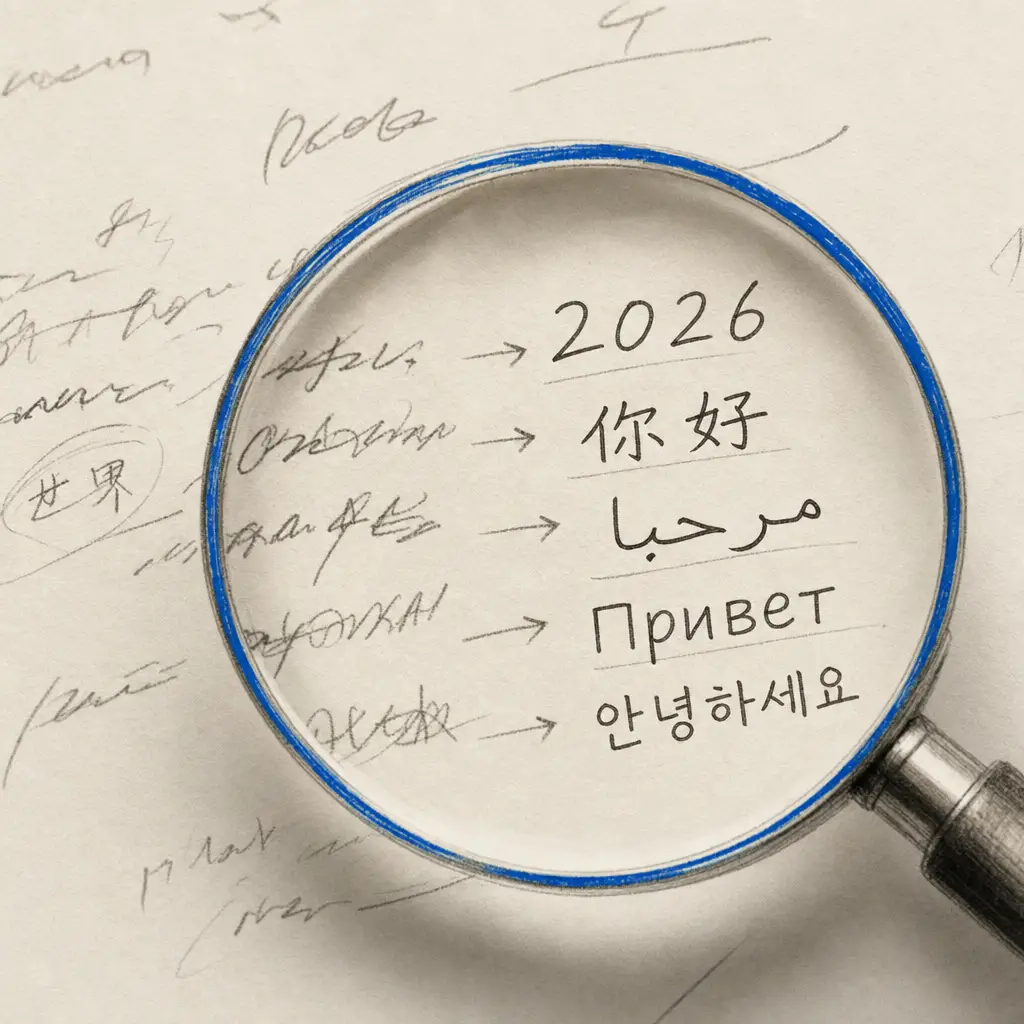
Best Free OCR for Handwriting: 2026 Comparison | Top Tools...

Best Free OCR for Handwriting: 2026 Comparison

Last updated

You've searched for free handwriting OCR tools. You've found lists promising "the best" options. But when you actually tested them, most either failed on real handwriting or came with so many limitations they weren't truly free.

The truth is that most free OCR tools are built for printed text. When you feed them cursive writing, messy notes, or historical documents, accuracy drops from 99% to 60% or worse. At that point, you're still retyping most of the content manually.

Not all free handwriting OCR is created equal. Some options genuinely work for specific use cases. Others waste your time. This comparison covers what actually works, what doesn't, and when free stops being worth it.

Quick Takeaways

  • Generic free OCR tools average 60-70% accuracy on handwriting vs 95%+ for specialized services
  • Google Keep and Microsoft OneNote offer completely free recognition but with significant limitations
  • Tesseract is powerful open-source OCR but requires technical knowledge and struggles with handwriting
  • Some specialized services offer same accuracy on free credits as paid plans
  • Free works for occasional use with clear handwriting, paid makes sense for regular use or challenging documents

Understanding Free Handwriting OCR Options

Built-In Phone and Computer Tools

Your devices already include basic handwriting recognition. Google Keep on Android and iOS can extract text from photos of handwritten documents. Microsoft OneNote converts handwriting written directly with a stylus on tablets.

These tools are completely free with no page limits or feature restrictions. For quick capture of clear handwriting, they work reasonably well. Take a photo of meeting notes, let Google Keep extract the text, and you're done in seconds.

The limitations become obvious with challenging handwriting. Google Keep struggles with cursive, can't handle historical documents, and provides no formatting control. OneNote works better with direct stylus input than scanned documents, and accuracy drops significantly on anything beyond neat print-style writing.

Generic free tools average only 64% accuracy on handwriting, compared to 95%+ for AI services specifically trained on cursive and historical documents.

Neither tool offers structured export formats. You get plain text, which is fine for simple notes but inadequate for documents with tables, complex formatting, or specific layout requirements.

Open Source OCR Engines

Tesseract is Google's open-source OCR engine. It's completely free, powerful for printed text, and used in countless projects worldwide. Developers love it for its flexibility and lack of licensing costs.

But Tesseract is fundamentally designed for printed text. The recognition of handwriting is often inaccurate, especially when dealing with cursive or highly stylized writing. While you can use it for very clear, consistent print-style handwriting, accuracy typically falls well below specialized handwriting tools.

Technical knowledge is required. Tesseract runs from the command line. You need to understand parameters, preprocessing techniques, and output formatting. For developers, this is manageable. For most users, it's a significant barrier.

Other open-source options like Kraken and OCRopus target historical or handwritten documents specifically. They require even more technical expertise to set up and train effectively.

Tool Cost Best For Accuracy on Handwriting Technical Skill Required
Google Keep Free Quick mobile capture 65-75% (clear only) None
Microsoft OneNote Free Direct stylus input 70-80% (tablet writing) None
Tesseract Free Printed text 60-70% (print-style only) High
Specialized AI Services Free credits All handwriting types 95%+ None

Free Credits from Specialized Services

Some services designed specifically for handwriting recognition offer free credits to test before you pay. Unlike generic OCR tools adapted for handwriting, these platforms use AI trained on millions of handwriting samples including cursive, messy writing, and historical documents.

The accuracy difference is significant. Where Google Keep might achieve 65% accuracy on cursive handwriting, specialized AI services reach 95% or higher. This isn't a minor improvement. It's the difference between retyping half the document and making occasional small corrections.

Free credits let you test on your own documents before committing. Upload your most challenging pages first. If the service handles those accurately, you know it'll work for everything else. If it fails, you've learned that without spending money.

Privacy protection matters here. Generic free tools often use your uploads to train their models. Your family letters or business documents become part of their dataset. Specialized services that respect privacy don't train on customer data, even for free account holders.

Free credits from specialized services provide the same AI accuracy as paid plans, with word error rates under 1% on cursive and historical handwriting.

Comparing Best Free Handwriting OCR Tools

Google Keep: Best for Quick Mobile Capture

Google Keep's handwriting recognition works through its "Grab image text" feature. Take a photo of handwritten notes, open the note in Keep, tap the three-dot menu, and select "Grab image text." The service extracts text from the image and appends it to your note.

This process works best for recent handwritten notes in relatively clear print-style handwriting. Students capturing lecture notes find it useful. Meeting participants photographing whiteboard content get reasonable results.

Limitations become apparent quickly. Cursive handwriting produces inconsistent results. Historical documents with old writing styles fail frequently. Complex layouts confuse the recognition. You can't control output formatting.

Google Keep also doesn't convert handwriting drawn directly in the app with a stylus. It only processes photographed or scanned documents. This architectural choice limits its usefulness for tablet users who want to convert handwriting to text as they write.

Microsoft OneNote: Best for Tablet Stylus Writing

OneNote handles handwriting differently. It recognizes ink written directly in the app with a stylus on tablets and touchscreen devices. Use the Lasso Select tool to select handwritten content, then choose "Ink to Text" to convert it.

This works well for people who take notes with an Apple Pencil on iPad or a Surface Pen on Microsoft tablets. Real-time handwriting recognition while you write makes digital note-taking feel natural while maintaining searchability.

The catch is that OneNote struggles with scanned documents or photos of handwritten text. The OCR features are optimized for digital ink, not images of paper documents. For genealogy handwriting OCR or historical document conversion, OneNote isn't the right choice.

Platform availability varies. The best handwriting recognition features work on Windows and iPad versions. Android users face limitations. The mobile experience doesn't match the desktop version for handwriting capabilities.

Tesseract: Best for Developers and Technical Users

Tesseract offers complete control and zero licensing costs. For developers building document processing pipelines, it's an attractive foundation. You can customize preprocessing, train custom models, and integrate it deeply into your applications.

Handwriting recognition requires significant preprocessing and even then produces inconsistent results. Tesseract is not suitable for modern handwriting recognition and focuses on printed text. For handwritten forms, signatures, or notes, you need an OCR engine with specific handwriting recognition capabilities.

You can improve Tesseract's handwriting performance through careful image preprocessing. Adjusting contrast, removing noise, deskewing images, and binarization help. But even with optimized preprocessing, accuracy on cursive or messy handwriting falls short of tools specifically trained for handwriting.

The technical investment is substantial. Unless you're a developer comfortable with command-line tools and image processing libraries, the learning curve is steep. For most users seeking to digitize handwritten documents, easier options exist.

Handwriting OCR: Best for Serious Document Conversion

Specialized AI services like Handwriting OCR take a different approach. Free credits provide access to the same AI that paying customers use. Accuracy doesn't decrease on free accounts. The technology remains identical.

Word error rates under 1% apply to free credit conversions just as they do for paid plans. The AI is trained specifically on handwriting including cursive, historical scripts, and messy writing that causes other tools to fail.

Export formats include Microsoft Word with preserved formatting, plain text in Markdown format, and JSON for structured data. All formats are available on free credits. You're not locked out of features you need to test properly.

Privacy protection is identical for free and paid users. Documents are encrypted, auto-deleted after 7 days, and never used to train AI models. Free doesn't mean your data becomes training material.

The limitation is quantity, not quality. Free credits let you process enough documents to verify accuracy on your specific handwriting. Once you've confirmed it works, you can purchase additional credits through pay-as-you-go or monthly subscription if your needs justify it.

When Free Handwriting OCR Is Enough

Occasional Personal Use

If you digitize a few handwritten notes per month for personal reference, free tools handle that comfortably. Google Keep works for capturing quick notes. Free credits from specialized services handle more challenging documents without ongoing costs.

The key is volume. Occasional use means you're not processing dozens or hundreds of pages monthly. You have time to work within free tier limitations and don't need instant access to large capacity.

Clear handwriting helps free tools succeed. If your handwriting is naturally neat and print-style, recognition accuracy remains high even with basic free tools. You'll spend minimal time correcting errors.

Testing Before Larger Projects

Before committing to digitizing an entire archive, test accuracy on representative samples. Free credits or free tools let you evaluate whether handwriting OCR will work for your documents without financial risk.

Upload your most challenging pages first. If free tools handle difficult handwriting accurately, they'll work fine for the rest. If they struggle, you've learned that before investing in a larger volume plan.

This testing phase is critical for historical document recognition. Handwriting styles vary significantly across time periods and individuals. What works for modern notes might fail on documents from the 1800s.

Non-Sensitive Personal Documents

Free tools with unclear privacy policies are acceptable for non-sensitive content. If you're digitizing shopping lists or casual notes, data training concerns matter less than for business documents or family letters.

Generic free services often use uploads to improve their models. For many personal documents, this tradeoff is reasonable. You get free processing in exchange for contributing to their training dataset.

However, if documents contain personal information, family history, or anything confidential, this tradeoff becomes problematic. In those cases, services that explicitly don't train on customer data provide peace of mind worth paying for.

When You Should Use Paid Handwriting OCR

Regular Document Processing

Once you're processing handwritten documents weekly or daily, free tier limitations become frustrating. Page limits mean constantly waiting for monthly resets. Feature restrictions prevent you from optimizing your workflow.

Paid plans offer better value at scale. Monthly subscriptions or bulk credit purchases reduce cost per page significantly. What seems expensive for single documents becomes economical for regular use.

API access available on paid plans enables automation. Instead of manually uploading each document, you can build workflows that process batches automatically, integrate with other systems, and handle documents systematically.

Challenging Handwriting Requiring High Accuracy

Cursive writing, messy notes, or historical documents with faded ink require AI specifically trained for those challenges. Generic free tools fail consistently on difficult handwriting.

The accuracy gap between 70% and 95% represents the difference between acceptable results and completely retyping documents. If you need reliable conversion of challenging handwriting, specialized paid services justify their cost through time saved.

Professional or business use demands accuracy. Legal documents, medical records, or business forms can't afford the error rates typical of free tools. The risk of misread information exceeds the cost of accurate OCR.

Sensitive or Confidential Documents

Business documents, legal records, medical forms, and family history materials require privacy protection. Free tools that train on customer data create unacceptable risks for sensitive content.

Paid services emphasizing privacy provide encryption, automatic deletion, and explicit no-training policies. For documents containing personal information, financial data, or confidential business content, these protections are essential.

Compliance requirements often mandate specific data handling. HIPAA for healthcare, GDPR for European data, or industry-specific regulations may require paid services with appropriate certifications and guarantees.

Making the Right Choice for Your Needs

Start with Free Options to Test

Don't commit to paid services before testing free alternatives. Upload representative samples to Google Keep, try Microsoft OneNote if you use tablets, or request free credits from specialized services.

This testing costs nothing and reveals whether free options meet your accuracy requirements. Many users discover that occasional needs don't justify paid subscriptions when free tools work adequately.

Compare results across multiple tools. The same document might produce 60% accuracy on one free service and 95% on another. Testing reveals which tools handle your specific handwriting style effectively.

Evaluate Based on Your Documents

Your handwriting determines which tools work. Clear, print-style writing succeeds with basic free tools. Cursive, messy, or historical handwriting requires more sophisticated AI.

Test with worst-case examples, not your neatest writing. If a tool handles difficult pages accurately, easier documents will work fine. The reverse isn't true. Success on clear handwriting doesn't predict performance on challenging documents.

Consider your full range of use cases. If most documents are easy but occasional challenging pages appear, you might use free tools for routine work while purchasing credits for difficult documents.

Factor in Time Value

Free tools that require extensive manual correction waste time. If you spend 30 minutes fixing errors on a page that costs $0.15 to process accurately, the paid option saves money through efficiency.

Calculate the real cost including your time. Hourly rate × hours spent correcting errors often exceeds subscription costs for people processing documents regularly. Free becomes expensive when it consumes productive time.

Professional use particularly benefits from this analysis. If document processing is part of your work, accuracy and speed matter more than minimizing direct tool costs.

Conclusion

The best free OCR for handwriting depends on your specific needs. Google Keep works for quick mobile capture of clear notes. Microsoft OneNote serves tablet users writing with a stylus. Tesseract appeals to developers comfortable with technical tools.

For serious document conversion including cursive, messy writing, or historical documents, specialized AI services trained specifically for handwriting produce significantly better results. Many offer free credits that provide the same accuracy as paid plans, letting you test on real documents before committing.

Free options work well for occasional personal use with relatively clear handwriting. When you process documents regularly, need high accuracy on challenging handwriting, or handle sensitive content, paid services deliver better value through time saved and reliability gained.

HandwritingOCR offers free credits to test AI-trained recognition on your documents with no credit card required. Verify accuracy on your specific handwriting before deciding whether free tools meet your needs or paid capacity makes sense. Try HandwritingOCR free to see the accuracy difference on your own documents.

Frequently Asked Questions

Have a different question and can’t find the answer you’re looking for? Reach out to our support team by sending us an email and we’ll get back to you as soon as we can.

What is the best free OCR for handwriting recognition?

For quick mobile capture, Google Keep offers basic free handwriting recognition. For developers comfortable with command-line tools, Tesseract is a powerful open-source option. However, specialized services like Handwriting OCR offer free credits with significantly higher accuracy on cursive and challenging handwriting, making them the best choice for serious document conversion.

Can Tesseract OCR recognize handwriting for free?

Tesseract is completely free and open-source, but it struggles with handwriting because it was primarily trained on printed fonts. While you can use it for very clear, print-style handwriting, accuracy drops significantly on cursive or messy writing. For reliable handwriting recognition, AI-trained services produce better results.

Is free handwriting OCR as accurate as paid versions?

It depends on the service. Generic free tools average 60-70% accuracy on handwriting, while premium tools achieve 85-95%. However, some services like Handwriting OCR offer the same AI accuracy on free credits as paid plans, with the difference being page limits rather than quality. Test with your own documents to verify accuracy.

Do Google Keep and Microsoft OneNote work for handwriting OCR?

Both offer basic handwriting recognition for free. Google Keep works best for photographed documents, extracting text from images of handwritten notes. Microsoft OneNote handles direct stylus input on tablets but struggles with scanned documents. Neither matches specialized handwriting OCR tools for accuracy on challenging handwriting or historical documents.

Should I use free or paid handwriting OCR software?

Use free options for occasional personal use with clear handwriting. Choose paid services when you need high accuracy on cursive or messy writing, process documents regularly, require specific export formats like Excel, or work with sensitive documents needing strong privacy protection. Many paid services offer free credits to test accuracy before committing.