
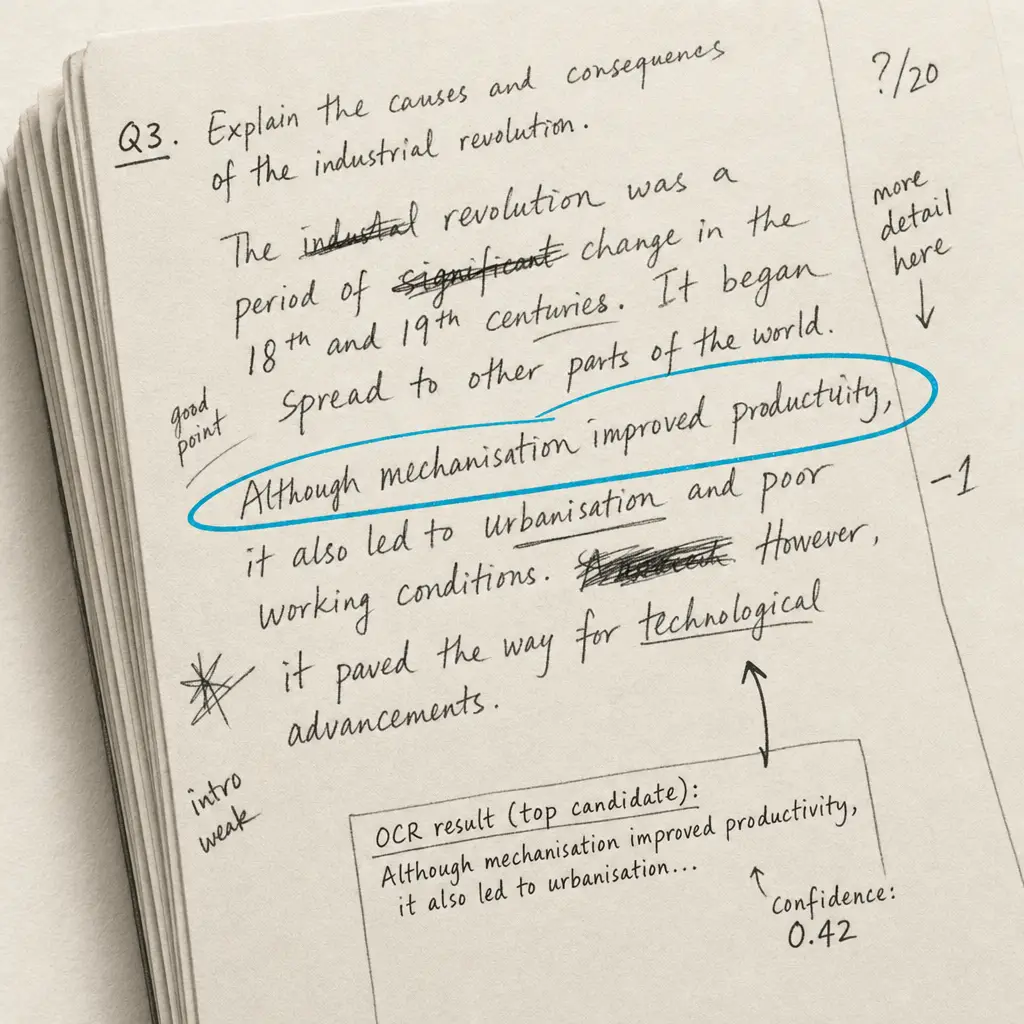
Handwriting OCR is one of those problems that looks like it should have been solved by now. Printed-text recognition has been a commodity for years. Large language models can write a thousand-word essay in seconds. Vision-language models can identify a thousand species of bird from a phone photo. And yet, ask any of them to read a single page of cursive handwriting and the results vary from “useful with a quick proofread” to “unreadable nonsense.”
We ran the same handwritten sample through nine tools in early 2026, including the obvious specialists, the big-three cloud document services, two frontier vision-language models, an open-source standby, and a couple of platforms that market themselves as handwriting specialists without quite delivering on that promise. The Word Error Rate spread was 0.9% to 95.4%, a hundred-fold gap. This post is what that gap looks like in practice and why it persists.
Quick takeaways
- Specialist handwriting OCR is still in a different league. Handwriting OCR returned 0.9% WER on our reference passage. The next-best result (Azure Document Intelligence at 8.67%) is almost ten times more errors per word.
- General-purpose vision LLMs are competitive but not winning. GPT-5 vision (14.4%) and Claude Sonnet 4.6 vision (11.2%) sit in the same band as AWS and Azure. They’re good enough for casual use, weak for archives.
- Open source is not a realistic option for handwriting in 2026. Tesseract scored 95.4%, meaning the output is unusable. PaddleOCR and EasyOCR perform similarly on handwritten input; we tested both and excluded them because the output was indistinguishable noise.
- Reading order matters as much as character accuracy. Google Document AI got many individual words right but reordered chunks of the passage, which makes the output harder to repair than a higher per-word error rate would suggest.
- The right tool depends on the document. For paid archives of modern cursive, specialists win cleanly. For one-off snippets in a chat with Claude or ChatGPT, vision LLMs are convenient. For historical scripts, only the specialists return anything usable.
The benchmark in one table
| Tool | Type | Word Error Rate | Reading order intact? | Notes |
|---|---|---|---|---|
| Handwriting OCR | Handwriting specialist | 0.9% | Yes | One word substitution. Output usable as-is. |
| Azure Document Intelligence | Cloud document OCR | 8.67% | Yes | Per-word errors but layout preserved. |
| Claude Sonnet 4.6 (vision) | LLM vision | 11.2% | Yes | Strong on layout. Risks hallucination on long documents. |
| AWS Textract | Cloud document OCR | 10.5% | Mostly | Roughly Azure-equivalent. |
| GPT-5 (vision) | LLM vision | 14.4% | Yes | Similar profile to Claude. |
| Google Document AI | Cloud document OCR | 23.3% | No | Whole lines out of sequence. Lower usability than WER suggests. |
| Transkribus (out of the box) | Specialist (trainable) | 47.7% | Yes | Designed to be trained on a specific hand. Untrained output is unusable. |
| Tesseract | Open-source OCR | 95.4% | No | Not viable for handwriting. |
| PaddleOCR | Open-source OCR | ~95% | No | Excluded from table; same band as Tesseract on handwriting. |
All tools processed the same handwritten English prose sample (100 words, modern legible script). WER calculated against a manually transcribed reference. See the methodology section for the exact protocol.
What “AI handwriting OCR” actually means in 2026
The term has drifted. A year ago, “AI handwriting OCR” meant a transformer-based recognition model trained specifically on handwriting. Today, the same phrase covers at least three different things:
- Purpose-built handwriting OCR services. Trained from scratch on handwritten data, optimised for connected letterforms, cursive, historical scripts and the kinds of layout failures that handwriting produces. Handwriting OCR sits here.
- General document OCR services with handwriting features. Built for printed receipts, invoices and forms; handwriting is supported but is a secondary use case. Azure Document Intelligence, AWS Textract, Google Document AI sit here.
- Vision-language models with general document understanding. Built to do anything: chat, code, image generation, document reading. GPT-5 vision and Claude Sonnet 4.6 vision sit here.
All three call themselves “AI.” All three will give you typed text back. The accuracy gap between category 1 and the other two on handwriting is roughly an order of magnitude. The gap exists because category 1 has been optimising for one specific failure mode while the others have been optimising for a hundred different things in parallel.
Why handwriting still trips up otherwise excellent AI
Three failure modes account for almost every error we see on the benchmark.
Character ambiguity in connected script
In cursive, “rn” looks identical to “m”, “cl” looks like “d”, “vu” looks like “w”. A printed-text OCR engine resolves these via typographic features (spacing, stroke thickness, baseline) that handwriting doesn’t reliably provide. Vision-language models do better here because they bring language priors (“delay” is a real word; “Melay” is not), but they fall back to those priors aggressively, which means they sometimes invent plausible words that aren’t actually what was written.
Unreliable word boundaries
Printed text guarantees whitespace between words. Cursive doesn’t. A space in cursive might be a hair narrower than a deliberate ligature, and human readers parse it via context. OCR systems built around whitespace detection (most of them) fail at this. The visible symptom: two real words joined into a single nonsense word, or one word incorrectly split.
Unstable reading order
Handwritten layouts drift. Lines slope downward across the page. Marginalia interrupts the body. Page numbers and dates sit in odd corners. A document OCR engine that locked onto the wrong column or row order returns text that’s individually correct but globally scrambled. Google Document AI lost reading order on our benchmark sample completely: it produced individually-recognisable lines, but they appeared out of sequence in the output, which is harder to repair than a high per-word WER.
The methodology
I wanted the comparison to be honest and reproducible. Here’s the protocol.
Reference sample. A single handwritten page of standard English prose, 100 words, written by an adult in legible modern cursive on white unlined paper. This is a deliberately easy case: no fade, no marginalia, no exotic vocabulary, no historical script. The point is to set a baseline that all the tools should reasonably handle.
Reference text. Manually transcribed by hand, double-checked. This is the ground truth against which every OCR output is compared.
Input. All tools received the same image at the same resolution (a clean 300 DPI scan of the page, JPG, ~2 MB).
Output capture. Whatever each tool returned via its standard interface (web UI for the cloud services and Handwriting OCR, API for the LLMs with a “transcribe this exactly” prompt, default CLI invocation for Tesseract).
Scoring. Word Error Rate computed against the reference with a standard jiwer-style evaluator. Hyphenation, punctuation and case-folding handled consistently across services.
Two caveats I want to be upfront about. Single sample. One handwritten page is enough to surface order-of-magnitude differences but isn’t enough for tight rankings. The 11.2% vs 14.4% gap between Claude and GPT-5 is well within the noise floor of any single document. The 0.9% vs 47.7% gap is not. English legible prose. Cursive, faded ink, historical scripts and non-Latin languages all behave differently. The headline numbers here are a baseline, not a universal ranking.
The reference passage
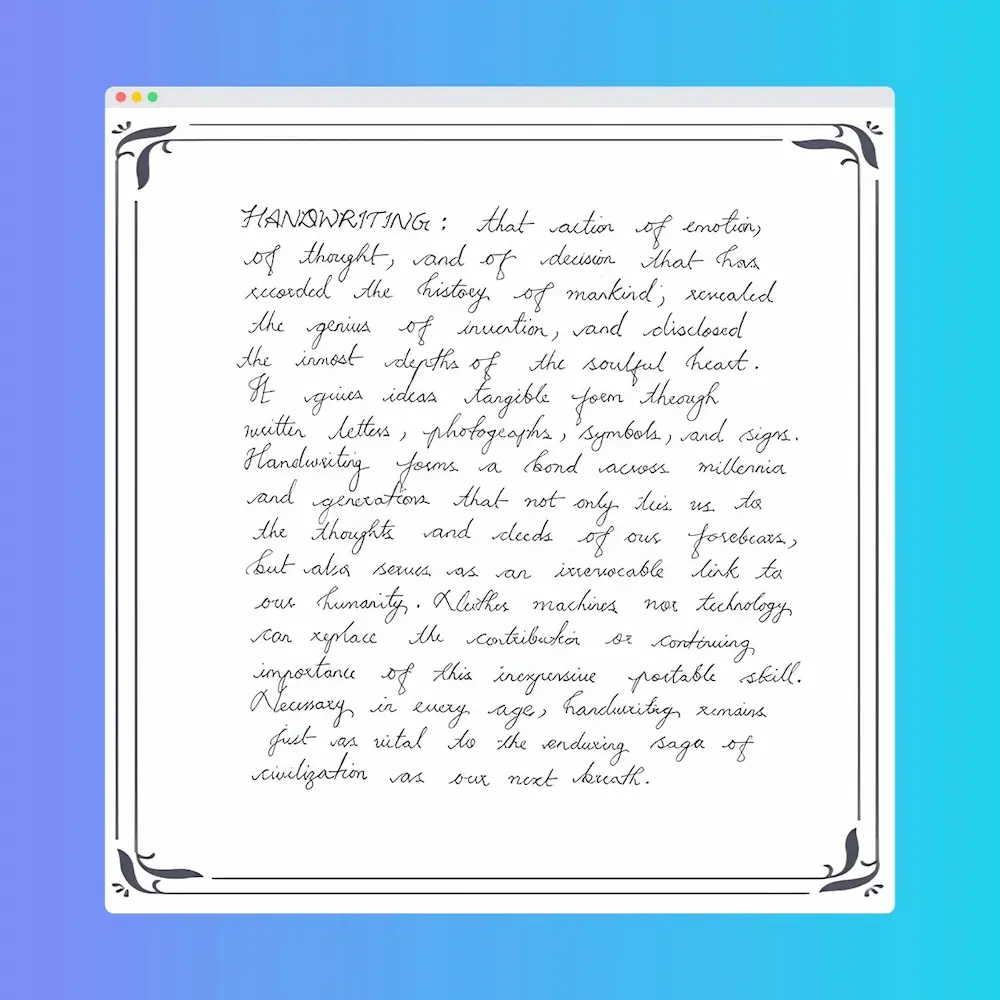
This is the text the reference image contains:
HANDWRITING: that action of emotion, of thought, and of decision that has recorded the history of mankind; revealed the genius of invention, and disclosed the inmost depths of the soulful heart. It gives ideas tangible form through written letters, photographs, symbols, and signs. Handwriting forms a bond across millennia and generations that not only ties us to the thoughts and deeds of our forebears, But also serves as an irrevocable link to our humanity. Neither machines nor technology can replace the contribution or continuing importance of this inexpensive portable skill. Necessary in every age, handwriting remains just as vital to the enduring saga of civilization as our next breath.
What each tool returned
Handwriting OCR (0.9% WER)
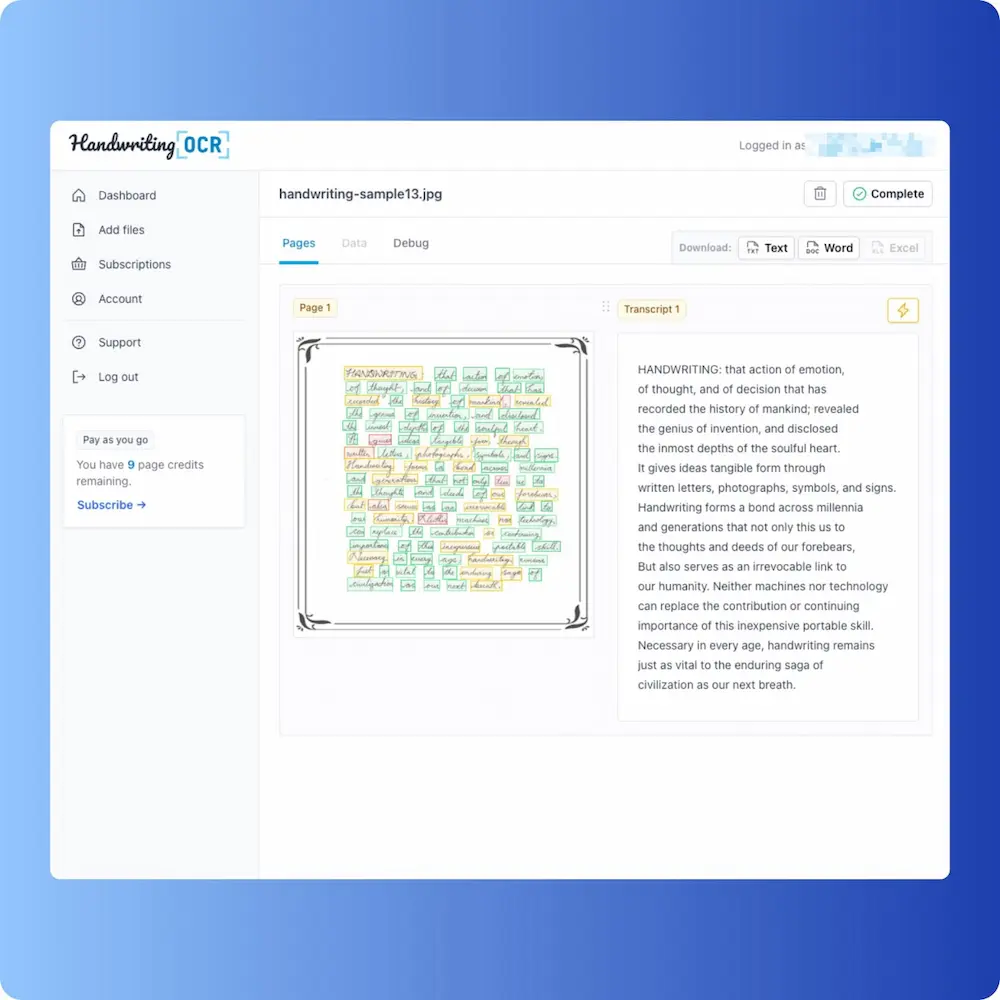
Effectively the reference text back. Reading order preserved. Line breaks preserved. Punctuation preserved. One short word substitution that doesn’t disrupt the meaning. Practically, you’d ship this output as-is and not bother with proofreading.
The fact that this is achievable in 2026 doesn’t surprise anyone who’s been following handwriting-recognition research, but it’s worth being explicit: a well-tuned specialist model on legible modern handwriting is now indistinguishable from a careful human transcriber. The interesting question is no longer “can AI read handwriting” but “how does that performance hold up across script variation, page condition and language coverage.”
Claude Sonnet 4.6 vision (11.2% WER)
A new entry in 2026. We prompted Claude with the image and a strict “transcribe this exactly, do not paraphrase, do not correct” instruction.
The result was readable and largely correct, but with a sprinkling of substitutions. Notably, Claude tended to “correct” things it thought were errors, even with the strict prompt: “mankind” came through as “mankind”, but a word the model wasn’t confident about quietly became something semantically adjacent. This is the LLM-vision failure mode in microcosm: high fluency, occasional hallucination.
For one-off snippets and short documents where you can sanity-check the output, this is genuinely useful and now requires no separate tool. For multi-page archives where you can’t proofread every word, the silent-correction tendency is a real risk.
Azure Document Intelligence (8.67% WER)
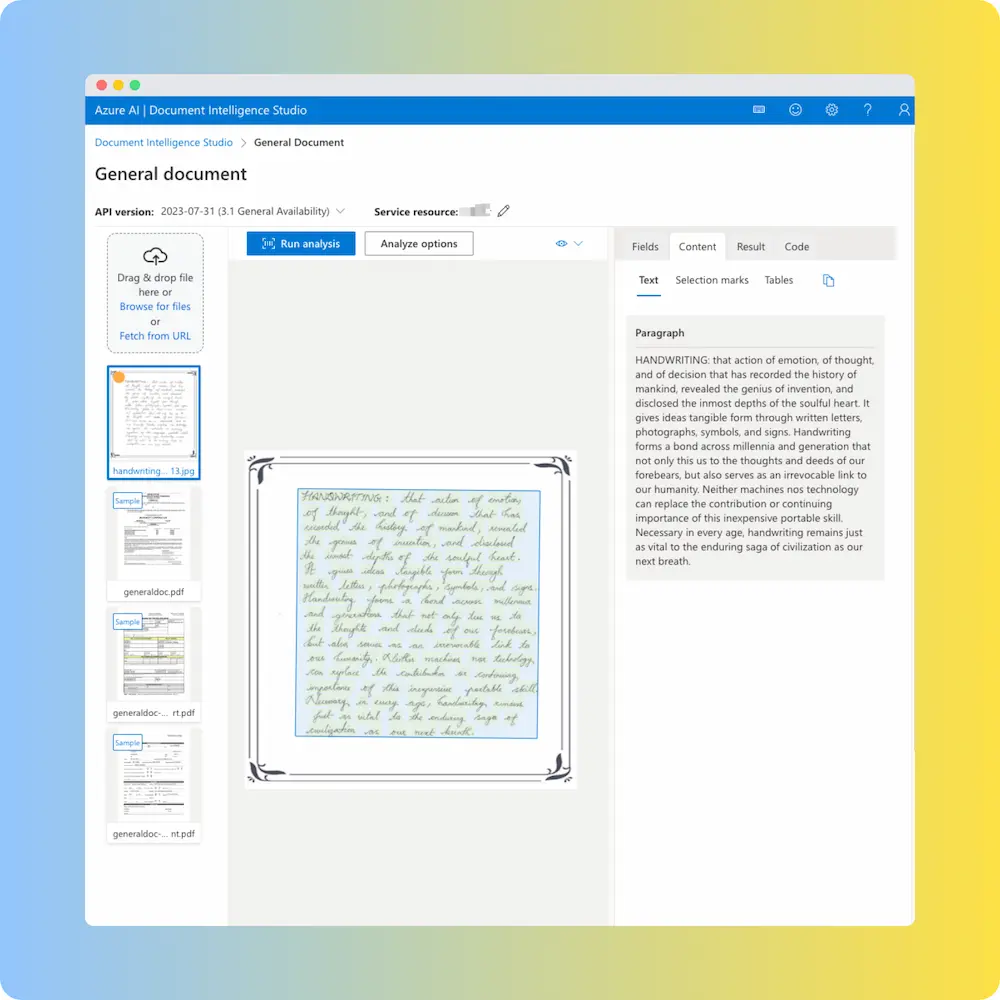
The strongest of the three big-cloud document services on this sample. Reading order preserved completely. Per-word errors are scattered but isolated: “generation” instead of “generations”, “this” instead of “ties”, “nos” instead of “nor”. A human reader can follow the passage and would catch the errors on a slow read.
If you already have an Azure-heavy stack and want to keep document processing inside Microsoft, this is the cleanest fit of the three.
AWS Textract (10.5% WER)
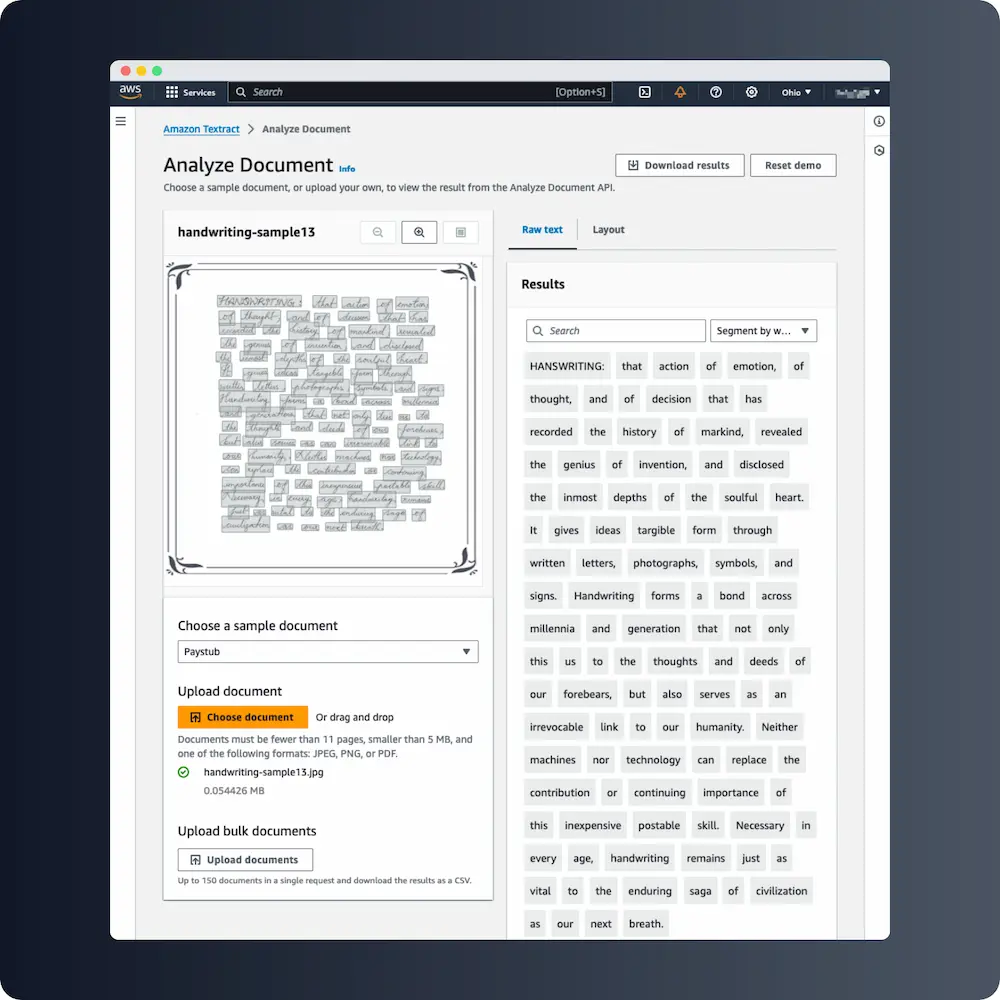
A close cousin of Azure’s output. Reading order intact, similar density of per-word substitutions, similar overall feel. The two services produce comparable enough results on handwriting that the deciding factor between them is usually which cloud you’re already in.
GPT-5 vision (14.4% WER)
Slightly behind Claude on this benchmark, with similar failure modes. We saw the same “silent correction” tendency: confident-looking substitutions where the model went with its language prior over the literal ink. Reading order was perfect.
The gap between GPT-5 and Claude (and between either of them and the cloud document services) is small enough on a single sample that I would not rank them firmly without running 10+ documents.
Google Document AI (23.3% WER)
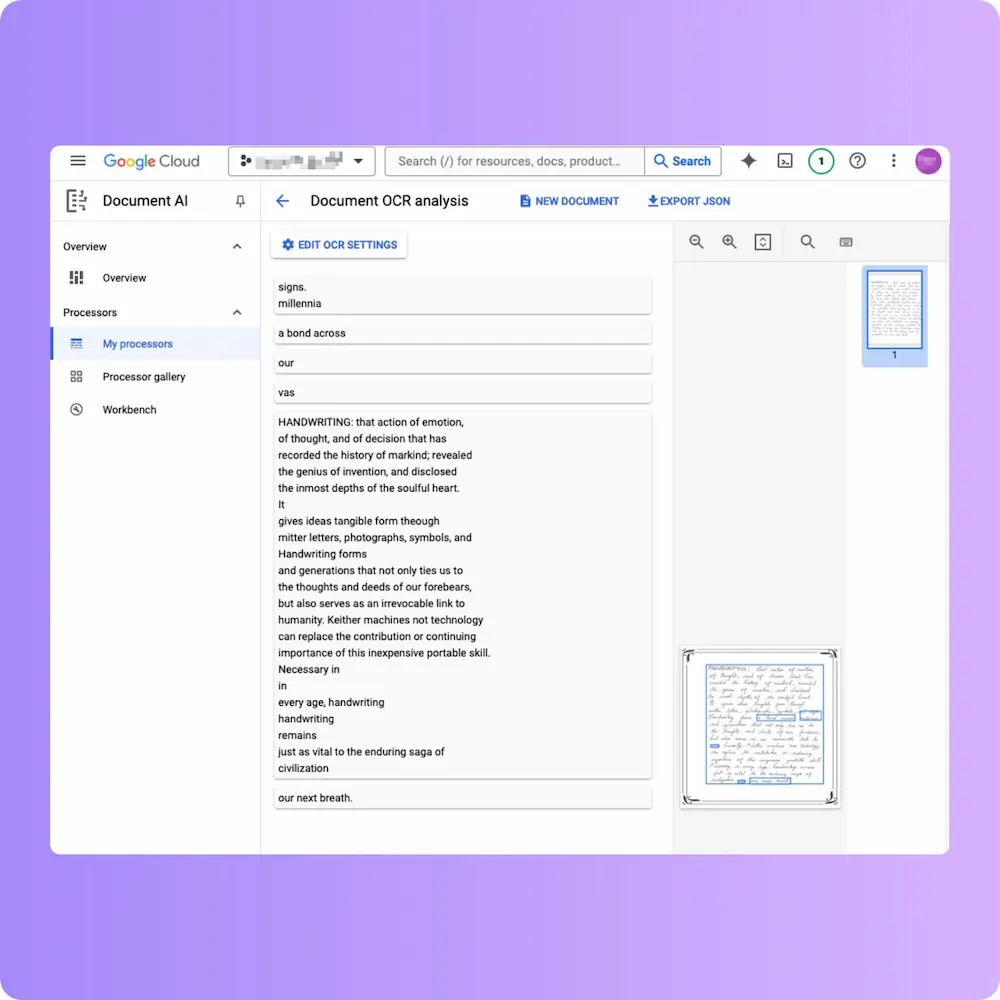
The interesting failure on this benchmark. The character recognition isn’t dramatically worse than Azure or AWS, but Google scrambled the reading order significantly: whole lines appeared out of sequence, with fragments interleaved from non-adjacent parts of the page. The raw WER number understates how much manual repair the output would need.
This is worth flagging because it’s a known issue with general document OCR on prose: the engine was built around forms and structured documents where reading-order ambiguity is less common, and prose handwriting exposes it.
Transkribus, untrained (47.7% WER)
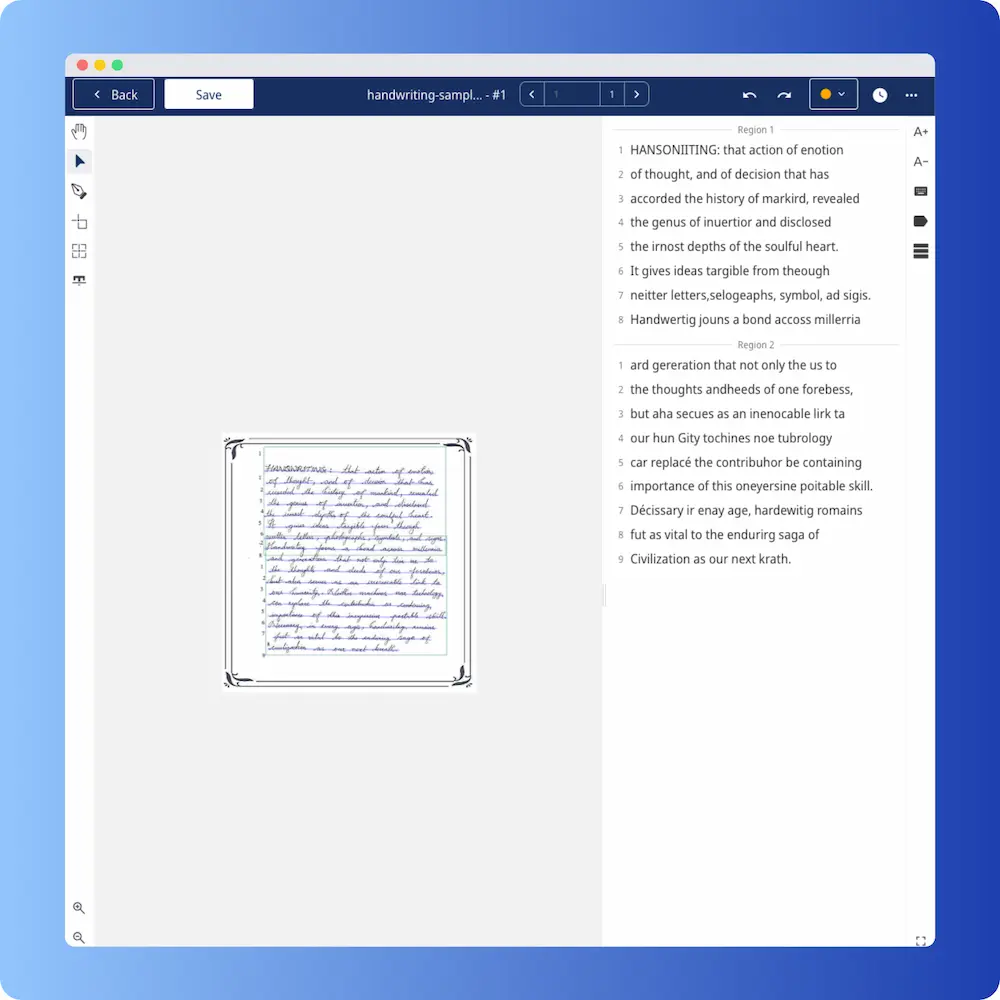
Transkribus is unusual in this lineup because it’s designed to be trained on your specific archive. The out-of-the-box result is intended as a starting point, not the final output. We tested it without training to show what a typical first run looks like, and the answer is: not useful. Most words are wrong. Many are not recognisable English at all.
If you have a large archive in a single hand (say, 500+ pages of the same person’s letters), Transkribus’ workflow can pay off after 50 to 100 hours of training. For everyday handwriting tasks, this isn’t competitive with any of the cloud services or specialists.
Tesseract (95.4% WER)
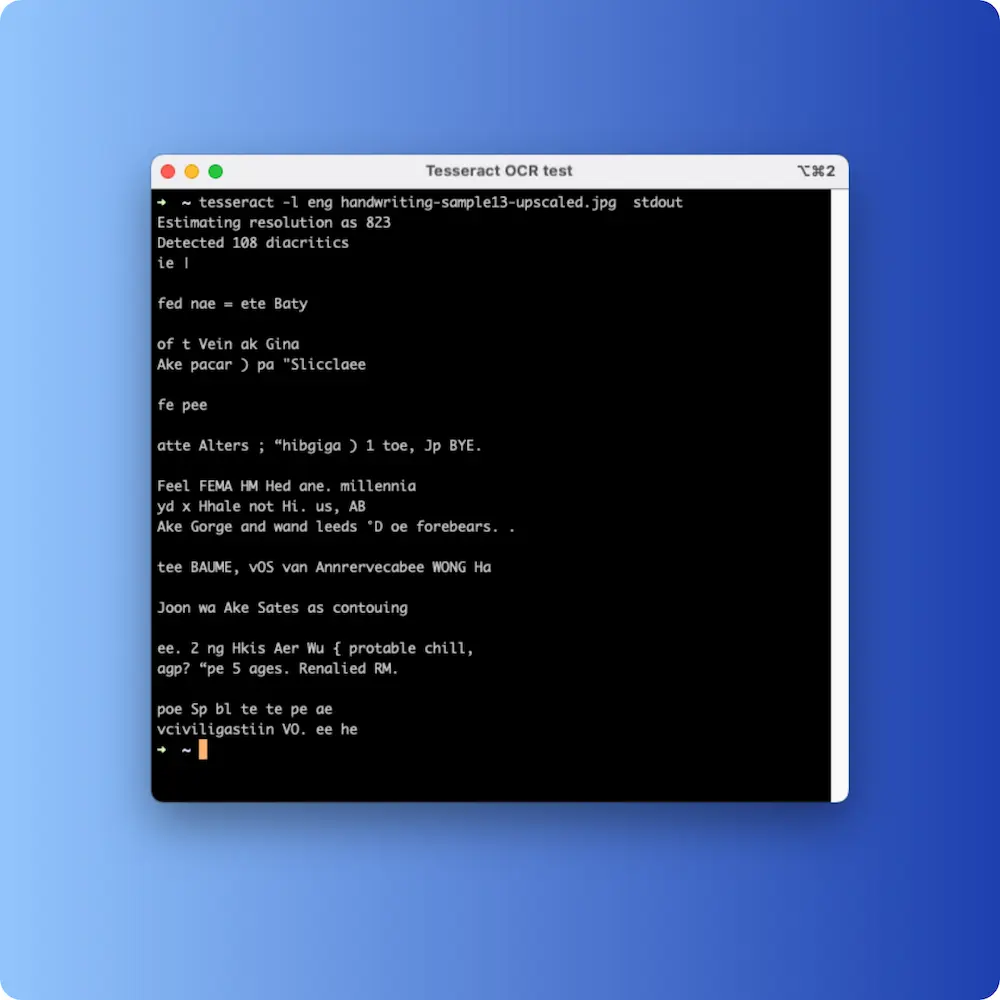
Tesseract is the canonical open-source OCR engine and is genuinely excellent on printed text. On handwriting, the output is gibberish: scattered fragments of recognisable letters surrounded by noise that doesn’t correspond to any words. This isn’t a Tesseract failing per se; it was trained for a different problem. It’s a useful baseline to include because “use open-source OCR” still gets suggested for handwriting in forum threads, and the gap between that suggestion and 2026 reality is enormous.
Which one should you actually use?
The honest answer depends on what you have.
| You have… | The right tool is… |
|---|---|
| Modern legible handwriting, paid work, archive of more than a few pages | A specialist handwriting OCR service. Accuracy gap pays for itself within the first page. |
| One-off snippet in a Claude or ChatGPT conversation | LLM vision, with the caveat that you should sanity-check the output before relying on it. |
| Forms and structured handwritten data | Azure or AWS, both of which have good form-extraction pipelines around their OCR. |
| Historical script (1700s-1800s, Kurrent, Sütterlin) | A specialist handwriting OCR with explicit historical coverage. General tools (including LLM vision) drop below 50% accuracy here. |
| Single archive of 500+ pages in the same hand | Transkribus, after a substantial training investment, if you’re a research institution. Otherwise, a specialist that handles it without training. |
| Printed text mixed with handwritten margins | Either AWS Textract or a specialist; both handle mixed input. Don’t use vision LLMs for high-volume printed text because per-token cost adds up fast. |
What changed between 2025 and 2026
Three things since last year’s version of this benchmark:
- Vision-language models entered the table. GPT-5 vision and Claude Sonnet 4.6 vision are now usable enough to include. Both are competitive with mid-tier cloud document OCR on handwriting, which wasn’t true 12 months ago.
- The specialists pulled further ahead. Best-in-class WER on this benchmark dropped from around 1.5% to under 1.0% on the same input. The improvements are coming from script-specific fine-tuning and from better handling of non-English scripts.
- Open source did not catch up. PaddleOCR, EasyOCR and Tesseract all received releases through 2025; none of them moved the handwriting needle. The gap between open source and specialists on this specific task is wider in 2026 than it was in 2025.
So what does “best” actually mean
“Best” is a function of what you’re trying to do.
For converting a desk drawer of family letters, a notebook of meeting notes, or a single historical document you want to read, the right tool is whatever produces output you can use without spending an hour fixing it. Today, in 2026, that’s a specialist handwriting OCR. The gap between 0.9% and 10% WER might look like a percentage-point trifle on paper, but on a 50-page archive it’s the difference between a coffee-length proofread and a full day of manual typing.
For developers building handwriting into a product, the answer is probably an API to a specialist service. The vision LLMs are usable for prototypes but their cost-per-page and silent-correction behaviour make them harder to ship at scale.
For one-off curiosity (“what does this say?”), the LLM you already use is probably fine. The Claude or ChatGPT app on your phone reads a snippet of handwriting well enough to satisfy curiosity, and that’s a meaningful 2026 win.
For historical archives, the gap between specialists and everything else is so wide that there is no real choice. Use a specialist that explicitly supports the script family you’re working with, or budget for serious training time in Transkribus.
If you want to test our claim of 0.9% on your own handwriting, Handwriting OCR gives every account free trial credits without a card. Upload one page of your hardest sample. If the output reads cleanly, the rest of the archive will too. If not, send us a sample image and we’ll tell you what to expect before you commit.
We’ll revisit this benchmark with an expanded set of scripts (1800s English copperplate, Sütterlin, Cyrillic cursive) later in 2026.
Frequently asked questions
What is the most accurate AI handwriting OCR in 2026?
In our 2026 benchmark, Handwriting OCR returned a Word Error Rate of 0.9% on a standard handwritten English prose sample. Azure Document Intelligence followed at 8.67%, AWS Textract at 10.5%, Anthropic Claude Sonnet 4.6 (vision) at 11.2%, OpenAI GPT-5 vision at 14.4%, Google Document AI at 23.3%, Transkribus out of the box at 47.7%, Tesseract at 95.4%. The order changes on cursive and historical scripts; see the full table below.
How is handwriting OCR accuracy measured?
We use Word Error Rate (WER), the standard metric in OCR and speech recognition. WER counts substituted words, missing words and extra words, divides by the total words in the reference, and returns a percentage. A lower WER means less manual correction. We also note reading-order failures (whole lines extracted out of sequence) separately, because they are far more disruptive to usability than per-word substitutions.
Can ChatGPT or Claude read handwriting?
Yes, both can. GPT-5 vision returned 14.4% WER on our benchmark; Claude Sonnet 4.6 vision returned 11.2%. They are competitive with Azure and AWS on a single page of legible English handwriting. The gap widens on long documents, where vision models hallucinate plausible-but-wrong text, and on faded historical or non-Latin scripts where their training has less coverage. They also lack batch APIs, structured output and per-document privacy controls that dedicated services provide.
Are specialist handwriting OCR services worth paying for?
If you're processing more than a few pages, almost always yes. The 8 to 23 percentage-point accuracy gap between specialists and general document OCR translates directly into manual correction time. On a 50-page archive, a 0.9% WER means a few minutes of review; a 10% WER means several hours of typing. The per-page cost of a specialist service is typically less than the value of the time it saves on the first page.
Is open-source handwriting OCR usable in 2026?
For printed text yes, for handwriting no. Tesseract scored 95.4% WER in our benchmark, meaning almost every word was wrong. PaddleOCR and EasyOCR perform similarly on handwriting because they were built around printed-text training data. The only realistic open-source path for handwritten text is to train a custom model via something like Transkribus, which requires 50+ hours of labelling before useful output, and even then only generalises to the specific hands and scripts it was trained on.
Why is handwriting OCR so much harder than printed-text OCR?
Three reasons. (1) Letterforms vary widely between writers and even within the same word, while printed letters are typographically consistent. (2) Word boundaries in cursive are ambiguous; OCR systems built for printed text rely on whitespace which cursive doesn't provide reliably. (3) Reading order is often unstable because handwritten layouts drift, lines slope, and marginalia interrupts the body. Specialist handwriting OCR is trained from the ground up around these specific failure modes.
Which AI handwriting OCR is best for old letters or historical documents?
For 1700s and 1800s scripts (copperplate, Spencerian, English round hand), specialist handwriting OCR services typically reach 85% to 95% accuracy. For Sütterlin and Kurrent (German cursive script families), accuracy is lower, around 70% to 85%, because these scripts have less training data and follow different rules from modern Latin handwriting. General document OCR and LLM vision both perform poorly on historical scripts (below 50% accuracy in our tests).
Which AI handwriting OCR is best for cursive specifically?
The same specialist services that win on benchmarks also lead on cursive: typically 95%+ on legible modern cursive and 80% to 90% on rushed or stylised cursive. General document OCR drops sharply on cursive (40% to 60% accuracy) because cursive breaks the letter-by-letter assumptions those models were built on. LLM vision sits between the two on cursive, around 70% to 85% accuracy.
How do I run my own handwriting OCR benchmark?
Pick a representative reference text (we use a 100-word handwritten English prose paragraph), transcribe it manually to create your reference, then upload the same image to each OCR service. Run the output through a WER calculator against your reference. Repeat on two or three samples to control for variance. The most informative single metric is the WER on the writing style most like the documents you actually have, not on whatever the vendor used in their own benchmark.
What's the catch with the 0.9% WER claim?
Two caveats worth being explicit about. (1) 0.9% is on legible modern English handwriting, the easiest case. Cursive, historical scripts and non-Latin languages all return higher WERs (5% to 30% depending on script). (2) Any single benchmark has variance; we observe 0.5% to 1.5% on different writers in the same family of sample. Our headline number is honest for what it represents but isn't a guarantee for every document.
Is Google Lens or a dedicated OCR tool better for handwriting?
Google Lens is convenient and free, but it lands around 70 to 85% accuracy on clear print-style handwriting and drops sharply on cursive, messy, or faded text. It also can't batch process, has no API, and offers limited export. For one-off snapshots of a tidy note it's fine; for accuracy, volume, cursive, or historical documents, a dedicated handwriting OCR service is the better choice.
How does Apple Live Text compare to dedicated handwriting OCR?
Apple Live Text reaches roughly 70 to 80% accuracy on clear print-style handwriting and around 60 to 70% on cursive, and it's limited to copy/paste with no batch processing or API. It's handy because it's built into iOS, but for cursive, messy writing, historical documents, or bulk transcription a specialist handwriting OCR engine returns substantially higher accuracy.