
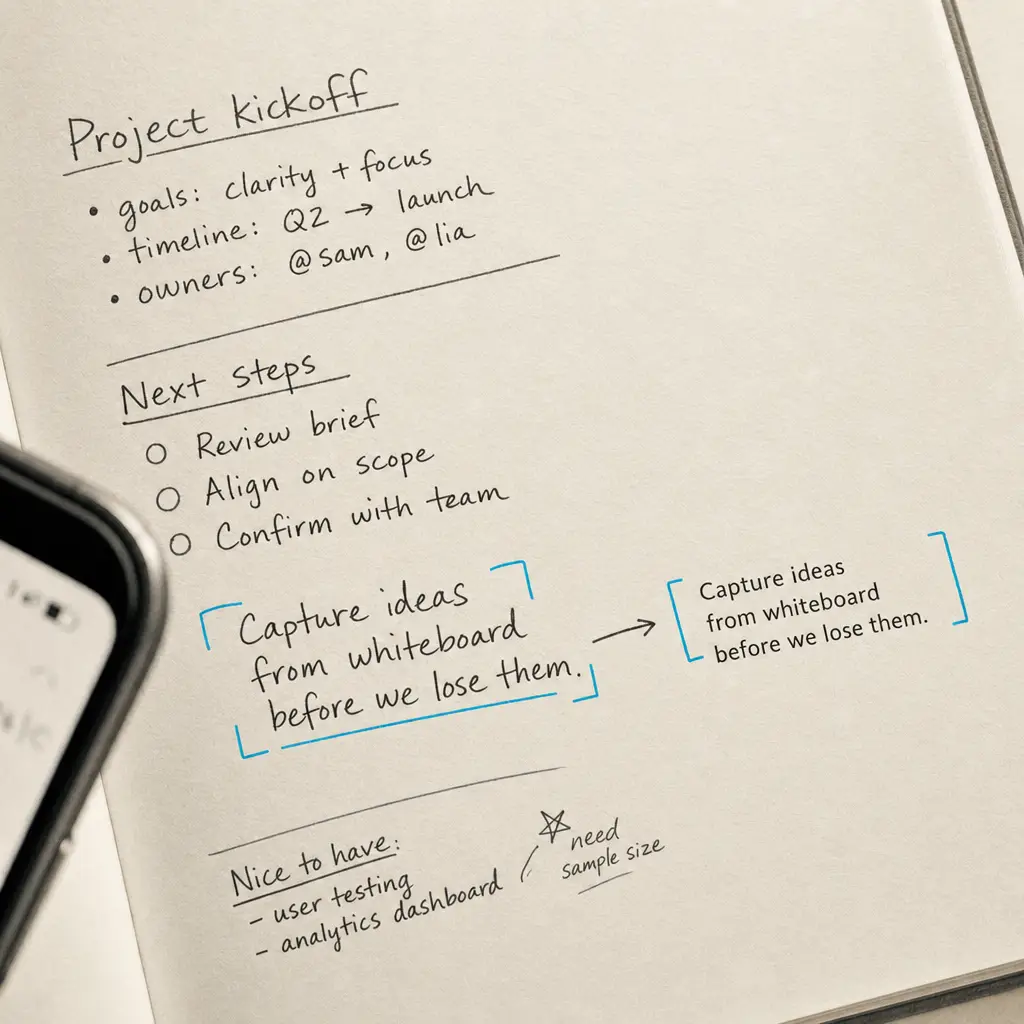
Yes, OneNote can convert photo handwriting to text using its built-in optical character recognition (OCR) feature called “Copy Text from Picture”. This feature works on Windows, Mac, iOS, and Android versions of OneNote, allowing you to extract handwritten text from photos you insert into your notebooks.
The feature processes text automatically after you insert an image, but there’s an important caveat. OneNote OCR was primarily designed for printed text, and its accuracy with handwriting to text conversion is significantly lower, often producing missing text and inaccurate characters. Results depend heavily on handwriting legibility, photo quality, and lighting conditions.
Quick Takeaways
- OneNote includes free OCR that works with photos of handwritten documents
- The “Copy Text from Picture” feature extracts text but may take 24-48 hours to process
- Accuracy hovers around 90% for printed text but drops substantially for handwriting
- OneNote processes one image at a time, making batch conversion time-consuming
- Better alternatives exist for high-volume or accuracy-critical handwriting conversion
How to Convert Photo Handwriting to Text in OneNote
The process for extracting handwritten text from photos in OneNote is straightforward, though results vary based on your handwriting style and image quality.
Step 1: Insert Your Photo into OneNote
Open OneNote and navigate to the page where you want to work. Click on Insert in the top menu, then select Picture. Choose the photo containing handwritten text from your computer, phone, or cloud storage. OneNote will insert the image into your notebook.
OneNote begins processing text recognition automatically after you insert an image, but the process runs in the background.
Step 2: Wait for Processing to Complete
OneNote needs time to analyze the image and recognize text. For simple images, this happens within seconds. For complex handwritten documents, processing can take up to 24-48 hours according to Microsoft’s documentation.
You’ll know processing is complete when the “Copy Text from Picture” option becomes available when you right-click the image.
Step 3: Extract the Text
Right-click on the inserted image. Select “Copy Text from Picture” from the context menu. OneNote will copy the recognized text to your clipboard. Click anywhere in your OneNote page and press Ctrl+V (Windows) or Cmd+V (Mac) to paste the extracted text.
Step 4: Review and Correct Errors
This is the most important step. OneNote OCR accuracy for handwriting is limited, so you’ll need to compare the extracted text against your original photo and correct misread characters, missing words, and formatting issues.
OneNote OCR Limitations for Handwriting
While OneNote offers convenient built-in OCR, several limitations affect its usefulness for handwriting conversion, especially if you’re working with historical documents, messy handwriting, or large volumes of pages.
Accuracy Issues with Handwriting
OneNote was built primarily for printed text recognition. When processing handwritten documents, the technology struggles significantly. According to OCR accuracy assessments, even with printed text OneNote achieves only about 90% accuracy. For handwriting, particularly cursive or rushed writing, accuracy drops considerably with missing text and character substitution errors.
Unless you’re working with neat, clean, and simple handwriting, you’ll likely need professional OCR software for reliable results.
Processing Time Delays
Unlike dedicated OCR services that provide immediate results, OneNote can take anywhere from seconds to 48 hours to process a single image. This delay makes OneNote impractical when you need quick handwriting conversion or are working under deadline pressure.
Single Image Processing
OneNote processes one image at a time. You cannot select multiple photos and extract text from all of them simultaneously. If you have a stack of handwritten pages to digitize, you’ll need to insert each photo, wait for processing, copy text from each picture individually, and paste each result. This workflow becomes tedious quickly when dealing with notebooks, journals, or document collections.
Platform Restrictions
The OCR feature is not available in OneNote for the web. You must use the desktop or mobile applications. Additionally, while the feature works across Windows, Mac, iOS, and Android, there are platform-specific limitations, particularly on iPad where some features require switching to a Windows device.
Image Quality Requirements
OneNote requires high-quality images for acceptable results. Best practices for OCR photography include good lighting without shadows or glare, straight document positioning, dark handwriting on light backgrounds, and minimum 300 DPI resolution. Photos taken in poor lighting, at angles, or with insufficient resolution will produce even worse accuracy.
When OneNote Works Well for Handwriting
Despite its limitations, OneNote can handle certain handwriting scenarios effectively. Understanding when to use OneNote helps set realistic expectations.
Clear Block Printing
If your handwriting consists of clear, separated block letters similar to printed text, OneNote performs reasonably well. Students and professionals who write neatly in uppercase or carefully formed lowercase letters will see better results than those with flowing cursive styles.
Small Volumes
For occasional use with one or two handwritten pages, OneNote’s free built-in OCR is convenient. If you’re not converting handwriting regularly and can tolerate some manual correction, OneNote removes the need to install additional software or subscribe to services.
Recent, High-Quality Photos
Modern smartphone cameras produce excellent images when used properly. If you photograph handwritten notes immediately after writing them, with good lighting and focus, OneNote has sufficient image quality to work with. The fresher and clearer the handwriting, the better OneNote performs.
Better Alternatives for Handwriting Conversion
When OneNote’s limitations outweigh its convenience, several alternatives provide superior accuracy and efficiency for converting photo handwriting to text.
Specialized Handwriting OCR Services
Dedicated handwriting OCR platforms are specifically designed to handle cursive writing, messy handwriting, and challenging documents that general-purpose tools struggle with. These services use advanced recognition algorithms trained specifically on handwritten content rather than primarily on printed text.
HandwritingOCR provides professional-grade handwriting recognition with significantly higher accuracy than OneNote, particularly for cursive writing, older documents, and varied handwriting styles. The service processes documents in minutes rather than hours and supports batch processing, allowing you to upload dozens or hundreds of pages at once.
Comparison: OneNote vs. Dedicated OCR
| Feature | OneNote | HandwritingOCR |
|---|---|---|
| Handwriting accuracy | Low to moderate | High |
| Processing time | Seconds to 48 hours | Minutes |
| Batch processing | No | Yes |
| Cursive support | Limited | Strong |
| Historical documents | Poor | Strong |
| Cost | Free | Credit-based |
| Privacy | Microsoft processes | Your documents remain private and are processed only to deliver your results |
When to Choose Professional OCR
Consider upgrading from OneNote to specialized handwriting OCR when you’re working with historical family documents or old letters where accuracy matters for preserving meaning, processing large volumes where OneNote’s single-image workflow becomes impractical, dealing with cursive or challenging handwriting that OneNote consistently misreads, or needing reliable results without extensive manual correction.
Professional services are particularly valuable for genealogists, researchers, legal professionals, and anyone working with irreplaceable handwritten materials where accuracy cannot be compromised.
Tips for Better Results When Using OneNote
If you decide to use OneNote for photo handwriting conversion, these practices improve your results.
Photography Techniques
Use natural daylight or bright, even artificial lighting to eliminate shadows. Hold your phone steady or use a tripod to prevent blur. Position the camera directly above the document to avoid perspective distortion. Fill the frame with the handwritten page but ensure all text is visible. Use your phone’s focus feature to ensure sharp text. Avoid flash photography, which creates glare and harsh shadows.
A resolution of 300 DPI is generally recommended for good OCR results with handwritten documents.
Document Preparation
If possible, work with originals rather than photocopies. Ensure the paper is flat without wrinkles or folds. Use documents with dark ink on white or light-colored paper for maximum contrast. Clean any smudges or marks that might confuse the OCR engine.
Workflow Optimization
Insert multiple images into OneNote immediately and let them all process overnight rather than waiting for each image individually. Paste extracted text into a separate document for easier editing. Keep the original photos in OneNote as reference while correcting the extracted text. Consider using alternative handwriting conversion programs for documents where OneNote produces poor results.
Frequently Asked Questions
These common questions help clarify OneNote’s handwriting conversion capabilities.
Can OneNote convert handwriting from PDFs?
OneNote cannot directly extract handwriting from PDF files. You must first convert PDF pages to images (PNG or JPG format), then insert those images into OneNote to use the “Copy Text from Picture” feature. This adds an extra step compared to tools that process PDFs directly.
Does OneNote handwriting recognition work offline?
No, OneNote’s OCR feature requires an internet connection. The text recognition processing happens on Microsoft’s servers, not locally on your device. This means you cannot extract text from photos when you’re without internet access.
Can OneNote recognize handwriting in multiple languages?
Yes, OneNote’s OCR supports 21 languages for text recognition. However, the language detection is automatic and you cannot manually specify which language to use, which can cause problems with multilingual documents or uncommon languages.
Conclusion
OneNote can convert photo handwriting to text through its built-in OCR feature, making it a convenient option for occasional use with clear handwriting. The tool is free, integrated into a note-taking platform many people already use, and requires no additional software installation.
However, OneNote’s limitations become apparent when working with cursive writing, older documents, large volumes, or situations requiring high accuracy. The technology was optimized for printed text rather than handwriting, resulting in significant accuracy gaps, time delays, and workflow inefficiencies.
For professional work, genealogical research, or any scenario where handwriting accuracy matters, specialized OCR services provide substantially better results. HandwritingOCR processes your documents with privacy-first design. Your handwritten documents remain private and are processed only to deliver your results. We don’t use your data for training or share it with anyone else.
Ready to convert handwritten photos with professional accuracy? Try HandwritingOCR with free credits to see the difference specialized handwriting recognition makes for your documents.
Frequently asked questions
How long does OneNote take to process handwriting from photos?
OneNote typically processes images immediately, but complex or lengthy handwritten documents can take 24-48 hours before the OCR feature becomes available. If you right-click the image and the "Copy Text from Picture" option is grayed out, OneNote is still processing the text recognition.
Does OneNote work better with printed text or handwriting in photos?
OneNote OCR performs significantly better with printed text, achieving approximately 90% accuracy. For handwriting, accuracy drops considerably, especially with cursive writing, messy handwriting, or older documents. Clean, block-style handwriting yields the best results.
Can I batch process multiple handwritten photos in OneNote?
No, OneNote can only process one image at a time. You must insert each photo individually, wait for processing, and manually copy text from each picture separately. For batch processing of handwritten documents, dedicated OCR services designed for volume processing are more efficient.
Is OneNote OCR free to use for handwriting conversion?
Yes, OneNote OCR is included free with Microsoft OneNote on Windows, Mac, iOS, and Android. However, you need a Microsoft account, and the feature requires an internet connection for processing. The web version of OneNote does not support OCR from pictures.
What image quality do I need for OneNote to read handwriting accurately?
OneNote requires clear, well-lit photos with dark handwriting on light backgrounds. A resolution of at least 300 DPI is recommended. Avoid shadows, glare, and blurry images. The document should be straight and fill most of the frame without cutting off words or letters.