
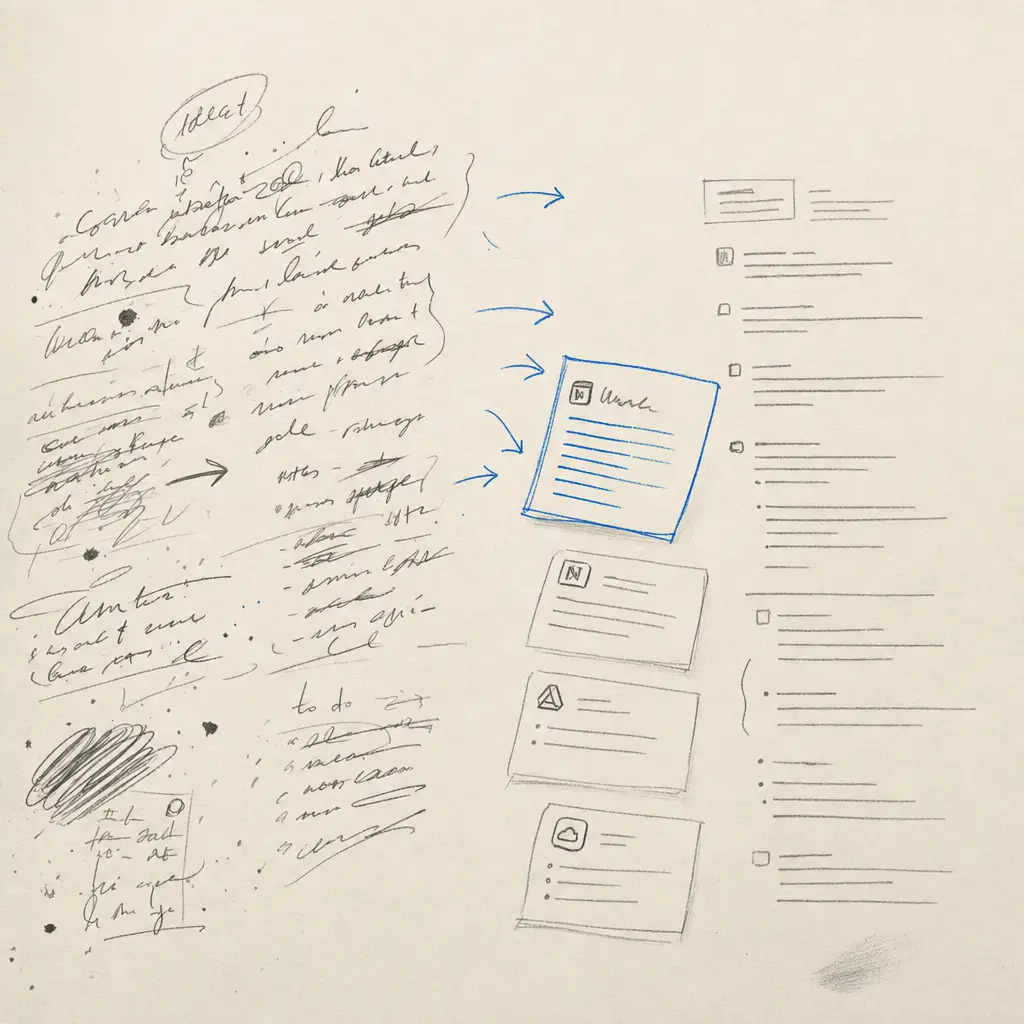
What Apps Can Convert Handwriting to Text?
The right app depends on one question: are you converting notes as you write them, or digitizing handwriting you already have on paper, in a photo, or in a PDF?
Note-taking apps (Apple Notes, OneNote, GoodNotes, Notability, Samsung Notes) convert digital ink you write inside the app with a stylus. OCR tools (Handwriting OCR, and weaker general OCR like Google Drive or Adobe Acrobat) read handwriting from a photo or scan. Almost no app does both well, which is why people who pick on app name alone end up disappointed.
TL;DR
- Writing notes on a tablet? A note app converts your ink to text on-device: Apple Notes and OneNote (free), GoodNotes and Notability (paid), Samsung Notes on Galaxy, Nebo on iPad.
- Have a photo, scan, or PDF of handwriting? Note apps can’t read it. You need OCR. Handwriting OCR is built for exactly this.
- General OCR in Google Drive, Adobe Acrobat, and Apple Live Text was made for printed text and is unreliable on handwriting.
- Handwriting OCR is far more accurate than those general tools on handwritten text, reads cursive across centuries (including 18th- and 19th-century documents), and supports 300+ languages.
- It never trains on your documents, and uploads auto-delete after 7 days. Every account gets 5 free credits to test it.
Which app should you use?
Match the tool to the job, not to the brand name. This is the fastest way to choose:
| What you have | What you want | Use |
|---|---|---|
| A tablet and a stylus | Notes converted as you write | Apple Notes, OneNote, GoodNotes, Notability, Samsung Notes |
| A photo or scan of paper | Existing handwriting as editable text | Handwriting OCR |
| A multi-page handwritten PDF | The whole document transcribed | Handwriting OCR |
| Cursive, faded, or old letters | A reliable transcription | Handwriting OCR |
| A handwritten table or form | Data in Excel or CSV | Handwriting OCR (tables) |
| A quick one-line capture | Rough text, good enough | Google Keep or Google Lens |
The split matters because note apps and OCR solve different problems. The next two sections cover each.
What apps convert handwriting as you write?
If you write on a tablet with a stylus, your note app can usually convert that ink to text on the device, with no upload and no OCR service involved.
- Apple Notes converts Apple Pencil scribbles on iPad and recognises handwriting in Scribble. Free on iOS and iPadOS. See how to convert in Apple Notes or more broadly on an iPad.
- OneNote has built-in ink-to-text across Windows, Mac, iOS, and Android, and is free with a Microsoft account.
- GoodNotes and Notability are popular paid iPad apps with handwriting search and conversion for notes taken in-app. Walkthroughs: GoodNotes and Notability.
- Samsung Notes converts S Pen handwriting on Galaxy tablets and phones. See whether Samsung Notes fits your device.
- Nebo (iPad) converts handwriting to text live and handles equations and diagrams.
- Noteshelf converts in-app handwriting with its lasso tool: select the writing, tap Convert to Text, then copy the result or replace the ink with it. It works on notes written in Noteshelf, not on imported scans or photos.
The shared limitation is the same in every case: these apps convert ink they captured. Hand them a photo of a notebook page or a scanned letter and they have nothing to work with. For that you need OCR.
What app converts a photo or scan of handwriting to text?
For handwriting you already have, you need optical character recognition, and most note apps simply don’t do it. The realistic options are a general OCR tool or a dedicated handwriting OCR service.
General OCR built into Google Drive, Adobe Acrobat, and Apple Live Text was designed for printed type. It can lift clean block capitals occasionally, but it falls apart on cursive, joined, or messy handwriting. Google Lens is fine for grabbing a line or two in a pinch, not for a document you need to trust. There’s a closer look at the Adobe approach if you already own Acrobat.
Handwriting OCR is built specifically for handwritten documents. You upload a photo, scan, or PDF (PDF, JPG, PNG, HEIC, GIF, or TIFF), and it returns editable text. A few things make it the right tool when note apps fall short:
- Accuracy on real handwriting. It uses AI trained on handwriting and is materially more accurate than Google Drive OCR, Adobe Acrobat, or Apple Live Text on handwritten text. No OCR is 100% accurate, and faint or unusual scripts lower results, but it holds up where general OCR gives up.
- Old and cursive documents. This is where AI handwriting OCR pulls away from everything else. It reads cursive remarkably well, including 18th- and 19th-century handwriting that traditional OCR cannot touch. The hardest, most idiosyncratic old scripts won’t come back perfect, but for letters, journals, and genealogy records from the 1700s and 1800s it is far more usable than any note app or general OCR tool.
- Whole documents, not one line. Multi-page PDFs are transcribed page by page, and handwritten tables can be exported to Excel or CSV. Text exports as TXT, DOCX, PDF, or JSON.
- 300+ languages. Widely-spoken languages perform best; rarer scripts can be lower.
- Privacy by default. Your documents are never used to train the models, and uploads auto-delete after 7 days (or sooner, if you delete them yourself).
There’s no app to install and no stylus to buy. You can try it in your browser with 5 free credits, where 1 credit converts 1 page.
Can a note-taking tablet send straight to OCR?
Yes. If you take notes on a reMarkable, Supernote, Boox, or Kindle Scribe, you don’t have to export and re-upload by hand. Each device can email a notebook as a PDF, and Handwriting OCR accepts documents by email, so the page comes back as editable text.
That bridges the two worlds: you keep writing on the device you like, and you get a clean transcription of the finished pages. Device-specific steps live on the guides for Supernote, Boox, reMarkable, and the Kindle Scribe.
How do you choose in one minute?
Ask what you’re holding. If it’s a tablet and a stylus, your note app already does the job, so use it. If it’s paper, a photo, or a PDF, no note app will help and you need OCR.
From there, weigh three things: how messy or old the handwriting is, how many pages you have, and how private the content is. Clean, modern, single pages forgive almost any tool. Cursive, archives, sensitive records, or batches of pages are where a dedicated handwriting OCR service earns its place.
If you mostly digitize existing documents, start with Handwriting OCR and the 5 free credits. If you mostly write fresh notes on a device, pick the note app that matches it and keep OCR in your pocket for the day someone hands you a stack of paper.
Frequently asked questions
Which app converts handwriting to text?
It depends on the job. To convert notes as you write them on a tablet, use a note app like Apple Notes, OneNote, GoodNotes, Notability, or Samsung Notes. To convert a photo, scan, or PDF of handwriting you already have, use an OCR service such as Handwriting OCR, because most note apps cannot read handwriting they did not capture themselves.
Can an app convert a photo of handwriting to text?
Most note-taking apps cannot. They convert digital ink you write inside the app with a stylus, not a photo of paper. To turn a photo, scan, or PDF of existing handwriting into text you need optical character recognition (OCR). Handwriting OCR is built for this and accepts PDF, JPG, PNG, HEIC, GIF, and TIFF files.
Are handwriting to text apps accurate?
Accuracy depends on the document and the tool. General OCR built into Google Drive, Adobe Acrobat, or Apple Live Text was designed for printed text and is unreliable on handwriting. Handwriting OCR uses AI trained on handwriting and is materially more accurate than those tools on handwritten text, though no OCR is 100% accurate and faint, overlapping, or unusual scripts lower results.
Can I convert handwriting to text for free?
Yes, to a point. Note apps like Apple Notes, OneNote, and Google Keep include free handwriting features for notes you create in-app. For photos and scans, Handwriting OCR gives every new account 5 free credits (1 credit converts 1 page) so you can test it before paying.
Do these apps work on old or cursive handwriting?
Note apps and phone scanners struggle with cursive and aged paper. Handwriting OCR reads cursive remarkably well, including 18th- and 19th-century documents that defeat traditional OCR. The very hardest old scripts are not perfect, but it is far more usable on historical letters, journals, and genealogy records than any general note app.
Is my handwriting private when I use these apps?
It varies, so check each app's policy before uploading anything sensitive. Handwriting OCR never uses customer documents to train its models, and uploads auto-delete after 7 days by default (you can also delete them manually at any time).