
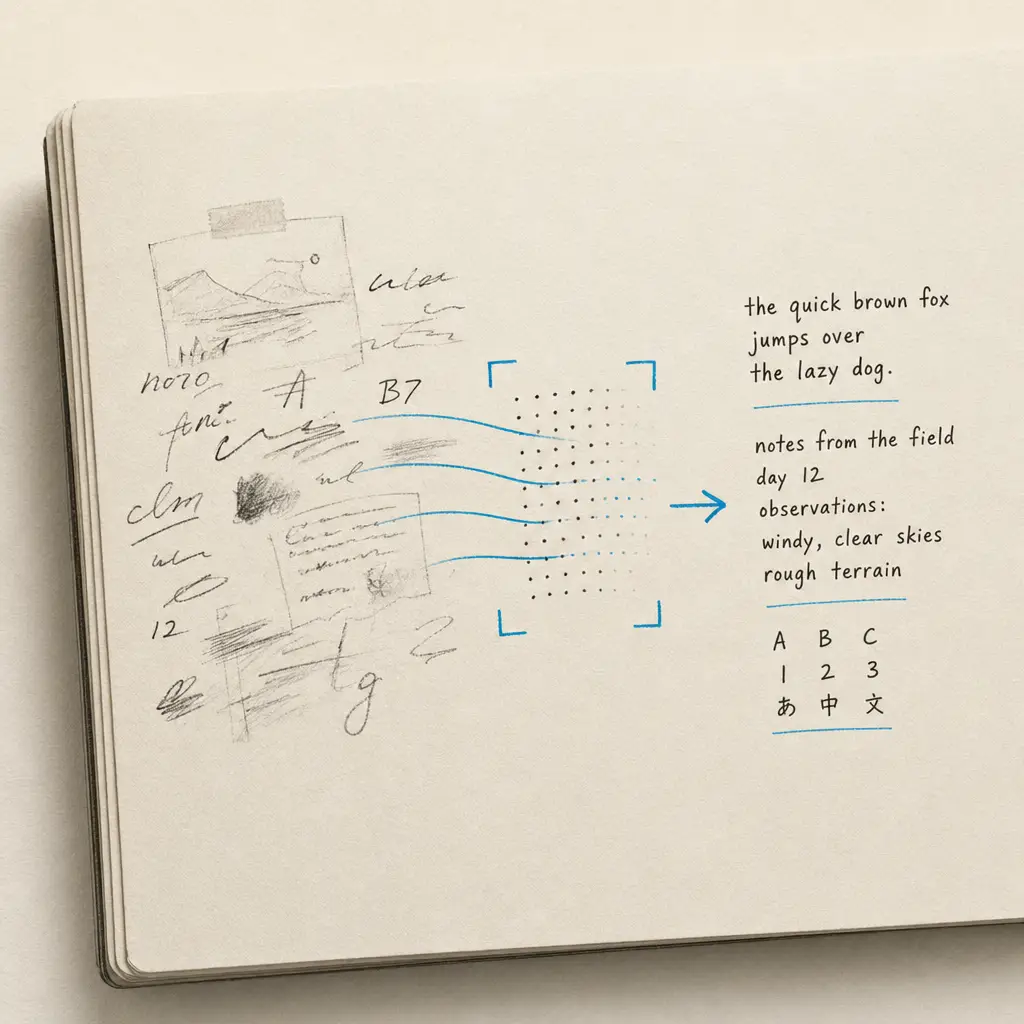
You’ve taken a photo of a document, captured a screenshot, or scanned a page. The text is right there, but it’s trapped in the image. You need that text editable, searchable, and ready to use. Manually retyping it takes forever and introduces errors with every keystroke.
Image to text conversion solves this problem. Using OCR (Optical Character Recognition) technology, you can extract text from any image in seconds. This guide walks you through everything you need to know: how the technology works, what accuracy to expect, which file formats deliver the best results, and how to protect your privacy when using online tools.
Quick Takeaways
- Image to text converters use OCR technology to extract text from photos, screenshots, and scanned documents in seconds
- Modern OCR achieves high accuracy on printed text, with format choice and image quality significantly affecting results
- TIFF and PNG formats deliver better accuracy than JPEG due to lossless compression preserving text edges
- Converting one page manually takes 15-20 minutes, while OCR completes the same task in seconds
- Privacy-conscious tools delete uploaded images immediately after processing, keeping your data secure
What Is Image to Text Conversion?
Image to text conversion transforms visual text in images into editable, searchable digital text. When you photograph a document, scan a page, or capture a screenshot, the text becomes part of the image pixels. You can see the text, but you cannot copy, edit, or search it. OCR technology reads those pixels, identifies the characters, and reconstructs them as actual text you can work with.
This matters because text trapped in images is functionally useless for most workflows. You cannot paste it into a document, search for specific phrases, or edit mistakes. Converting images to text unlocks that information.
How OCR Technology Works
OCR technology follows a systematic process to extract text from images. First, the software scans the image and identifies areas containing text versus graphics or whitespace. Next, it analyzes the shape of each character by comparing pixels against a database of known letters, numbers, and symbols. Finally, it reconstructs those characters into readable text that matches the original layout.
The process happens in three stages: pre-processing the image to enhance clarity, applying OCR or machine learning models to recognize characters, and post-processing the extracted text to correct errors and preserve formatting. Modern OCR engines use artificial intelligence to handle variations in fonts, sizes, and text quality that would confuse older character-matching systems.
Printed Text vs Handwritten Text Recognition
OCR handles printed text and handwritten text differently. Printed text follows consistent patterns. Each letter appears the same way every time, making recognition straightforward. Modern OCR achieves excellent accuracy on typed documents with good image quality.
Handwritten text presents a harder challenge. Every person writes differently, with unique letter shapes, spacing, and slant. OCR tools designed for printed text often fail on handwriting. Specialized handwriting recognition uses ICR (Intelligent Character Recognition) technology that learns to interpret individual writing styles. Accuracy for neat handwritten text is generally good, while cursive and historical handwriting require even more specialized tools.
For handwritten documents, letters, and historical records, you need handwriting to text conversion tools built specifically for that purpose.
When You Need Image to Text Extraction
You need image to text extraction anytime text lives in a photo, screenshot, or scanned document and you need to use that text digitally. Common scenarios include taking photos of whiteboards, presentations, or signs and needing the text in your notes. You might capture screenshots of error messages, social media posts, or web content you cannot copy.
Businesses scan paper documents, forms, or receipts and need the data in spreadsheets or databases. Researchers and historians digitize old letters, historical documents, or printed materials for archival purposes.
The alternative is retyping everything manually, which takes 15-20 minutes per page and introduces errors. OCR completes the same task in seconds with higher accuracy.
How Image to Text Converters Work
Image to text converters analyze the pixels in your image, identify where text appears, recognize each character, and reconstruct those characters as editable text. The technology has evolved from simple pattern matching to sophisticated AI systems that understand context and handle imperfect images.
The Three-Stage OCR Process
The OCR process breaks down into three distinct stages. During pre-processing, the software enhances image quality by adjusting contrast, removing noise, straightening tilted text, and converting the image to black and white. These adjustments make character recognition more reliable.
In the recognition stage, the OCR engine analyzes each character. It examines the shape, position, and relationship to surrounding characters. The software compares these patterns against its database of known characters to determine what each one represents. Modern systems use machine learning to handle variations in font styles, sizes, and text quality that would confuse older rule-based systems.
Post-processing refines the extracted text. The software checks spelling against dictionaries, validates formatting, and preserves the original layout when possible. This stage catches obvious errors and structures the output for easy use.
From Pixels to Characters
Converting pixels to characters requires the OCR engine to solve a pattern recognition problem. Each character in your image exists as a collection of dark and light pixels. The software must determine which collection of pixels represents which letter or number.
The engine starts by identifying character boundaries. Where does one letter end and the next begin? It analyzes the white space between dark pixel clusters to separate individual characters. Then it examines each character’s shape. A vertical line with a dot above it probably represents the letter “i.” A circle represents either an “O” or a “0” depending on context.
Early OCR systems used template matching, comparing each character against stored images of every possible letter. This worked for consistent fonts but failed on variations. Modern OCR uses optical character recognition algorithms that identify the coordinates of letters within the pixels and learn to recognize characters even when they appear in unfamiliar fonts or with slight distortions.
Advanced AI and Machine Learning
Machine learning transformed OCR accuracy and flexibility. Where traditional OCR followed rigid rules, AI-based systems learn from examples. You show the system thousands of images containing text, and it discovers patterns that distinguish one character from another.
This approach handles real-world complexity better. Machine learning models recognize characters in unusual fonts, interpret text at odd angles, and extract text from low-quality images that would defeat template-based systems. Machine learning models are a grade above OCR where the recognition of text is more flexible and abstract compared to traditional optical character recognition.
Modern OCR services use deep learning networks trained on millions of document images, achieving high accuracy rates across diverse document types.
Choosing the Right File Format for Accuracy
The file format you choose directly affects OCR accuracy. Some formats preserve every pixel of text clarity. Others compress images in ways that blur character edges and confuse recognition algorithms. Understanding which formats work best helps you get reliable results.
Best Formats: TIFF, PNG, and PDF
TIFF and PNG are the best options for maximum OCR accuracy. Both use lossless compression, meaning they preserve every pixel exactly as captured. Text edges remain sharp even at high zoom levels, making it easier for OCR engines to distinguish one character from another.
TIFF is the industry standard for professional scanning and document archiving. OCR engines recognize it as a preferred input format. TIFF files are larger than other formats, but that size comes with perfect image fidelity. Use TIFF for official document scanning, business archives, or batch OCR projects where accuracy matters more than storage space.
PNG offers an excellent balance between quality and file size. It uses lossless compression like TIFF but produces smaller files. PNG works well for single-page or image-only scenarios where you need reliable results without massive file sizes. Most online OCR tools accept PNG and process it efficiently.
PDF works well for multi-page documents. PDFs preserve layout, fonts, and structure, making them perfect for extracting text from reports, invoices, or books. When working with PDFs, learn more about converting PDFs to text.
TIFF and PNG formats preserve text clarity through lossless compression, delivering the most accurate OCR results.
Why JPEG Can Hurt Accuracy
JPEG compression reduces file size by discarding image data. This lossy compression works well for photos but damages text clarity. JPEG’s lossy compression discards fine details, resulting in significant blurring of letter edges.
When you save text as a JPEG, the compression algorithm smooths out sharp transitions between black text and white backgrounds. What should be a crisp letter edge becomes a gradient of gray pixels. OCR engines struggle to determine where one character ends and another begins, reducing accuracy.
The problem compounds with each save. Every time you edit and re-save a JPEG, it loses more data. Text becomes progressively blurrier, and OCR accuracy declines. This makes JPEG unsuitable for documents where you need reliable text extraction.
If your image is already in JPEG format, you can still extract text. Results will just be less accurate than PNG or TIFF. For critical documents or when accuracy matters, convert the JPEG to PNG before running OCR, or rescan the document in a lossless format.
Resolution and Image Quality Guidelines
Resolution determines how much detail your image captures. OCR accuracy improves with higher resolution up to a point. The recommended minimum is 300 DPI (dots per inch) for printed text. This gives the OCR engine enough pixel data to distinguish character shapes clearly.
Below 200 DPI, accuracy drops significantly. Characters become blocky and harder to recognize. Fine details like the difference between “c” and “e” or “1” and “l” get lost. If you’re scanning documents specifically for OCR, set your scanner to at least 300 DPI.
Higher resolution helps with small text or poor-quality originals. For historical documents or degraded materials, scanning at 400-600 DPI improves results. Beyond 600 DPI, improvements plateau while file sizes increase dramatically.
Image quality matters as much as resolution. Good contrast between text and background helps OCR engines separate characters from the page. Clean images without stains, wrinkles, or shadows produce better results than high-resolution images of poor source materials.
| Format | Compression | Best For | OCR Accuracy |
|---|---|---|---|
| TIFF | Lossless | Professional scanning, archives | Excellent |
| PNG | Lossless | Single pages, web images | Excellent |
| Various | Multi-page documents, reports | Very Good | |
| JPEG | Lossy | Photos only | Fair |
Common Use Cases for Image to Text
Image to text conversion serves distinct purposes across professional, academic, and personal contexts. Each use case demands accuracy, speed, or specialized handling depending on what you’re converting and why.
Business and Professional Applications
Businesses use image to text conversion to eliminate manual data entry and digitize paper-based workflows. Banks and insurance companies process receipts, bank statements, and claim forms by extracting text into databases and spreadsheets. This reduces processing time from hours to minutes while removing human transcription errors.
Legal services rely on OCR to digitize contracts, court filings, and case documents. Converting scanned legal documents into editable and searchable digital formats significantly reduces the time lawyers and paralegals spend on administrative tasks. When you need to search through hundreds of pages for specific clauses or dates, OCR makes that possible.
Retailers use image to text extraction to digitize handwritten customer records, invoices, and order forms. Converting these documents into searchable digital formats streamlines customer service and record keeping. For businesses processing large volumes of documents, bulk image to text conversion tools handle multiple files simultaneously.
OCR transforms documents into editable, searchable data, reducing human labor and improving workflow efficiency across industries.
Academic and Research Uses
Students convert textbook pages, research papers, and lecture slides into editable notes. Image text extraction helps students who need to quote sources, compile research, or reorganize information for study guides. Instead of retyping passages from printed materials, they extract text directly and maintain formatting.
Researchers digitizing archives and historical collections use OCR to make old documents searchable and analyzable. Converting printed texts from the pre-digital era unlocks access to information that would otherwise require manual reading of every page. University libraries and research institutions process thousands of pages this way, building searchable digital repositories from physical archives.
Graduate students working with field notes, survey responses, or handwritten research data use OCR to structure their findings. Converting handwritten notes to digital text enables database entry, statistical analysis, and collaborative editing that paper-based data cannot support.
Personal and Archival Projects
Family historians and genealogists extract text from old letters, journals, and family documents. These materials often feature cursive handwriting, faded ink, and historical document styles. Specialized handwriting to text tools make these personal archives searchable and preserve them digitally for future generations.
People digitizing personal notes, recipes, or important documents use image to text conversion to create backup copies and organize their records. Photos of handwritten recipes become editable text you can scale, share, or modify. Screenshots of important information become searchable files rather than unorganized images in your photo library.
Accessibility advocates use OCR to convert printed materials into formats that screen readers can process. This makes information accessible to visually impaired individuals who rely on text-to-speech technology.
Accessibility and Content Repurposing
Content creators extract text from screenshots, video frames, and social media posts to repurpose material across platforms. Media teams use image text extractors for script notes and planning documents that arrive as images rather than editable text. Converting these images to text enables editing, formatting, and integration into larger documents.
Taking screenshots to text has become essential for remote workers and digital professionals who capture information from video calls, presentations, and web content that cannot be easily copied. Converting those screenshots to searchable text makes that information usable.
Image to Text Accuracy: What to Expect
OCR accuracy varies dramatically based on what you’re converting and how you prepare the image. Understanding realistic expectations helps you choose the right tools and improve your results.
Accuracy Rates by Document Type
Modern OCR technology achieves high accuracy on printed text with good image quality. This means minimal errors per page. For a typical page, professional OCR systems produce excellent results.
Document type significantly affects accuracy. Freshly printed documents with clear fonts processed at high resolution approach the highest accuracy levels. Business documents, reports, and modern printed materials fall into this category.
Historical documents present bigger challenges. Recognition of older newspaper pages shows accuracy varying widely depending on paper quality, font characteristics, and preservation state. Faded ink, yellowed paper, and archaic fonts reduce accuracy.
Handwritten text accuracy ranges more widely. Neat, clean hand-printed characters achieve good accuracy with OCR software designed for handwriting. Cursive writing, rushed notes, or historical handwriting requires specialized tools and typically produces lower accuracy that needs more manual correction.
| Document Type | Expected Accuracy | Notes |
|---|---|---|
| Clean printed text (modern) | Excellent | Minimal errors per page |
| Business documents | Very Good | Professional quality |
| Historical newspapers | Variable | Depends on condition |
| Hand-printed text (neat) | Good | Requires specialized tools |
| Cursive handwriting | Lower | Needs handwriting-specific OCR |
Factors That Affect OCR Quality
Image resolution is the primary factor affecting OCR accuracy. Text scanned below 200 DPI loses critical character details. At 300 DPI, OCR engines have enough information to distinguish similar characters reliably. Higher resolution helps with small fonts or degraded originals but provides diminishing returns above 600 DPI.
File format matters because compression affects text clarity. Lossless formats like PNG retain every pixel detail, with text edges remaining sharp. JPEG compression blurs those edges, making character recognition harder. For JPG to text conversion, expect lower accuracy than PNG to text conversion from comparable source documents.
Contrast between text and background affects recognition. Black text on white backgrounds produces the best results. Colored text, patterned backgrounds, or faded ink reduces accuracy. Pre-processing can improve contrast, but starting with a clean image works better.
Text alignment and rotation matter. OCR engines expect horizontal text. Tilted text, curved lines, or rotated pages confuse the recognition algorithm. Most tools include automatic deskewing, but extreme angles still cause problems.
Font characteristics affect recognition. Standard fonts like Times New Roman, Arial, and Helvetica work best. Unusual fonts, decorative text, or hand-drawn letters reduce accuracy. Extremely small text (below 8 points) or very large text can also cause issues if the OCR engine is calibrated for normal document text.
Improving Your Results
Start with the highest quality image possible. Scan at 300 DPI minimum. Use a flatbed scanner rather than taking photos when you can. Scanners produce more consistent lighting and better alignment than phone cameras.
Choose the right file format. Save scans as PNG or TIFF, not JPEG. If your source is already JPEG, do not re-save it in another format, just process it as-is. Converting JPEG to PNG does not restore lost detail.
Clean your source document before scanning. Remove dust, flatten wrinkles, and ensure even lighting. Small improvements in physical document quality produce meaningful accuracy gains.
Adjust image settings before OCR. Increase contrast between text and background. Convert color images to black and white if you only need the text. Remove noise and artifacts that do not contain text information.
Use the right tool for your content type. General OCR works for printed text. Handwritten documents need specialized handwriting recognition tools. Historical documents benefit from tools trained on old fonts and paper types. Check out the best image to text converters to find tools optimized for your specific needs.
Learn the 12 tips for better OCR results to refine your technique and consistently achieve higher accuracy.
The quality of your input directly determines the quality of your output. Investing time in image preparation pays off in accuracy.
Time Savings vs Manual Typing
Converting images to text eliminates the most time-consuming part of digitizing documents: manually retyping them. The time savings become significant when processing anything more than a single paragraph.
Speed Comparison Data
Typing a document by hand takes 15-20 minutes per page, depending on typing speed and document complexity. Scanning and converting the same page with OCR completes in seconds. For a 10-page document, manual typing requires 2.5-3.5 hours. OCR processes all 10 pages in under a minute.
The time difference multiplies with document length. A 100-page document that would take 25-35 hours to type manually gets processed by OCR in 5-10 minutes, including time for upload, processing, and downloading results. Image to text converters complete the job in seconds instead of spending countless hours manually typing out text from an image.
Business documents see even greater relative savings. Processing a stack of handwritten forms might take days of manual data entry. OCR with structured data extraction reduces that to hours, freeing staff for higher-value work. Using image to text technology instead of typing in data by hand saves time and prevents mistakes.
The time savings extend beyond the initial conversion. Digital text is searchable. Finding a specific phrase in 100 pages of typed documents takes seconds with search. Finding that same phrase in 100 pages of paper or image files requires reading every page manually.
Reducing Errors and Frustration
Manual transcription introduces errors with every keystroke. Typos, skipped words, and misread characters accumulate. A careful typist might achieve good accuracy, but errors still occur. Proofreading catches some errors but not all, and proofreading itself takes time.
OCR accuracy matches or exceeds careful manual typing for most printed documents. Manually typing text from a printed page is frustrating and error-prone, while OCR technology improves accuracy through computer automation. The OCR engine does not get tired, distracted, or bored. Its error rate stays consistent across thousands of pages.
When OCR makes errors, they tend to follow patterns. The engine might consistently confuse certain character combinations in specific fonts. Once you identify these patterns, you can correct them systematically with find-and-replace. Random typing errors do not follow patterns and require careful proofreading.
The psychological benefit matters too. Manual transcription is tedious and exhausting. Converting images to text with OCR removes that frustration, allowing you to focus on working with the text rather than recreating it character by character.
Privacy and Security Considerations
When you upload an image to an online OCR tool, you’re sharing potentially sensitive information with a third party. Understanding how these services handle your data helps you choose tools that protect your privacy.
What Happens to Your Uploaded Images
Reputable OCR services process your images and delete them immediately after returning results. The best services delete all uploaded files and extracted text automatically after OCR processing is complete, with no data storage, archiving, or retention. This means your documents exist on the service’s servers only long enough to perform the conversion.
Less trustworthy services may store your images for various purposes. Some tools might retain images to improve their algorithms or for unspecified purposes. This raises significant privacy concerns.
OCR tools are frequently used to scan personal identification documents, medical records, financial statements, and legal contracts. If the service stores these images, your sensitive information sits in someone else’s database, potentially accessible to employees, hackers, or government requests.
Third-party processing adds another layer of risk. Some OCR services outsource the actual text recognition to external AI providers. Your image travels from your computer to the OCR service, then to the AI provider for processing, then back through the same chain to reach you. This means more parties handle your documents.
Choosing Secure OCR Tools
When using online OCR tools, ensure that they clearly indicate that they do not keep or misuse uploaded data. This is extremely important for companies dealing with confidential or sensitive information. Read the privacy policy before uploading anything sensitive. Look for explicit statements about data retention and deletion timelines.
Encryption during transfer is standard but not universal. Verify the OCR tool uses HTTPS connections, which encrypt your image while it travels across the internet. Without encryption, your documents could be intercepted during upload or download.
Consider where the service’s servers are located. Regulatory frameworks like GDPR and CCPA are tightening data privacy requirements. Services operating in Europe or California face stricter rules about data handling than services in less regulated jurisdictions. Server location affects which laws govern your data.
For highly sensitive documents, consider OCR tools that process locally on your device. Processing on-device keeps images loaded locally, run through the model on your system, and results returned without round-tripping to external services. This keeps documents entirely under your control.
Your documents remain private when you choose OCR tools that delete data immediately after processing and never use your files for training.
Data Retention and Privacy Best Practices
Verify data deletion after processing. The best services confirm deletion automatically or allow you to manually delete processed files through your account. Avoid services that store your documents indefinitely or with unclear retention periods.
Do not upload documents containing sensitive information to free OCR tools without verifying their privacy practices. Free services sometimes monetize by using uploaded data to improve their algorithms. Your private documents become training data for their machine learning models.
Check whether the service uses your data for model training. Privacy-conscious OCR tools explicitly state they do not use customer data to train their recognition models. This ensures your documents remain yours and are not repurposed for the service’s benefit.
Use services that operate under strong privacy regulations. GDPR compliance requires services to protect personal data, honor deletion requests, and notify users of data breaches. Services that comply with these regulations offer stronger privacy protections than unregulated alternatives.
When processing truly sensitive documents like legal contracts, medical records, or financial statements, consider purchasing dedicated OCR software that runs entirely on your computer or company network. This eliminates the need to upload documents to third-party servers entirely.
HandwritingOCR processes your documents with complete privacy protection. We delete all uploaded files and extracted text automatically after processing, with no data storage or retention. Your files remain yours, processed only to deliver your results. We never use your data to train our models or share it with third parties.
Step-by-Step Guide to Converting Images to Text
Converting an image to text follows a straightforward process regardless of which tool you use. These steps work for most online OCR services and produce reliable results.
Preparing Your Images for Best Results
Start with the highest quality image you can obtain. If scanning a physical document, use a flatbed scanner set to at least 300 DPI. If photographing a document with your phone, use good lighting and hold the camera steady. Take the photo straight on rather than at an angle to avoid perspective distortion.
Save your image in PNG or TIFF format for best accuracy. If you already have a JPEG, use it as-is rather than converting formats. Converting JPEG to PNG does not restore detail lost to compression.
Check the image before uploading. Ensure the text is readable when you zoom in. If you cannot read the text clearly in the image, the OCR engine probably cannot either. Adjust lighting, refocus, or rescan if necessary.
For the best results, check out these tips for preparing documents before processing.
Upload and Processing
Navigate to your chosen OCR tool. Most services feature a prominent upload button or drag-and-drop zone on their homepage. Click the upload button or drag your image file into the designated area.
Select your image file from your computer. Some tools allow multiple file uploads if you’re processing multiple images in batch. Others process one file at a time.
Wait for the upload to complete. Upload time depends on file size and your internet connection speed. Large TIFF files take longer than small PNGs.
The service processes your image automatically after upload. Processing time ranges from seconds for simple documents to a minute or two for complex multi-page files. You’ll see a progress indicator or status message while the OCR engine works.
Reviewing and Exporting Your Text
Once processing completes, the extracted text appears on screen. Read through the text to check accuracy. Look for obvious errors like misrecognized characters, missing words, or formatting problems.
Most OCR services show the original image alongside the extracted text. This makes it easy to compare and spot errors. Some tools highlight low-confidence characters where the OCR engine is uncertain about its recognition.
Make corrections directly in the tool if it allows editing. Some services provide an editing interface where you can fix errors before exporting. Others require you to export first and edit in your own text editor.
Export the text in your preferred format. Common options include plain text (.txt), Word documents (.docx), PDFs, and sometimes spreadsheets for structured data. Choose the format that matches how you plan to use the text.
Download the exported file to your computer. Most services provide a download button that saves the file to your default downloads folder. Some email the results or store them in your account for later retrieval.
Specialized Image to Text Scenarios
Different types of images present unique challenges for text extraction. Understanding these scenarios helps you choose the right approach and set realistic expectations.
Screenshots to Text
Screenshots capture text from your screen, whether from applications, websites, error messages, or video content. The text in screenshots is usually crisp and clear since it’s rendered digitally rather than photographed from physical media.
This makes converting screenshots to text one of the easiest OCR scenarios. Accuracy often exceeds standard expectations because screenshot text features perfect contrast, consistent fonts, and no physical degradation. The main challenge is varied backgrounds, overlapping UI elements, or text on colored or patterned backgrounds.
Take high-resolution screenshots using your operating system’s native screenshot tool. Windows, Mac, and Linux all capture screenshots at screen resolution, which is typically sufficient for accurate OCR. Avoid rescaling or compressing screenshots before processing.
Photo to Text Extraction
Photographing documents with your phone or camera introduces challenges that scanned documents avoid. Uneven lighting creates shadows. Hand shake causes blur. Perspective distortion makes text appear tilted or warped.
Photo text extraction works best when you control these factors. Use bright, even lighting without harsh shadows. Hold your camera directly above the document to minimize perspective distortion. Hold steady or use a tripod to prevent motion blur.
Modern phone cameras include document scanning modes that automatically enhance contrast, correct perspective, and crop to just the document. Use these features when available. They produce cleaner images that OCR processes more accurately.
Batch Image Processing
Processing multiple images simultaneously saves time when digitizing collections of documents, photo albums of historical records, or archives of business forms. Bulk image to text conversion tools handle dozens or hundreds of images in a single operation.
Prepare all images consistently before batch processing. Scan or photograph at the same resolution and in the same format. Consistent naming helps keep track of which output corresponds to which input.
Batch processing works best when all images share similar characteristics. A batch of typed business letters processes more reliably than a mixed batch of handwritten notes, printed forms, and historical documents. Group similar documents together for better accuracy and easier error correction.
Handwriting Recognition
Handwritten text recognition requires specialized tools beyond general-purpose OCR. The variation in individual handwriting styles, letter formations, and writing angles challenges recognition algorithms designed for printed text.
For personal handwritten notes, modern handwriting OCR achieves good accuracy on neat, legible writing. Cursive presents additional difficulty. Historical handwriting, especially documents from the 1800s or early 1900s, needs tools trained specifically on period handwriting styles.
If you’re working with handwritten family letters, journals, or historical documents, explore specialized handwriting to text solutions built for these use cases. These tools use advanced AI models trained on handwritten documents and deliver significantly better results than general OCR on handwriting.
Conclusion
Image to text conversion transforms static images into editable, searchable text using OCR technology. The process takes seconds instead of the 15-20 minutes manual typing would require. Modern OCR achieves high accuracy on printed text when you use high-quality images in the right format.
Success depends on three factors: image quality, file format choice, and tool selection. TIFF and PNG formats preserve text clarity better than JPEG. High-resolution scans at 300 DPI or above produce more accurate results than low-resolution photos. Choosing OCR tools that match your document type, whether printed business documents or handwritten historical records, determines how much manual correction you’ll need.
Privacy matters when uploading sensitive documents to online services. Reputable tools delete your images immediately after processing and never use your data for training. Verify these policies before uploading personal or confidential documents.
HandwritingOCR makes it simple to convert any image to editable text while keeping your data private. Your documents remain yours, processed only to deliver your results. We never train our models on your content or share it with third parties. Try HandwritingOCR free with complimentary credits and experience accurate, privacy-first image to text conversion for yourself.
Frequently asked questions
What file format gives the best image to text accuracy?
TIFF and PNG formats deliver the best OCR accuracy because they use lossless compression that preserves every pixel detail. JPEG files use lossy compression that can blur text edges, reducing accuracy. For maximum accuracy, use PNG or TIFF files at 300 DPI or higher.
How accurate is image to text conversion?
Modern OCR technology achieves high accuracy on printed text with good image quality. Accuracy varies based on document type, with typed documents reaching excellent results while handwritten text typically ranges lower. Factors like image resolution, format, and text clarity significantly affect results.
Is it safe to upload my images to online OCR tools?
Security depends on the tool you choose. Reputable OCR services delete uploaded images immediately after processing and use encryption during data transfer. Always verify that a tool explicitly states it does not store your data, especially when processing sensitive documents like contracts or personal records.
Can image to text converters recognize handwritten text?
Yes, advanced OCR tools can recognize handwritten text, though accuracy is typically lower than printed text. Handwritten text recognition works best with neat, legible handwriting and high-quality images. Cursive and historical handwriting require specialized OCR tools designed for handwritten documents.
How much time does image to text conversion save compared to manual typing?
Image to text conversion completes in seconds what would take 15-20 minutes to type manually. For a single page of text, OCR reduces processing time by over 95%. The time savings multiply when processing multiple documents, making OCR essential for digitizing large archives or document collections.
Which image to text converter is most accurate for printed documents?
For clear printed text, most modern OCR tools reach 95-99% accuracy. Premium APIs and desktop suites tend to lead on printed materials, but well-built free tools can match them on high-quality images. The bigger accuracy gap appears with handwriting, where general-purpose converters fall behind tools trained specifically on handwritten text.
Are free image to text converters good enough, or should I pay?
For occasional, high-quality scans of printed text, free converters are usually sufficient. They fall short on handwriting, typically 80-85% on neat writing and lower on cursive, and on batch processing, export options, and consistent privacy guarantees. Paid or specialized tools earn their cost on volume, difficult handwriting, or sensitive documents.