
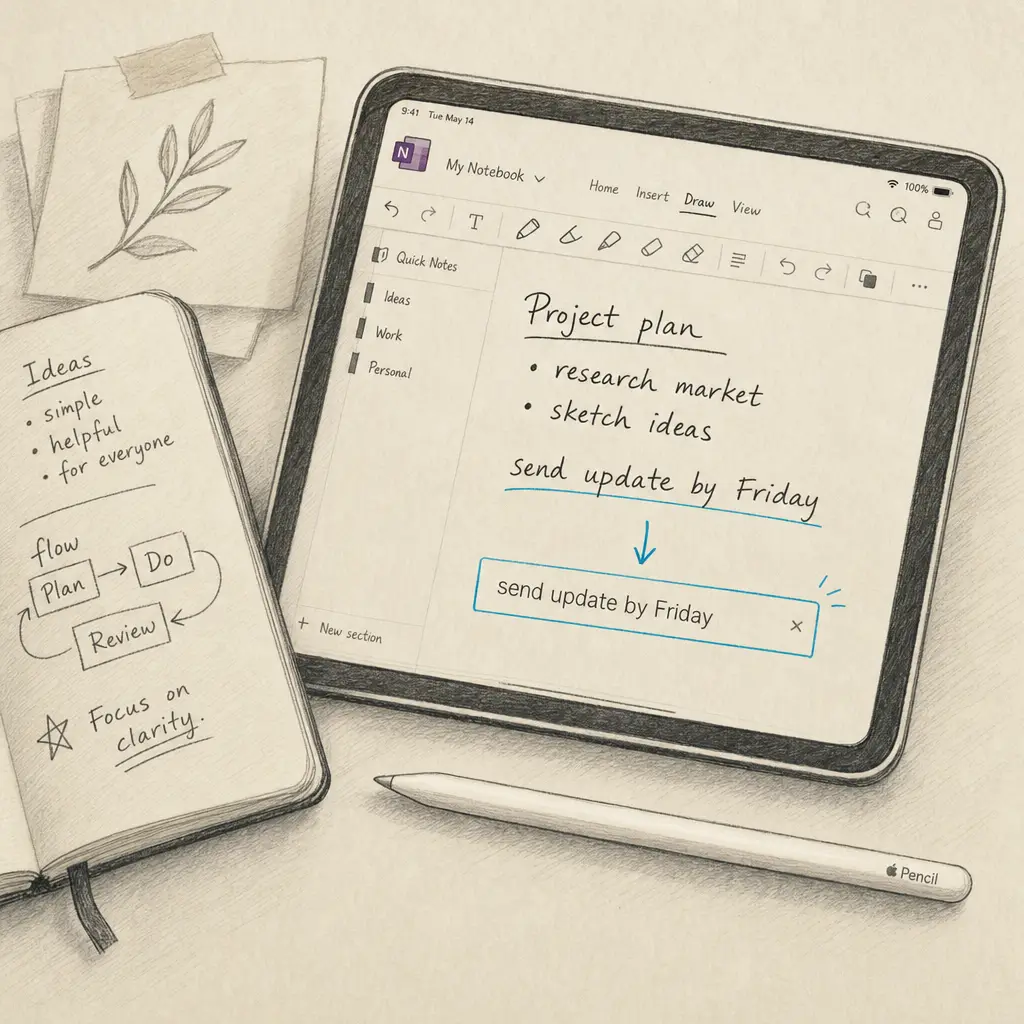
Yes, you can convert handwriting to text in OneNote iPad, but with important limitations. OneNote for iPad uses Apple Pencil Scribble to convert handwriting to text as you write, not retroactively. This means you can only convert handwriting in real time using a special auto-convert pen tool. If you have existing handwritten notes or need to process multiple pages at once, you’ll need an alternative solution like HandwritingOCR for batch processing.
Quick Takeaways
- OneNote iPad converts handwriting to text using Apple Pencil Scribble, but only as you write
- There is no “Ink to Text” button on iPad like the desktop version has
- Existing handwritten notes cannot be converted retroactively in OneNote iPad
- For batch processing or converting existing notes, HandwritingOCR.com provides higher accuracy and efficiency
- The auto-convert pen works best with printed handwriting, not cursive
How OneNote iPad Converts Handwriting to Text
OneNote for iPad takes a different approach to handwriting conversion compared to its desktop counterpart. Instead of a dedicated “Ink to Text” feature, it relies on Apple’s Scribble technology built into iPadOS.
Using the Scribble Auto-Convert Pen
When you enable Scribble in OneNote, you get access to a special pen tool that automatically converts your handwriting to typed text as you write. This pen appears in your drawing toolbar with a small “A” icon on it. As you write with this pen, your handwriting immediately transforms into digital text.
OneNote iPad converts handwriting to text in real time, not after you’ve finished writing.
This approach differs significantly from other methods to convert handwriting to text on iPad, where you can convert existing content.
Requirements for Handwriting Conversion
To use handwriting-to-text conversion in OneNote iPad, you need:
- An iPad running iPadOS with Scribble support
- Apple Pencil (first or second generation)
- OneNote app installed and updated
- Scribble enabled in your iPad settings
Step-by-Step Guide for OneNote iPad
Converting handwriting to text in OneNote iPad requires a few setup steps before you can start writing.
Enable Scribble in iPad Settings
First, you need to activate Scribble at the system level:
- Open the Settings app on your iPad
- Scroll down and tap “Apple Pencil”
- Toggle on “Scribble” if it’s not already enabled
This setting enables handwriting recognition across all compatible apps, not just OneNote.
Activate the Auto-Convert Pen in OneNote
Once Scribble is enabled system-wide:
- Open OneNote and navigate to the page where you want to write
- Tap the “Draw” button at the top of the page
- Look for the pen tool with a small “A” icon on it
- Select this auto-convert pen from your pen options
Convert as You Write
With the auto-convert pen selected:
- Tap where you want to start writing in your note
- Dismiss the keyboard if it appears
- Begin writing with your Apple Pencil
- Your handwriting automatically converts to typed text as you write
The conversion happens immediately, giving you instant feedback on recognition accuracy.
Limitations of OneNote iPad for Handwriting Conversion
While OneNote iPad offers handwriting-to-text conversion, several important limitations may affect your workflow.
No Retroactive Conversion
The biggest limitation is that OneNote iPad cannot convert handwriting that’s already been written. Unlike the Windows desktop version, which allows you to select existing ink and convert it to text, the iPad version only converts as you write with the auto-convert pen.
If you have pages of existing handwritten notes in OneNote, you cannot convert them to text within the iPad app. You would need to rewrite them using the auto-convert pen or use an alternative solution.
Single-Page Focus
OneNote iPad handles conversion one page at a time. There is no batch processing feature that allows you to select multiple pages or notebooks and convert all handwriting at once. For users with extensive handwritten notes across multiple pages, this becomes time-consuming.
Converting dozens of pages one at a time can take hours when you need to digitize an entire notebook.
Accuracy Challenges with Cursive
While OneNote’s handwriting recognition works reasonably well with printed handwriting, cursive writing significantly reduces accuracy. The Scribble technology is optimized for clear, separated letters rather than connected cursive script.
Users working with cursive handwriting, historical documents, or varied handwriting styles often find OneNote iPad’s accuracy insufficient for their needs.
When to Use HandwritingOCR.com Instead
For many use cases, a dedicated handwriting OCR service provides better results than OneNote iPad’s built-in conversion.
Batch Processing Multiple Pages
If you need to convert multiple pages of handwritten notes at once, HandwritingOCR.com allows you to upload dozens or hundreds of pages and process them all simultaneously. This is particularly valuable when digitizing:
- Complete notebooks from classes or meetings
- Multiple pages of research notes
- Scanned documents from paper archives
- Historical family documents or letters
The batch processing approach saves hours compared to converting one page at a time in OneNote.
Converting Existing Handwritten Notes
Since OneNote iPad cannot retroactively convert handwriting, HandwritingOCR.com becomes essential when you have existing handwritten content. You can export your OneNote pages as images or PDFs and upload them for conversion.
This workflow is particularly useful if you’ve been taking handwritten notes in OneNote (or other note-taking apps for iPad) and now need to make them searchable or editable.
Higher Accuracy for Complex Handwriting
HandwritingOCR.com uses advanced AI models specifically trained on handwriting recognition, providing higher accuracy for:
- Cursive and script handwriting
- Mixed printing and cursive
- Varied handwriting styles
- Older or degraded documents
- Medical or technical notation
| Feature | OneNote iPad | HandwritingOCR.com |
|---|---|---|
| Real-time conversion | Yes | No |
| Retroactive conversion | No | Yes |
| Batch processing | No | Yes |
| Cursive accuracy | Moderate | High |
| Multiple languages | Limited | 300+ languages |
| Existing notes | Cannot convert | Converts all formats |
Multiple Language Support
If your handwritten notes include multiple languages or non-English text, HandwritingOCR supports more than 300 languages. OneNote’s Scribble feature primarily focuses on English and a limited set of other languages.
This makes HandwritingOCR essential for multilingual documents, international archives, or research involving foreign language materials.
Your documents remain private and are processed only to deliver your results. They’re not used for training or shared with anyone.
How to Convert Handwriting to Text with HandwritingOCR.com
When OneNote iPad’s limitations become problematic, HandwritingOCR.com provides a straightforward alternative.
Upload Your Documents
- Visit HandwritingOCR
- Export your OneNote pages as images or PDFs, or photograph/scan your handwritten pages
- Upload your documents (single files or batch uploads)
- Select your preferred AI provider and any custom extraction requirements
The platform accepts images, PDFs, and scanned documents in various formats.
Process and Download
Once uploaded, your documents are processed using advanced AI models:
- The system analyzes your handwriting and extracts text
- You receive your results in your preferred format (plain text, CSV, Excel, or JSON)
- Download your converted text for use in any application
The entire process typically completes in minutes, even for large batches of documents.
For notes taken in Apple Notes or other iPad apps, the same process applies. HandwritingOCR works with any handwritten content you can capture as an image or PDF.
Conclusion
You can convert handwriting to text in OneNote iPad using the Scribble-powered auto-convert pen, but only as you write in real time. For converting existing notes, batch processing multiple pages, or handling complex cursive handwriting, OneNote iPad’s limitations make it unsuitable.
HandwritingOCR fills these gaps with retroactive conversion, batch processing, higher accuracy, and support for more than 300 languages. Your handwritten notes remain private throughout the process and are not used for training.
Try converting your handwritten notes with free credits at HandwritingOCR to experience the difference in accuracy and efficiency.
Frequently asked questions
Does OneNote iPad have an "Ink to Text" button like the desktop version?
No, OneNote for iPad does not have the traditional "Ink to Text" button found in the Windows desktop version. Instead, it uses Apple Pencil Scribble integration, which converts handwriting to text as you write, not retroactively.
Can I convert existing handwritten notes in OneNote iPad to text?
No, OneNote iPad cannot retroactively convert handwriting that has already been written. The Scribble feature only converts text as you write it in real time. To convert existing notes, you would need to use the desktop version or a service like HandwritingOCR.com.
Does OneNote iPad work with all handwriting styles?
OneNote iPad works best with clear, printed handwriting. While it can recognize cursive, the accuracy is significantly lower. For complex cursive or messy handwriting, HandwritingOCR.com provides higher accuracy using advanced AI models.
Can I batch convert multiple pages of handwritten notes in OneNote iPad?
No, OneNote iPad requires page-by-page manual conversion as you write. There is no batch processing feature. For converting multiple pages of existing handwritten documents at once, HandwritingOCR.com offers dedicated batch processing capabilities.