
If you’ve got handwritten notes, forms, or documents saved as PDFs and need them as editable Word documents, you’ve probably wondered: can Microsoft Word do this?
The short answer is yes, Word can attempt to convert handwritten PDFs, but the results are so poor they’re completely unusable. In this article, I’ll show you exactly what happens when you try to use Word’s built-in OCR to convert handwriting to text, why it fails so badly, and what actually works instead.
Quick Takeaways
- Word’s built-in OCR turns handwriting into gibberish, producing unusable results
- Word’s OCR is designed for printed text, not handwriting, which has variable letter shapes and spacing
- Other Microsoft tools (Word Online, OneNote, Microsoft Lens) also struggle with handwriting recognition
- Specialized handwriting OCR services convert handwritten PDFs to Word format accurately in 30-60 seconds
- HandwritingOCR exports directly to Word (.docx) with editable, properly formatted text
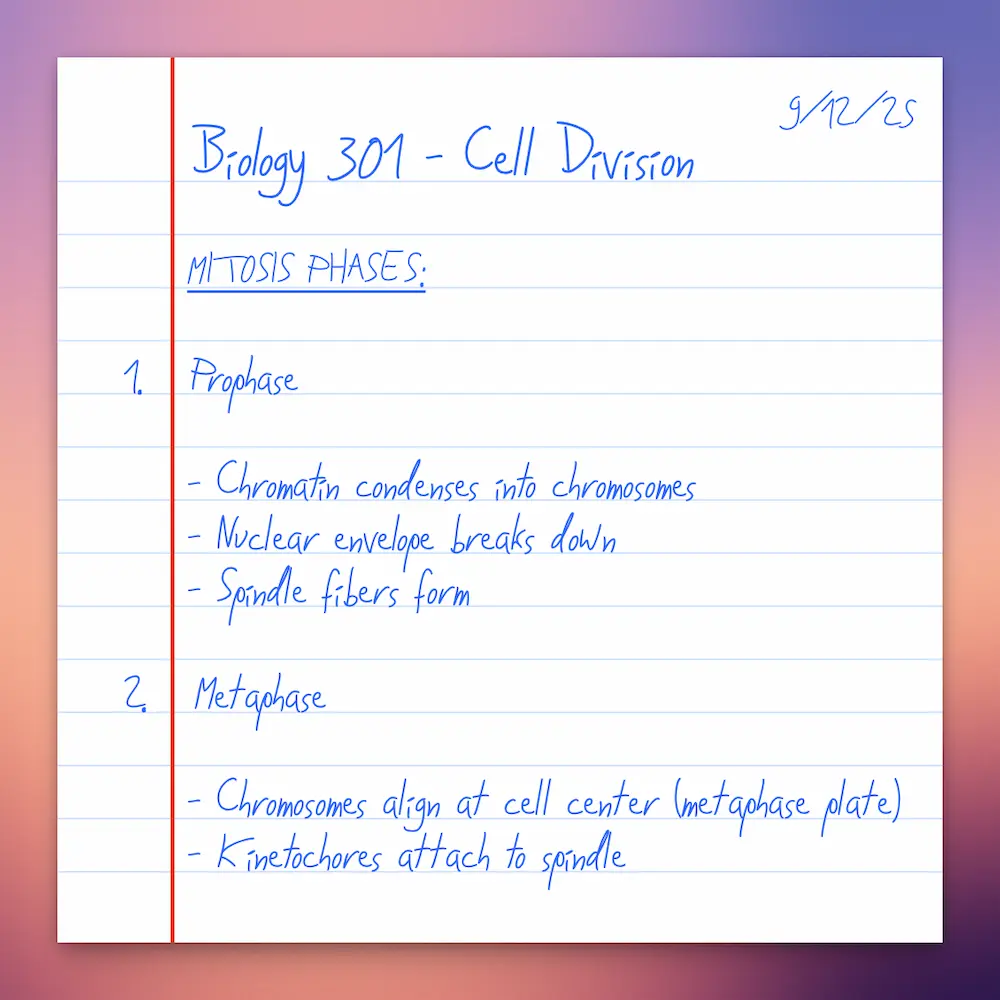
We’ll be using this sample document throughout - handwritten biology notes with a mix of print and cursive writing. It’s typical real-world handwriting: mostly legible, with some abbreviations and varying pen pressure.
How to Convert Handwritten PDF to Word (Using Word)
Here’s the process for converting a handwritten PDF using Microsoft Word:
- Open Microsoft Word (desktop version - this doesn’t work in Word Online)
- Go to File → Open
- Navigate to your handwritten PDF file
- Select the PDF and click Open
- Word will open the converted document
That’s it. The process itself is simple and straightforward.
What Happens When You Open a Handwritten PDF in Word
Technically, converting a handwritten PDF to Word should be simple: just open the PDF in Word (File → Open), and Word will automatically attempt to OCR the content and convert it to editable text.
Let’s see what actually happens.
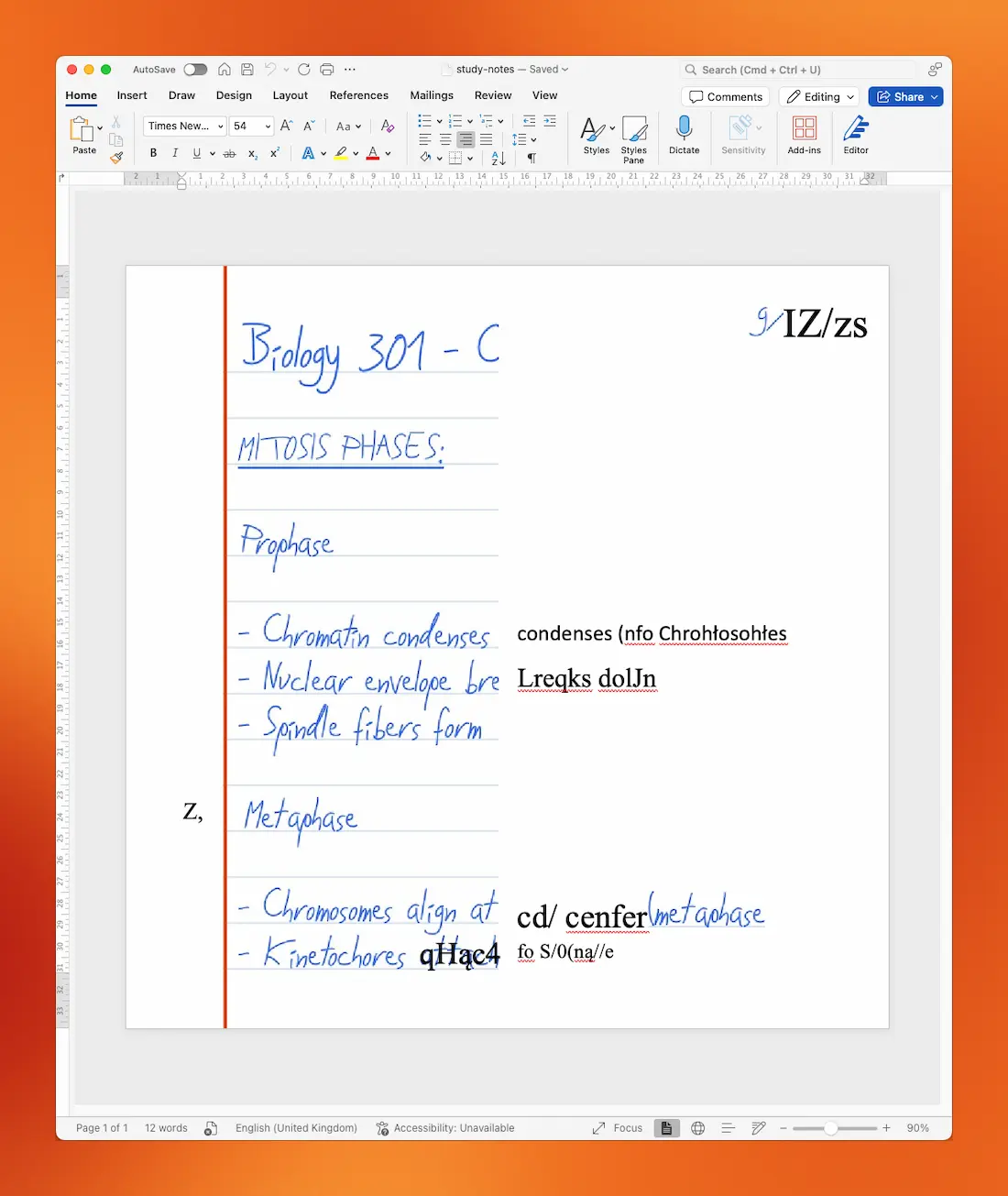
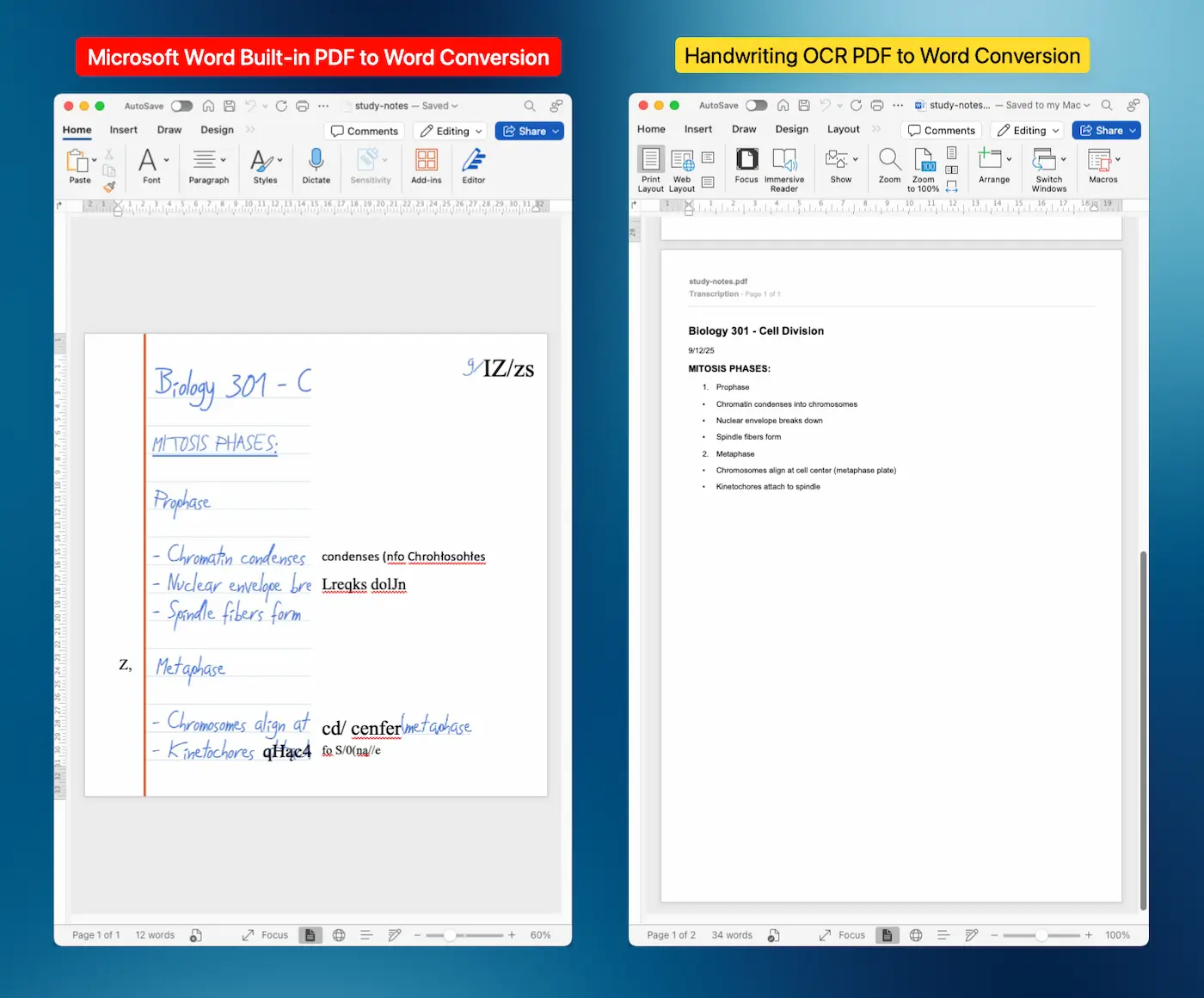
This is our biology notes opened in Word. Here’s what Word’s OCR produced:
- “Chromatin condenses” became “condenses (nfo ChroHIosohtes”
- “Nuclear envelope breaks down” became “Lreqks doJn”
- “align at center” became “cd/ cenfer”
- “attach to spindles” became “qHac4 to S/0(na/c”
Some words are recognized correctly, but they’re mixed in with complete gibberish. You can’t just “clean up” this output. You’d spend more time deciphering and correcting Word’s errors than you would retyping the entire document from scratch.
Word’s OCR turns handwritten text into unusable gibberish, producing results that require more time to fix than retyping manually.
Why Word’s OCR Fails on Handwriting
Word’s OCR engine is trained on printed fonts and typed text. It expects consistent letterforms, uniform spacing, and predictable character shapes.
Handwriting is fundamentally different:
- Individual writing styles vary dramatically
- Letters connect together (especially in cursive)
- Letter sizes and spacing are inconsistent
- Slant and pressure change throughout writing
- The same letter can look different depending on context
Word simply isn’t designed to handle these variables. Its OCR works great for clean printed documents but fails completely on handwriting.
Other Microsoft tools
Before we move on to the solution, let’s quickly address the other Microsoft options:
Word Online: Can’t OCR PDFs at all. You need the desktop version.
OneNote’s “Copy Text from Picture”: Can attempt handwriting OCR, but as Microsoft’s documentation states, “OCR works best with images of printed or font text, rather than handwritten.” Users consistently report that “OneNote OCR supports recognized text from handwritten files. However, the OCR result is not as good as expect, there are missing texts and inaccurate characters.”
Microsoft Lens: The mobile scanning app has inconsistent handwriting recognition that varies dramatically based on handwriting style, image quality, and lighting.
The Bottom Line: Microsoft’s tools simply aren’t built for handwriting recognition.
Comparison: Word vs Handwriting OCR
Different tools deliver dramatically different results when converting handwritten PDFs to Word format.
| Tool | Accuracy | Processing Time | Output Quality | Best For |
|---|---|---|---|---|
| Microsoft Word Desktop | Very Poor (unusable) | Instant but requires hours of correction | Gibberish mixed with occasional correct words | Not recommended for handwriting |
| Word Online | N/A | Cannot OCR PDFs | N/A | Not applicable |
| OneNote | Poor | 1-2 minutes | Missing text, inaccurate characters | Not recommended for handwriting |
| Microsoft Lens | Inconsistent | 30-60 seconds | Varies by handwriting style | Basic notes only |
| HandwritingOCR | High (90-97%+) | 30-60 seconds per page | Clean, editable Word format | All handwriting types |
A Better Alternative: Handwriting OCR
Here’s what actually works. HandwritingOCR is specifically designed to recognize handwriting, and it shows.
Let’s convert the same biology notes we tried in Word.
Step 1: Upload Your PDF
Go to HandwritingOCR and sign up for a free account. You get 5 free page credits to try the service, no payment required. If you have a Gmail account, you can use the “Sign in with Google” option.
Once you have completed your registration, you’ll see an upload form. Choose “Extract full text” and click “Upload documents” to select your PDF file.
In our example, we’re using just a single page PDF, but you can upload multi-page PDFs too. If you have more than one file to process, select or drag them all to the upload area and they’ll all process in parallel.
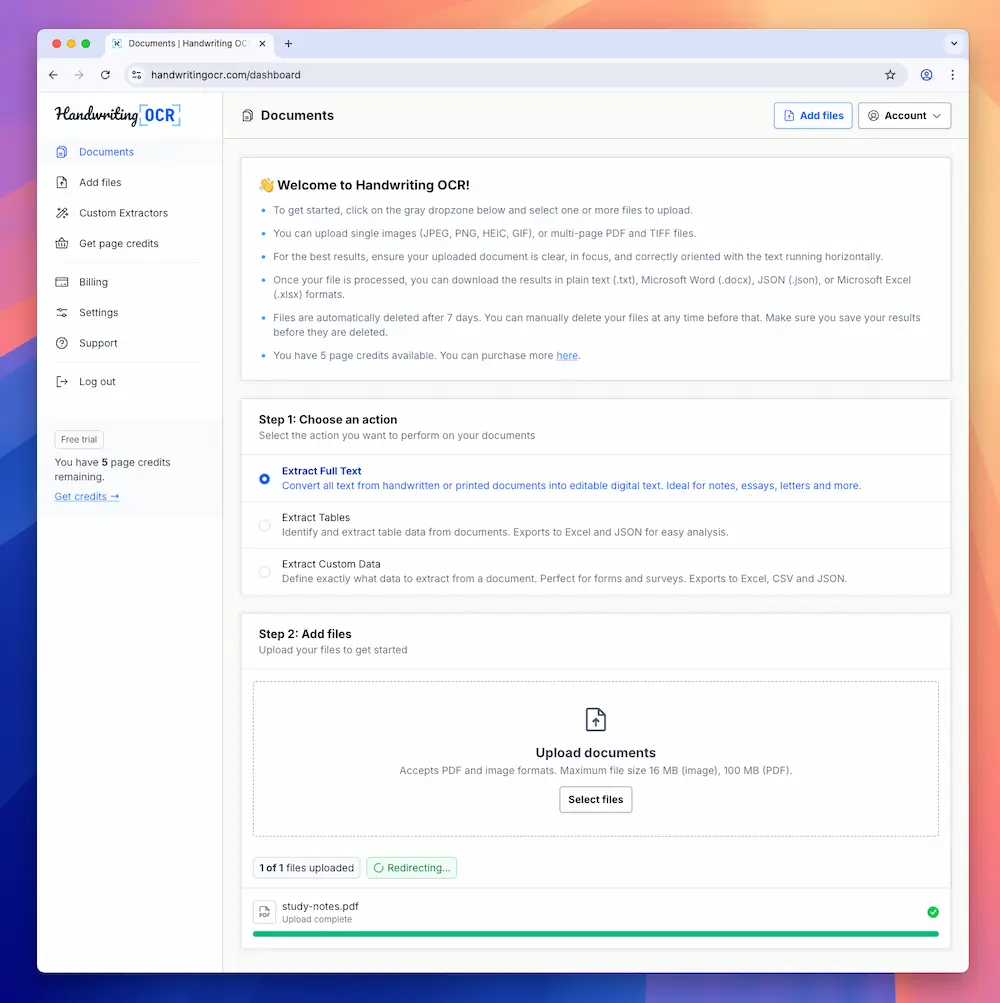
Step 2: Processing
Once uploaded, HandwritingOCR’s AI begins analyzing your handwriting. Unlike basic OCR that looks for printed letterforms, handwriting OCR has to interpret individual writing styles, letter connections, and contextual clues to accurately recognize text.
For a typical single page, this takes about 30-60 seconds. Multi-page documents process page by page.
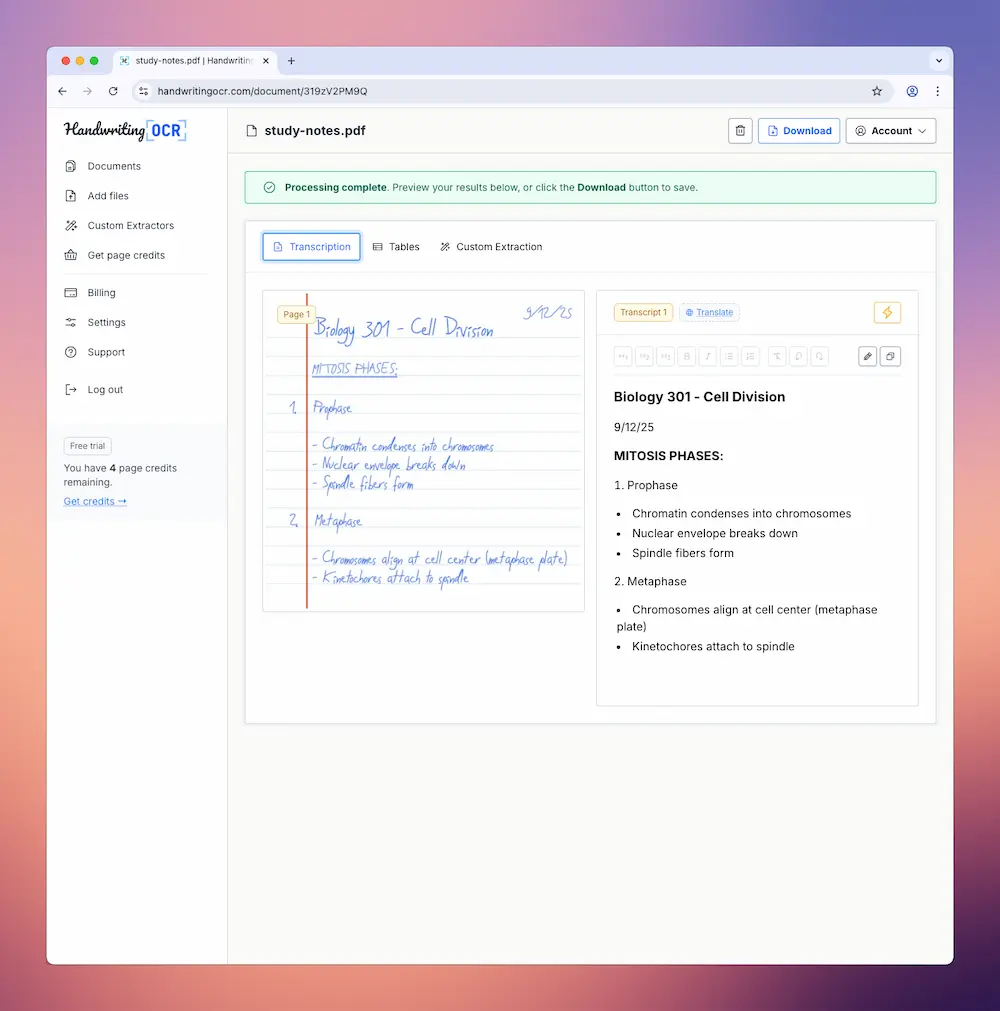
HandwritingOCR processes handwritten PDFs in seconds, delivering accurate results without the gibberish output from Word’s built-in OCR.
Step 3: Review the Results
When processing is complete, you’ll see your extracted text on screen. The original PDF appears on the left, and the recognized text on the right, making it easy to verify accuracy.
You can click on any text to edit it directly if you spot any errors. This is useful if you have unusually difficult handwriting or abbreviations the AI might not recognize. But since we’ll be exporting these results to Word, you can also save any editing until later.
Step 4: Export to Word
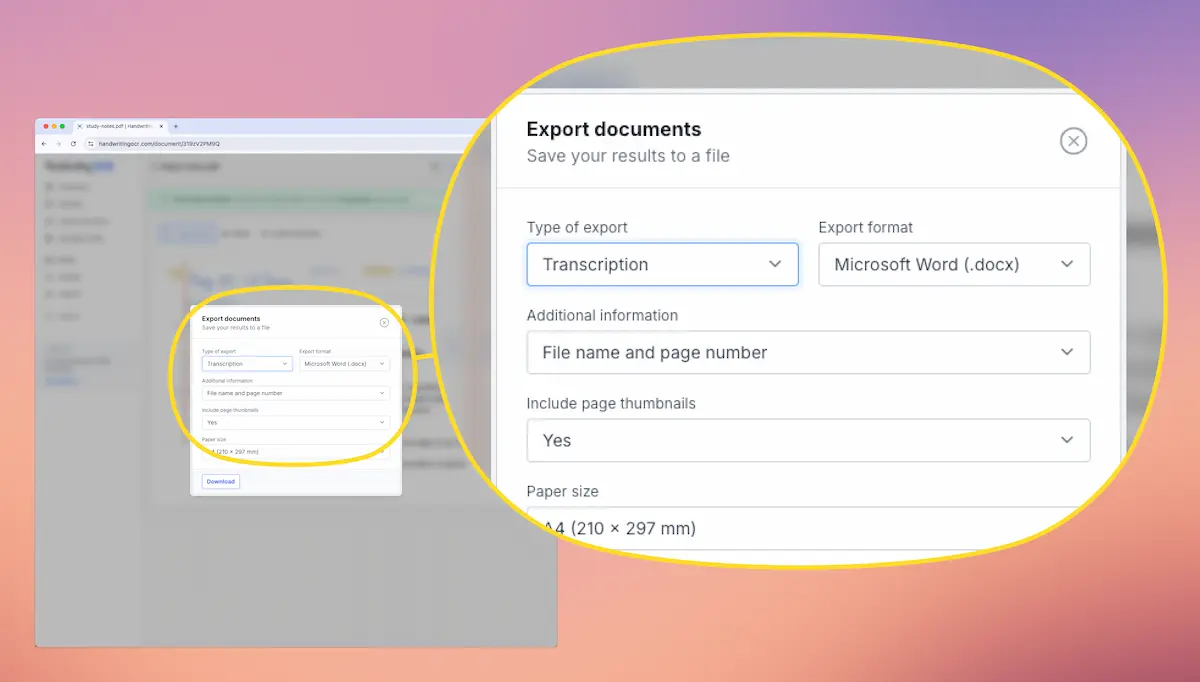
This is where it gets useful. Click the “Download” button and select “Microsoft Word (.docx)” from the format options. You can also choose to include the original page as an image, plus information such as the original file name, and page number (all useful for reference).
Once you have chosen the options you need, click “Download”. The system will generate a properly formatted Word document with your text. It preserves paragraph breaks and basic formatting from your original handwritten document.
Step 5: Open and Edit in Word
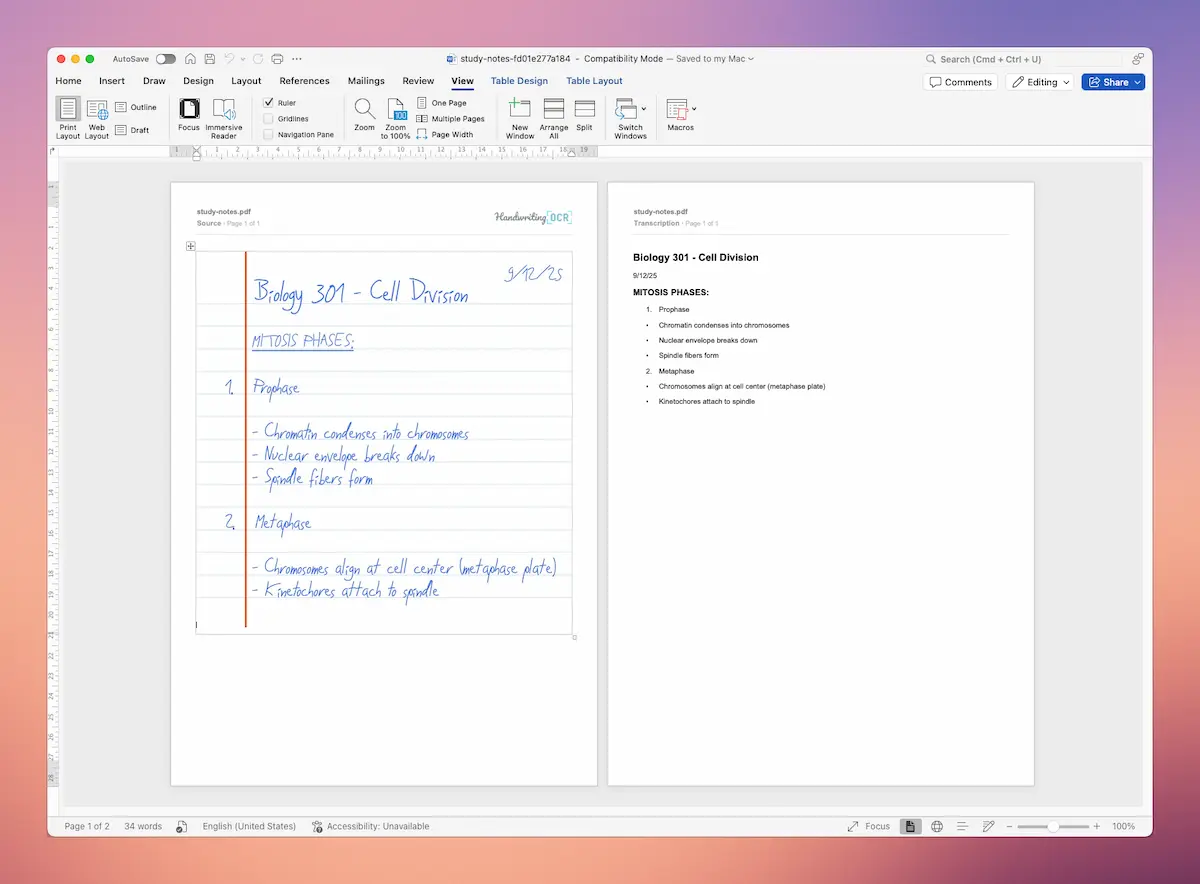
Download the file and open it in Microsoft Word. You now have fully editable text that you can format, spell-check, and work with just like any other Word document.
The text is real Word text, not an image. You can search it, copy it, reformat it, run it through grammar checkers, or incorporate it into other documents.
Your documents remain private and are processed only to deliver your results. They are not used to train models or shared with anyone else.
Converting Handwritten PDFs to Word Successfully
Microsoft Word’s built-in OCR turns handwritten PDFs into unusable gibberish. The OCR engine is designed for printed text with consistent letterforms and spacing, not the variable letter shapes and individual writing styles found in handwriting.
For reliable conversion of handwritten PDFs to Word format, specialized handwriting OCR services deliver the accuracy you need. These tools are specifically designed to interpret handwriting, process documents in seconds, and export directly to editable Word (.docx) format.
Your handwritten documents remain private throughout the conversion process. Files are processed only to deliver your results and are not used to train models or shared with anyone else.
If you’re working with PDFs in Adobe instead, see our guide on how to convert handwriting to text in Adobe. For Google Docs users, check out how to convert handwriting to text in Google Docs. For a complete overview of all conversion methods, visit our comprehensive guide on converting handwriting to text.
Ready to convert your handwritten PDFs to Word? Try HandwritingOCR free with complimentary credits and see the difference specialized handwriting recognition makes.
Frequently asked questions
Can Microsoft Word convert handwritten PDFs to text?
Yes, Word can attempt to convert handwritten PDFs when you open them, but the results are extremely poor and unusable. Word's OCR is designed for printed text, not handwriting, resulting in gibberish output that requires more time to fix than retyping from scratch.
Why does Word fail at converting handwritten PDFs?
Word's OCR engine is trained on printed fonts and typed text with consistent letterforms and spacing. Handwriting has variable letter sizes, connected letters, inconsistent spacing, and individual writing styles that Word's OCR cannot accurately interpret.
What is the best way to convert handwritten PDFs to Word format?
Specialized handwriting OCR services like HandwritingOCR provide significantly better results than Word's built-in OCR. These services are specifically designed to recognize handwriting and can export directly to Word (.docx) format with properly formatted, editable text.
Does OneNote work better than Word for converting handwritten PDFs?
OneNote's "Copy Text from Picture" feature can attempt handwriting OCR, but Microsoft's documentation states it works best with printed text. Users consistently report missing text and inaccurate characters when using OneNote for handwriting recognition.
How long does it take to convert a handwritten PDF to Word?
With specialized handwriting OCR services, a typical single-page PDF converts in 30-60 seconds. Multi-page documents process page by page. This is dramatically faster than Word's approach, which produces unusable results requiring extensive manual correction.