
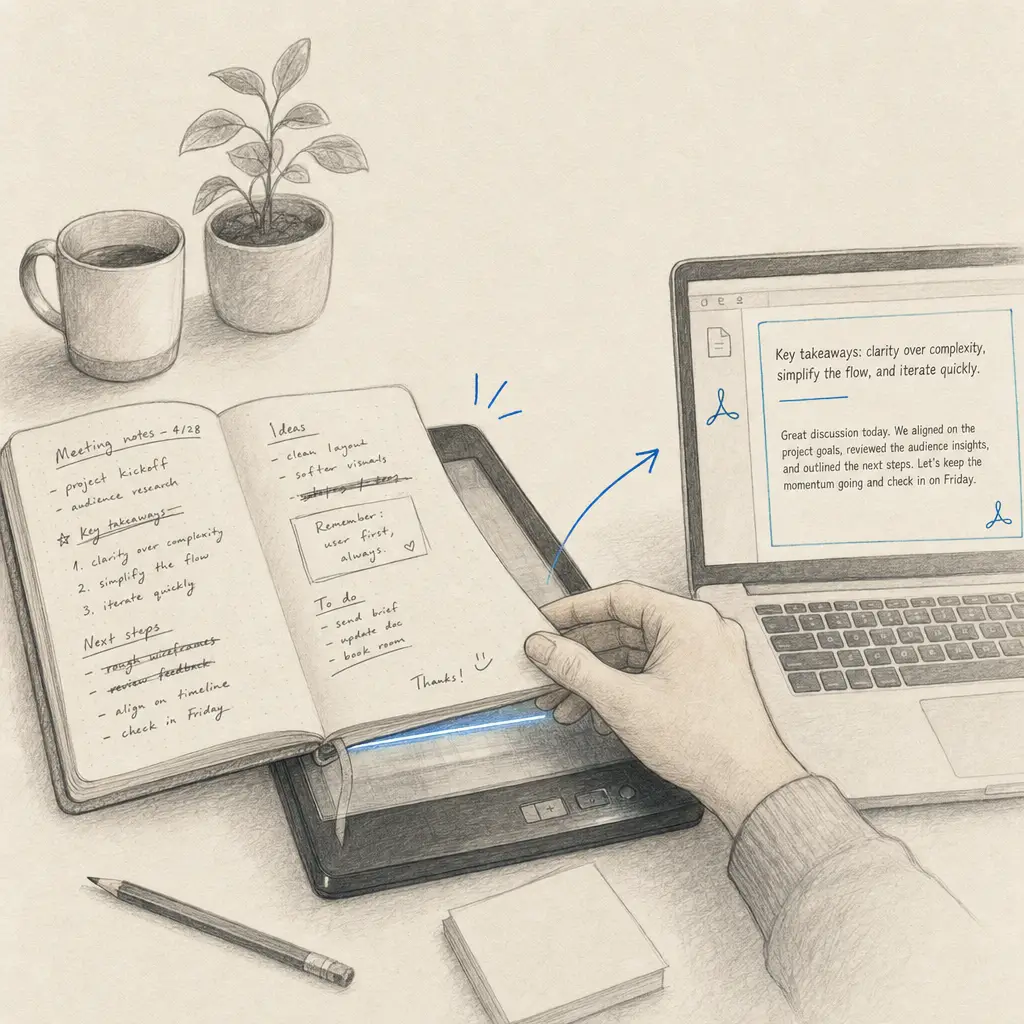
Adobe offers a comprehensive suite of tools for converting handwriting to text, though with some important limitations to consider. While Adobe Acrobat provides robust OCR (Optical Character Recognition) capabilities primarily designed for printed text, handwriting conversion presents unique challenges that require understanding both the capabilities and constraints of Adobe’s technology.
Quick Takeaways
- Adobe Acrobat Pro DC offers OCR capabilities for handwriting conversion, but accuracy varies based on handwriting quality
- The “Scan & OCR” feature is the primary method for converting handwriting to text in Adobe
- Manual review and correction are essential due to moderate recognition accuracy
- Specialized handwriting OCR services like HandwritingOCR provide superior accuracy for challenging handwriting
- Pre-processing your documents with proper scanning techniques significantly improves results
Understanding Adobe’s Handwriting OCR Capabilities
Adobe’s OCR technology excels at recognizing printed text from images and PDFs, but handwriting recognition is inherently more complex. The system can process handwritten content, but accuracy varies significantly based on writing style, clarity, and document quality. Adobe Acrobat’s “Enhance Scans” feature with “Recognize Text” functionality represents the primary method for handwriting conversion within the Adobe ecosystem.
Adobe Acrobat OCR is optimized for printed text, making handwriting recognition a secondary capability that requires realistic accuracy expectations.
Key Factors Affecting Adobe OCR Performance
- Handwriting legibility and consistency
- Document image quality and resolution
- Text alignment and orientation
- Writing instrument and paper contrast
- Language settings and character recognition models
If you’re working with Microsoft Office documents instead, you might also want to explore how to convert handwriting to text in Microsoft Office or specifically how to convert handwriting PDF to text in Word.
Complete Step-by-Step Guide for Adobe Acrobat
Method 1: Using Scan & OCR Tools
-
Document Preparation:
- Launch Adobe Acrobat Pro DC (OCR features require Pro version)
- Open the PDF file containing handwritten text
- Ensure document is properly oriented and cropped
-
Access OCR Functionality:
- Navigate to the Tools panel
- Select Scan & OCR from the available tools
- Choose Recognize Text option
-
Configure Recognition Settings:
- Select the appropriate document language
- Choose between “Searchable Image” or “Editable Text” output
- Click Recognize Text to initiate the process
-
Review and Correct Results:
- Carefully examine the converted text for accuracy
- Use Adobe’s built-in editing tools to correct errors
- Pay special attention to commonly misinterpreted characters
-
Export and Save:
- Export to desired format (Word, Excel, PowerPoint)
- Save as searchable PDF for future reference
- Maintain original document as backup
Method 2: Enhanced Scan Processing
-
Image Enhancement:
- Use Enhance Scans feature to improve image quality
- Adjust brightness, contrast, and resolution
- Apply deskew and perspective correction if needed
-
OCR Processing:
- Follow standard OCR workflow
- Monitor processing progress for large documents
- Review suspect words highlighted by Adobe
Understanding Adobe OCR Limitations for Handwriting
Technical Constraints
- Accuracy Variability: Handwriting recognition accuracy depends heavily on writing quality and style
- Style Sensitivity: Cursive, stylized, or irregular handwriting poses significant challenges
- Complex Layouts: Tables, forms, and mixed content can reduce recognition accuracy
- Language Limitations: Performance varies across different languages and character sets
Manual review is essential when converting handwriting to text in Adobe, as recognition errors are common with cursive or irregular handwriting styles.
Common Recognition Issues
- Character Confusion: Similar-looking letters (e.g., ‘a’ vs ‘o’, ‘rn’ vs ‘m’)
- Word Boundary Errors: Incorrect spacing or word separation
- Number Recognition: Handwritten digits often misinterpreted
- Special Characters: Symbols and punctuation frequently missed or misidentified
Post-Processing Requirements
- Manual Review: Essential for accuracy verification
- Error Correction: Time-intensive editing process
- Formatting Restoration: Layout and structure often require adjustment
- Quality Assurance: Multiple review cycles may be necessary
Advanced Techniques for Better Results
Pre-Processing Optimization
-
Document Scanning:
- Use 300+ DPI resolution for optimal quality
- Ensure even lighting and minimal shadows
- Maintain proper document flatness
-
Image Enhancement:
- Apply noise reduction filters
- Adjust contrast to maximize text-background distinction
- Use grayscale or black-and-white modes for better recognition
-
Document Preparation:
- Remove unnecessary marks or annotations
- Ensure clean page boundaries
- Orient text properly before processing
Adobe Acrobat Pro Advanced Features
- Batch Processing: Handle multiple documents simultaneously
- Custom OCR Settings: Fine-tune recognition parameters
- Text Comparison: Compare original and converted content
- Accessibility Features: Create properly tagged documents
Specialized Handwriting OCR Solutions
Why Choose HandwritingOCR
While Adobe Acrobat offers general OCR capabilities, specialized handwriting recognition often requires dedicated solutions. HandwritingOCR provides superior accuracy for handwriting conversion with these advantages:
- Specialized algorithms designed specifically for handwriting recognition
- Support for various handwriting styles including cursive and irregular writing
- Privacy-focused processing that keeps your documents secure
- Simple exports to Microsoft Word and other formats
- Professional API for business integration
- Multi-language support for international documents
Your handwritten documents remain private throughout the processing. HandwritingOCR never uses your data to train models or uses it for training.
HandwritingOCR achieves higher accuracy rates on challenging handwriting compared to general-purpose OCR tools, reducing the time spent on manual corrections.
Mobile and Cloud Solutions
For users seeking alternatives to desktop Adobe software, mobile apps can provide convenient handwriting conversion:
- Adobe Scan Mobile App:
- Mobile document capture
- Automatic OCR processing
- Cloud integration with Adobe services
For Google users looking for similar functionality, check out how to convert handwriting to text in Google Docs.
Workflow Integration and Best Practices
Establishing Efficient Workflows
-
Document Classification:
- Assess handwriting quality before processing
- Choose appropriate tools based on content type
- Establish quality thresholds for automated processing
-
Quality Control Process:
- Implement systematic review procedures
- Maintain accuracy metrics and improvement targets
- Document common error patterns for training
-
Output Management:
- Standardize file naming conventions
- Implement version control for edited documents
- Create searchable document repositories
Cost-Benefit Analysis
Adobe Acrobat Advantages:
- Integrated workflow with existing Adobe tools
- No additional per-page costs beyond subscription
- Offline processing capability
- Professional document handling features
Adobe Acrobat Limitations:
- Lower accuracy for handwriting compared to specialized tools
- Significant manual correction requirements
- Limited customization for handwriting-specific needs
- Requires expensive Pro subscription
Troubleshooting Common Issues
Recognition Accuracy Problems
-
Diagnosis Steps:
- Check image quality and resolution
- Verify language settings
- Assess handwriting legibility
-
Resolution Strategies:
- Re-scan with higher quality settings
- Try specialized handwriting OCR services
- Consider manual transcription for critical content
Software and Technical Issues
- Compatibility: Ensure Adobe Acrobat Pro DC is up-to-date
- Performance: Monitor system resources during processing
- File Format: Verify input document compatibility
- Licensing: Confirm Pro subscription status and features
Integration Challenges
- Workflow Disruption: Plan for manual review time
- Quality Variance: Establish acceptable accuracy thresholds
- Training Requirements: Educate users on best practices
- Technology Limitations: Set realistic expectations
Future Developments and Recommendations
Adobe’s Ongoing Improvements
- AI Enhancement: Machine learning integration for better recognition
- Cloud Processing: Leveraging Adobe’s cloud infrastructure
- Mobile Integration: Improved mobile-to-desktop workflows
- Accessibility: Enhanced support for diverse handwriting styles
Strategic Recommendations
- Hybrid Approach: Combine Adobe tools with specialized services for optimal results
- Quality Investment: Prioritize high-quality document scanning and preparation
- Training Programs: Develop user competency in OCR best practices
- Technology Evaluation: Regularly assess new handwriting OCR solutions
Conclusion
While Adobe Acrobat provides capable OCR tools for document processing, handwriting conversion requires realistic expectations about accuracy and manual review requirements. For occasional use with clear, printed-style handwriting, Adobe’s built-in OCR can be sufficient. However, for high-volume processing, critical accuracy requirements, or challenging handwriting styles, specialized solutions deliver superior results.
The key to successful handwriting conversion lies in choosing the right tool for your specific needs, implementing proper document preparation techniques, and establishing efficient review workflows.
Ready to convert your handwriting to text with superior accuracy? Try HandwritingOCR free with complimentary credits and experience specialized handwriting recognition designed for challenging documents.
For a complete overview of all handwriting conversion methods across different platforms and applications, visit our comprehensive guide on converting handwriting to text.
Frequently asked questions
Can Adobe Acrobat convert handwriting to text?
Yes, Adobe Acrobat can convert handwriting to text using its OCR (Optical Character Recognition) feature. However, accuracy varies significantly based on handwriting clarity and style, with better results for clear, printed-style handwriting than cursive or stylized writing.
Do I need Adobe Acrobat Pro to convert handwriting to text?
Yes, you need Adobe Acrobat Pro DC to access the OCR features required for handwriting conversion. The standard version of Adobe Acrobat does not include OCR functionality.
What formats can I export handwriting text to from Adobe?
Adobe Acrobat allows you to export converted handwriting to various formats including Microsoft Word (DOCX), Excel (XLSX), PowerPoint (PPTX), and searchable PDF. You can also create editable text directly within the PDF.
How accurate is Adobe Acrobat for handwriting recognition?
Adobe Acrobat OCR is primarily designed for printed text, so handwriting recognition accuracy is moderate and depends heavily on writing quality. Clear, legible handwriting yields better results, while cursive or irregular handwriting often requires manual correction.
What are better alternatives to Adobe for handwriting OCR?
HandwritingOCR offers specialized algorithms designed specifically for handwriting recognition, achieving higher accuracy rates than general-purpose OCR tools. It supports various handwriting styles and languages with privacy-focused processing and simple export options.