
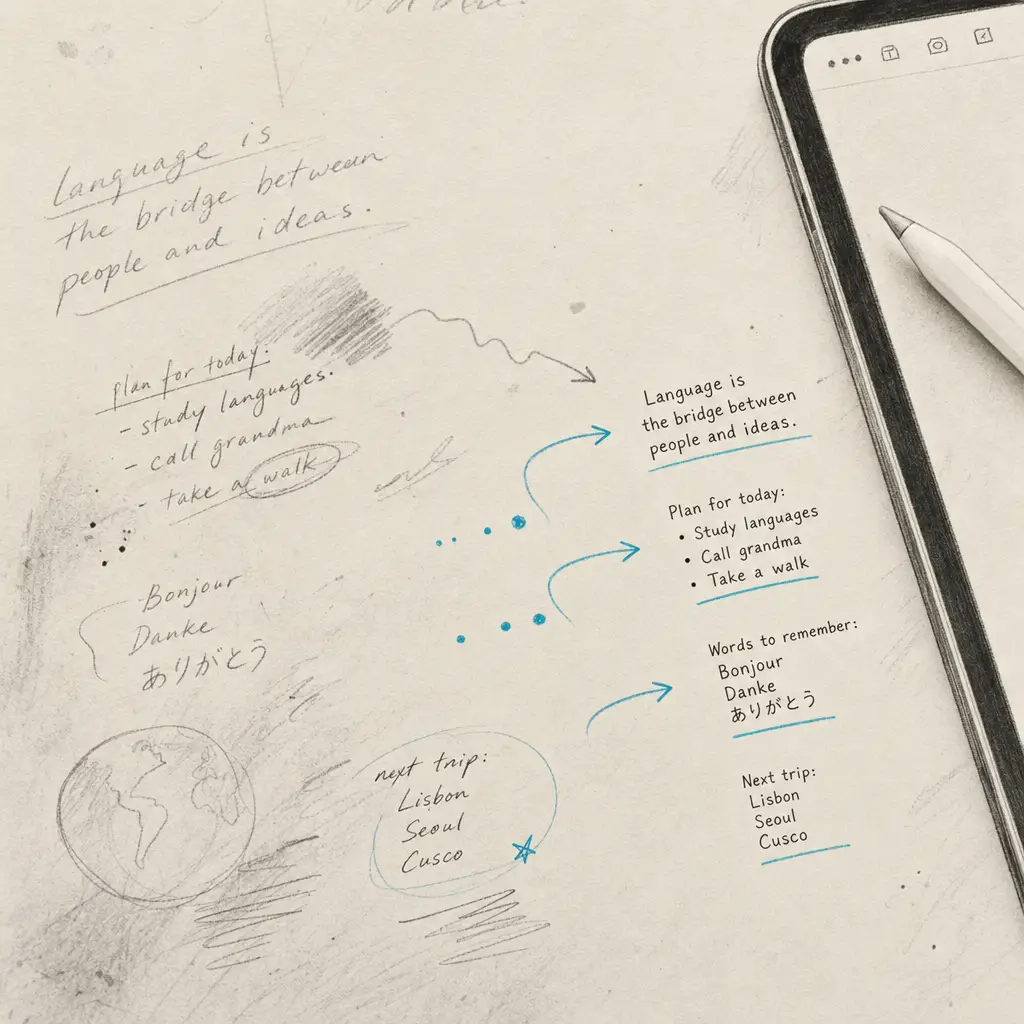
If you take handwritten notes on your iPad Pro, you already know the Apple Pencil feels natural and fluid. But when you need those notes in a searchable, editable format, typing everything by hand becomes time-consuming. The good news is that iPad Pro Notes includes built-in handwriting recognition tools that can help. The challenge is understanding what these tools can and cannot do, and when you need something more powerful.
This guide walks you through the native methods for converting handwriting to text on iPad Pro Notes, including step-by-step instructions for Scribble and Smart Selection. You’ll also learn about the limitations you might encounter and when a dedicated OCR solution delivers better results for complex documents or large volumes of handwritten notes.
Quick Takeaways
- iPad Pro Notes offers two native methods: Scribble for real-time conversion and Smart Selection for existing notes
- Handwriting recognition works best with clear, modern handwriting in supported languages
- Native tools process one note at a time and can struggle with messy handwriting, older cursive, or mixed languages
- For batch processing, higher accuracy needs, or documents in unsupported languages, HandwritingOCR.com provides a more robust solution
- Your handwriting data stays private when using native iPad tools, as processing happens directly on your device
Understanding iPad Pro’s Built-In Handwriting Recognition
The iPad Pro with Apple Pencil includes machine learning capabilities that can recognize and convert handwriting directly on your device. This happens without sending your data to the cloud, which is reassuring for personal notes or sensitive documents.
According to Apple’s machine learning research, the iPad’s handwriting recognition was trained on extensive samples covering different writing speeds, angles, and styles. The technology works surprisingly well for everyday note-taking, especially with clear handwriting.
However, the system has specific boundaries. It was designed primarily for modern, casual handwriting in a limited set of languages. If your documents include historical cursive, technical diagrams, or multiple languages on the same page, you’ll likely encounter accuracy problems.
The iPad does all handwriting recognition work on the device itself, so your notes stay private without requiring an internet connection.
Method 1: Using Scribble for Real-Time Conversion
Scribble is Apple’s feature that converts your handwriting to typed text as you write. This works across most text fields in iOS, including Notes.
How to Enable Scribble
Before you can use Scribble, you need to turn it on:
- Open Settings on your iPad Pro
- Tap Apple Pencil
- Toggle on Scribble
Make sure your iPad language is set to a supported language (English, Chinese, French, German, Italian, Portuguese, or Spanish).
Converting Handwriting in Notes
Once Scribble is enabled, converting handwriting is straightforward:
- Open the Notes app
- Create a new note or open an existing one
- Tap in any text field
- Start writing with your Apple Pencil
- Your handwriting converts to text automatically as you write
Useful Scribble Gestures
Scribble includes intuitive editing gestures:
- Delete a word: Scratch through it quickly
- Insert text: Touch and hold between words, then write in the space that opens
- Join characters: Draw a vertical line between them
- Select text: Circle it or draw a line underneath
These gestures make editing feel natural when you’re working with Apple Pencil. You can refine your text without switching to the keyboard.
Method 2: Converting Existing Handwritten Notes with Smart Selection
If you’ve already written notes by hand and want to convert them afterward, Smart Selection provides this capability. This method works for notes created using the drawing tools in the Notes app.
Step-by-Step Conversion Process
- Open the Notes app and find your handwritten note
- Tap the handwritten content
- Tap the Lasso tool (the dotted circle icon in the toolbar)
- Draw a circle around all the handwriting you want to convert
- Tap on the selected text
- Choose “Copy as Text” from the menu that appears
- Paste the text into a new note or another app
This method gives you flexibility to convert notes long after writing them. It works well for a few pages of handwritten content.
What Smart Selection Can and Cannot Do
Smart Selection recognizes handwriting in supported languages and makes it searchable automatically. You can find words in your handwritten notes even without explicitly converting them to text.
However, the accuracy depends heavily on your handwriting clarity. The tool was not designed for historical documents, complex cursive styles, or pages with mixed content types.
| Feature | Smart Selection | HandwritingOCR.com |
|---|---|---|
| Real-time conversion | No (converts after writing) | No (upload-based) |
| Batch processing | No (one note at a time) | Yes (hundreds of pages at once) |
| Language support | 7 languages | 100+ languages |
| Historical documents | Limited accuracy | Specialized models available |
| Privacy approach | On-device processing | Your documents remain private, not used for training |
Common Limitations of Native iPad Handwriting Recognition
While iPad Pro’s built-in tools work well for everyday note-taking, several limitations become apparent with more demanding use cases.
Language and Script Restrictions
iPad handwriting recognition supports only seven languages. If you work with Swedish, Korean, Japanese, Turkish, or dozens of other languages, the native tools cannot help. Users frequently report that Scribble tries to force handwriting into English even when another language is selected, or substitutes words from the device’s system language unexpectedly.
For documents in multiple languages or non-supported scripts, you need a solution with broader language coverage. HandwritingOCR.com supports more than 300 languages and can handle mixed-language documents without confusion.
Accuracy Challenges with Complex Handwriting
The iPad’s recognition works best with clear, modern handwriting. It struggles with:
- Historical cursive from the 1800s or early 1900s
- Messy or rushed handwriting
- Tightly spaced letters
- Faded or low-contrast writing
- Pages with annotations, diagrams, or mixed content
If you’re digitizing family letters, historical records, or documents written by multiple people with different handwriting styles, the accuracy drops noticeably. These scenarios require more sophisticated OCR models trained specifically on historical and challenging handwriting.
Converting a single handwritten page manually can take 15-20 minutes of careful typing. With the right OCR tool, the same page processes in seconds with higher accuracy.
No Batch Processing Support
iPad Notes processes handwriting one page at a time. If you have a notebook with 50 pages, you need to manually select and convert each page individually. This repetitive work becomes tedious quickly.
For anyone with boxes of handwritten documents, lecture notes from an entire semester, or archived business forms, the lack of batch processing makes native tools impractical. You’d spend hours on tasks that batch processing handles in minutes.
Search and Export Limitations
While iPad Notes makes handwriting searchable, users report inconsistent search results where the app finds text but doesn’t highlight it properly. Additionally, when you export scanned documents as PDFs, the OCR data doesn’t transfer correctly, meaning your PDFs aren’t searchable in other applications.
This creates problems if you need to share documents with colleagues, archive them in document management systems, or work with them in desktop applications.
When to Use HandwritingOCR.com Instead
The native iPad tools serve casual note-takers well. However, several situations call for a dedicated OCR platform.
Processing Large Volumes of Documents
If you need to digitize multiple notebooks, archive boxes of handwritten forms, or convert semester’s worth of lecture notes, batch processing saves enormous amounts of time. HandwritingOCR.com lets you upload hundreds of pages at once and receive structured results you can download as editable documents.
Students, researchers, and professionals consistently report that switching from page-by-page iPad conversion to batch processing cuts their digitization time by 90% or more.
Working with Historical or Complex Handwriting
Family historians, genealogists, and archivists frequently work with documents that iPad Notes cannot handle accurately. Letters from the 1920s, diary entries in flowing cursive, or documents with faded ink require OCR models trained on historical handwriting patterns.
HandwritingOCR.com offers specialized processing options for these scenarios. Your documents remain private and are processed only to deliver your results, never used for training or shared.
Converting Documents in Unsupported Languages
If your documents are in any language beyond the seven that iPad supports, you need broader language coverage. This is especially important for multilingual families, international businesses, or researchers working with global archives.
With support for more than 300 languages, HandwritingOCR.com handles documents in nearly any script. You can process Vietnamese letters, Swedish journals, or Arabic notes without worrying about recognition errors.
Needing Structured Data Extraction
Sometimes you don’t just want plain text. You want to extract specific fields like names, dates, addresses, or monetary amounts from forms or structured documents. Native iPad tools provide only plain text output.
HandwritingOCR.com offers custom extraction capabilities that can identify and organize specific data fields, export results to CSV or Excel formats, and integrate with your existing workflows. This transforms handwritten forms into structured databases ready for analysis.
Best Practices for Better Recognition on iPad
If you’re using the native iPad tools, these practices improve your results:
- Write clearly with good spacing between letters and words
- Use the Apple Pencil rather than your finger for better precision
- Ensure good lighting if you’re tracing over photos of handwritten documents
- Write horizontally in straight lines rather than at angles
- Avoid mixing handwriting with diagrams or drawings on the same page
- Convert notes soon after writing them, while you can still correct errors easily
For documents that don’t meet these criteria, or when you need professional-level accuracy, consider uploading them to HandwritingOCR.com instead of struggling with imperfect conversions.
Converting iPad Notes to Digital Workflows
Once you’ve converted your handwriting to text, you can integrate it into your broader digital workflows.
The Apple Notes app syncs across all your Apple devices through iCloud, which makes it convenient for personal use. However, if you need to share text with colleagues who don’t use Apple products, or integrate it with document management systems, you’ll need to export it to universal formats.
When working with HandwritingOCR.com, you can download results in formats like PDF, DOCX, TXT, CSV, or Excel. This flexibility makes it easier to incorporate converted handwriting into professional workflows, academic research projects, or business documentation systems.
For a broader perspective on handwriting conversion options across different devices and platforms, see our ultimate guide to converting handwriting to text on iPad.
Privacy Considerations for Handwriting Conversion
Privacy matters when you’re converting personal notes, business documents, or family letters.
The iPad’s native tools process everything on your device without sending data to external servers. This provides genuine privacy for everyday notes and personal content. Your handwriting data never leaves your iPad during the recognition process.
When you use web-based tools like HandwritingOCR.com, your documents remain private and are processed only to deliver your results. They are not used to train AI models or shared with anyone else. You maintain full control over your data, and documents are processed securely with respect for sensitive content.
Your documents remain private and are processed only to deliver your results. They are not used for training or shared with anyone else.
Conclusion
iPad Pro Notes provides accessible handwriting conversion tools that work well for everyday note-taking. Scribble converts handwriting in real-time as you write, while Smart Selection lets you convert existing notes with a simple gesture. These native tools keep your data private and require no additional software.
However, if you’re working with large volumes of documents, need higher accuracy on messy or historical handwriting, require language support beyond the seven that iPad offers, or want batch processing capabilities, you’ll find the native tools limiting. HandwritingOCR.com addresses these gaps with advanced OCR models, multi-language support, and batch processing designed for serious digitization projects.
Whether you’re a student digitizing lecture notes, a family historian preserving old letters, or a professional processing handwritten forms, you can start with free credits to see how HandwritingOCR.com handles your specific documents. Try HandwritingOCR free and experience accurate, private handwriting conversion that respects both your time and your data.
Frequently asked questions
Can iPad Pro Notes automatically convert handwriting to text?
Yes, iPad Pro Notes offers two methods: Scribble converts your handwriting to text in real-time as you write with Apple Pencil, while Smart Selection lets you convert existing handwritten notes by selecting the text and tapping "Copy as Text." Both require iPadOS 14 or later.
What languages does iPad handwriting recognition support?
Scribble supports English, Chinese, French, German, Italian, Portuguese, and Spanish. If you frequently work with languages outside this list or mix multiple languages in one document, you may experience recognition errors or need alternative solutions.
Why is my handwritten text not converting accurately on iPad?
Common accuracy issues include messy handwriting, tight spacing, mixed languages, or older cursive styles. The iPad works best with clear, modern handwriting in supported languages. For historical documents or complex handwriting, dedicated OCR tools like HandwritingOCR.com typically deliver better results.
Can I batch convert multiple handwritten notes on iPad?
iPad Notes processes handwriting one note at a time. You need to manually select and convert each page individually. For converting dozens or hundreds of pages, web-based tools like HandwritingOCR.com offer batch processing that can save hours of manual work.
Does iPad handwriting conversion work offline?
Yes, Scribble processes handwriting directly on your iPad using on-device machine learning, so it works without an internet connection. Your handwriting data stays private and never leaves your device during the native conversion process.