
Genealogists
Family history and archives
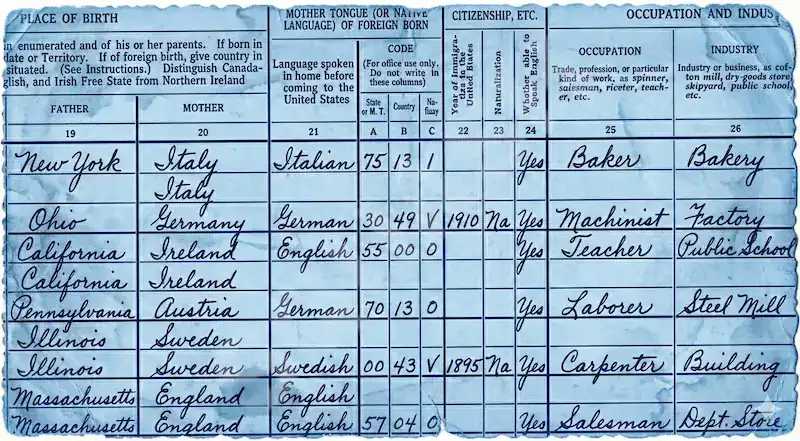
Turn census pages, parish records and old family letters into searchable text, cursive and faded ink included, with the original layout kept intact.
Turn a photo, scan or PDF of handwriting into clean, editable text.
Stop squinting and retyping. Give Handwriting OCR your worst page, cursive, messy or a century old, and get clean, editable text back in seconds, in any of 300+ languages. See it go word for word with the experts in the comparison below.

How it works
Upload a photo, scan or PDF, let the AI transcribe it, then export editable text. The same three steps for any handwritten document, with no setup and results in seconds.
 1
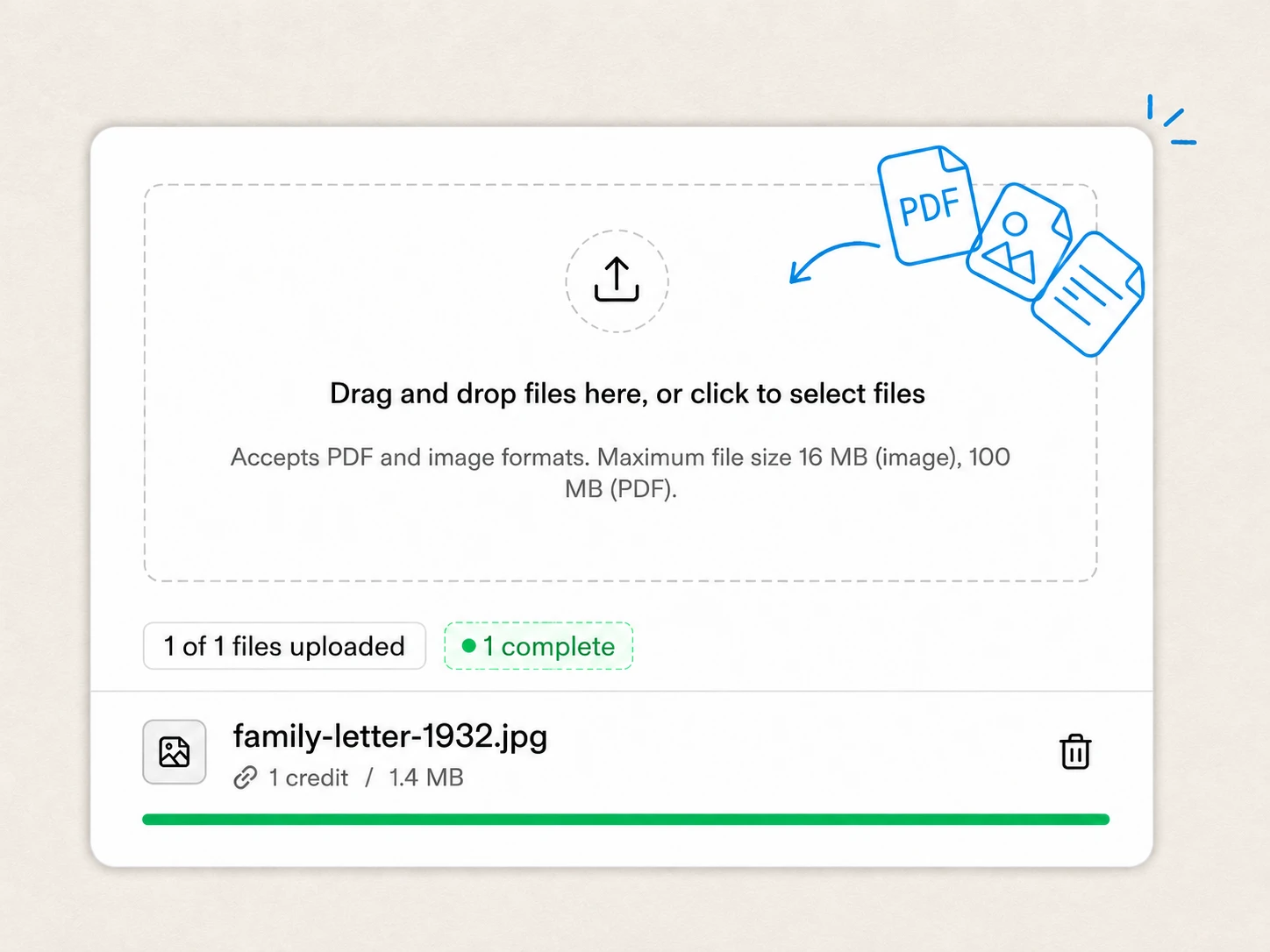
1 Drop in a photo or PDF, from a single phone snap to a batch of scans. No setup and no training required.
 2
2 Our model transcribes cursive, faded ink, and mixed text, usually in seconds, keeping the original layout.
 3
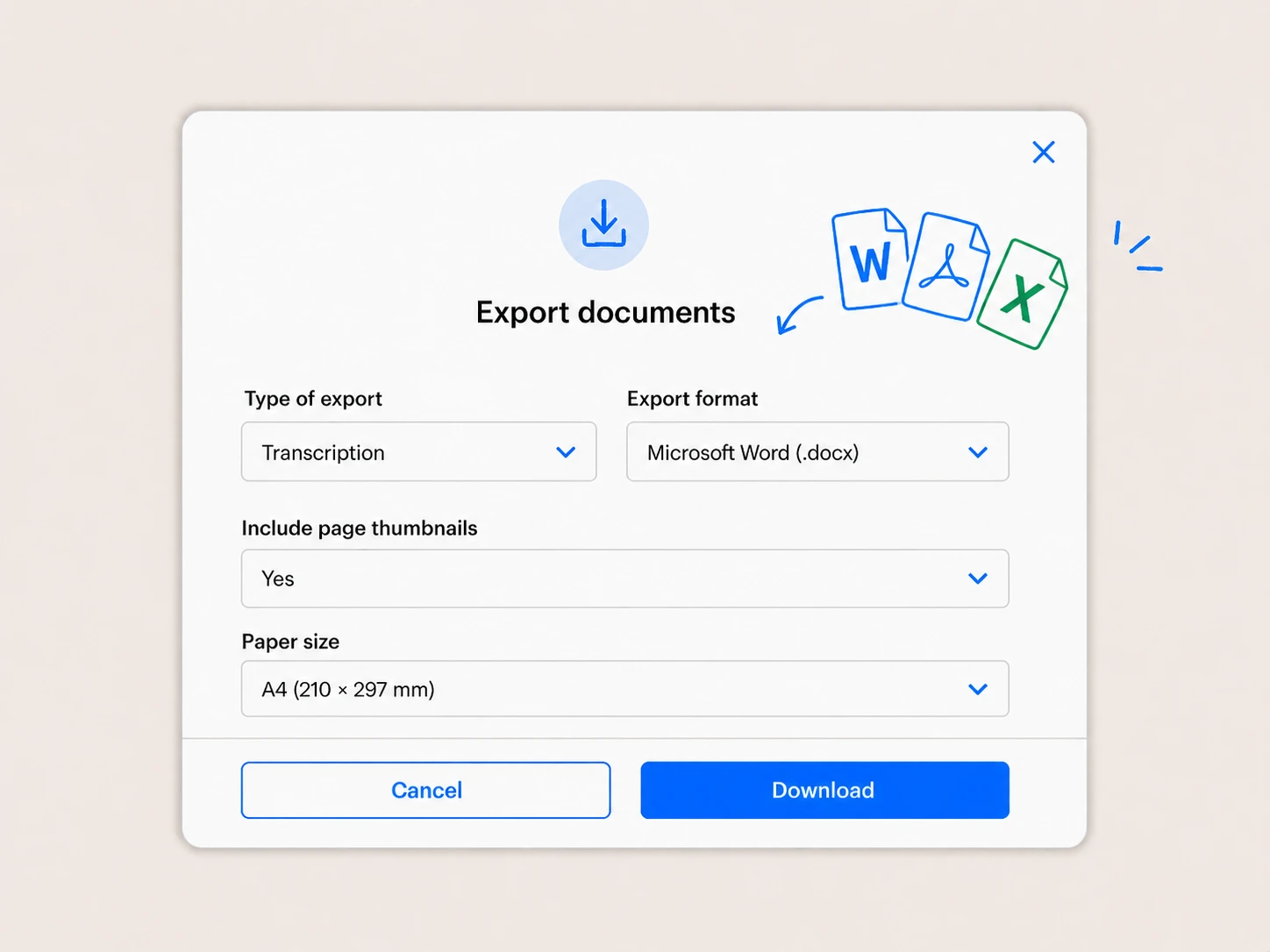
3 Download clean, editable text as Word, Markdown, or plain text, or pull it straight from the API.
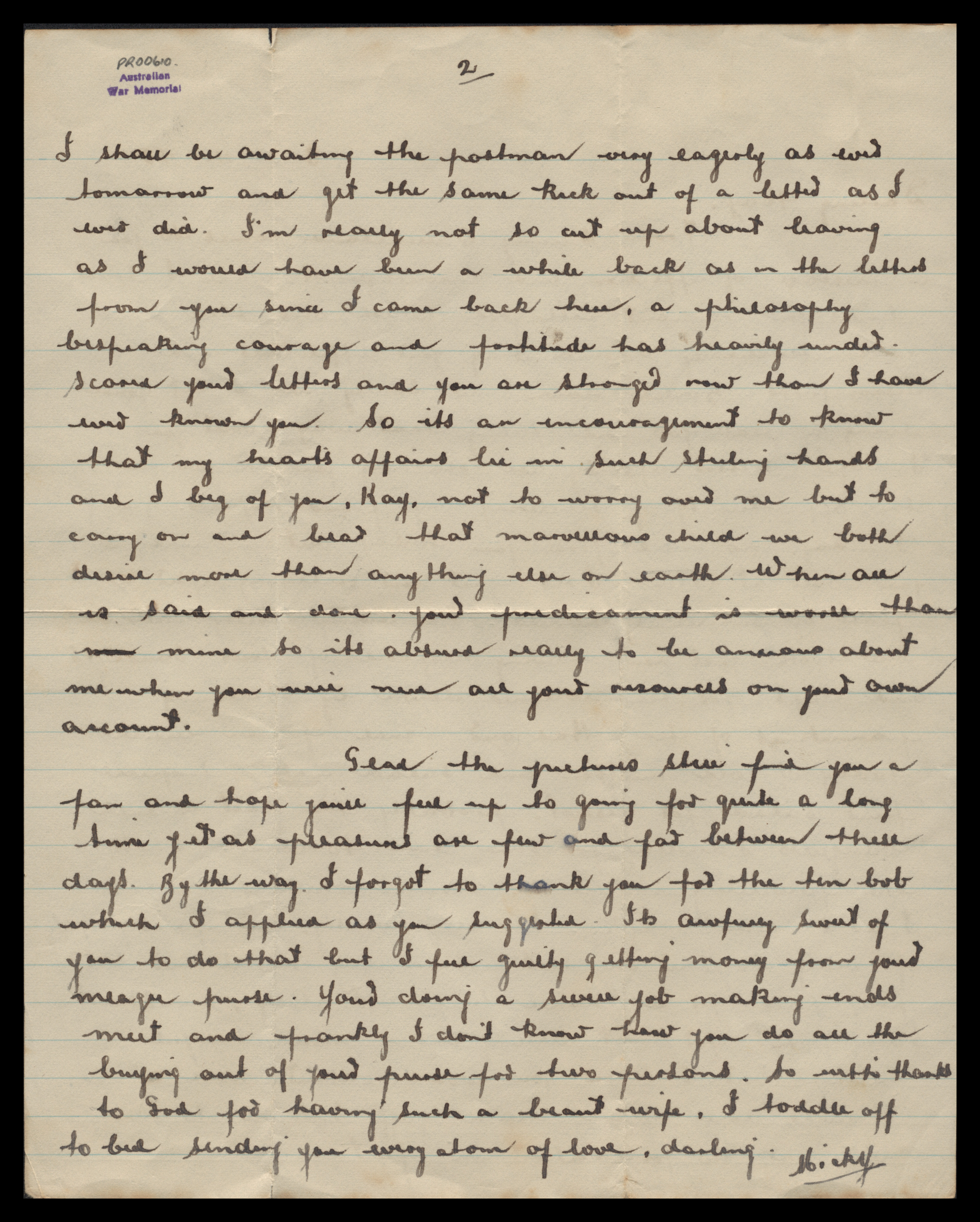
We’d rather show than assert. Here is Handwriting OCR on a real 1940s wartime letter from the Australian War Memorial’s archive, transcribed and compared word for word against the museum’s own expert transcribers.
 Click to enlarge
 I shall be awaiting the postman very eagerly as ever tomorrow and get the same kick out of a letter as I ever did. I'm really not so cut up about leaving as I would have been a while back as in the letters from you since I came back here, a philosophy bespeaking courage and fortitude has heavily under scored your letters and you are stronger now than I have ever known you. So its an encouragement to know that my heart's affairs lie in such sterling hands and I beg of you, Kay, not to worry over me but to carry on and bear that marvellous child we both desire more than anything else on earth. When all is said and done, your predicament is worse than min mine so its absurd really to be anxious about me when you will need all your resources on your own account.
Glad the pictures still find you a fan and hope you'll feel up to going for quite a long time yet as pleasures are few and far between these days. By the way, I forgot to thank you for the ten bob which I applied as you suggested. Its awfully sweet of you to do that but I feel guilty getting money from your meagre purse. Your doing a swell job making ends meet and frankly I don't know how you do all the buying out of your purse for two persons. So with thanks to God for having such a beaut wife, I toddle off to bed sending you every atom of love, darling. Mickey
I shall be awaiting the postman very eagerly as ever tomorrow and get the same kick out of a letter as I ever did. I’m really not so cut up about leaving as I would have been a while back as in the letters from you since I came back here, a philosophy bespeaking courage and fortitude has heavily ended. I read your letters and you are stronger now than I have ever known you. So its an encouragement to know that my heart’s affairs lie in such sterling hands and I beg of you, Kay, not to worry over me but to carry on and bear that marvellous child we both desire more than anything else on earth. When all is said and done your predicament is worse than now mine so its absurd really to be anxious about me when you will need all your resources on your own account.
Glad the pictures still find you a fan and hope you’ll feel up to going for quite a long time yet as pleasures are few and far between these days. By the way, I forgot to thank you for the ten bob which I applied as you suggested. Its anyway sweet of you to do that but I feel guilty getting money from your meagre purse. You’re doing a swell job making ends meet and frankly I don’t know how you do all the buying out of your purse for two persons. So with thanks to God for having such a beaut wife, I toddle off to bed sending you every atom of love, darling. Mickey
Source: Australian War Memorial
Who it's for
From legal teams and clinics to researchers reading old archives, the same converter turns handwriting to text in every field.
Genealogists
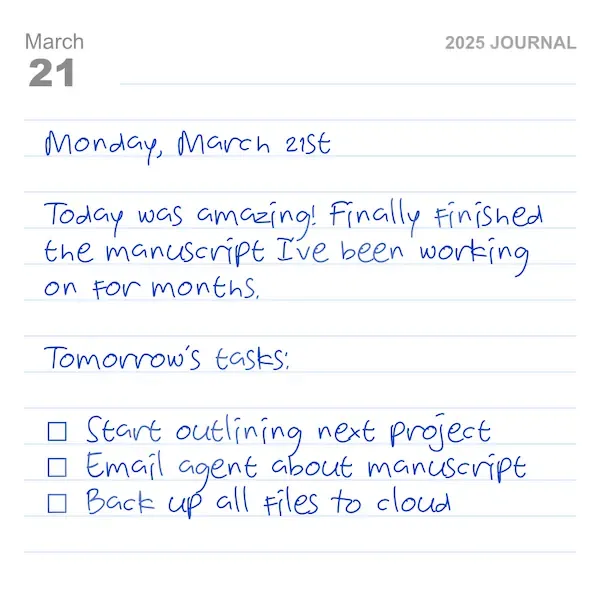
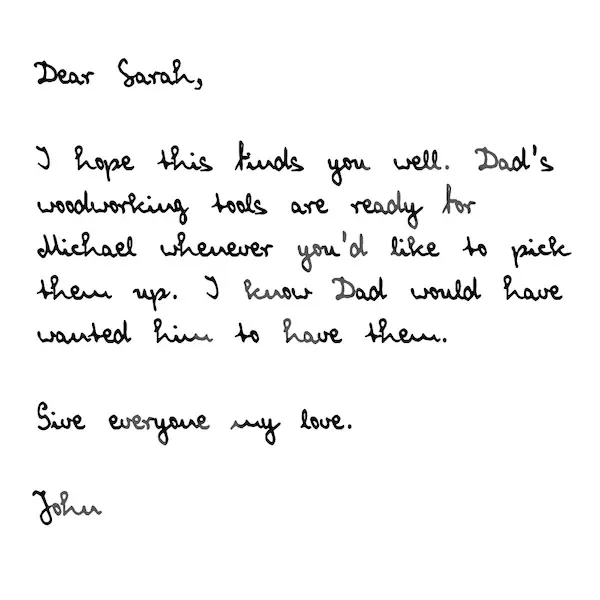
Turn census pages, parish records and old family letters into searchable text, cursive and faded ink included, with the original layout kept intact.
Writers
Digitise notebooks, letters and journals into editable text you can search and back up, while the character of the original handwriting stays on the page.
Educators
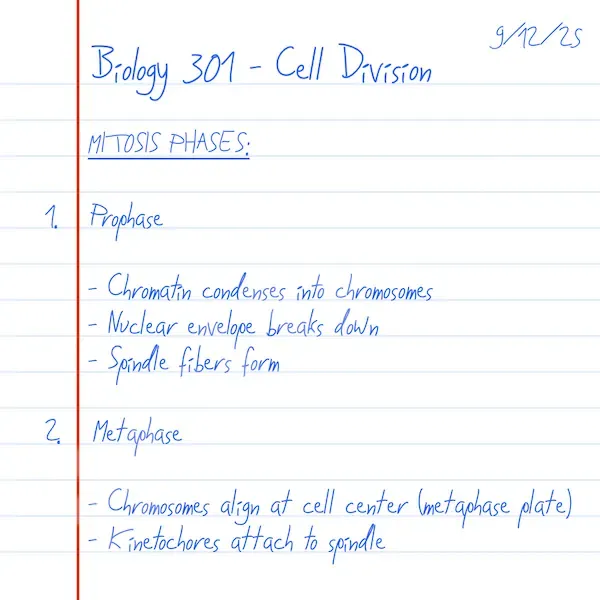
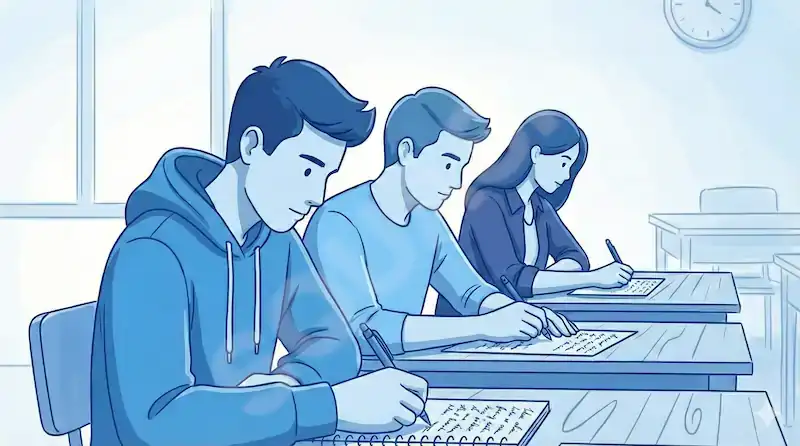
Convert handwritten essays, exam scripts and lab notebooks to digital text for faster marking and easy sharing, captured exactly as it was written.
Business
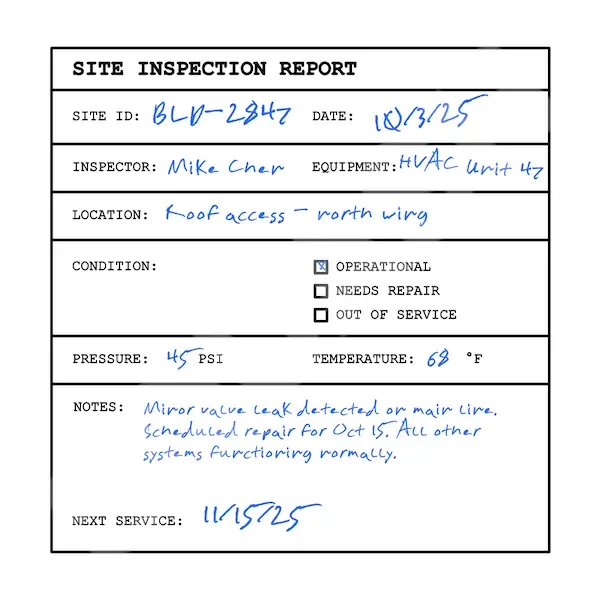
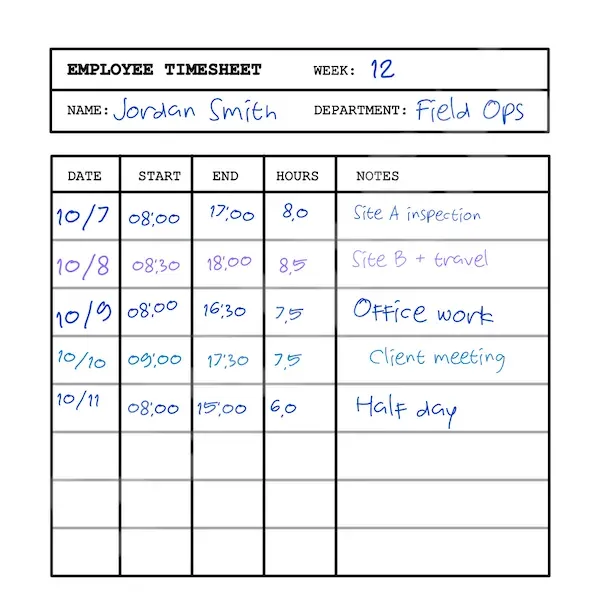
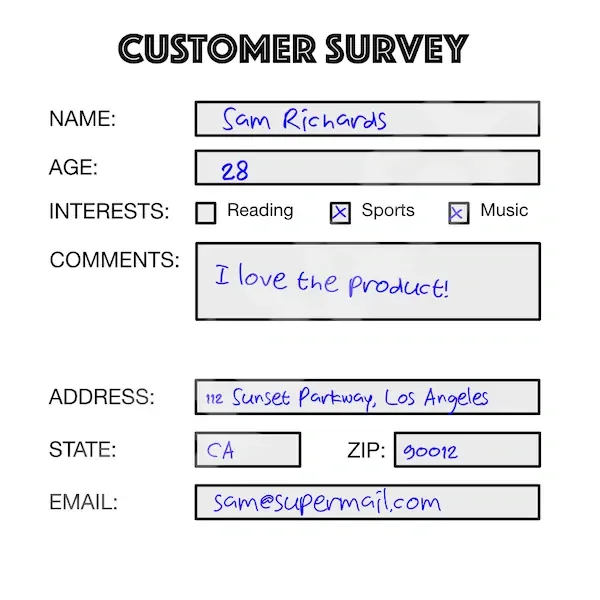
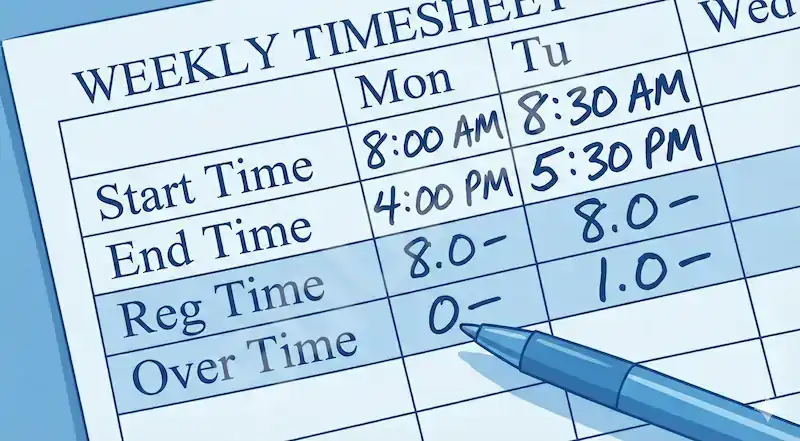
Push handwritten forms, timesheets and invoices into clean digital workflows at volume, with enterprise accuracy and encryption on every document.
Whatever the source, cursive of any era, handwritten PDFs, barely-legible hands or scanning straight from a desk scanner, it is the same upload.
Handwriting OCR handles handwriting that already lives on paper, in a photo or a PDF. If you wrote with a stylus inside a note-taking app instead, that app can often turn its own ink into text on its own. The apps and devices below show what each one does, and where it falls short.
| App | Platforms | How it converts |
|---|---|---|
| GoodNotes | iPad | Lasso the writing, tap Convert |
| Notability | iPad | Lasso to convert, with synced lecture audio |
| Apple Notes | iPad, iPhone | Built in and free: “Copy as Text” |
| OneNote | Windows, Mac, iOS, Android | ”Ink to Text” (full feature is Windows-only) |
| Samsung Notes | Galaxy (S Pen) | Converts on-device, tuned for the S Pen |
| Google Keep | Cross-platform | Simple recognition with cloud sync |
All of these work only on ink written inside the app, and accuracy slips on rushed or cursive writing.
Keep your notes in a knowledge base like Obsidian? Our Obsidian plugin brings handwriting OCR straight into your vault, so a scanned page becomes searchable text without leaving the app.
Many convert as you write, with no separate app:
None of this works on paper, photos or PDFs, and all of it struggles with messy or cursive writing. For those, upload to Handwriting OCR at the top of the page. The full walkthroughs below cover each app and device step by step.
FAQ
Yes. Upload a photo, scan or PDF of your handwriting to Handwriting OCR, choose "Extract full text", and get editable text back in 15 to 30 seconds, ready to copy, translate or export to Word, PDF or plain text. Handwriting OCR reads writing on paper, in images and in PDFs; if you wrote digitally inside a note-taking app, that app's own ink-to-text feature is usually quicker, and the app and device guides further down cover those.
Handwriting OCR gives every new account free trial credits (5 pages, no credit card), enough to convert real documents before you decide to pay. It is built specifically for handwriting, so it reads the cursive and messy hands that free OCR tools and phone scanners, which are designed for printed text, get wrong. Paid plans then start at $15 per 100 pages, or $19 a month for 250.
On legible handwriting, Handwriting OCR routinely hits the high 90s for word accuracy, as the word-for-word comparison against the Australian War Memorial's expert transcribers above shows. It reads the cursive and faded ink that traditional OCR, which typically scores under 50% on handwriting, cannot handle.
Yes, a phone photo is the most common input to Handwriting OCR. For best results, hold the phone parallel to the page in good light with the whole text block in frame; slight shadows, creases and off-angle shots are handled fine. It accepts JPG, PNG, HEIC and multi-page PDFs.
Yes, that is what Handwriting OCR is built for. It is trained on real handwriting, including the cursive, hurried and historical hands that app features and traditional OCR miss. The harder the page, the bigger the gap, as the comparison above shows.
Yes. Handwriting OCR encrypts your documents in transit and at rest, never uses them to train models, and auto-deletes them on a schedule you control (7 days by default, or delete anytime from the dashboard or API). A GDPR Data Processing Agreement is available on the Business plan.
Try it on your own handwriting
Throw your messiest handwriting at it.
Free trial credits, no credit card. Upload your first letter, page of notes or form and see the text come back in seconds.
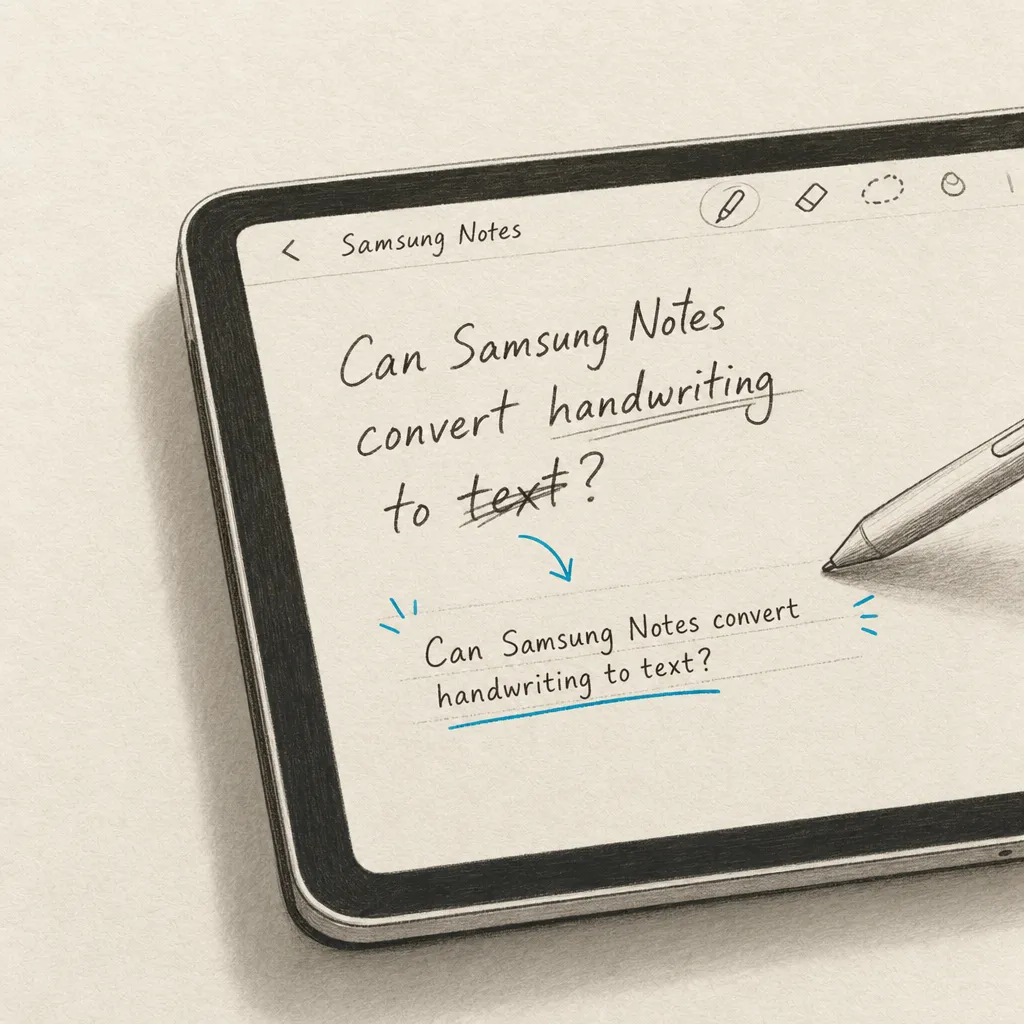
Yes, Samsung Notes can convert handwriting to text. Samsung Notes is designed to be a versatile note-taking app that offers various features, including handwriting recognition. Simply write your notes, select the handwritten text, and tap the Convert option to transform it into editable digital text.
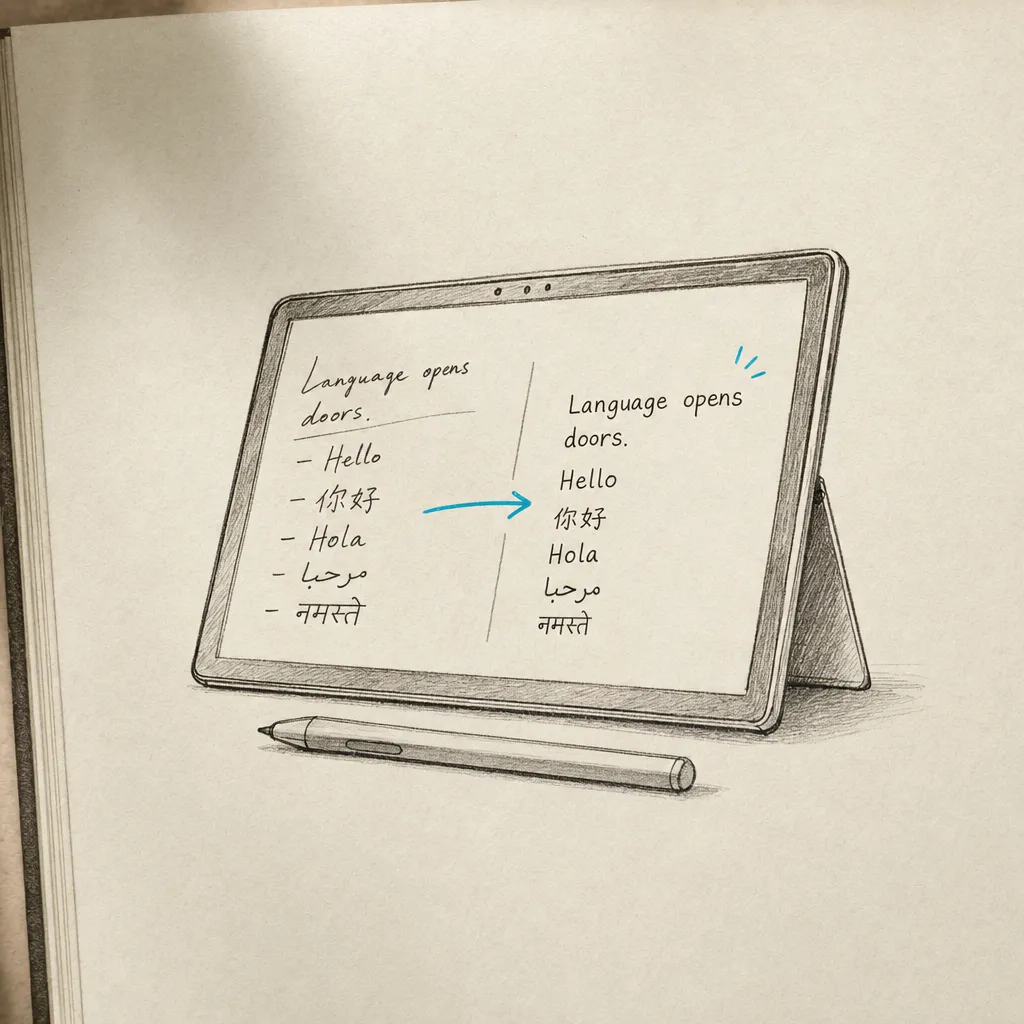
Yes, the Surface Pro can convert handwriting to text using built-in tools like OneNote and Windows Ink Workspace. Use the Lasso Select tool in OneNote to select your handwritten notes, then right-click and choose "Ink to Text" to convert. For higher accuracy and advanced features, HandwritingOCR provides professional-grade handwriting recognition.
Yes, Notes Plus offers the functionality to convert handwriting to text. This feature can be particularly useful for students, professionals, and anyone who prefers taking handwritten notes but needs them in a digital, editable format later on. Here's how it works and some additional information on using Notes Plus for handwriting conversion.
Yes, Noteshelf has a feature that allows users to convert their handwritten notes to text. This functionality is beneficial for those who prefer writing by hand but want the convenience of digital text later on. However, accuracy can vary depending on the clarity of your handwriting and the software's recognition capability.
Learn whether your Samsung Galaxy Tab A can convert handwriting to text, which models support this feature, and when to use HandwritingOCR.com for advanced needs.
Notability's built-in conversion works for neat ink you wrote in the app, but not for cursive, photos, scanned PDFs or batches. Here's the in-app method, where it falls short, and the faster fix: email your notes straight to Handwriting OCR.
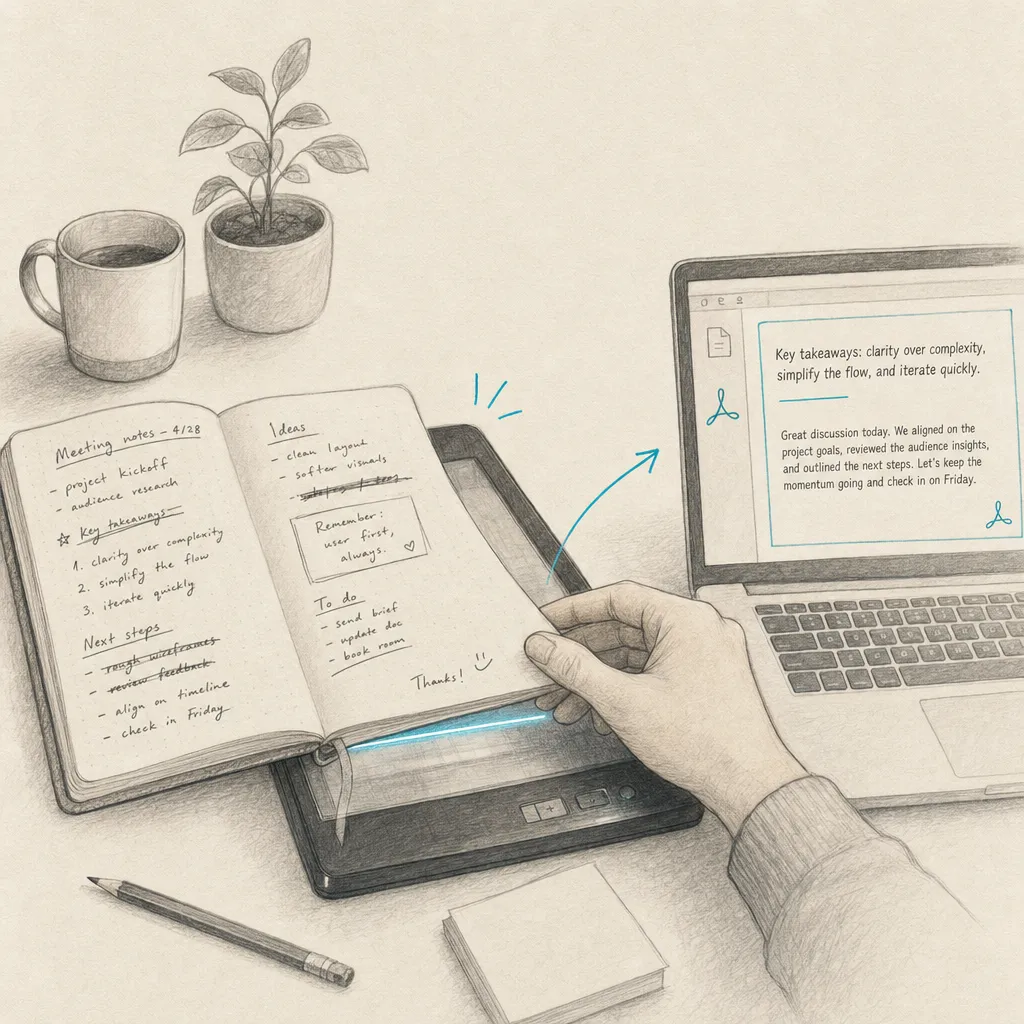
Converting handwriting to text in Adobe can be a time-saving task, especially when dealing with handwritten notes or forms. Adobe offers various tools and features across its suite of software to assist in this conversion, particularly through its PDF solutions like Adobe Acrobat. This guide covers the step-by-step process, limitations to be aware of, and alternative solutions for better accuracy.
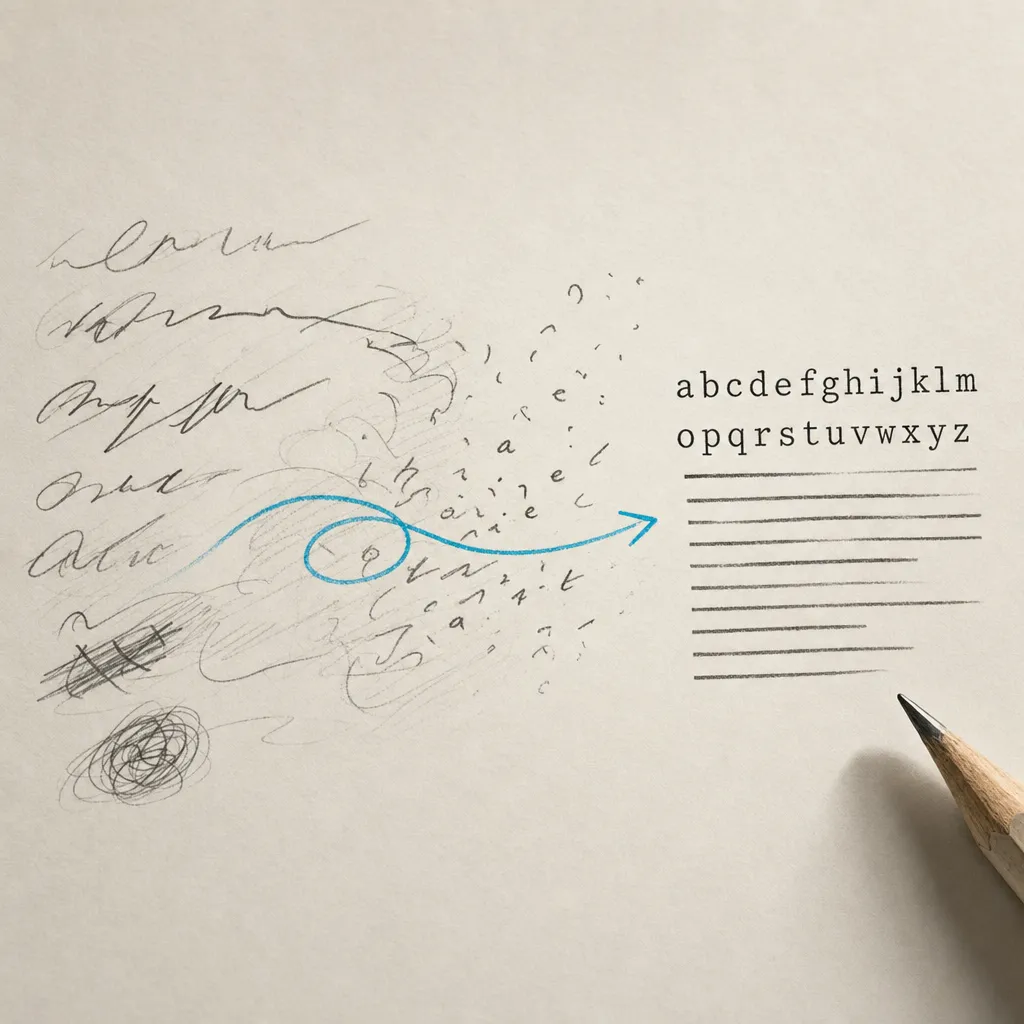
With advancements in technology, converting handwritten text to digital text on Android devices has become quite straightforward. Optical Character Recognition (OCR) technology is used to recognize and convert handwritten notes from images, PDFs, or notes taken in various apps into editable and searchable text. Here's how you can accomplish this on an Android device.
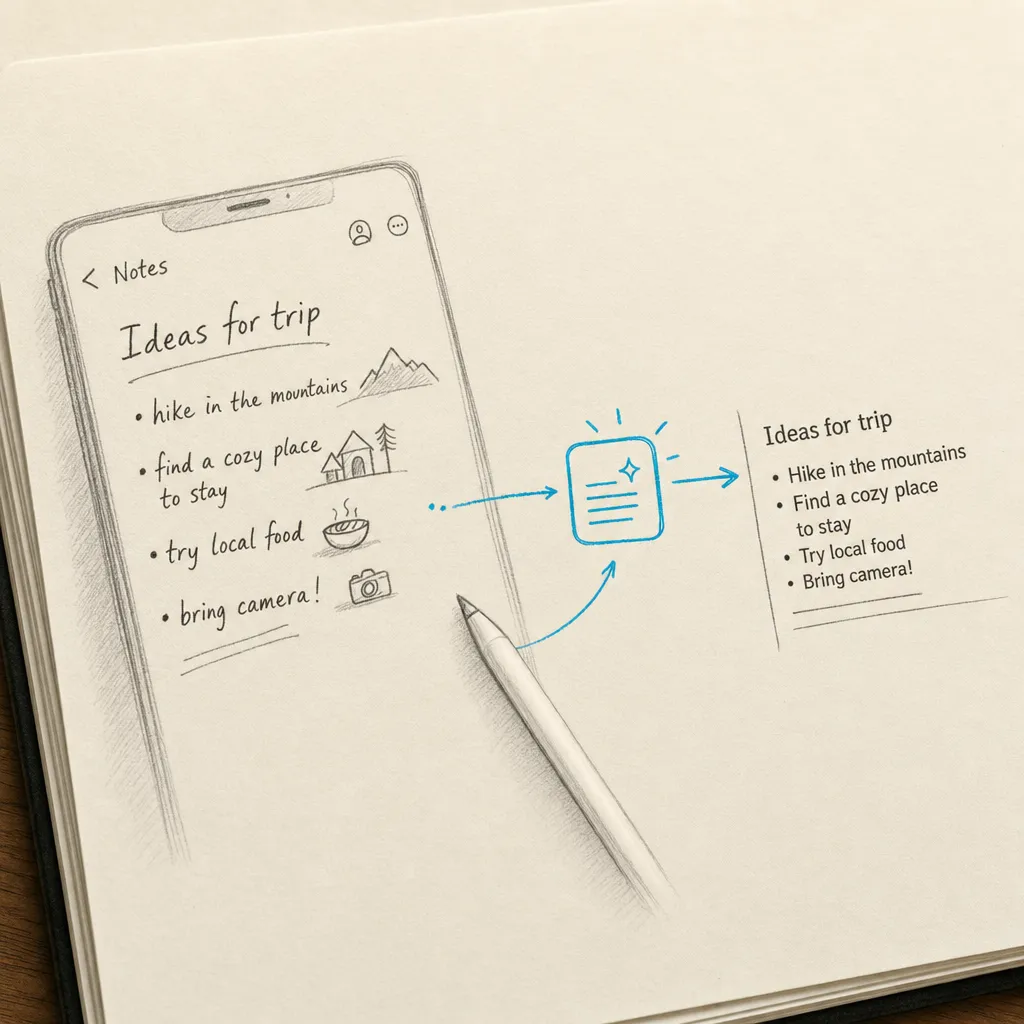
Apple Notes has four separate handwriting-to-text features in 2026, and which one to use depends entirely on whether you're writing on the screen or scanning paper. This guide covers each one with real accuracy numbers and the fallback for cursive and historical handwriting.
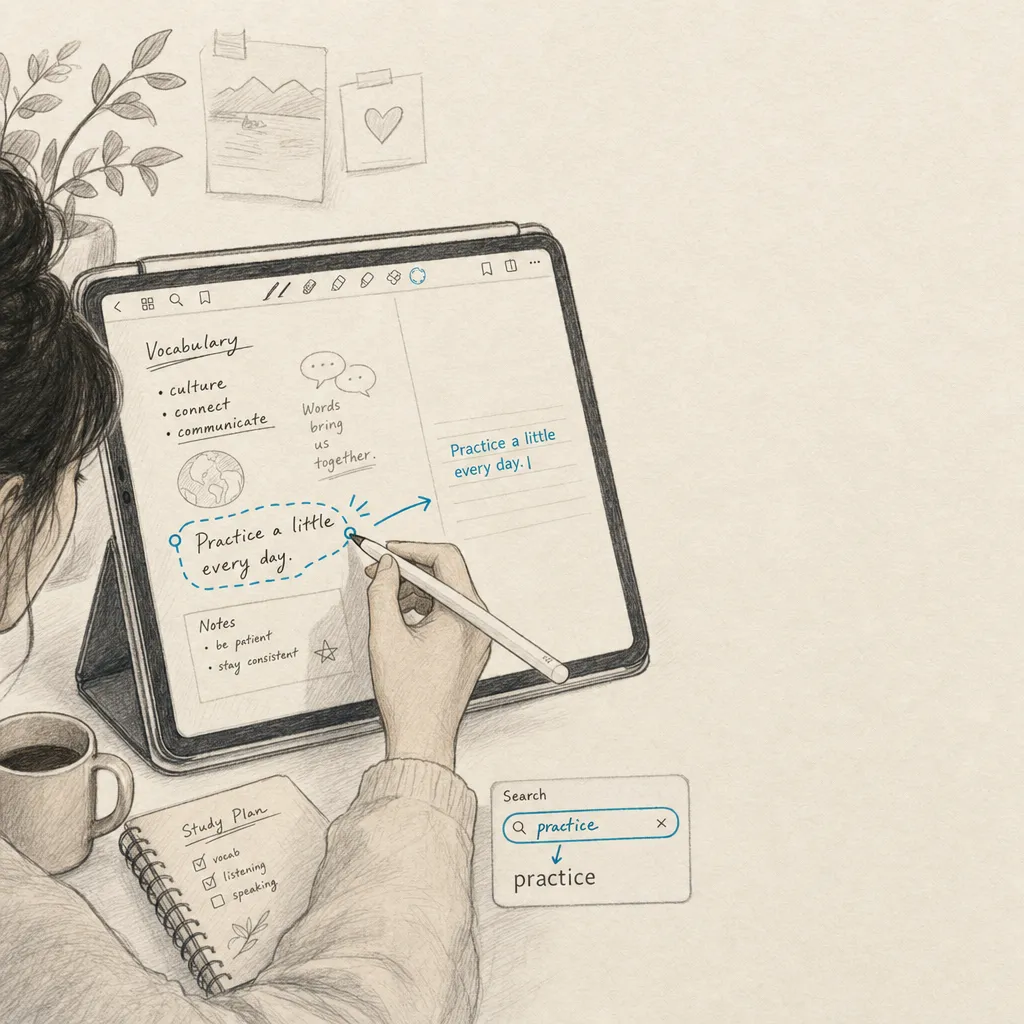
GoodNotes 6 has the strongest in-app handwriting recognition on iPad in 2026. This guide covers the Lasso Tool, Scribble integration, AI refinement, search across handwritten notes, and the dedicated OCR you need when the source is a photo or scanned PDF (which GoodNotes itself cannot convert).
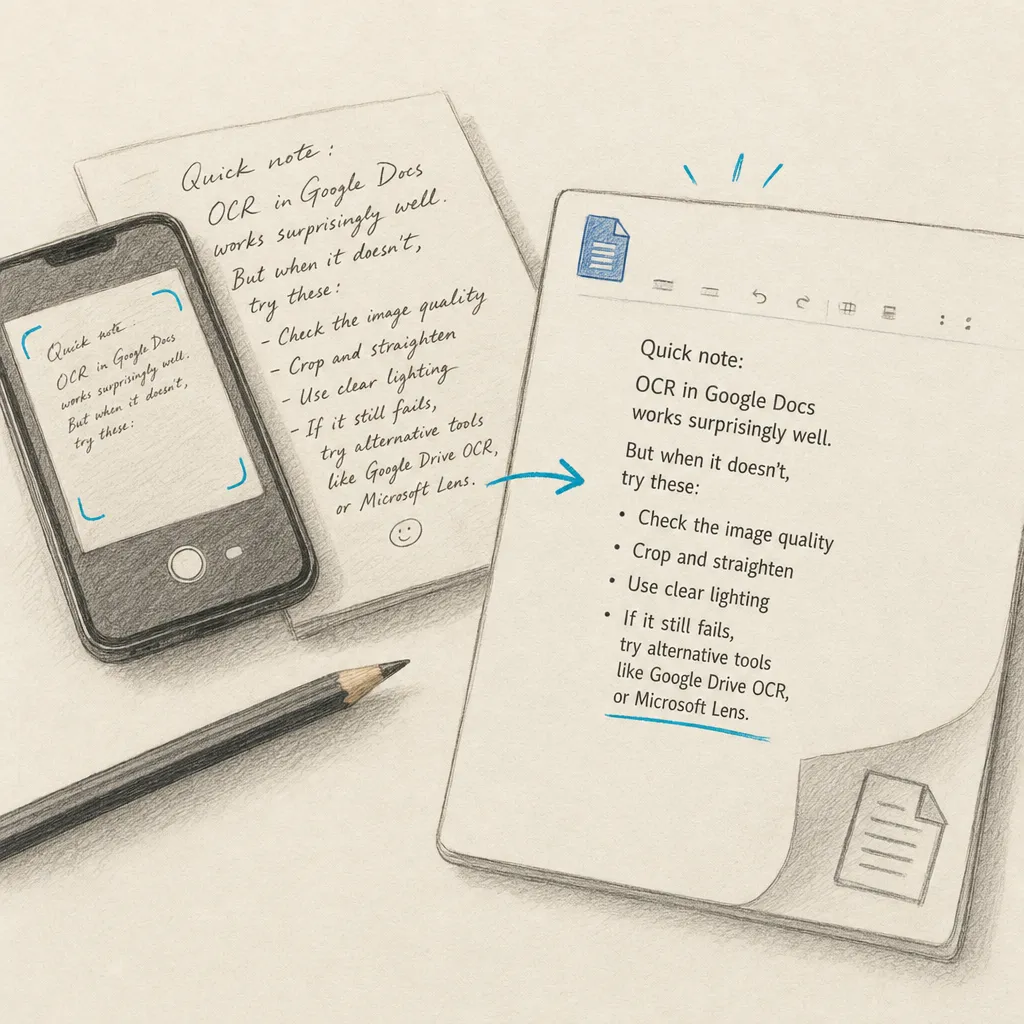
Google Docs, Drive, Keep and Lens all have built-in OCR, but they were built for printed text. This guide covers every Google route step-by-step, plus what to do when handwriting (especially cursive) sends Google’s accuracy off a cliff.
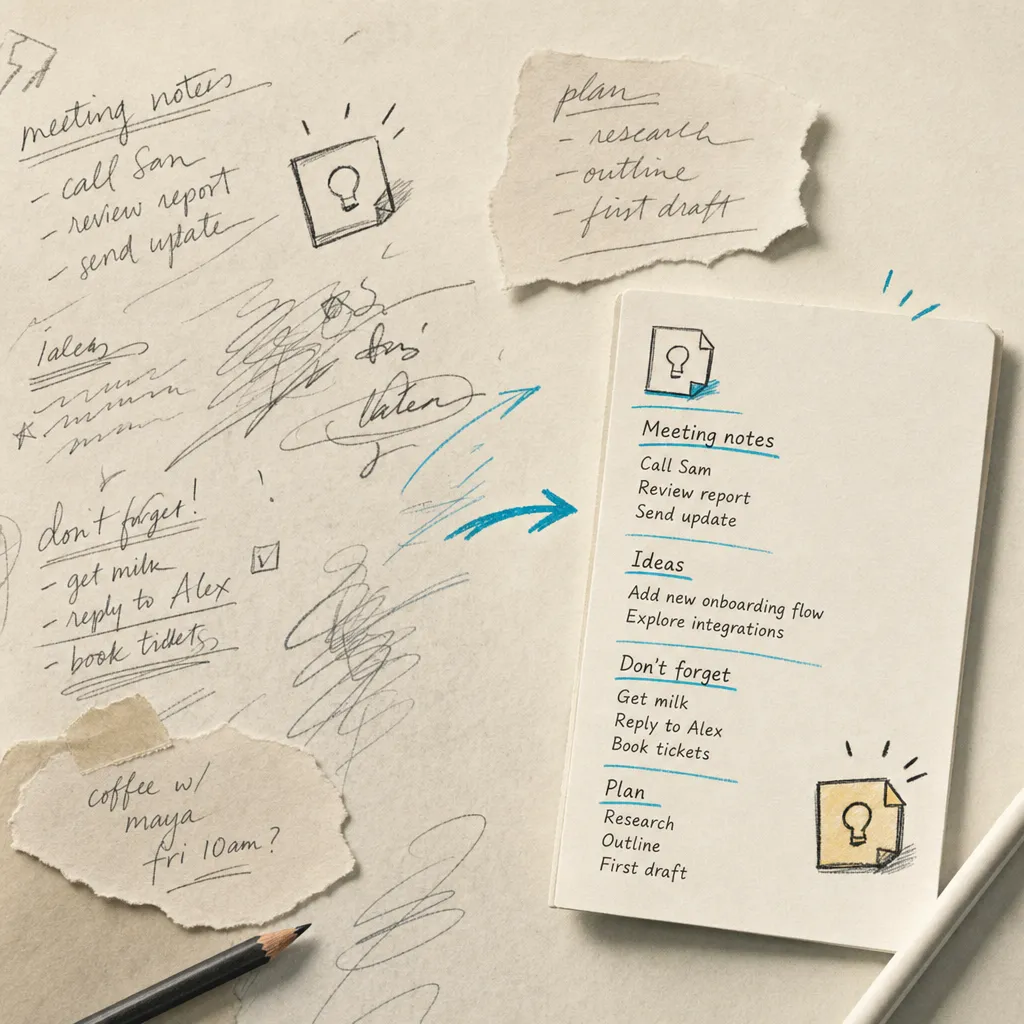
Learn how to convert handwritten notes to text in Google Keep using the 'Grab image text' feature. Plus better alternatives for complex handwriting and stylus notes.
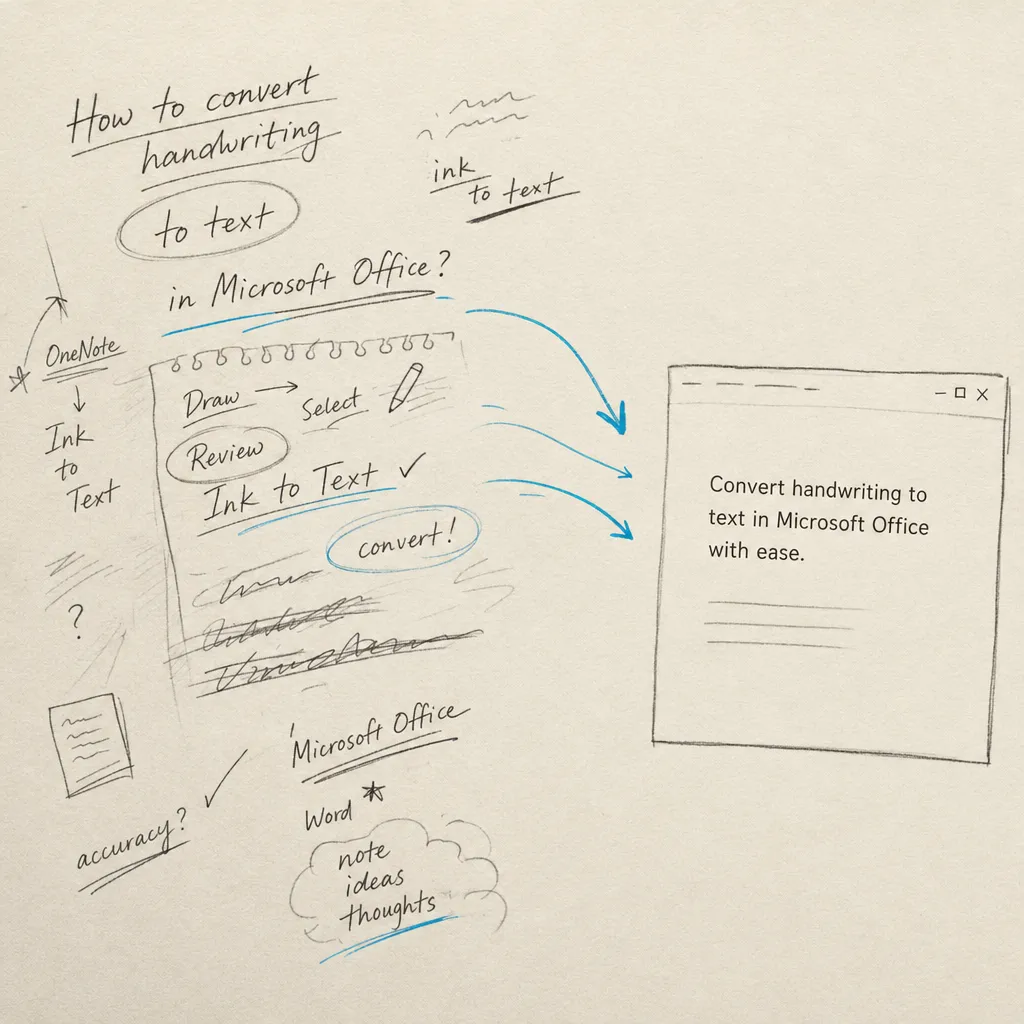
Word, OneNote, Microsoft Lens and Microsoft 365 each offer a different path for converting handwriting to text. This guide covers what each one does, how accurate it is in practice, and how to fall back to a dedicated handwriting OCR for cursive and paper documents.
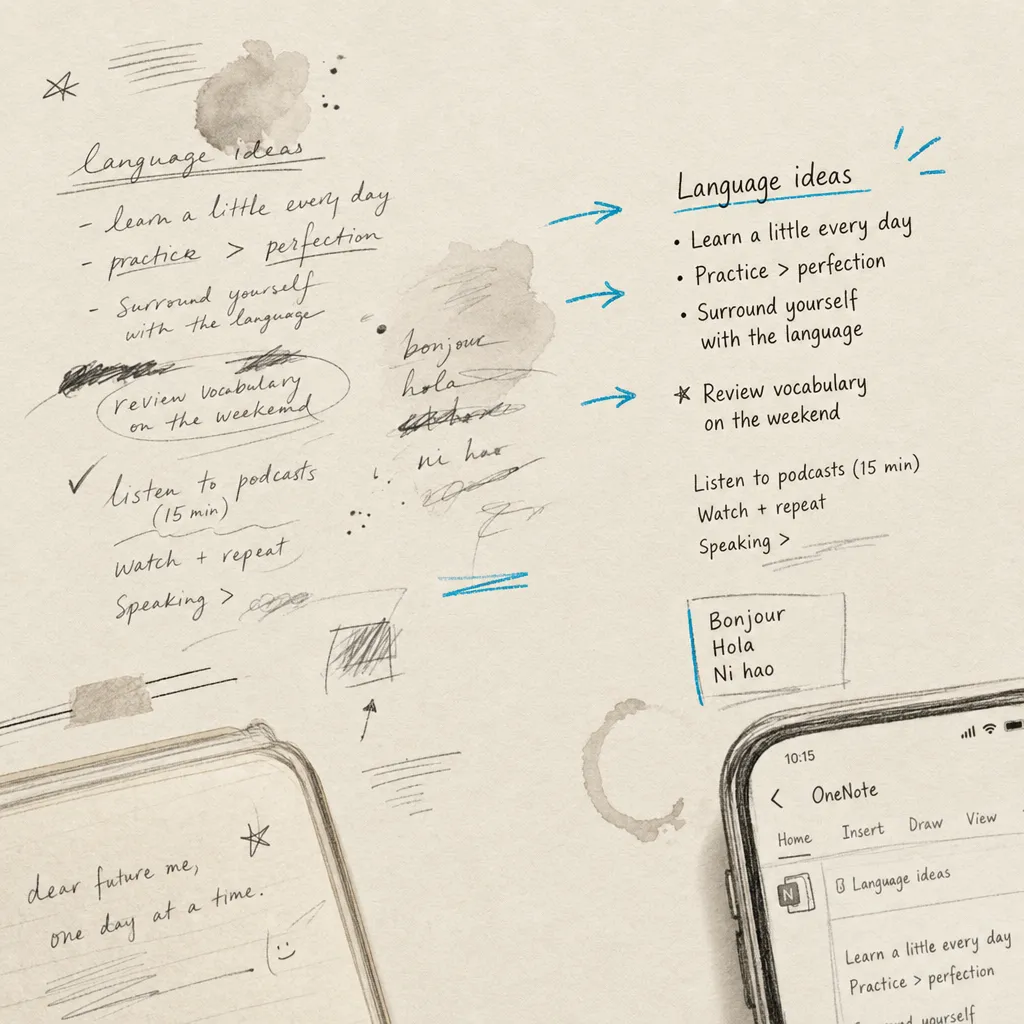
OneNote's Ink to Text converts ink you drew inside the app. It handles clear block printing well, one page at a time. This guide shows the exact steps on every platform, its real limits with cursive and photos, and how to email a PDF straight to Handwriting OCR when accuracy matters.
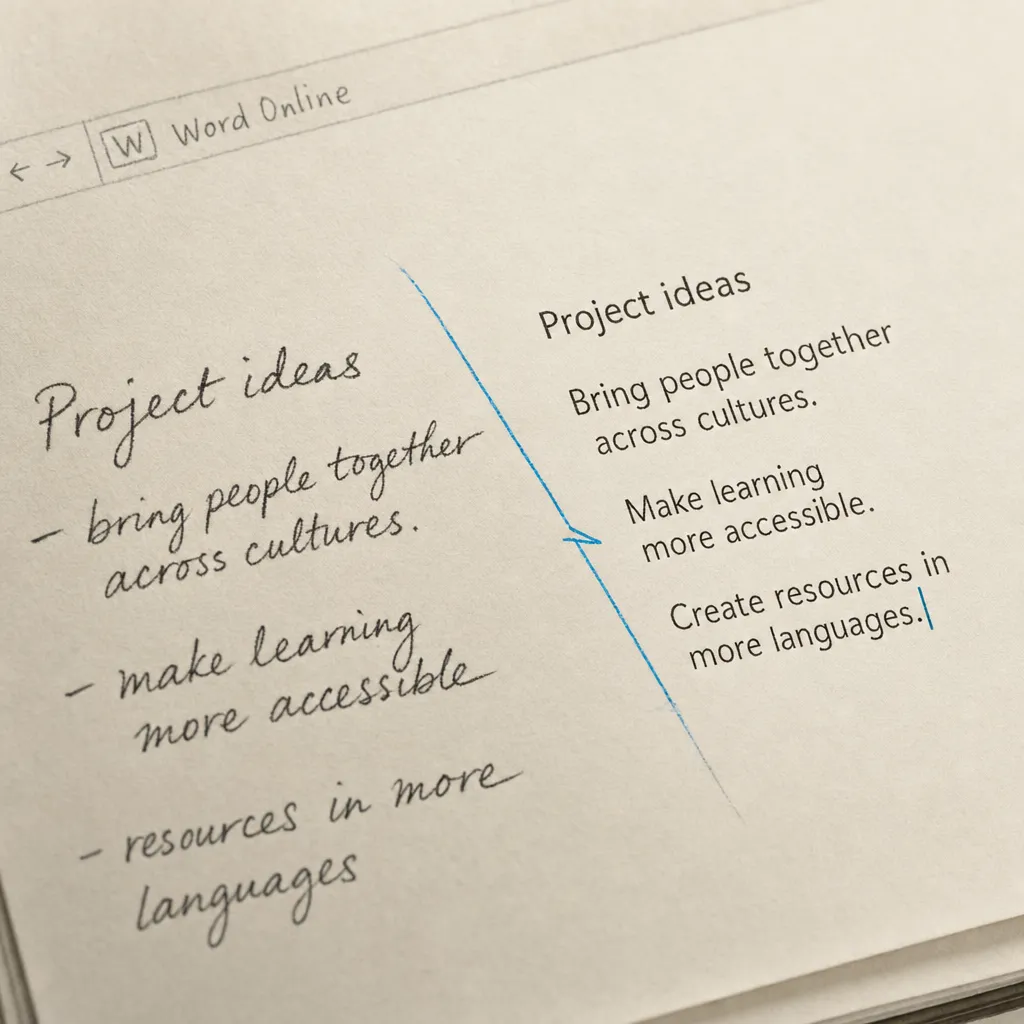
Converting handwritten notes to digital text in Microsoft Word online can be useful for many purposes, including sharing, editing, and archiving. Microsoft Word itself does not directly offer handwriting recognition, so you will need to use OCR tools to convert your notes first. This guide walks you through multiple methods and provides expert tips to help you achieve the best results.
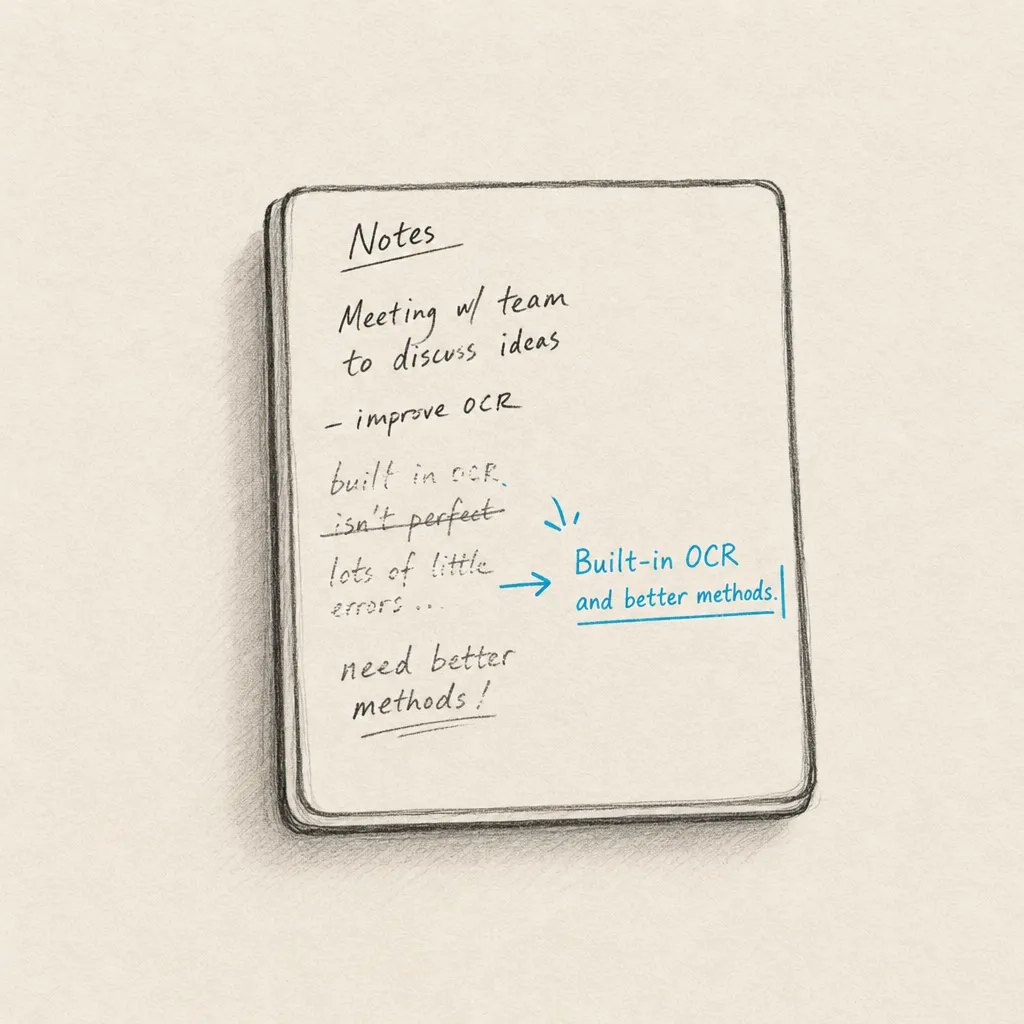
Onyx Boox runs its handwriting recognition on-device, which keeps it offline but limits accuracy on cursive and messy notes. The fix: export the note as a PDF, email it to Handwriting OCR, and get accurate text back in your dashboard.
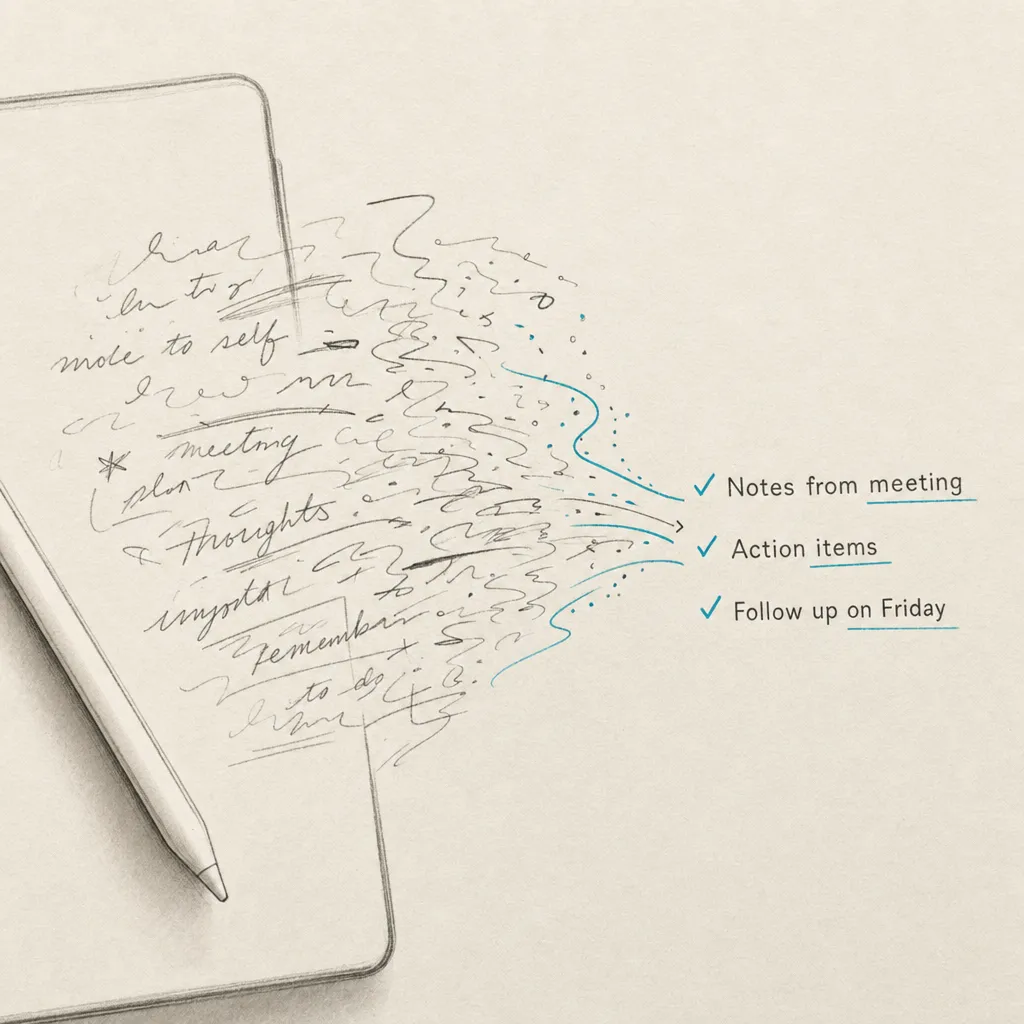
Every working method to convert handwriting to text on iPad in 2026. Covers Scribble, Smart Script and Apple Notes for live writing; camera-based OCR for paper notes; what to do without an Apple Pencil; and accuracy you can actually expect in each case.
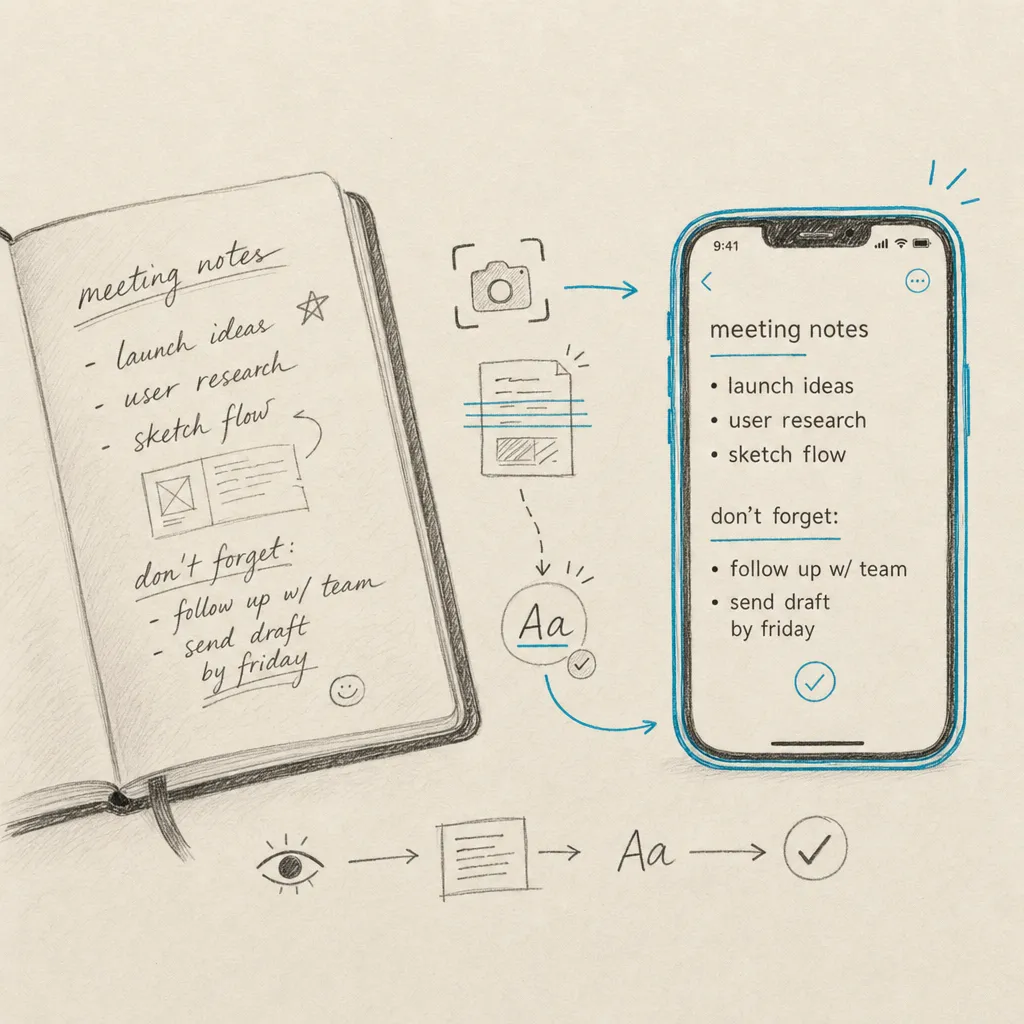
Your iPhone's Live Text can lift clear, block-printed handwriting from a photo, one page at a time. For cursive, messy, or multi-page notes it struggles. This guide shows the native steps, their real limits, and how to email a PDF straight to Handwriting OCR when accuracy matters.
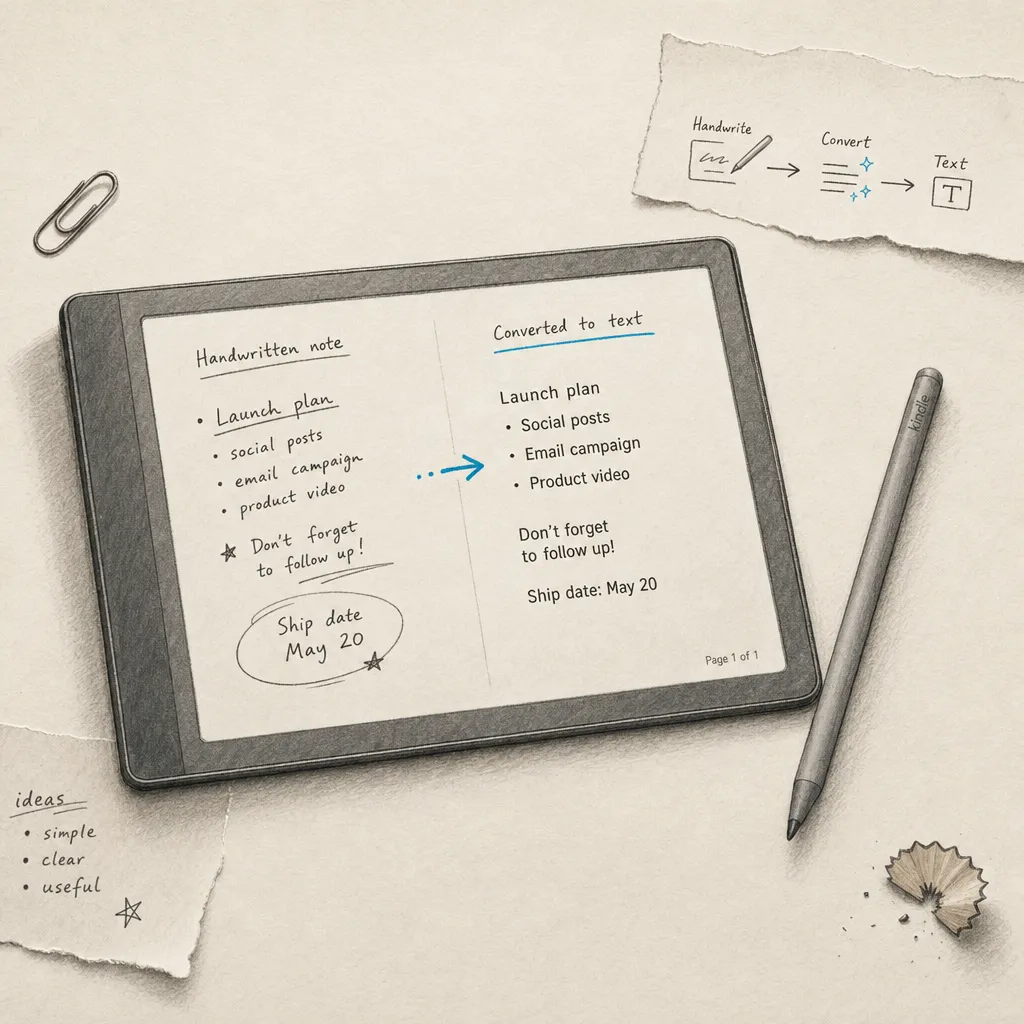
Newer Kindle Scribe models can convert handwriting to text, but it is basic and weak on cursive. The fix: send the notebook as a PDF to Handwriting OCR and get accurate text back in your dashboard.
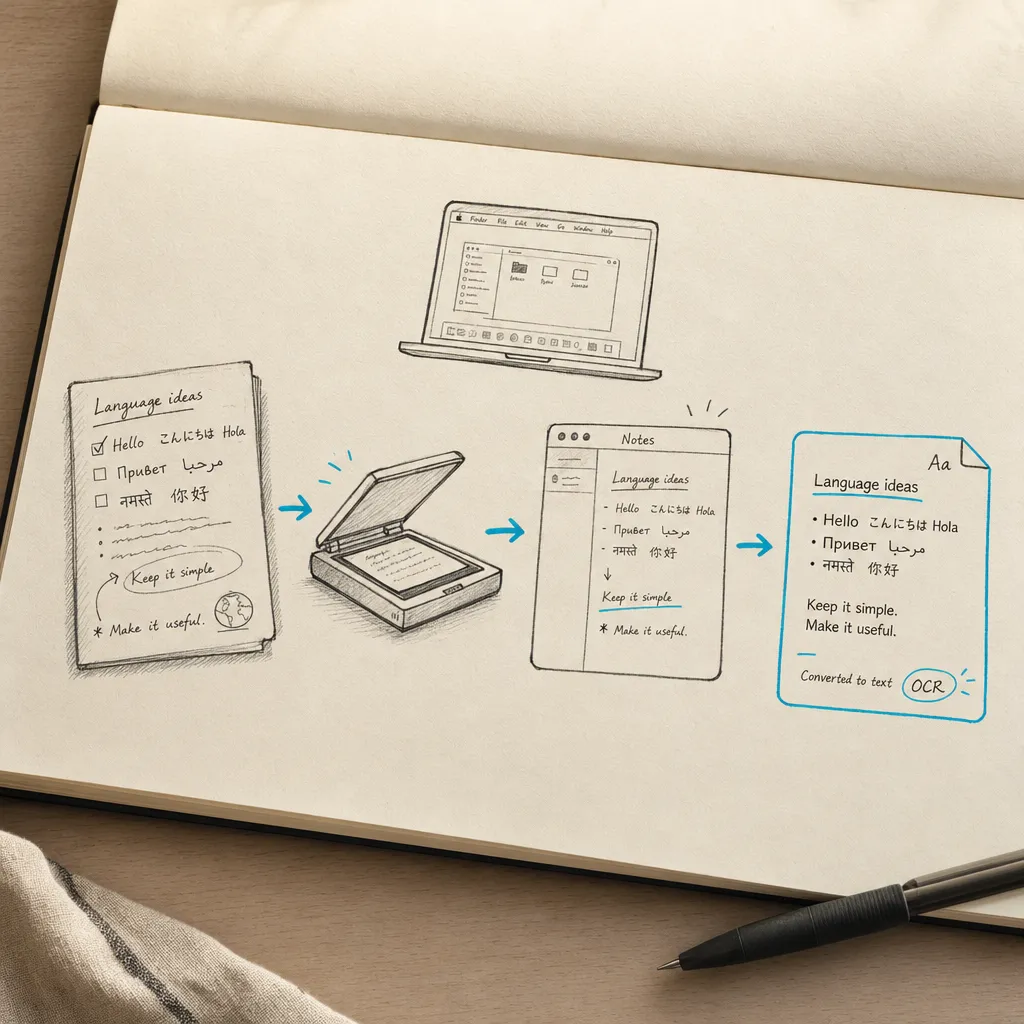
There is no handwriting-to-text button in macOS. Preview's Live Text can lift clear printing from an image, but it is built for typed text. This guide shows the native options, their real limits, and how to scan or email a PDF straight to Handwriting OCR when accuracy matters.
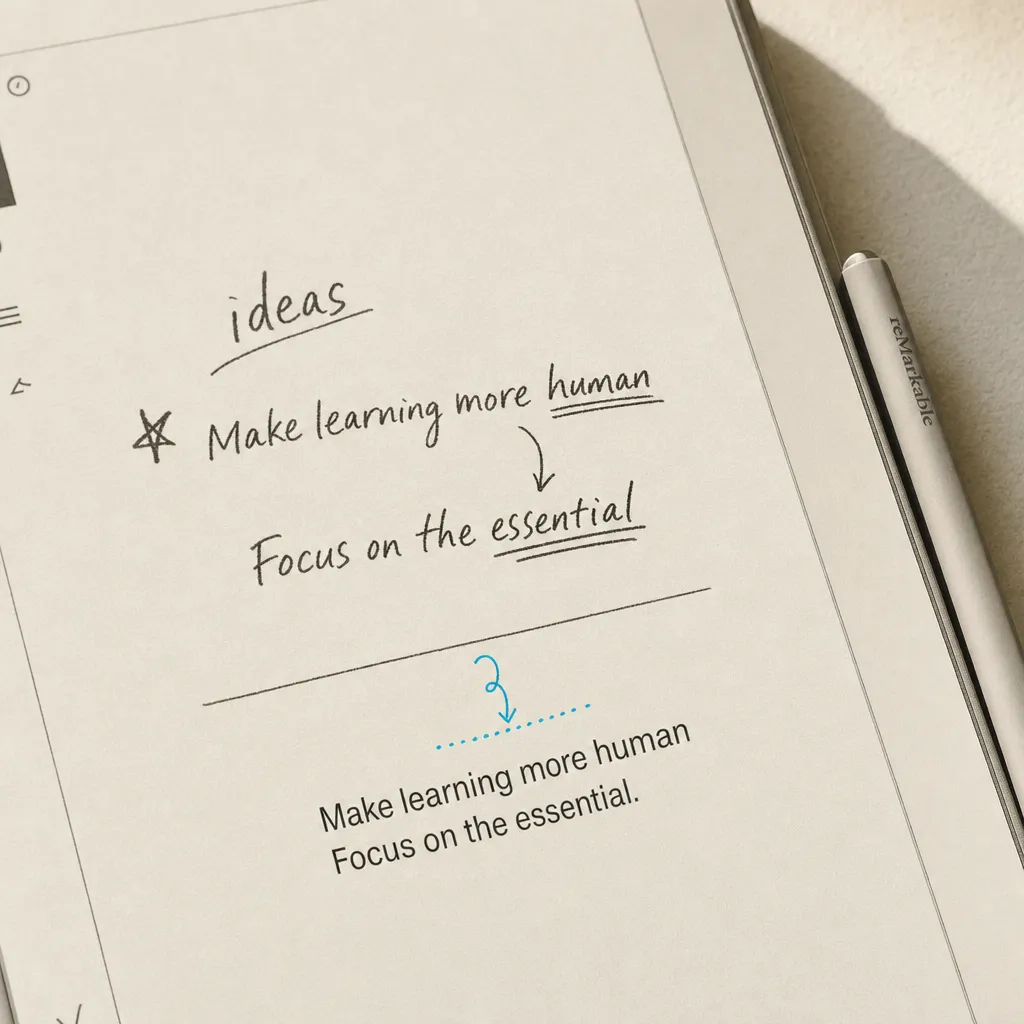
The reMarkable 2's built-in handwriting conversion struggles with cursive and messy notes. The fix: email your notebook straight to Handwriting OCR and get accurate text back in your dashboard.
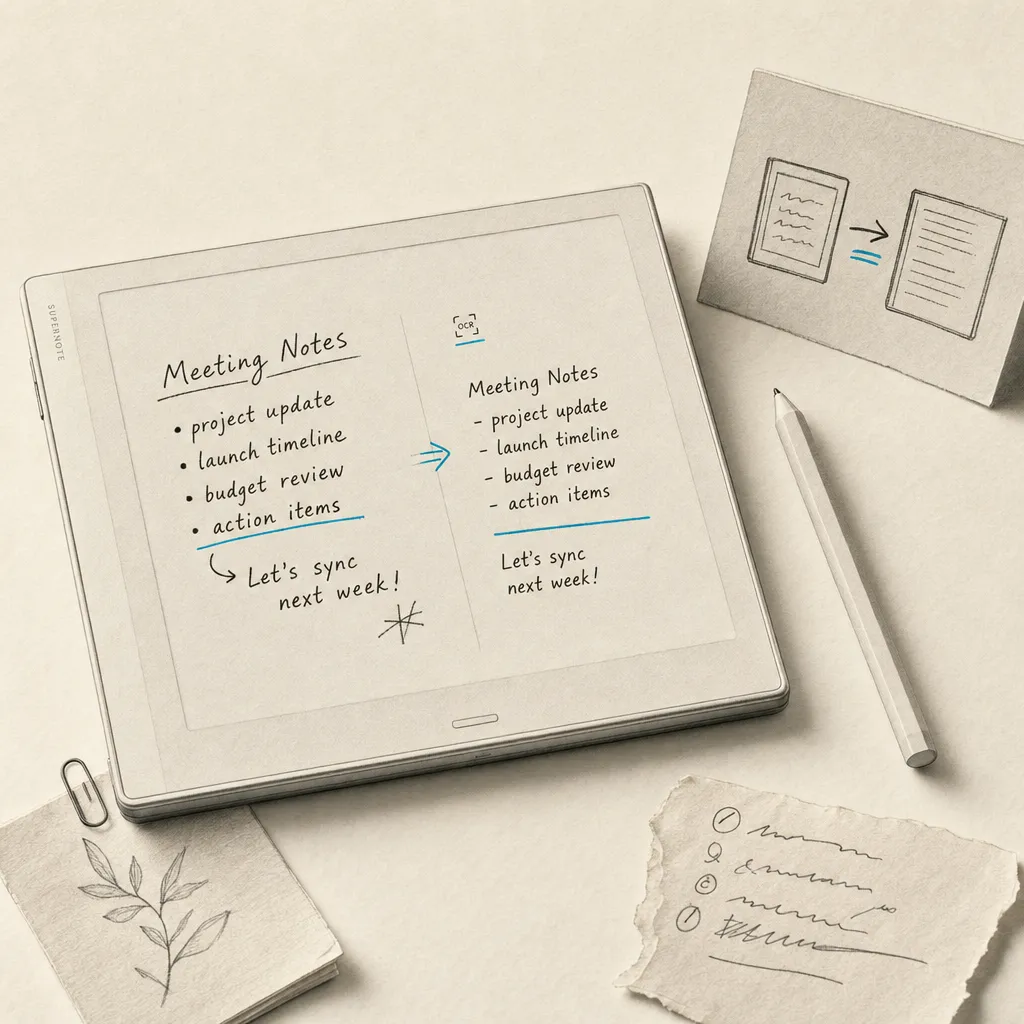
Supernote's on-device recognition is good on neat writing but weaker on cursive and messy notes. The fix: email the notebook straight to Handwriting OCR from Supernote Mail and get accurate text back in your dashboard.
Converting handwritten text to digital text can be incredibly useful for digitizing notes, making documents searchable, and enhancing accessibility. This comprehensive guide covers choosing the right OCR tool, preparing your documents, and tips for better conversion accuracy.

In this article, I'll show you exactly what happens when you try to use Word's built-in OCR to convert a handwritten PDF, why it fails so badly, and what actually works instead.
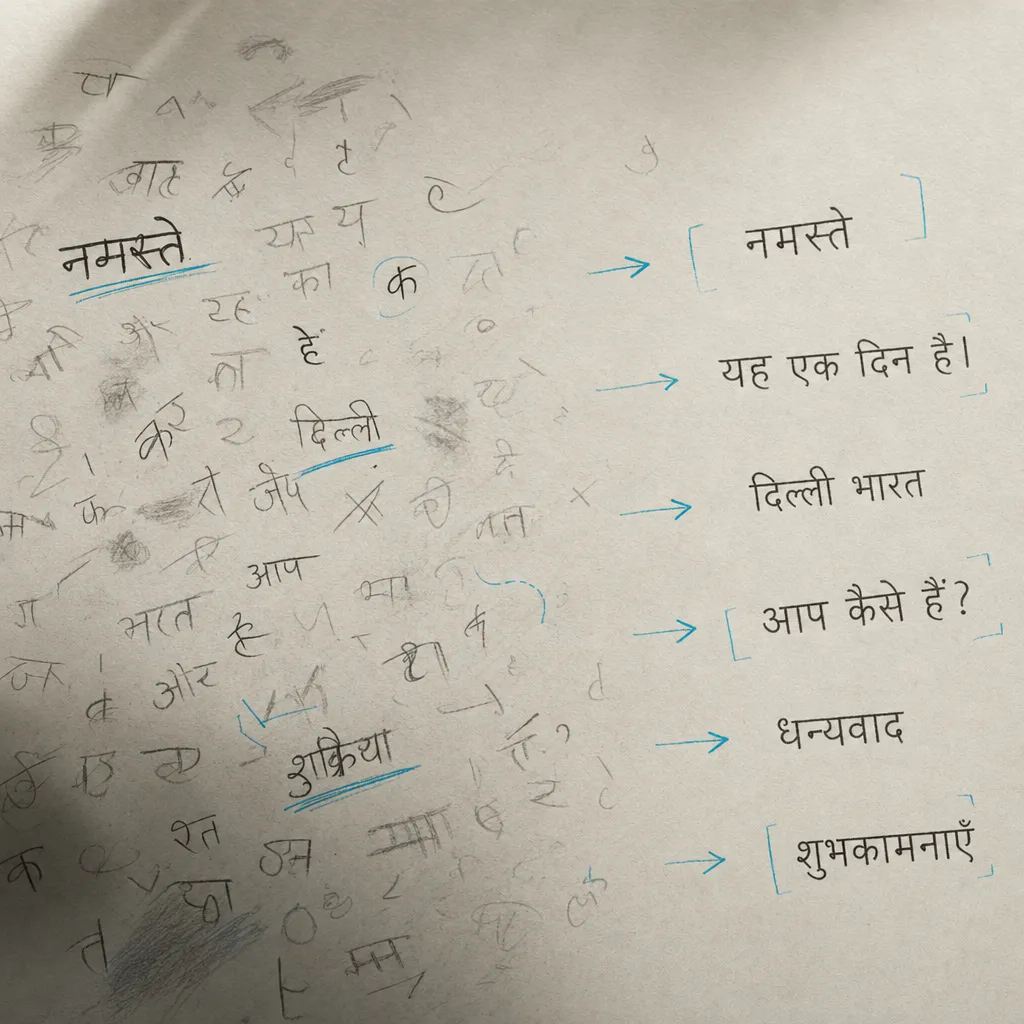
Converting Hindi handwriting to digital text can be a straightforward process if you use the right tools. Here's a step-by-step guide to help you convert handwritten Hindi notes, whether they're on paper, captured in a PDF, or saved as an image, to readable and editable text.
Learn how to convert S Pen handwriting to text using Samsung Notes' built-in features, plus advanced solutions for batch processing and higher accuracy needs.
Converting typed text into a handwritten style can be useful for various purposes, such as adding a personal touch to digital documents or creating unique invitations. The process typically involves using specialized software or online tools. Here's a step-by-step guide on how you can achieve this.
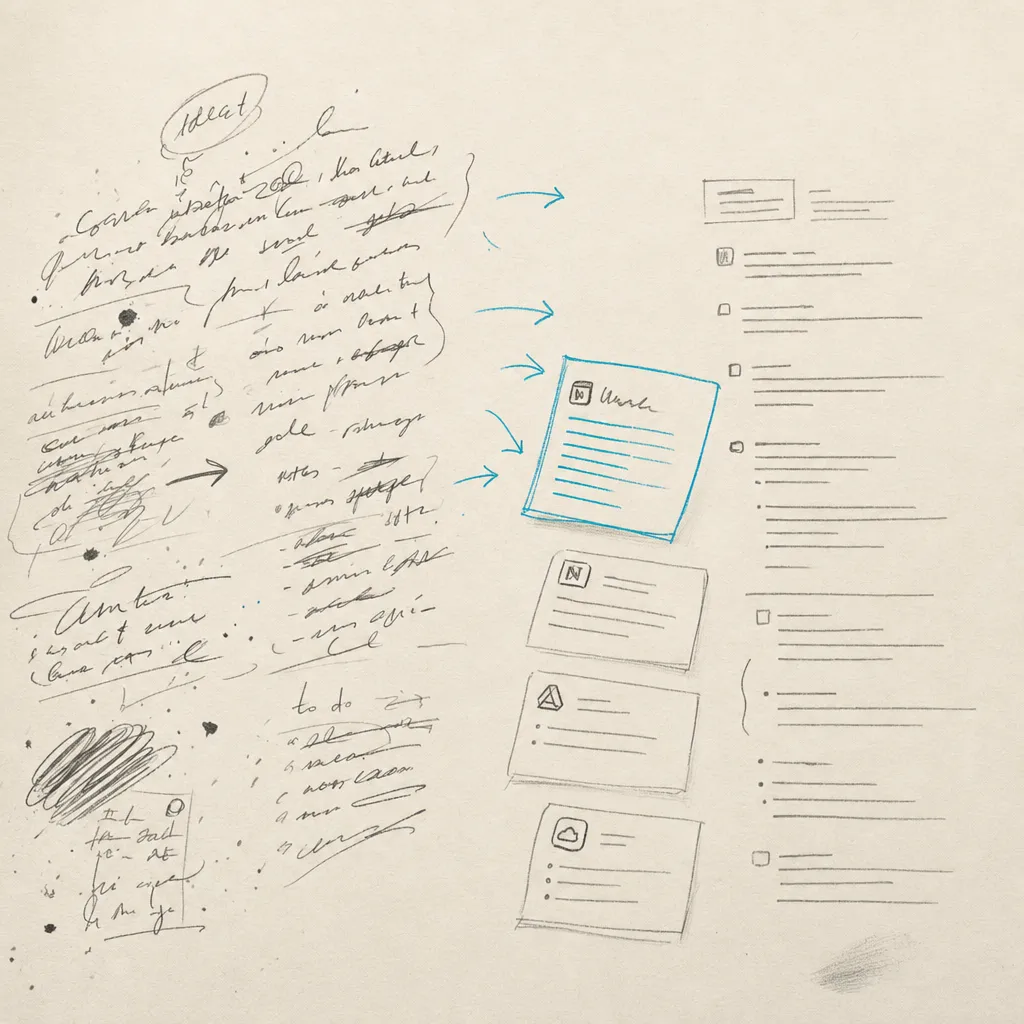
Which apps convert handwriting to text, and which only work on notes you write in the app. A 2026 guide to note apps versus OCR for photos and scans.