
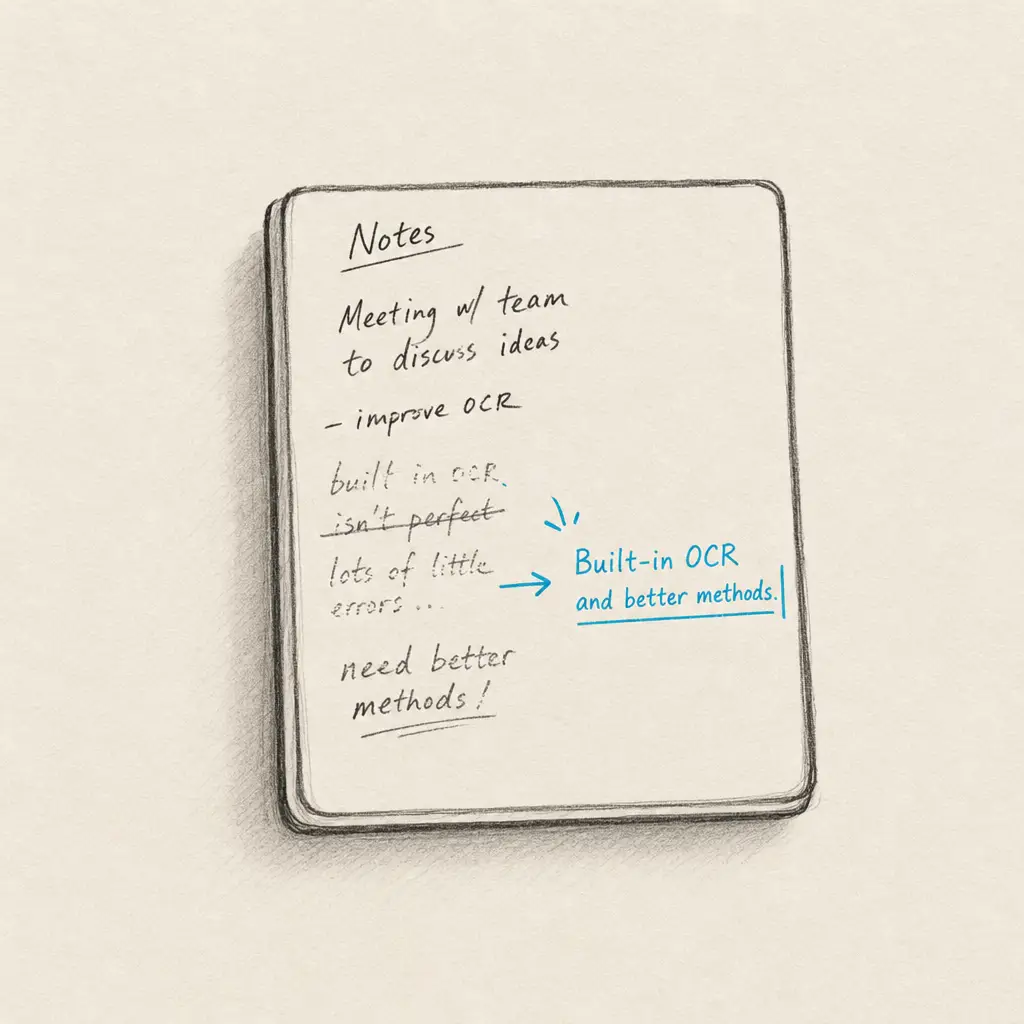
TL;DR: Boox runs its handwriting recognition on-device, which limits accuracy on cursive and messy notes. Export the note as a PDF and email it from any mail app to Handwriting OCR; the accurate transcription lands in your dashboard, usually within 15 to 20 seconds.
If your Boox’s handwriting recognition keeps coming back with too many mistakes to trust, there’s a faster fix than retyping or correcting it line by line: export the note as a PDF, email it to Handwriting OCR, and get accurate text back in your dashboard. Our AI is built specifically for handwriting, including the cursive and messy notes a compact on-device model fumbles, and because Boox runs Android, you can send the file straight from a mail app on the tablet.
Below we cover that email route in full, plus how the Boox built-in recognition works and where it falls short.
When the built-in isn’t enough: email your note to Handwriting OCR
Handwriting OCR’s AI is trained specifically on handwriting, including cursive, messy, and mixed notes, so it reads the writing Boox’s on-device recognition struggles with. And because Boox is an Android device with the Google Play Store, you already have a mail app that can send the file, with no computer in the loop.
It works in a few minutes:
- Turn on email submission. In your Handwriting OCR settings, open the Email tab and enable Email submission. You’ll get a private inbox address, like
smokey-amber-falcon@in.handwritingocr.com. - Allow your own address as a sender. Under Allowed senders, add the email account you’ll send from on the Boox (your Gmail or other address). Only senders on this list are accepted, so keep your inbox address private too.
- Export the note as a PDF. In the Notes app, open the note, tap the export/share option, and choose PDF. Export as PDF rather than the device’s text output, so our OCR reads your actual handwriting instead of Boox’s own conversion.
- Email it from your mail app. Share the exported PDF to Gmail (or your mail app), or attach it to a new message, and send it to your inbox address.
- Collect the text in your dashboard. The transcription appears in your documents dashboard with an Email badge, usually within 15 to 20 seconds. Download it as TXT, DOCX, PDF, or JSON.
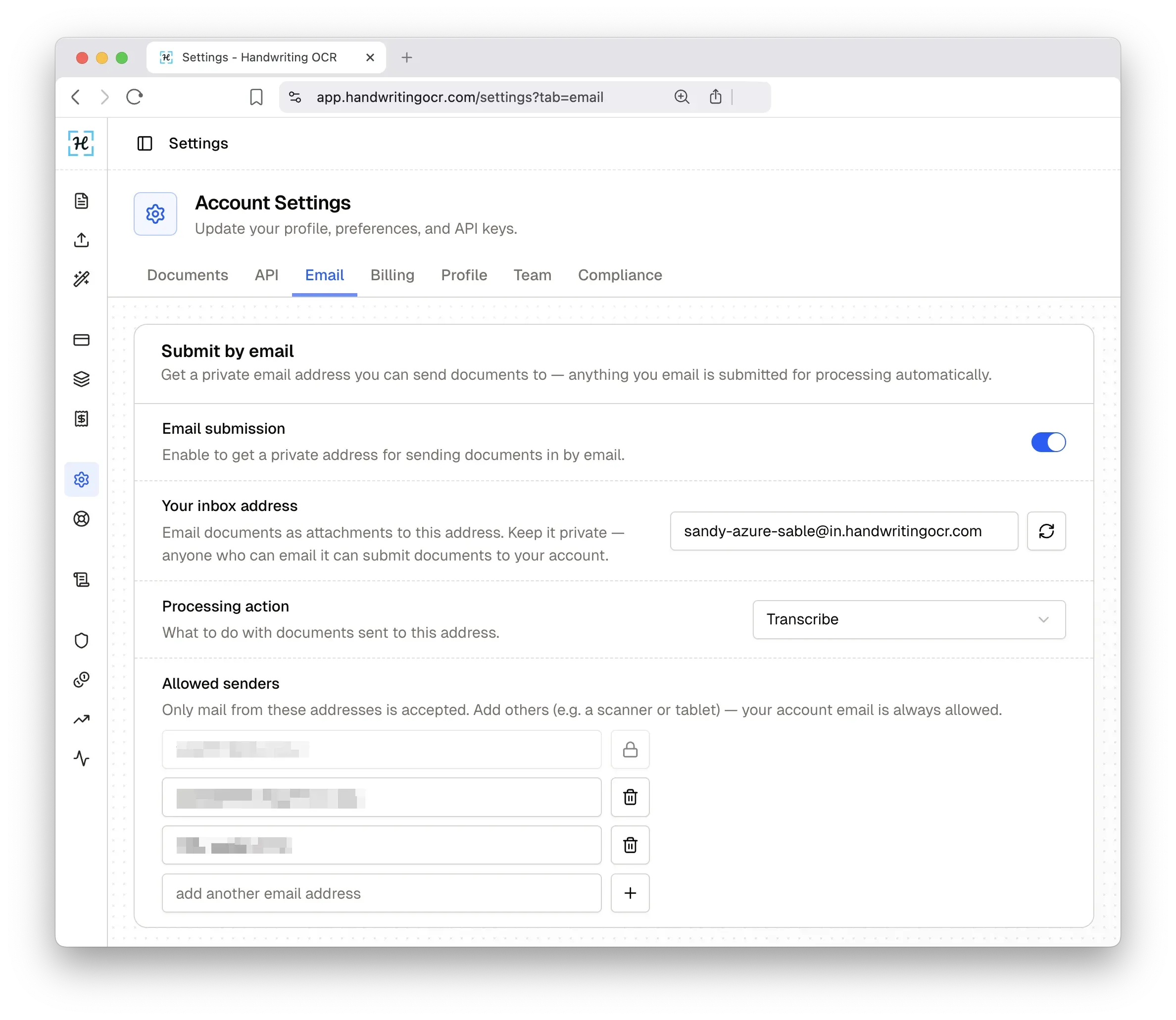
The processing action defaults to Transcribe, so emailed notes come back as text automatically, with nothing else to configure. No retyping, no per-page cleanup, no USB transfer. Each page costs 1 credit, drawn from your balance (free-trial credits work too). Emails are capped at 20 MB per message, so split a very large note or upload it in the dashboard instead (up to 100 MB).
A fair caveat: no OCR is perfect, and we don’t claim 100%. Very faded ink, signatures, and rare scripts are genuinely hard. But for everyday cursive and messy notes, it’s built for exactly the job a compact on-device model isn’t. The honest way to know is to try it on your own worst handwriting.
How Boox’s built-in conversion works
Boox does have on-device recognition in its Notes app. If you want to use it:
- Open the note in the Notes app.
- Open the page or selection menu and choose the convert to text option.
- Wait for the on-device recognition to run.
- Review the recognised text and copy or export it.
It runs entirely on the device, so it works offline. Two things to know: it leans on a compact on-device model, and pen-input notes export only as PNG or PDF, so the text you get out depends heavily on how you write.
How accurate is it really?
On neat, upright printing, Boox’s recognition is reasonable. The problem is everything else. Because it processes handwriting entirely on-device with no cloud step, it gives ground on cursive, mixed print-and-cursive, slanted, or rushed writing, it supports a limited set of languages, and firmware updates have at times introduced bugs that skip words.
That isn’t something you can fix by writing more neatly. It’s the limit of an on-device engine. If your notes are anything other than tidy print, you’ll hit it. That’s the point at which emailing the note to Handwriting OCR saves you the cleanup, and reads the cursive the device can’t.
Email submission works the same way from other note tablets and scanners. See how it works, or browse the other handwriting-to-text guides.
See it on your own notes
You get 5 free credits to start, enough to run a few real pages through and compare the result against what your Boox gives you before deciding anything.
Try Handwriting OCR free and see how your handwriting comes out.
Frequently asked questions
Can an Onyx Boox convert handwriting to text?
Yes. Boox has built-in recognition in its Notes app: open a note, use the convert-to-text option, and it transcribes on the device. It works offline but runs a compact on-device model, so accuracy is good on neat writing and weaker on cursive, mixed, or messy notes.
How accurate is Boox handwriting recognition?
It handles clear printing reasonably well, but because it processes everything on-device it gives ground on cursive and messy writing, supports a limited set of languages, and firmware updates have at times introduced bugs that skip words. If your conversions come back with frequent errors, the limit is the device's recognition, not your handwriting.
Can I email my Boox notes to be transcribed?
Yes. Boox runs Android with the Play Store, so export the note as a PDF and email it from a mail app like Gmail to your Handwriting OCR inbox address. Add the email account you send from to your allow-list, and the transcription appears in your documents dashboard.
What formats can I export the text in?
Handwriting OCR exports transcriptions as TXT, DOCX, PDF, or JSON. You can download them from your documents dashboard once processing finishes, usually within 15 to 20 seconds.