
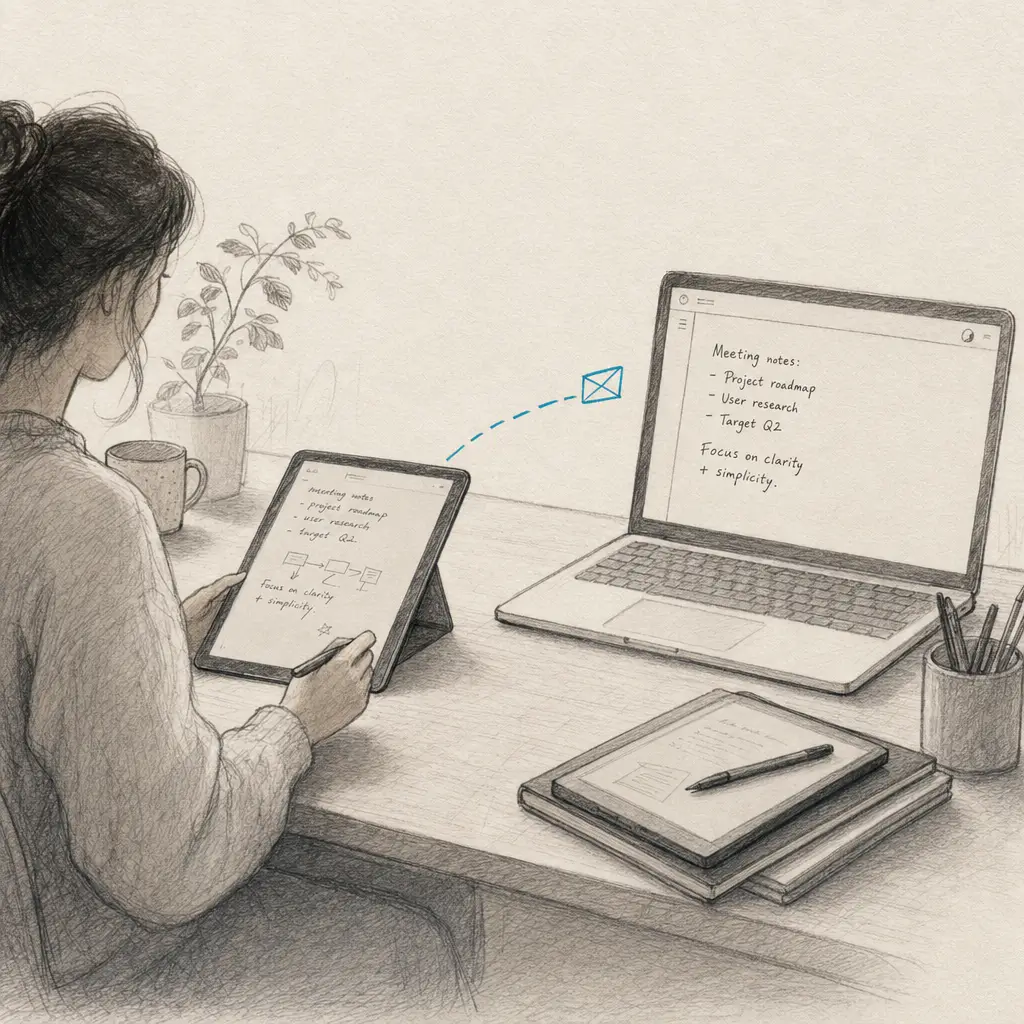
TL;DR: You can now email documents straight to Handwriting OCR. Enable the email inbox in settings, allow-list your senders, and email a PDF or photo; the transcription appears in your dashboard, usually within 15 to 20 seconds. Ideal for note tablets and scan-to-email scanners.
We just shipped a feature we have wanted for a long time: you can now email a document straight to Handwriting OCR and get the transcription back in your dashboard. No upload, no API, no third-party glue. Enable the inbox, email your notebook, and the text is waiting for you.
It is useful for anyone who would rather forward an attachment than open a browser, but there is one group it was built for: people taking handwritten notes on e-ink tablets.
The weak link in note-tablet OCR
Devices like the reMarkable, Supernote, Boox, and Kindle Scribe are wonderful for writing. The handwriting recognition built into them is the catch. It runs a compact model on the device itself, with no cloud step, so it does fine on neat printing and then gives ground on exactly the writing most people produce: cursive, mixed print-and-cursive, slanted, or rushed notes. You end up cleaning up the output by hand, which is most of the work the conversion was supposed to save.
The fix is to send the notebook to an engine built specifically for handwriting. Until now that meant exporting a file, getting it onto a computer, and uploading it. Email submission removes that whole detour, because these tablets can already send a file by email.
How email submission works
- Enable the inbox. In your settings, turn on email submission. You get a private address with a memorable three-word slug, like
smokey-amber-falcon@in.handwritingocr.com, which you can regenerate at any time. - Add your trusted senders. Put the addresses you will send from on the allow-list (up to five). Only mail from those addresses is accepted, so the address is safe to keep on your devices.
- Email your documents. Send PDF or image attachments to the address.
- Collect the text. Submitted documents appear in your dashboard with an Email badge, processed like any other upload, usually within 15 to 20 seconds. Download them as TXT, DOCX, PDF, or JSON.
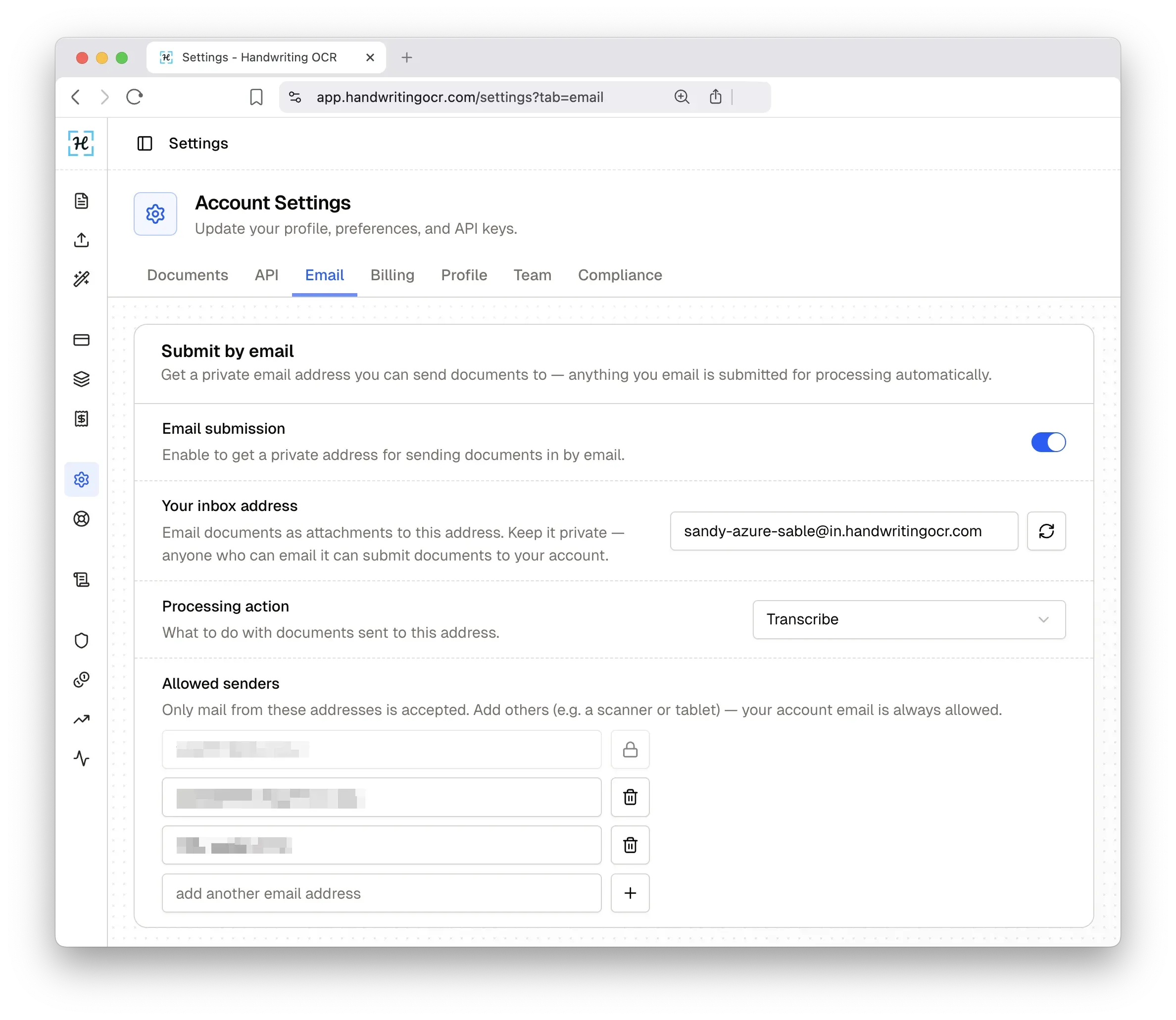
Each page costs the usual 1 credit, free-trial credits included. Emails are capped at 20 MB per message, so split a very large batch or upload it in the dashboard instead (up to 100 MB). Inbound mail is authenticated with SPF, DKIM, and DMARC, so spoofed senders are rejected, and results stay in your dashboard rather than being emailed back.
Set it up for your device
Every tablet emails a little differently, mostly in which address you add to your allow-list. We have written a step-by-step guide for each:
- reMarkable sends from a fixed address, so you allow-list
my@remarkable.comand use Send by email on the device. - Supernote sends from your own account through the built-in Supernote Mail app, so you export the notebook to PDF and attach it.
- Boox runs Android, so you export the note to PDF and send it from Gmail or any mail app, allow-listing your own address.
- Kindle Scribe uses the Share icon, where Share via email with Attach notebook as a searchable PDF sends your actual handwriting rather than the device’s own text.
The same approach works beyond tablets. Most office scanners have a Scan to Email button, which makes them one of the fastest ways to get paper into the system: scan straight to your inbox address and skip the upload entirely. Our scan handwriting to text guide covers the setup, including the one setting to get right so a multi-page job arrives as a single document. Forwarding a photo of a page from your phone lands in the same inbox too.
Our AI is built specifically for handwriting, including the cursive and messy notes that on-device recognition fumbles. Emailing a notebook is now the fastest way to put it to work on your own writing.
Try Handwriting OCR free with 5 credits and email your first notebook in.
Frequently asked questions
How do I email a document to Handwriting OCR?
Enable email submission in your settings to get a private inbox address, add the addresses you will send from to the allow-list, then email your PDF or image attachments to that address. The transcription appears in your documents dashboard, usually within 15 to 20 seconds.
Is the email inbox secure?
Yes. Only senders you add to your allow-list (up to five addresses) are accepted, and inbound mail is authenticated with SPF, DKIM, and DMARC, so spoofed senders are rejected. Your inbox address is private and you can regenerate it at any time.
Does it cost extra to submit by email?
No. Emailed documents are charged at the usual 1 credit per page, drawn from your balance, and free-trial credits work too. There is no separate fee for using the email inbox.