
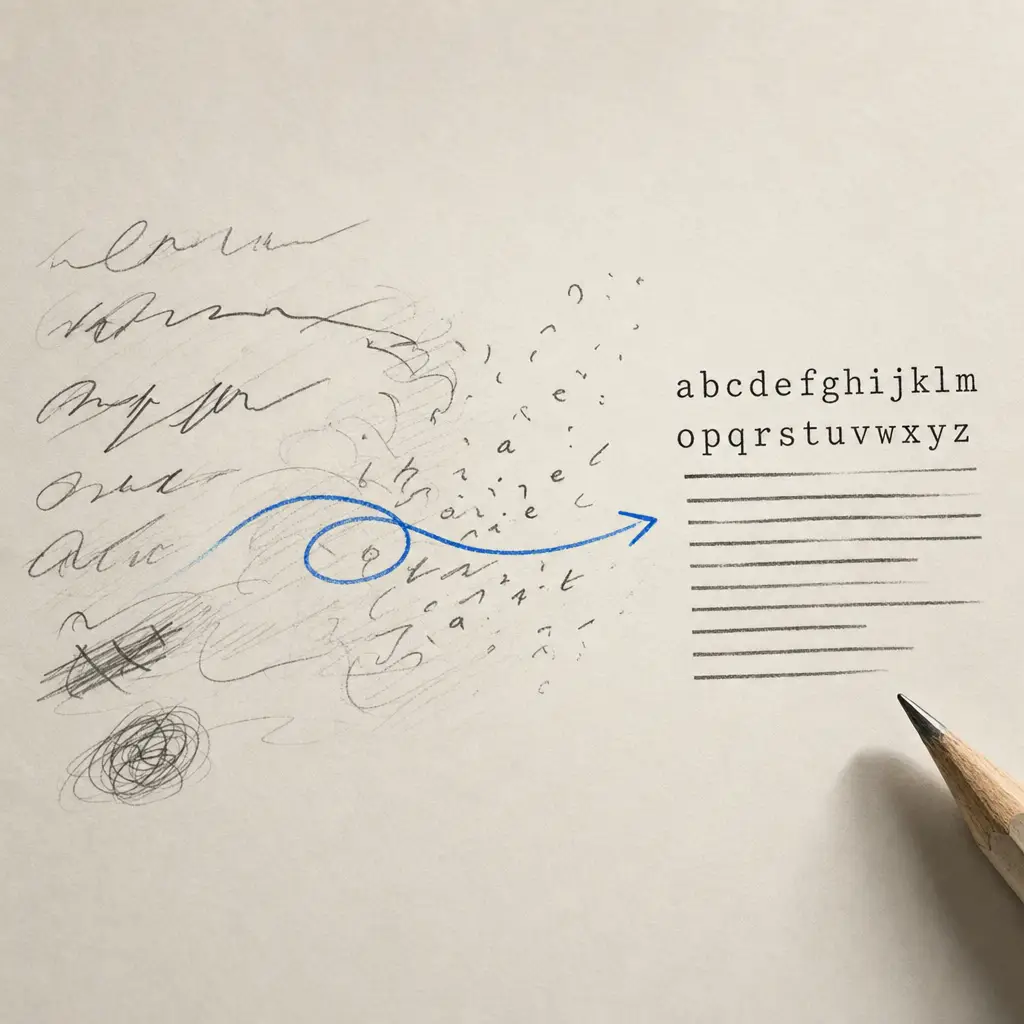
Converting handwritten notes to digital text on your Android device has never been easier. With modern OCR (Optical Character Recognition) technology, you can quickly transform handwritten documents, notes, and scanned images into editable, searchable text. Whether you’re a student digitizing lecture notes, a professional organizing meeting minutes, or someone archiving personal journals, Android offers several powerful solutions for handwriting recognition.
The key to successful handwriting to text conversion lies in choosing the right tool for your needs. Some apps excel at quick note-taking with basic OCR, while others offer advanced features like batch processing, multiple export formats, and enterprise-grade security. Understanding your options will help you convert handwriting to text on Android efficiently and accurately.
Quick Takeaways
- HandwritingOCR delivers the highest accuracy for converting handwriting to text on Android with less than 1% word error rates
- Multiple free and paid options exist, including Google Keep, Microsoft OneNote, and specialized OCR apps
- Google Drive’s built-in OCR feature provides a no-install option for basic conversion needs
- Image quality and handwriting clarity significantly impact conversion accuracy
- HandwritingOCR supports over 300 languages and prioritizes data privacy with bank-grade encryption
Using Dedicated Apps to Convert Handwriting to Text on Android
Dedicated OCR apps provide the most reliable way to convert handwriting to text on Android. These specialized tools are designed specifically for handwriting recognition and offer features that general-purpose apps can’t match.
Top Apps for Android Handwriting Recognition
HandwritingOCR stands out as the most accurate solution for converting handwriting to text on Android. With word error rates below 1%, it handles even challenging handwriting styles reliably. The service processes your documents securely in the cloud, supports over 300 languages, and exports to multiple formats including Microsoft Word, plain text, and Excel for table data.
HandwritingOCR achieves exceptional accuracy while maintaining bank-grade encryption to protect your documents at every step.
Microsoft OneNote offers solid OCR capabilities integrated with Microsoft’s ecosystem. It works well with styluses and supports handwriting conversion in Microsoft Office, making it ideal if you already use Microsoft products.
Google Keep provides quick note-taking with basic handwriting recognition. It integrates seamlessly with other Google services and works well for simple conversion tasks. Learn more about converting handwriting to text in Google Keep.
Evernote supports OCR for handwritten text in images and PDFs with cross-device syncing.
Step-by-Step Guide to Converting Handwriting to Text
Follow these steps to convert your handwritten notes to digital text on any Android device:
Install Your Chosen OCR App
Download and install your preferred app from the Google Play Store. For the best accuracy and privacy, we recommend starting with HandwritingOCR. The web-based interface works perfectly on Android browsers without requiring a separate app installation.
Capture Your Handwritten Content
Take a clear photo of your handwritten notes using your Android camera, or import an existing image or PDF from your device storage. Ensure good lighting and position your camera directly above the document to avoid shadows and distortion.
Apply OCR to Extract Text
Upload your image to your chosen OCR service. Most apps include options like “OCR”, “Text Recognition”, or “Scan to Text”. HandwritingOCR processes your document automatically once uploaded, typically completing within seconds for single-page documents.
Edit and Export Results
Review the extracted text for accuracy, make any necessary corrections, and save it in your preferred format. HandwritingOCR supports exports to TXT, DOCX, and JSON formats, giving you flexibility for different use cases.
Using Online Tools for Handwriting to Text Conversion
For users who prefer not to install additional apps, online tools provide a convenient alternative. HandwritingOCR’s web interface works perfectly on Android browsers, offering full functionality without consuming device storage.
Simply visit the site, upload your image or PDF, and receive accurate text extraction with the same privacy protections as the desktop version. Your documents are processed securely and automatically deleted after your chosen retention period.
Your handwritten documents remain private and are processed only to deliver your results. They are not used to train models or shared with anyone else.
Using Google Drive’s Built-in OCR
Android users can leverage Google Drive’s OCR functionality for basic handwriting conversion without installing additional apps:
- Upload your image or PDF containing handwritten notes to Google Drive
- Right-click the file in Google Drive and select “Open with” then “Google Docs”
- Google Docs automatically performs OCR and displays the extracted text below the image
This method works best for printed text and clear handwriting. For more challenging handwriting styles or higher accuracy requirements, dedicated tools like HandwritingOCR deliver better results.
Comparing Android Handwriting OCR Solutions
| Feature | HandwritingOCR | Google Keep | Microsoft OneNote | Google Drive OCR |
|---|---|---|---|---|
| Accuracy | Less than 1% error rate | Moderate | Good | Moderate |
| Languages | 300+ | 100+ | 60+ | 100+ |
| Privacy Focus | Bank-grade encryption, no data training | Standard Google privacy | Standard Microsoft privacy | Standard Google privacy |
| Export Formats | TXT, DOCX, XLSX, JSON, CSV | Plain text only | OneNote format, export options | Google Docs format |
| Batch Processing | Yes | No | Limited | No |
| Best For | High accuracy needs, sensitive documents | Quick notes | Microsoft ecosystem users | Basic conversion |
Tips for Optimal OCR Results on Android
The quality of your input directly affects OCR accuracy when you convert handwriting to text on Android. Follow these practices for best results:
Ensure Clear Image Quality
Use good lighting without harsh shadows or glare. Natural daylight works best, or use diffused artificial lighting. Hold your camera steady or use a stand to prevent motion blur. Clean your camera lens before capturing images.
Improve Handwriting Consistency
While HandwritingOCR handles various handwriting styles well, neat and consistent writing improves results across all tools. Use dark ink on light paper for maximum contrast. Avoid writing too small, as this can reduce character clarity.
Optimize Document Positioning
Position your camera directly above the document to minimize perspective distortion. Ensure the entire document fits in the frame with small margins. For multi-page documents, use PDF format for the most efficient processing.
Troubleshooting Common Android OCR Problems
Even with quality OCR tools, you may encounter challenges when converting handwriting to text on Android. Here are solutions to common issues:
Dealing with Blurry Images
Clean your camera lens thoroughly with a soft cloth. Tap your screen to focus on the text before capturing. Hold your device steady or prop it against a stable surface. If your Android camera struggles in low light, consider using a document scanning app that enhances image quality before OCR processing.
Handling Poor Lighting Conditions
Use natural daylight near a window when possible. Position lights at angles to avoid direct reflections on the paper. Avoid overhead lighting that creates harsh shadows. If converting existing photos with poor lighting, try adjusting brightness and contrast before uploading to your OCR tool.
Addressing Inconsistent Recognition Results
Try different OCR tools to find which handles your handwriting style best. HandwritingOCR’s advanced AI models excel with challenging handwriting that simpler tools struggle with. For historical documents or unusual scripts, specialized tools designed for archival work deliver superior accuracy.
With word error rates of less than 1%, you can trust HandwritingOCR to give the most accurate results, even with challenging handwriting styles.
Converting Handwriting to Text for Different Use Cases
Different scenarios benefit from different Android OCR approaches:
Students and Academic Notes
For lecture notes and research materials, speed and organization matter most. Microsoft OneNote works well if you’re already in the Microsoft ecosystem, while HandwritingOCR delivers higher accuracy for complex academic content and mathematical notation.
Business and Professional Documents
When converting meeting notes, forms, or client documents on Android, accuracy and security are paramount. HandwritingOCR provides bank-grade encryption and processes documents without using your data for training, making it ideal for sensitive business content.
Personal Journals and Archives
For personal writing and family history, preservation quality matters. HandwritingOCR maintains document structure while converting handwriting to text, ensuring your archived materials remain organized and searchable. The service supports multiple languages, perfect for multilingual family documents.
Conclusion
Converting handwriting to text on Android has become remarkably straightforward with modern OCR technology. Whether you choose a dedicated app like HandwritingOCR, use built-in features like Google Drive OCR, or opt for note-taking apps with recognition capabilities, you can efficiently transform handwritten notes into editable digital text.
For the highest accuracy and strongest privacy protections, HandwritingOCR delivers exceptional results with less than 1% word error rates. The service supports over 300 languages, exports to multiple formats, and guarantees your data remains exclusively yours. Try HandwritingOCR free with complimentary credits and experience the difference advanced AI makes in handwriting recognition.
For other mobile conversion options, explore how to convert handwriting to text on iPhone or on iPad. Visit our comprehensive guide on converting handwriting to text for a complete overview of all available methods and tools.
Frequently asked questions
What is the best app to convert handwriting to text on Android?
HandwritingOCR offers the highest accuracy for converting handwriting to text on Android. It supports both handwritten and printed text, works with images and PDFs, and prioritizes your privacy with bank-grade encryption.
Can I convert handwriting to text for free on Android?
Yes, HandwritingOCR offers 5 free page credits when you sign up. Google Keep and Microsoft OneNote also offer free handwriting recognition features, though with varying accuracy levels.
Does Android have built-in handwriting recognition?
Android doesn't have universal built-in handwriting to text conversion, but Google Drive includes OCR functionality. You can upload an image to Google Drive and open it with Google Docs to automatically extract text.
How accurate is handwriting OCR on Android?
Accuracy depends on the tool and handwriting quality. HandwritingOCR achieves word error rates of less than 1%, making it highly reliable even for challenging handwriting styles. Clear images and consistent handwriting improve results across all tools.
Can I convert handwriting to text in multiple languages on Android?
Yes, HandwritingOCR supports over 300 languages including Latin, Cyrillic, Arabic, and Asian scripts. Many other OCR apps also support multiple languages, though coverage varies by app.
Does Google Lens work well for handwriting on Android?
Google Lens is free and pre-installed on most Android devices and handles clear, printed handwriting reasonably well, but it struggles with cursive, messy writing, and busy backgrounds and usually needs proofreading. It is best for quick, casual capture rather than important or difficult documents.
Is Samsung Notes good for converting handwriting on Galaxy phones?
Yes. Samsung Notes pairs with the S Pen to convert handwriting to text and works well for Galaxy users with tidy writing. For cursive, messy, or historical documents, a specialized tool trained on challenging handwriting will outperform it.