
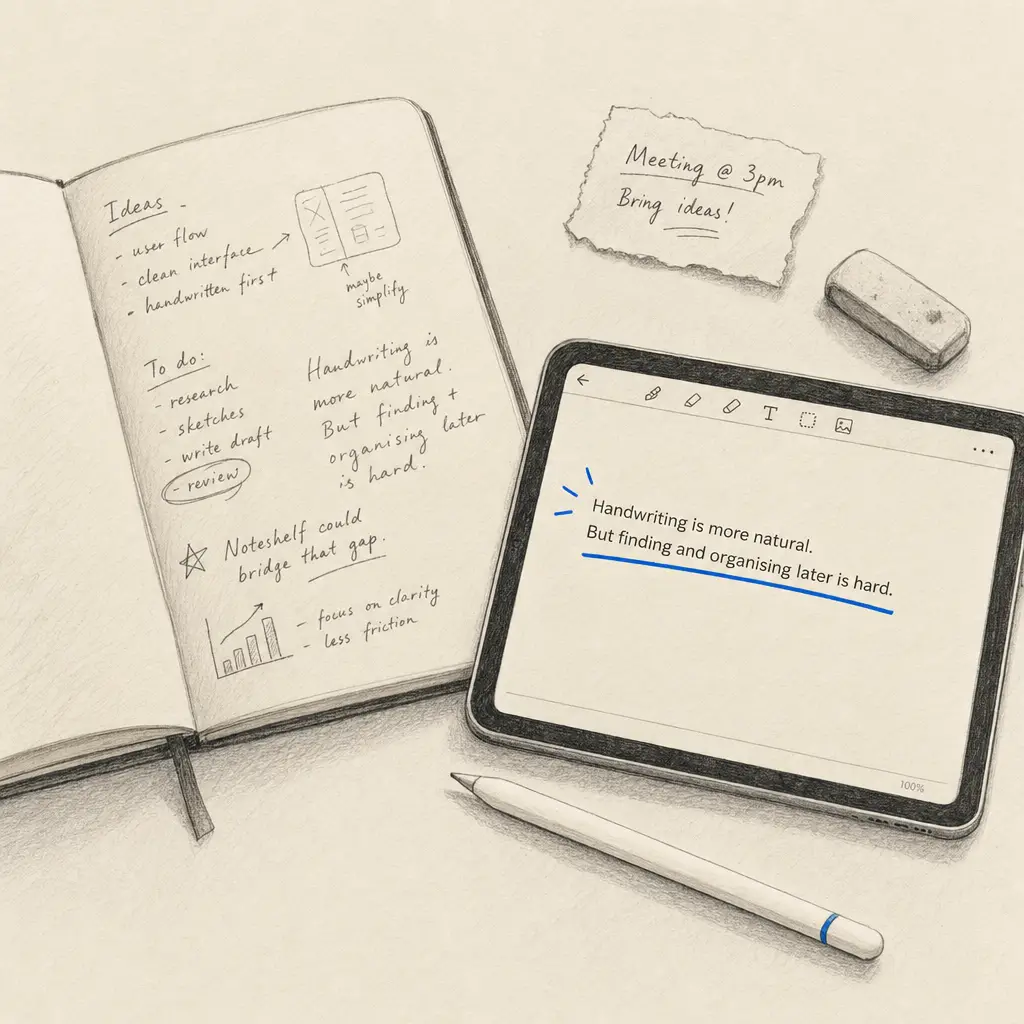
Yes, Noteshelf has a built-in feature that lets you convert handwriting to text. If you write notes by hand on your iPad or tablet and want to turn them into digital text later, Noteshelf makes this possible. The app uses OCR (Optical Character Recognition) to read your handwriting and transform it into editable text you can copy, search, or export.
However, the accuracy of this conversion depends on several factors. Clear, well-formed handwriting produces better results than rushed or messy writing. The language and script you use also affect recognition quality. While Noteshelf handwriting to text works well for many users, you may need to make manual corrections, especially with more challenging handwriting styles.
Quick Takeaways
- Noteshelf includes built-in OCR to convert handwriting to text directly in the app
- Conversion accuracy depends on handwriting clarity, language support, and script style
- The lasso tool lets you select and convert specific sections or entire pages
- For higher accuracy needs or batch processing, specialized OCR tools offer better results
- HandwritingOCR provides dedicated handwriting recognition with higher accuracy for challenging documents
How Noteshelf Handwriting Recognition Works
Noteshelf uses on-device OCR technology to analyze the shapes and patterns in your handwritten text. When you select text with the lasso tool and choose “Convert to Text,” the app processes the visual information and attempts to match it to recognizable characters. This happens quickly, usually within seconds, depending on how much text you have selected.
The technology works best with clear, consistent handwriting. If you write in cursive, print, or a mix of styles, results may vary. The app relies on pattern matching, so unusual letter formations or heavy stylization can reduce accuracy.
Noteshelf OCR works directly on your device, keeping your handwritten notes private during the conversion process.
For simple note-taking and quick conversions, Noteshelf handwriting to text provides a convenient solution built right into your note-taking workflow. You do not need to export files or use external tools for basic text extraction.
Step-by-Step: Converting Handwriting to Text in Noteshelf
Converting your handwritten notes in Noteshelf takes just a few taps. The process is straightforward once you understand the basic workflow.
Select Your Handwriting
First, open the page containing the handwritten notes you want to convert. Tap the lasso tool from the toolbar at the top of the screen. Draw around the text you want to convert. You can select a single word, a sentence, a paragraph, or an entire page depending on your needs.
The lasso tool highlights the selected area in blue or another indicator color. Make sure your selection captures all the text you want to convert without cutting off letters or words.
Convert to Text
After selecting the handwriting, tap the “Convert to Text” option that appears in the menu. Noteshelf processes the handwriting and displays the converted text on screen. The text appears as editable digital text that you can modify, copy, or paste elsewhere.
If the conversion produces errors, you can edit the text directly before using it. Common issues include misread letters, missing punctuation, or words that run together.
Copy or Export
Once the text is converted and corrected, you can copy it to your clipboard and paste it into other apps like email, documents, or messaging. Noteshelf also lets you replace the original handwriting with the converted text if you prefer a fully digital note.
Converting handwriting to text in Noteshelf typically takes just seconds, making it practical for quick note digitization during meetings or lectures.
For iPad users exploring different approaches to handwriting conversion, our guide on how to convert handwriting to text on iPad covers multiple methods and apps beyond Noteshelf.
Noteshelf OCR Limitations and Accuracy Factors
While Noteshelf offers convenient handwriting to text conversion, several factors affect how well it performs. Understanding these limitations helps set realistic expectations and identify when you might need a more specialized solution.
Handwriting Clarity
The most significant factor affecting Noteshelf OCR accuracy is how clearly you write. Neat, well-spaced handwriting with distinct letter formations produces the best results. Messy or hurried writing often leads to recognition errors that require manual correction.
If your handwriting varies in size, slant, or spacing, the OCR may struggle to maintain consistent accuracy across a page. Letters that overlap or touch adjacent words create additional challenges for the recognition algorithm.
Language and Script Support
Noteshelf handwriting recognition supports multiple languages, but performance varies by script type. Latin-based alphabets generally work better than scripts with more complex character sets. If you write in a language with accents, diacritical marks, or non-Latin characters, check whether Noteshelf fully supports that language in your region.
The app uses your device language settings to determine which recognition model to apply. This means switching languages may require changing system settings rather than just writing in a different language.
Document Complexity
Noteshelf OCR works on notes created within the app. If you need to convert handwriting from scanned documents, PDFs, or photos taken outside the app, Noteshelf does not process these files directly. You would need to import images into Noteshelf first, which adds extra steps and may reduce image quality.
The app focuses on handwritten text, not tables, diagrams, or mixed content layouts. If your notes include structured data, charts, or multiple columns, the text conversion may not preserve the original formatting.
| Feature | Noteshelf OCR | Specialized OCR Tools |
|---|---|---|
| Handwriting clarity needed | High | Medium to Low |
| Batch processing support | No | Yes |
| PDF and image file support | Limited | Full support |
| Complex document handling | Basic | Advanced |
| Conversion accuracy | Variable | High |
When to Use Specialized OCR Instead of Noteshelf
Noteshelf works well for converting notes you create directly in the app. However, certain situations call for more powerful, dedicated OCR solutions that specialize in handwriting recognition.
Batch Processing Multiple Documents
If you need to convert dozens or hundreds of pages of handwritten notes, doing this one page at a time in Noteshelf becomes impractical. Specialized OCR tools handle batch processing, letting you upload multiple documents and convert them all at once. This saves significant time for large-scale digitization projects.
Students digitizing an entire semester of handwritten notes or professionals converting archived records benefit from batch capabilities that Noteshelf does not offer.
Converting Scanned Documents and PDFs
Noteshelf primarily handles notes created within the app. If you have scanned handwritten documents, photos of notes, or PDFs containing handwriting, specialized OCR tools process these file types directly without requiring import steps that might degrade quality.
Historical researchers, genealogists, and archivists working with scanned letters, journals, or records need OCR that handles various input formats and image qualities. Dedicated handwriting OCR services are built for this purpose.
Specialized OCR tools often achieve higher accuracy on challenging handwriting because they use more advanced recognition models trained on diverse handwriting samples.
Higher Accuracy Requirements
When accuracy matters more than convenience, dedicated OCR services deliver better results. Professional use cases like digitizing medical records, legal documents, or business forms require minimal errors. Specialized handwriting recognition tools typically achieve higher accuracy rates than general-purpose note-taking apps.
If you find yourself making frequent manual corrections after using Noteshelf OCR, a specialized tool will likely save you time overall by reducing the need for edits.
HandwritingOCR for Accurate Text Conversion
When you need higher accuracy and more flexibility than Noteshelf provides, HandwritingOCR offers a specialized solution built specifically for converting handwritten documents to digital text. The service handles challenging handwriting styles, supports batch processing, and works with PDFs and images directly.
HandwritingOCR uses advanced AI models trained specifically on handwriting recognition. This focused approach delivers better accuracy than general-purpose note-taking apps, especially with cursive writing, varied handwriting styles, or lower-quality scans. The platform processes your documents privately, with your files remaining yours throughout the conversion process.
The service supports multiple export formats including plain text, Microsoft Word, and JSON. If you need to convert handwriting in tables or structured documents, HandwritingOCR preserves formatting better than basic OCR tools. You can upload PDFs, JPGs, PNGs, and other common formats without any preprocessing.
For users who frequently convert handwritten notes or work with historical documents, archived records, or professional documents requiring high accuracy, HandwritingOCR provides the reliability that app-based OCR cannot match. The platform includes an API for developers who want to integrate handwriting recognition into their own applications or workflows.
HandwritingOCR achieves high accuracy even on challenging handwriting, reducing the time you spend on manual corrections after conversion.
Your documents remain private and secure throughout the processing. The service uses bank-grade encryption and does not train AI models on your content. For sensitive documents like medical records, legal files, or personal journals, this privacy-focused approach provides peace of mind.
Comparing Note-Taking Apps for Handwriting Recognition
Noteshelf is not the only note-taking app with handwriting to text capabilities. If you are comparing options, understanding how different apps handle OCR helps you choose the right tool for your needs.
GoodNotes also offers handwriting conversion features similar to Noteshelf. Both apps use on-device OCR and require you to select text manually before converting. Our guide on how to convert handwriting to text in GoodNotes explains that app’s specific workflow and features.
The main differences between note-taking apps and specialized OCR services come down to purpose and capability. Note-taking apps prioritize the writing experience and treat OCR as a secondary feature. Specialized tools focus entirely on accurate text extraction and offer more robust processing options.
For casual note-taking where you occasionally need to convert handwriting to text, Noteshelf or similar apps work fine. For projects requiring consistent accuracy, batch processing, or handling diverse document types, dedicated OCR services deliver better results with less manual correction.
Getting Started with Handwriting to Text Conversion
Converting handwriting to text improves productivity by making your handwritten notes searchable, editable, and easier to share. Whether you use Noteshelf for quick conversions or need more powerful tools for larger projects, understanding your options helps you work more efficiently.
Start by testing Noteshelf OCR on your own handwriting to see how well it performs. If accuracy meets your needs for the types of notes you create, the built-in conversion feature provides a convenient solution without leaving your note-taking app.
When you encounter limitations with app-based OCR, whether due to accuracy issues, batch processing needs, or working with scanned documents, specialized tools fill the gap. HandwritingOCR handles these more demanding scenarios with higher accuracy and greater flexibility.
For comprehensive information about all available methods and tools for converting handwriting to digital text across different devices and platforms, visit our complete guide on handwriting to text conversion.
Ready to convert your handwriting to text with specialized OCR that handles challenging handwriting and delivers consistent accuracy? Try HandwritingOCR free with complimentary credits and see the difference dedicated handwriting recognition makes for your documents and notes.
Frequently asked questions
Does Noteshelf have OCR?
Yes, Noteshelf includes built-in OCR (Optical Character Recognition) that converts handwriting to text. You can select handwritten text using the lasso tool and tap Convert to Text to transform it into editable digital text.
How accurate is Noteshelf handwriting recognition?
Noteshelf handwriting recognition accuracy varies based on handwriting clarity, language, and script style. For best results, write clearly and use supported languages. For higher accuracy needs, especially with messy handwriting or complex documents, specialized OCR services offer better results.
Can Noteshelf convert entire pages of handwriting at once?
Yes, you can select an entire page of handwritten notes using the lasso tool in Noteshelf and convert it all to text at once. However, converting large amounts of text may require manual corrections depending on your handwriting style.
What languages does Noteshelf OCR support?
Noteshelf OCR supports multiple languages, but availability and accuracy depend on your device language settings and the specific script you are using. Check the app settings for supported languages in your region.