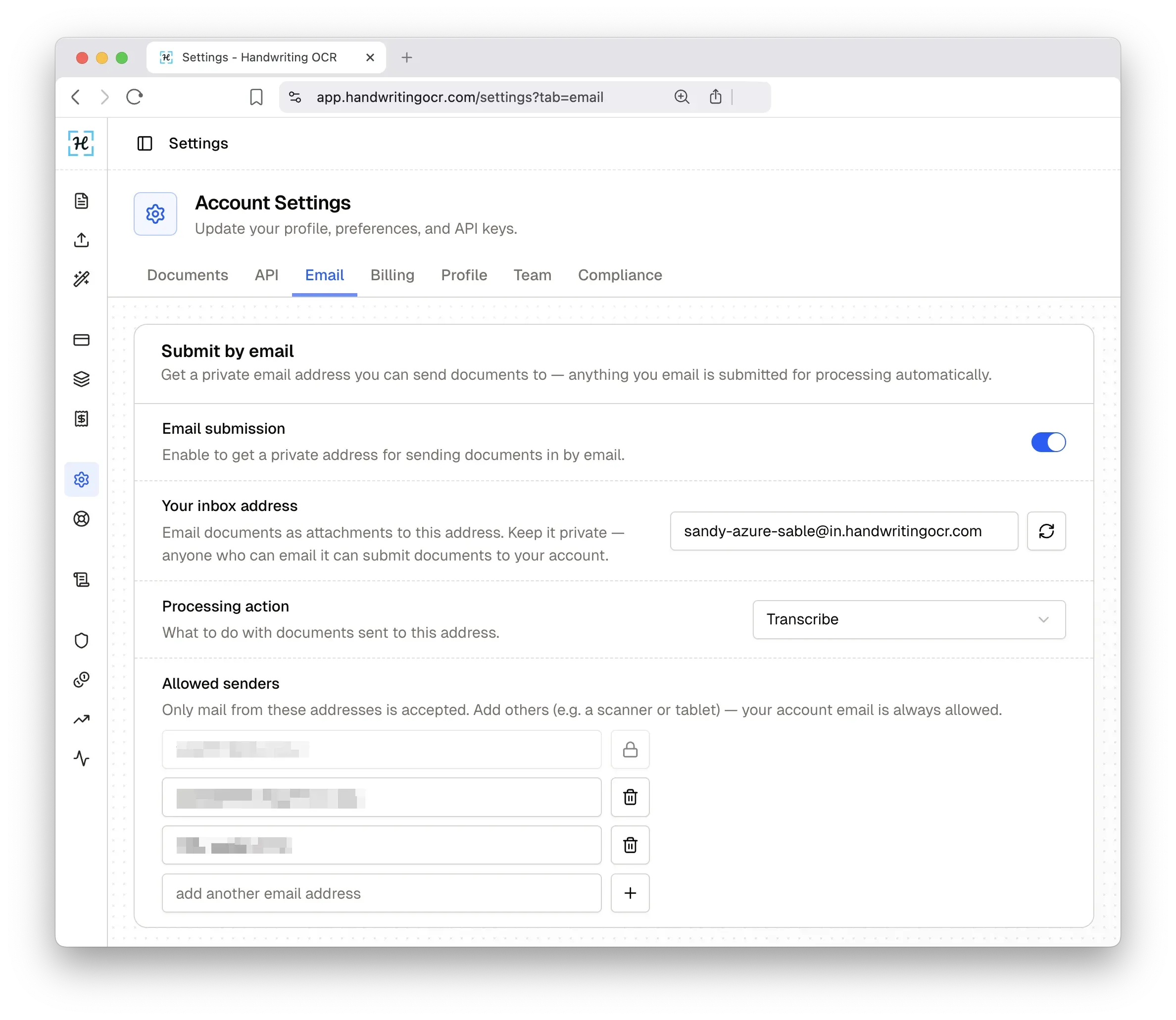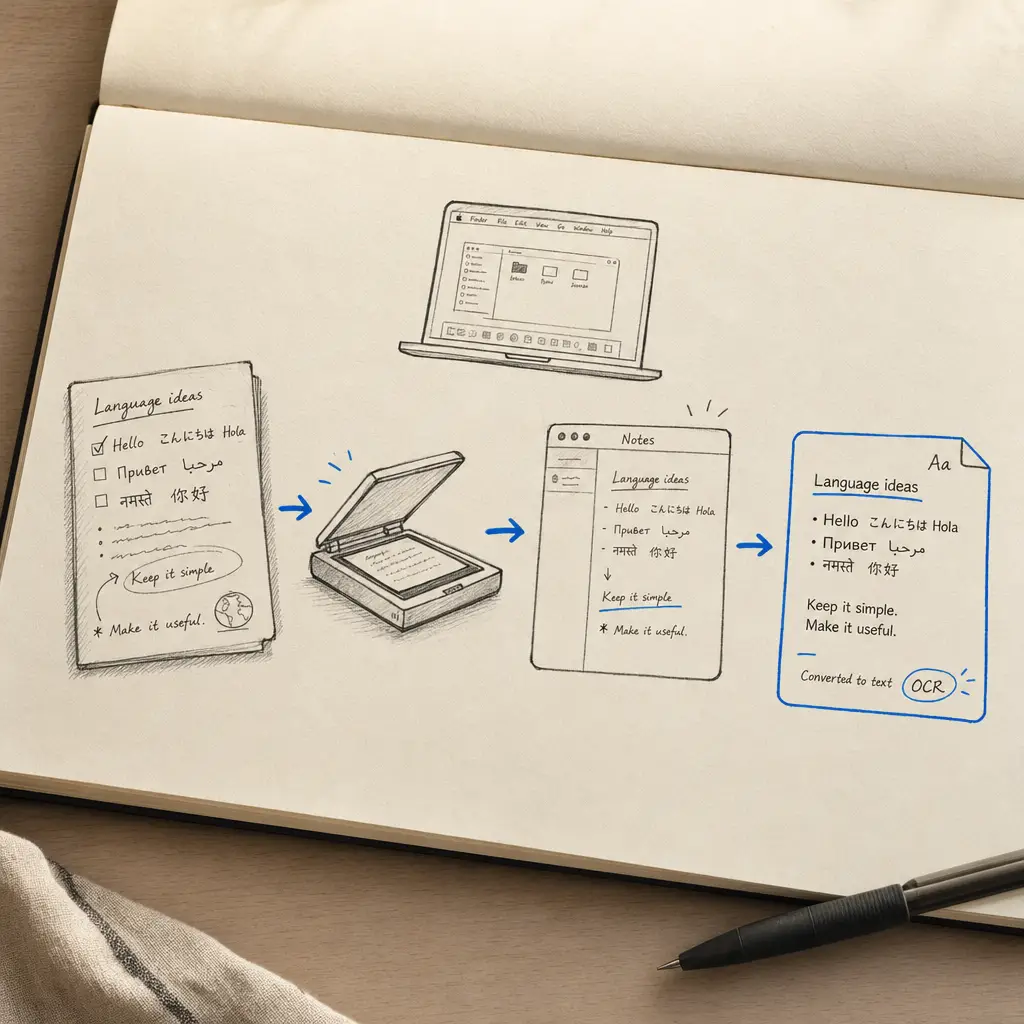
Converting handwriting to text on Mac requires a strategic approach since macOS doesn't have built-in handwriting recognition like some mobile operating systems. However, there are numerous powerful solutions available that can efficiently digitize your handwritten notes using various apps, online services, and OCR technologies. This comprehensive guide covers all the best methods to convert handwriting to text on your Mac.
For users with multiple Apple devices, you may also want to explore how to convert handwriting to text on iPad or iPhone for a complete ecosystem workflow.
Quick Takeaways
- Mac users can convert handwriting to text using native apps (Apple Notes with iOS integration, Preview Live Text), online OCR services, or professional software
- HandwritingOCR offers the highest accuracy for handwriting recognition, working directly in your Mac browser without installation
- Apple ecosystem users benefit from Continuity features that seamlessly sync handwritten content between iPhone, iPad, and Mac
- For sensitive documents, choose solutions with local processing or services like HandwritingOCR that prioritize data privacy
- Free options work for basic needs, while professional tools deliver superior accuracy for business or academic requirements
Quick Overview: Mac Handwriting Conversion Options
Mac users have access to several excellent solutions for handwriting conversion:
- Native Apps: Apple Notes (with iPhone/iPad integration), Preview with OCR features
- Online OCR Services: HandwritingOCR (recommended for accuracy), Google Drive OCR
- Note-Taking Applications: Microsoft OneNote, professional note apps
- Mobile Integration: Continuity features with iOS devices
- Scanner Integration: Physical scanners with Mac-compatible OCR software
HandwritingOCR achieves word error rates of less than 1%, making it the most accurate choice for converting handwriting to text on Mac.
Built-in macOS Solutions
Apple Notes with Continuity
Using iPhone/iPad Integration:
-
Enable Handoff and Continuity
- On Mac: System Preferences > General > Allow Handoff
- On iOS device: Settings > General > AirPlay & Handoff > Handoff
- Ensure both devices are signed in to the same Apple ID
-
Write on iOS Device
- Open Notes on iPhone or iPad
- Use Apple Pencil or finger to write handwritten notes
- Convert to text using Scribble or "Copy as Text" feature
-
Access on Mac
- Open Notes on Mac
- Your converted text automatically syncs via iCloud
- Edit and format using Mac's full keyboard and interface
For detailed instructions on Apple Notes handwriting features, see our guide on how to convert handwriting to text in Apple Notes.
Preview App OCR Features
For Scanned Documents and PDFs:
-
Open Document in Preview
- Drag handwritten document (PDF/image) to Preview
- Or use File > Open to select document
-
Use Live Text (macOS Monterey and later)
- Right-click on text in images or scanned documents
- Select "Copy Text" to extract recognized text
- Works with both typed and some handwritten content
-
Search Within Documents
- Use Command + F to search for text
- Preview automatically recognizes text for searching
- Helpful for finding specific information quickly
Dedicated Note-Taking Applications
Microsoft OneNote
Capabilities and Limitations:
OneNote for Mac Limitations:
- No native "Ink to Text" feature like Windows version
For comprehensive Microsoft Office handwriting conversion, see how to convert handwriting to text in Microsoft Office.
- Limited handwriting recognition compared to mobile apps
- Cannot directly convert handwriting within Mac app
Workaround Solutions:
-
Use OneNote Web App
- Access OneNote through web browser
- Upload handwritten images or PDFs
- Use web version's OCR capabilities
- Microsoft 365 subscription may unlock additional features
-
Mobile App Integration
- Use OneNote mobile app on iPhone/iPad
- Write and convert handwriting using mobile features
- Sync converted text to Mac via cloud
-
Insert and Process Images
- Take photos of handwritten notes
- Insert images into OneNote on Mac
- Use search function to find text within images
- OneNote automatically indexes text in images
Note Organization Apps
Many note-taking applications offer OCR capabilities for Mac users, though accuracy varies significantly. These apps work best for organizing and searching scanned documents rather than producing editable text output.
General Capabilities:
- Upload handwritten images or PDFs
- Automatic text indexing for searching
- Cloud sync across devices
- Integration with other productivity tools
Limitations:
- OCR accuracy varies, especially with handwriting
- Premium subscriptions often required for OCR features
- Results may need significant manual correction
- Privacy considerations with cloud-based processing
For high-accuracy text extraction where you need reliable editable output, HandwritingOCR provides superior results specifically optimized for handwriting recognition.
Cross-Platform Note Apps
Several note-taking apps offer Mac versions with handwriting support through iOS device integration. These work best when you primarily create handwritten content on iPad or iPhone and want to access it on your Mac.
Typical Workflow:
- Install the app on both Mac and iOS device
- Sign in with the same account
- Enable cloud sync for cross-device access
- Create handwritten notes on iOS with Apple Pencil
- Convert to text on mobile using app features
- Access and edit on Mac through automatic sync
This approach leverages the strength of iOS handwriting recognition while giving you the full keyboard and screen of your Mac for editing and organizing.
Online OCR Services
HandwritingOCR (Recommended)
Professional-Grade Online Solution:
Why HandwritingOCR Excels for Mac Users:
- Web-based interface works perfectly on Mac browsers (Safari, Chrome, Firefox)
- No software installation required
- Word error rates below 1% for exceptional accuracy
- Bank-grade encryption protects your documents
- Never trains AI on your data or shares with third parties
- Supports PDF, JPG, PNG, TIFF, HEIC, GIF formats
- Batch processing for multiple documents
- API access for workflow integration
Your documents remain private and are processed only to deliver your results. HandwritingOCR never uses customer data to train AI models.
How to Use HandwritingOCR on Mac:
-
Access the Service
- Visit HandwritingOCR.com
- Works with Safari, Chrome, Firefox, or any Mac browser
- No plugins or extensions required
-
Upload Documents
- Drag and drop PDFs or images directly to browser
- Support for PDF, JPG, PNG, TIFF, HEIC, GIF formats
- Multiple file upload for batch processing
- Maximum file size: 20MB per document
-
Process and Download
- Advanced AI algorithms analyze handwriting
- Review and edit results in web interface
- Download as text files or copy to clipboard
- Export in TXT, DOCX, or JSON formats
Getting Started:
- Free trial available at /try
- 5 free page credits for testing accuracy
- Flexible plans: Pay-as-you-go or monthly subscription
- API available for workflow automation
Google Drive OCR
Free Google-Based Solution:
-
Upload to Google Drive
- Drag documents to Google Drive in browser
- Or use Google Drive app for file upload
- Ensure files are in supported formats
-
Open with Google Docs
- Right-click uploaded image/PDF
- Select "Open with > Google Docs"
- Google automatically attempts OCR conversion
-
Edit and Export
- Original image appears at top of document
- Converted text appears below for editing
- Export to various formats or copy text
- Download to Mac for local editing
Google OCR Limitations:
- Better with typed text than handwriting
- Accuracy varies significantly with handwriting quality
- Limited formatting preservation
- Privacy considerations with cloud processing
Alternative OCR Solutions
While several desktop OCR applications exist for Mac, they often require significant investment and may not match the accuracy of specialized handwriting recognition services.
Desktop OCR Software
General Characteristics:
- Requires purchase and installation on your Mac
- One-time license fees typically range from $50-200
- May include batch processing and format conversion
- Local processing (no internet required)
- Learning curve for optimal results
Considerations:
- Handwriting accuracy varies significantly by product
- Better suited for typed text and simple documents
- May require manual corrections for handwritten content
- Higher upfront cost compared to pay-per-use services
For Mac users who need reliable handwriting recognition, web-based services like HandwritingOCR typically deliver superior accuracy without the complexity of software installation and configuration.
Scanner Integration
Physical Scanners with Mac Support
Fujitsu ScanSnap Series:
-
Install ScanSnap Software
- Download from Fujitsu website
- Install scanner drivers and OCR software
- Connect scanner via USB or wireless
-
Scan with OCR
- Place handwritten documents in scanner
- Select OCR mode in ScanSnap software
- Choose output format (searchable PDF, Word, etc.)
- Process automatically to designated folder
-
Review Results
- Open processed documents in default applications
- Search within documents using Spotlight or app search
- Edit text using preferred word processor
Brother Scanner Integration:
- Similar workflow to ScanSnap
- Often includes Brother OCR software
- Direct scanning to email or cloud services
- Batch processing for multiple documents
Mobile-to-Mac Workflows
iPhone/iPad Camera Integration
Using Built-in Camera:
-
Document Scanning Apps
- Use built-in Notes app scanning feature
- Third-party scanning apps available on App Store
- Scan handwritten documents with iPhone camera
-
Process on Mobile
- Apply OCR using mobile app features
- Edit and format text on mobile device
- Share to Mac via AirDrop, iCloud, or email
-
Continue on Mac
- Receive files through chosen sharing method
- Further edit using Mac applications
- Integrate into workflows with other Mac software
For the highest accuracy handwriting conversion, upload your scanned documents directly to HandwritingOCR from your Mac browser rather than relying on mobile app OCR.
Continuity Camera
Direct iPhone-to-Mac Integration:
-
Enable Continuity
- Ensure devices are nearby and signed in to same Apple ID
- Enable Bluetooth and WiFi on both devices
- Update to latest iOS and macOS versions
-
Use in Applications
- Right-click in compatible apps (Pages, Keynote, etc.)
- Select "Import from iPhone > Scan Documents"
- iPhone camera opens automatically for document capture
-
Automatic Transfer
- Scanned documents appear directly in Mac application
- Apply OCR using app features or export to OCR service
- Edit seamlessly without manual file transfer
Workflow Optimization
Creating an Efficient Pipeline
For Regular Users:
-
Choose Primary Method
- Evaluate volume of handwritten content
- Consider accuracy requirements
- Balance cost vs. convenience
-
Set Up Automation
- Create folder actions for automatic processing
- Use Shortcuts app for repetitive tasks
- Configure cloud sync for mobile integration
-
Establish Quality Control
- Review converted text for accuracy
- Maintain original documents as backup
- Create templates for consistent formatting
Advanced Automation
Using Automator and Scripts:
-
Create Automator Workflows
- Automate file processing from specific folders
- Batch rename processed documents
- Send to OCR services automatically
-
AppleScript Integration
- Script repetitive OCR tasks
- Integrate with multiple applications
- Create custom shortcuts for efficiency
-
Third-Party Automation
- Use Hazel for intelligent file organization
- Set up Zapier for cloud service integration
- Configure IFTTT for cross-platform workflows
Troubleshooting and Optimization
Improving Recognition Accuracy
Document Preparation:
- Ensure good lighting when photographing documents
- Use high resolution (300 DPI minimum for scans)
- Straighten documents before processing
- Remove shadows and glare from images
- Crop tightly around text areas
Handwriting Quality:
- Write clearly with consistent letter formation
- Use dark ink on light backgrounds
- Maintain adequate spacing between words
- Avoid overlapping text or cramped writing
- Use lined paper for better text alignment
Common Issues and Solutions
Poor Recognition Results:
- Try Different OCR Services
- Different engines excel with different handwriting styles
- Test with HandwritingOCR for specialized accuracy
- Compare results from multiple services
If you're getting poor results with basic OCR tools, HandwritingOCR's specialized handwriting recognition often succeeds where general-purpose tools fail.
-
Improve Source Quality
- Re-scan at higher resolution
- Adjust lighting and contrast
- Clean up image using Preview or image editor
-
Language and Settings
- Verify correct language is selected
- Try different OCR modes (if available)
- Adjust sensitivity settings in professional software
Security and Privacy Considerations
Protecting Sensitive Information
Local Processing Options:
- Use offline OCR software for confidential documents
- Apple Notes with local conversion maintains privacy
- Professional software often processes locally
Cloud Service Precautions:
- Review privacy policies of online OCR services
- Use services with bank-grade encryption like HandwritingOCR
- Choose services that don't train AI on your data
- Verify automatic deletion policies for processed documents
HandwritingOCR processes all documents with bank-grade encryption and never uses customer data to train AI models. Your files remain exclusively yours and are automatically deleted after your chosen retention period.
Cost Analysis and Recommendations
Comparing Mac Handwriting OCR Solutions
| Solution | Cost | Accuracy | Best For | Privacy |
|---|---|---|---|---|
| Apple Notes + iOS | Free | Basic | Simple notes, Apple ecosystem users | Local processing |
| Preview Live Text | Free | Low-Medium | Typed text, quick extractions | Local processing |
| Google Drive OCR | Free | Low | Typed documents, occasional use | Cloud-based |
| HandwritingOCR | Pay-per-page or subscription | High | Professional accuracy, all handwriting types | Bank-grade encryption |
| Desktop OCR Software | $50-200 one-time | Medium | Offline processing, typed documents | Local processing |
| Note Organization Apps | $5-15/month | Low-Medium | Document organization, searching | Cloud-based |
Budget-Friendly Options
Free Solutions:
- Apple Notes with iOS device integration (best for basic needs)
- Google Drive OCR (limited accuracy with handwriting)
- Preview Live Text on macOS Monterey and later
- Works well for simple note conversion and typed text
Professional Solutions
HandwritingOCR Pricing:
- Pay-as-you-go: $15 for 100 pages ($0.15 per page)
- Monthly subscription: 250 pages included, then $0.08 per page
- Free trial: 5 page credits to test accuracy
- API access included with subscription
- Custom plans available for high-volume needs
Desktop Software:
- One-time purchases typically $50-200
- Higher upfront cost, local processing
- Best for typed documents rather than handwriting
- May require technical setup and configuration
Conclusion and Recommendations
Best Solutions by Use Case
For Casual Users:
- Apple Notes with iOS integration for simple note conversion
- Google Drive OCR for occasional typed document processing
- HandwritingOCR free trial for testing handwriting accuracy
For Students:
- Cross-platform note apps with iPad for lecture notes
- HandwritingOCR for converting research notes and papers
- Apple ecosystem integration for seamless workflows
For Business Professionals:
- HandwritingOCR for high-volume, high-accuracy handwriting conversion
- HandwritingOCR API for workflow integration
- Combination of local tools and cloud services for different document types
For Researchers and Academics:
- HandwritingOCR for archival documents and historical handwriting
- Combination approach: specialized OCR with organization tools
- Citation management integration for research workflows
Getting Started Recommendations
- Start with free options to understand your needs
- Test HandwritingOCR for accuracy comparison with 5 free page credits
- Evaluate volume and frequency of conversion needs
- Consider integration with existing Mac workflows
- Choose professional tools based on actual accuracy requirements
Whether you're digitizing personal notes, processing business documents, or conducting academic research, Mac users have access to powerful handwriting conversion tools. The key is matching the right solution to your specific needs, balancing accuracy, convenience, and cost-effectiveness.
For the highest accuracy and professional features, HandwritingOCR provides industry-leading results with word error rates below 1%. Your documents remain private with bank-grade encryption, and your data is never used to train AI models. For integrated workflows within the Apple ecosystem, combining iOS handwriting features with HandwritingOCR for final conversion offers the best of both worlds.
Ready to convert your handwriting to text with professional accuracy? Try HandwritingOCR free and experience the difference specialized handwriting recognition makes.
For Windows users looking for similar functionality, check out converting handwriting to text on Windows 10. For a complete overview of all handwriting conversion methods across platforms and applications, visit our comprehensive guide on converting handwriting to text.
Frequently Asked Questions
Have a different question and can’t find the answer you’re looking for? Reach out to our support team by sending us an email and we’ll get back to you as soon as we can.
Can I convert handwriting to text directly on my Mac?
While macOS doesn't have built-in handwriting recognition, you can use several methods including Apple Notes with iOS device integration, Preview's Live Text feature (macOS Monterey+), or online OCR services like HandwritingOCR that work perfectly in any Mac browser.
What is the most accurate handwriting OCR for Mac?
HandwritingOCR provides industry-leading accuracy for handwriting recognition on Mac. It works through your browser without installation, supports large files and batch processing, and maintains guaranteed data privacy with secure processing.
Is there free handwriting OCR software for Mac?
Free options include Apple Notes with iOS device integration, Preview's Live Text (macOS Monterey and later), and Google Drive OCR. For professional accuracy, HandwritingOCR offers a free trial with 5 page credits to test the service.
Can Mac Preview convert handwriting to text?
Preview can extract some text from images using Live Text (macOS Monterey+), but it works best with typed text. For handwritten documents requiring high accuracy, specialized OCR services like HandwritingOCR deliver better results.
How do I scan and convert handwritten documents on Mac?
You can scan documents using your iPhone camera with Continuity Camera, use a physical scanner with Mac support, or photograph documents and upload them to online OCR services. HandwritingOCR accepts PDF, JPG, PNG, and TIFF formats for processing.