
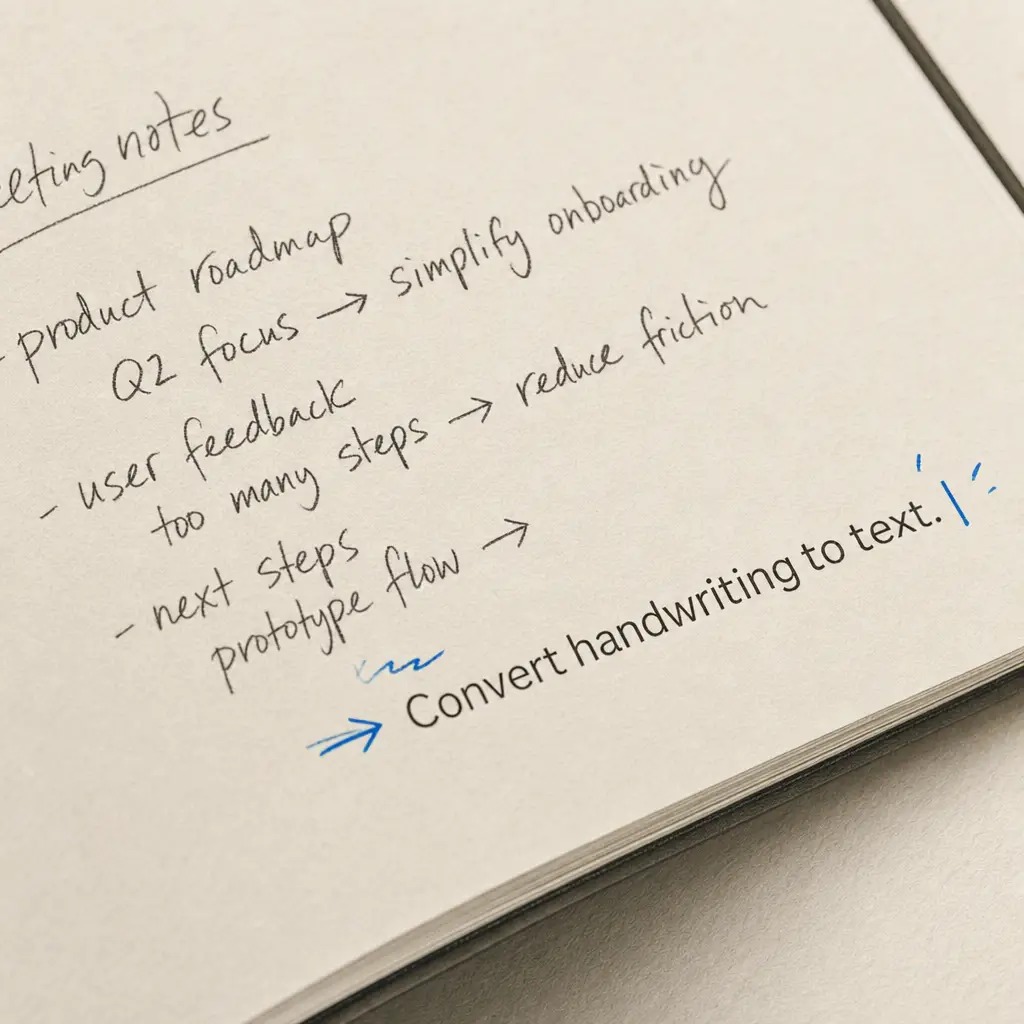
Yes, Notes Plus offers the functionality to convert handwriting to text. This feature can be particularly useful for students, professionals, and anyone who prefers taking handwritten notes but needs them in a digital, editable format later on. Whether you are digitizing meeting notes or lecture materials, understanding how Notes Plus handles handwriting conversion helps you decide if it meets your needs.
Quick Takeaways
- Notes Plus converts handwriting to text through manual selection and conversion
- Accuracy depends heavily on the clarity of your handwriting
- The app supports multiple export formats including PDF and text files
- For images and PDFs containing handwriting, specialized OCR tools offer better accuracy
- HandwritingOCR provides professional-grade conversion with privacy protection
How Does Notes Plus Convert Handwriting to Text?
Notes Plus uses a straightforward process to convert handwriting to text within the app. The conversion is manual rather than automatic, giving you control over which sections to digitize.
Write Naturally: First, you can write your notes naturally with a stylus or your finger in the Notes Plus app. The app captures your handwriting as you write, storing it as vector data that can later be converted.
Select Text: Once you have written your notes, select the handwritten text you want to convert. Usually, you can do this by long-pressing on the written content until selection options appear.
Convert to Text: With the handwritten text selected, choose the option to convert it to text. The app processes your handwriting and presents a digital text version of your notes that you can edit, copy, or export.
The conversion accuracy in Notes Plus improves significantly when you write clearly and avoid rushed or connected letters that the recognition engine might misinterpret.
Additional Features Worth Knowing
Notes Plus includes several features that enhance the note-taking experience beyond basic handwriting conversion.
Customizable Writing Tools: Adjust pen types, colors, and paper styles to suit your note-taking style. This customization helps create a natural writing environment that feels comfortable.
Search Functionality: Once converted to text, your notes can be easily searched, which is particularly helpful for finding specific information quickly across multiple notebooks.
Export Options: You can export your notes in various formats, including PDF and text, for easy sharing and storage. This flexibility makes it simple to integrate Notes Plus into existing workflows.
Understanding the Limitations
Before relying on Notes Plus for important handwriting conversion tasks, you should understand where the app may fall short.
| Limitation | Impact | Recommended Action |
|---|---|---|
| Handwriting clarity dependency | Sloppy writing produces errors | Review and edit converted text carefully |
| Manual selection required | Time-consuming for large documents | Consider batch processing tools for volume work |
| Language support varies | Some languages may not be supported | Verify language support before committing |
| App-only conversion | Can’t process external PDFs or images | Use dedicated OCR for documents outside the app |
Accuracy Considerations: The accuracy of the conversion heavily depends on the clarity of your handwriting. Sloppy or hurried penmanship might result in errors that require manual correction.
Language Support: Ensure that the app supports the language in which you are writing. Most popular languages are supported, but it is good to double-check before using Notes Plus for important documents.
Notes Plus works best for converting handwriting created within the app itself. For existing handwritten documents, PDFs, or images, dedicated OCR solutions provide better accuracy and efficiency.
When to Use Specialized OCR Tools
Notes Plus serves well for converting handwriting you create within the app. However, for documents that already exist as images or PDFs, specialized OCR tools deliver better results.
For even more precise conversion, especially from PDFs or images, you might want to use specialized tools. You can convert handwriting in PDFs or images to text using HandwritingOCR, which offers robust OCR capabilities tailored specifically to handwriting. Unlike app-based converters, HandwritingOCR processes documents of any origin and maintains high accuracy across different handwriting styles.
HandwritingOCR also prioritizes your privacy. Your documents remain private and are processed only to deliver your results. They are not used to train models or shared with anyone else, making it suitable for sensitive documents like medical records, legal notes, or personal journals.
Alternatives for iPad Handwriting Conversion
If for some reason Notes Plus does not meet your needs, there are several other apps available that offer handwriting conversion capabilities on iPad.
GoodNotes: Offers a robust set of features for writing, converting, and organizing your handwritten notes. See our guide on converting handwriting to text in GoodNotes for detailed instructions.
Microsoft OneNote: A versatile app that also includes handwriting conversion capabilities as part of its suite of note-taking tools. Check out how to convert handwriting to text in Microsoft Office for more information.
If you are using an iPad, you may also want to explore how to convert handwriting to text on iPad for a complete overview of all available options.
Making the Right Choice for Your Needs
Notes Plus is a powerful tool for converting your handwritten notes to text, making them easier to edit, search, and share. The app works best when you write clearly within the app itself and need basic conversion capabilities for personal notes or simple documents.
However, effective digital conversion of handwritten notes extends beyond app-based tools. For existing documents, images, or PDFs containing handwriting, professional OCR services deliver superior accuracy and handle challenging handwriting styles more reliably.
Ready to convert your handwritten documents to digital text with professional accuracy? Try HandwritingOCR free and experience the difference that specialized OCR technology makes. Your first credits are complimentary, and your documents remain completely private throughout the process.
For more conversion methods across all platforms and applications, visit our comprehensive guide on converting handwriting to text.
Frequently asked questions
Does Notes Plus convert handwriting to text automatically?
No, Notes Plus requires manual selection of handwritten content before conversion. You select the text you want to convert, then choose the convert option from the menu.
How accurate is Notes Plus handwriting recognition?
Accuracy depends heavily on handwriting clarity. Clear, well-formed writing converts well, while rushed or messy handwriting may produce errors that need correction.
Can I export converted text from Notes Plus?
Yes, Notes Plus allows you to export your notes in various formats including PDF and text files, making it easy to share and store your converted handwriting.
What languages does Notes Plus support for handwriting conversion?
Notes Plus supports most popular languages for handwriting recognition, but it's recommended to check the app documentation for your specific language before relying on it for conversion.