
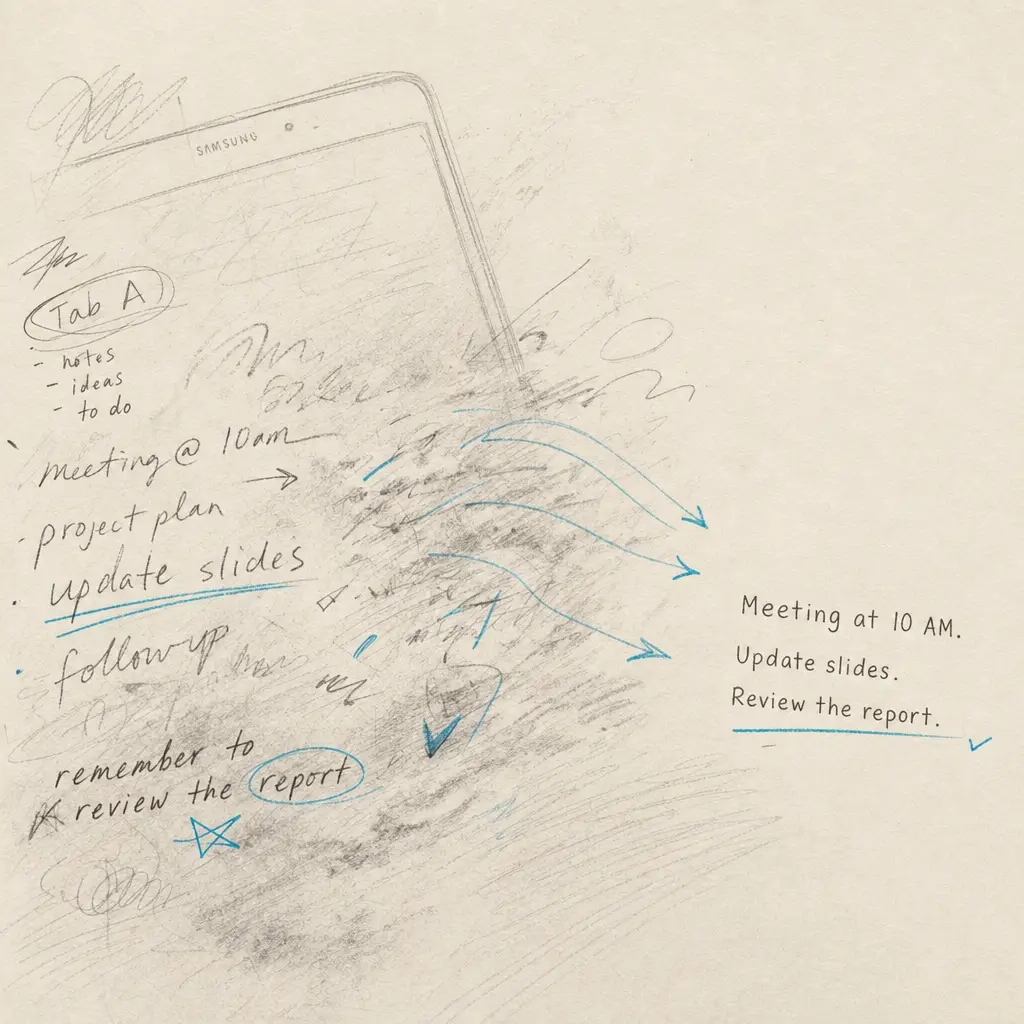
If you own a Samsung Galaxy Tab A or are considering buying one, you might wonder whether it can convert handwriting to text. The answer depends on which specific model you have. Some Galaxy Tab A models include advanced handwriting recognition features, while others do not. This guide explains which models support handwriting conversion, how to use the built-in features, and when you might need a more powerful solution like HandwritingOCR.com.
Quick Takeaways
- Only Samsung Galaxy Tab A models with S Pen support can convert handwriting to text using built-in features
- Samsung Notes provides the native handwriting-to-text conversion functionality
- Models without S Pen require third-party apps or services for handwriting conversion
- HandwritingOCR.com offers superior accuracy for batch processing, difficult handwriting, and existing documents
- The S Pen uses Wacom EMR technology with pressure sensitivity and does not require batteries
Does Samsung Galaxy Tab A Convert Handwriting to Text?
The short answer is yes, but only if your Galaxy Tab A model includes S Pen support. Samsung Galaxy Tab A models with S Pen come equipped with a Wacom EMR digitizer that enables advanced handwriting recognition features. If you purchased a standard Galaxy Tab A without S Pen, your device lacks the hardware required for Samsung’s native handwriting conversion features.
The S Pen is more than just a stylus. It uses Wacom EMR technology, which provides pressure sensitivity, tilt recognition, and precise palm rejection. This technology allows the tablet to distinguish between your pen strokes and your hand resting on the screen. The S Pen itself requires no batteries or charging, making it convenient for extended note-taking sessions.
Only tablets explicitly labeled as having S Pen support include the built-in digitizer needed for advanced handwriting features.
If you bought your Tab A without S Pen, even purchasing an S Pen separately will not enable these features. The digitizer hardware must be built into the tablet itself. However, you can still use capacitive styluses on non-S Pen models, though these lack pressure sensitivity and advanced recognition capabilities.
How to Convert Handwriting to Text on Galaxy Tab A with S Pen
If your Galaxy Tab A includes S Pen support, you have two primary methods for converting handwriting to text.
Using Samsung Notes Built-in Feature
Samsung Notes is the native app for handwriting conversion on Galaxy devices. The process for converting handwriting to text is straightforward:
- Open Samsung Notes and create a new note
- Write your content using the S Pen
- When finished, tap the “Clean up handwriting” icon at the bottom of the screen
- Tap the “Convert to text” icon
- Select the handwriting you want to convert by dragging the arrows
- Tap “Convert” to change your handwriting into editable text
Samsung Notes supports multiple languages in its handwriting recognition system. You can switch language settings within the app to accommodate different writing systems. The converted text can be copied to other apps, exported to Microsoft Word, or saved in various formats.
The accuracy of Samsung Notes depends on your handwriting clarity and the selected language. For best results, write clearly with consistent spacing between words and letters.
Alternative Method: Direct Input
Galaxy Tab A with S Pen also supports direct handwriting input in any text field. Hover your S Pen over a text field and select the handwriting icon that appears. This transforms your keyboard area into a writing surface where you can write with your S Pen, and the tablet converts your handwriting to text in real time as you write.
This method works across most apps and is particularly useful for quick messages, searches, or form filling where opening Samsung Notes would be cumbersome.
What If Your Galaxy Tab A Does Not Have S Pen?
If you own a Galaxy Tab A model without S Pen support, you still have options for converting handwriting to text, though the built-in Samsung features will not be available.
You can use a capacitive stylus on any touchscreen tablet. These styluses simply replace your finger and work on all touch-enabled devices. However, capacitive styluses lack pressure sensitivity, palm rejection, and the advanced features available with S Pen. The handwriting experience will be notably different from S Pen equipped models.
For handwriting conversion without S Pen, consider these alternatives:
Third-party apps like Google Keep and Microsoft OneNote offer basic handwriting input and conversion features. These apps work on tablets without S Pen but provide less sophisticated recognition than Samsung Notes. The accuracy varies depending on your handwriting and the app you choose.
HandwritingOCR.com provides professional-grade handwriting conversion for any device. Upload photos or scans of handwritten documents, and the service processes them using advanced AI models. This approach works regardless of your tablet’s capabilities and offers superior accuracy for challenging handwriting.
When HandwritingOCR.com Provides Better Results
Even if your Galaxy Tab A has S Pen support, Samsung Notes has limitations that might prompt you to use a dedicated OCR service like HandwritingOCR.com.
Batch processing is where Samsung Notes falls short. If you need to convert dozens or hundreds of pages of handwritten notes, repeating the selection and conversion process for each section becomes tedious. HandwritingOCR.com allows you to upload multiple documents at once and processes them simultaneously, saving hours of manual work.
Accuracy for difficult handwriting varies significantly. Samsung Notes performs well with clear, modern handwriting. However, if you are working with old cursive writing, medical notes, historical documents, or simply messy handwriting, HandwritingOCR.com typically delivers better results. The service uses multiple AI providers and can be configured to prioritize accuracy over speed.
Existing documents present another limitation. Samsung Notes is designed for converting handwriting you create on the tablet itself. If you have existing documents, old letters, journal pages, or forms written on paper, you need to photograph or scan them first. HandwritingOCR.com specializes in processing these existing documents and handles various image qualities more effectively than mobile apps.
| Feature | Samsung Notes | HandwritingOCR.com |
|---|---|---|
| Batch processing | Manual, one section at a time | Automatic, multiple documents |
| Accuracy | Good for clear writing | Superior for difficult handwriting |
| Document types | Newly created notes only | Any scanned or photographed document |
| Language support | Multiple, requires app configuration | Supports 50+ handwritten languages |
| Export formats | PDF, Word, text | CSV, JSON, XLSX, text |
| Privacy | Processed on device | Your data remains yours, not used for training |
Your handwritten documents remain private when using HandwritingOCR.com. Files are processed only to deliver your results and are not used to train models or shared with anyone else.
Privacy and control matter when processing sensitive documents. Samsung Notes processes handwriting on your device, which provides good privacy for new notes. However, when you need features like structured data extraction or integration with other systems, HandwritingOCR.com offers more control over your data while maintaining strict privacy standards. Your documents remain yours and are deleted after processing.
Tips for Better Handwriting Recognition
Whether you use Samsung Notes on your Galaxy Tab A or HandwritingOCR.com, these tips will improve recognition accuracy:
Write clearly and deliberately. Rushed handwriting creates recognition challenges for any system. Take your time, especially with similar-looking letters like “a” and “o” or “i” and “l”.
Maintain consistent spacing. Leave clear gaps between words and avoid letting letters run together. This helps the recognition engine identify word boundaries correctly.
Use proper lighting when photographing documents. If you are capturing handwritten pages with your tablet’s camera for processing with HandwritingOCR.com, ensure even lighting without shadows or glare. This significantly impacts recognition quality.
Check language settings. Both Samsung Notes and HandwritingOCR.com need to know which language you are writing in. English cursive differs from French cursive, and recognition algorithms are trained differently for each.
For more comprehensive guidance, explore these tips for better OCR results which apply to both mobile apps and professional OCR services.
Conclusion
Your Samsung Galaxy Tab A can convert handwriting to text if it includes S Pen support and the necessary digitizer hardware. Samsung Notes provides capable built-in conversion for handwriting you create on the tablet, supporting multiple languages and offering a smooth user experience.
However, for batch processing multiple documents, working with difficult handwriting, or converting existing handwritten materials, HandwritingOCR.com delivers superior results. The service works with any device, processes documents faster, and handles challenging handwriting more accurately than mobile apps.
Whether you are digitizing personal notes, processing business forms, or preserving historical documents, having the right tool makes the difference. Ready to convert your handwriting to text with professional accuracy? Try HandwritingOCR.com free with complimentary credits and experience the power of advanced handwriting recognition that works regardless of your tablet’s capabilities.
Frequently asked questions
Can all Samsung Galaxy Tab A models convert handwriting to text?
No, only Galaxy Tab A models that come with S Pen support can use the built-in handwriting-to-text conversion feature in Samsung Notes. Models without S Pen support require third-party apps or services like HandwritingOCR.com.
How accurate is Samsung Galaxy Tab A handwriting recognition?
Samsung Notes offers good accuracy for clear handwriting in supported languages. However, for messy handwriting, batch processing, or documents with poor quality, HandwritingOCR.com typically provides better results through its advanced AI models.
Can I convert handwritten PDFs on my Galaxy Tab A?
Samsung Notes is designed for converting handwriting you create on the tablet, not existing scanned documents or PDFs. For converting handwritten PDFs and images, use HandwritingOCR.com which specializes in processing existing documents.
Does Samsung Galaxy Tab A handwriting conversion work offline?
Yes, Samsung Notes handwriting-to-text conversion works offline on Galaxy Tab A models with S Pen. The feature is built into the app and does not require an internet connection.
What should I do if my Galaxy Tab A does not have S Pen support?
If your Galaxy Tab A lacks S Pen support, you can use third-party apps like Google Keep or OneNote for basic handwriting input, or use HandwritingOCR.com to upload photos of handwritten documents for accurate conversion.