
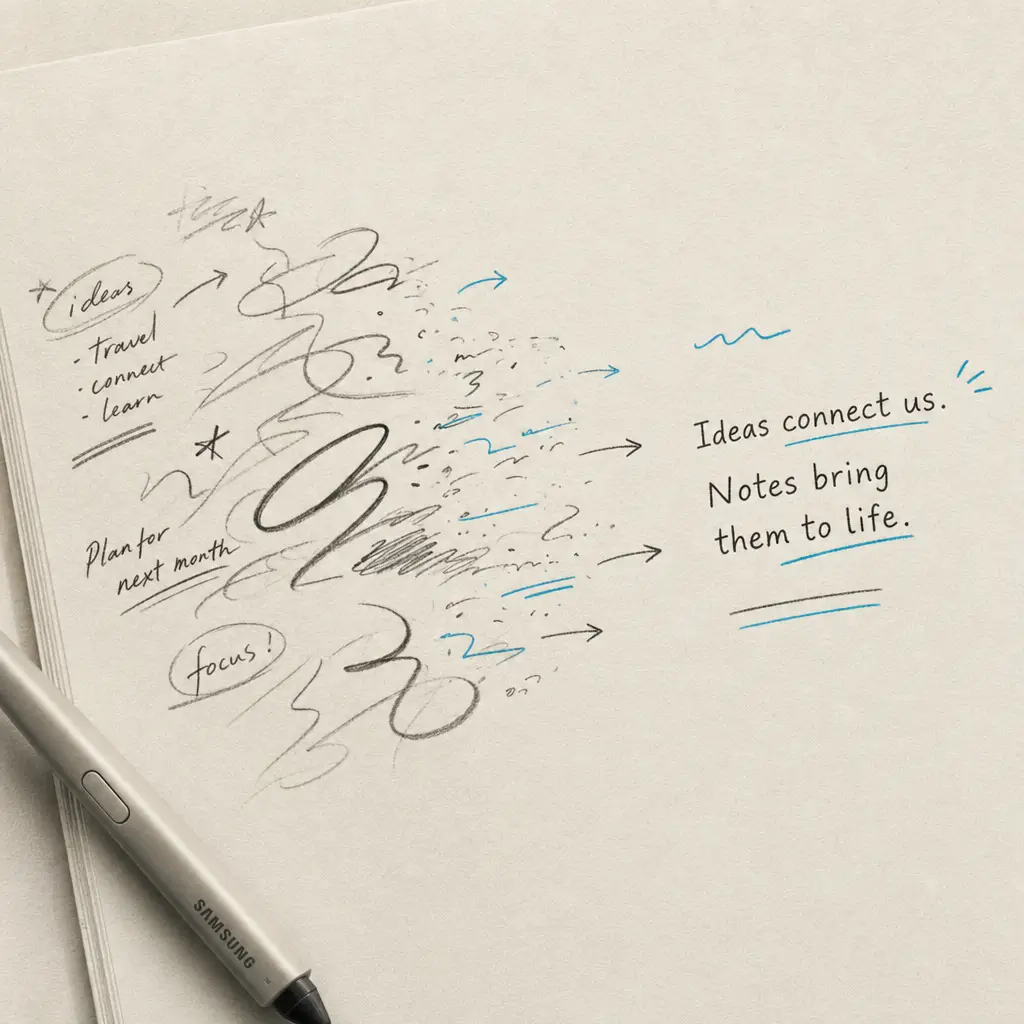
If you own a Samsung Galaxy Note or Tab device, the S Pen gives you one of the most natural ways to take handwritten notes digitally. But handwriting alone does not make your notes searchable, editable, or easy to share. That’s where converting handwriting to text becomes essential for S Pen users. Samsung Notes includes built-in handwriting recognition that works well for everyday use, but understanding when to use native features and when to reach for professional tools can save you hours of retyping.
This guide walks through how to convert S Pen handwriting to text using Samsung’s native features, explains the limitations you might encounter, and shows when a dedicated service like HandwritingOCR provides better results.
Quick Takeaways
- Samsung Notes includes free handwriting to text conversion for S Pen users
- Conversion works best with clear handwriting and correct language settings
- Native features convert one note at a time, not entire notebooks in batch
- Professional OCR handles challenging handwriting, batch processing, and multiple languages better
- Your data stays private when using HandwritingOCR, it is never used for training
Using Samsung Notes to Convert S Pen Handwriting
Samsung Notes integrates optical character recognition technology directly into the app, making basic handwriting conversion accessible to anyone with an S Pen compatible device.
Basic Conversion Method
The simplest way to convert S Pen handwriting to text involves just a few taps. Open Samsung Notes and write your content using the S Pen in handwriting mode. Once you have written what you need, press and hold on the handwritten text until a selection menu appears. Tap “Convert to text” from the options, and your handwriting converts instantly to digital text in a pop-up box.
You can copy this converted text and paste it into emails, documents, or any other application. The conversion happens on your device without sending data to external servers.
Advanced Conversion with Clean Up Feature
Newer Samsung devices running One UI 6.1 or higher offer an enhanced “Clean up or convert to text” feature. This appears as a pencil icon with a wand at the bottom of Samsung Notes when you are writing. Tap this icon, then select “Convert to text” to see your handwriting transformed. This method includes automatic formatting, spell checking, and better alignment of the converted text.
Samsung Notes can straighten handwriting, align letters, space words evenly, and fix letter shapes automatically before conversion.
Setting Up Language Support
Handwriting recognition accuracy improves dramatically when you select the correct language. Navigate to Samsung Notes settings by tapping the menu icon, then tap the Settings icon. Swipe to “Handwriting language” and select your language from the list. The app supports multiple languages including English, Spanish, French, German, Chinese, Japanese, and Korean, though availability varies by device and region.
Understanding S Pen Conversion Limitations
While Samsung Notes provides convenient handwriting conversion, it has practical limitations that become apparent when your needs grow beyond simple note-taking.
App Compatibility Constraints
S Pen handwriting to text conversion works primarily within Samsung Notes. When you try to use the S Pen in other applications like Microsoft OneNote, Teams, or third-party note apps, native handwriting conversion often is not available. Each app must integrate Samsung’s handwriting recognition system separately, and many choose not to.
Additionally, some Android system settings interfere with handwriting features. If you disable predictive text for a keyboard, Android also removes handwriting conversion capabilities in certain contexts.
Physical Accuracy Challenges
S Pen accuracy depends on proper technique and environmental factors. Users report that touching the screen too quickly without hovering properly can cause recognition failures. Some notice their S Pen writes text in the wrong location on screen when taking notes rapidly.
Strong magnetic forces from certain tablet cases or accessories can reduce the S Pen’s pressure sensitivity, leading to incomplete strokes that the conversion engine cannot interpret correctly.
Single-Note Conversion Only
Samsung Notes converts handwriting one note or selection at a time. If you have an entire notebook filled with handwritten pages from a semester of classes or months of meeting notes, you must convert each note individually. There is no batch processing feature that lets you select ten notes and convert them all simultaneously.
This limitation becomes especially frustrating when digitizing historical notes or preparing handwritten content for projects that need searchable text across many documents.
When Professional OCR Delivers Better Results
Built-in S Pen conversion handles everyday note-taking well, but certain scenarios require more robust solutions.
Complex Handwriting Styles
Professional handwriting OCR services achieve significantly higher accuracy on challenging handwriting, with specialized tools reaching high accuracy rates even on cursive text. These dedicated OCR engines are trained on diverse handwriting datasets and can handle messy handwriting, heavy cursive, unusual letter formations, and mixed languages far better than native device features.
Samsung Notes works best with clear, uniform handwriting that resembles standardized characters. When your handwriting is messy, uses heavy cursive, includes unusual letter formations, or mixes languages, professional OCR tools produce more reliable results.
Batch Processing Requirements
When you need to digitize dozens or hundreds of handwritten pages, processing them one at a time through Samsung Notes becomes impractical. Professional OCR services let you upload multiple documents together and receive all converted text in organized formats.
This matters for students digitizing an entire semester of notes, professionals archiving years of handwritten records, or researchers converting historical document collections.
Structured Data Extraction
Samsung Notes converts handwriting to plain text. It does not understand document structure, extract specific fields, or organize information into tables or spreadsheets. If your handwritten content includes forms, surveys, invoices, or any structured data, you need tools that can identify fields and export organized results.
HandwritingOCR for Advanced Conversion Needs
HandwritingOCR provides features that extend beyond what S Pen native conversion offers, particularly for users dealing with large volumes or challenging handwriting.
Multiple AI Models for Higher Accuracy
HandwritingOCR uses multiple AI providers including GPT-4o and specialized OCR engines, allowing you to choose the model that works best for your specific handwriting style. This flexibility means you can test different engines on difficult pages and select whichever produces the cleanest results.
Your documents remain private and are processed only to deliver your results. They are not used to train models or shared with anyone else.
Batch Document Processing
Upload multiple handwritten pages at once and process them together. HandwritingOCR handles the conversion across all pages and provides downloadable results in CSV, JSON, or XLSX formats. This saves hours compared to converting individual notes one by one.
For example, if you photographed 50 pages of handwritten meeting notes with your Samsung device, you can upload all 50 images together and receive organized text output in minutes instead of spending an afternoon manually converting each page in Samsung Notes.
Custom Data Extraction
When your handwritten documents contain structured information like names, dates, addresses, or financial figures, HandwritingOCR’s custom extractors can identify and organize these fields automatically. This turns handwritten forms, surveys, or records into spreadsheet-ready data without manual data entry.
| Feature | Samsung Notes | HandwritingOCR |
|---|---|---|
| Basic conversion | Yes | Yes |
| Batch processing | No | Yes |
| Multiple AI models | No | Yes |
| Structured data extraction | No | Yes |
| Works with S Pen notes | Via export | Yes |
| Privacy guarantee | Local device | Not used for training |
Using HandwritingOCR with S Pen Notes
To convert S Pen notes using HandwritingOCR, export your notes from Samsung Notes as images or PDFs. Samsung Notes lets you share notes in various formats. Once exported, upload them to HandwritingOCR, select your preferred AI model, and process the batch. You can also add custom prompts to guide the extraction of specific information from your handwritten content.
Professional OCR services like HandwritingOCR process handwritten documents while keeping your data private and never using it for model training.
This workflow combines the convenience of S Pen note-taking with the power of professional OCR when you need higher accuracy or batch capabilities.
Conclusion
Converting S Pen handwriting to text starts with Samsung Notes’ built-in features for everyday note conversion. These native tools work well for converting individual notes with clear handwriting in supported languages. When you face challenging handwriting, need to process many pages together, or want to extract structured data from handwritten forms, HandwritingOCR provides the advanced capabilities that native device features cannot match.
Your handwriting deserves accurate conversion that respects your privacy. Try HandwritingOCR free to see how professional OCR handles your S Pen notes.
Frequently asked questions
Does S Pen handwriting conversion work in all apps?
No, S Pen handwriting to text conversion primarily works within Samsung Notes. Some apps like Microsoft Teams or OneNote on Samsung tablets do not support native handwriting conversion. The feature availability depends on the specific app and whether it integrates with Samsung's handwriting recognition system.
Can I convert multiple pages of S Pen notes at once?
Samsung Notes converts handwriting one note or selection at a time. For batch processing multiple documents or pages simultaneously, you need a dedicated handwriting OCR service like HandwritingOCR that can process dozens of pages together and export results in organized formats.
What languages does S Pen handwriting recognition support?
S Pen handwriting recognition supports major languages including English, Spanish, French, German, Italian, Chinese, Japanese, and Korean. The exact language list varies by device model and software version. You can check supported languages in Samsung Notes under Settings > Handwriting language.
Why does my S Pen conversion have low accuracy?
S Pen conversion accuracy depends on handwriting clarity, proper language settings, hovering technique, and avoiding magnetic interference. If you consistently get poor results with clear handwriting, consider using professional OCR like HandwritingOCR which uses multiple AI models optimized specifically for challenging handwriting styles.