
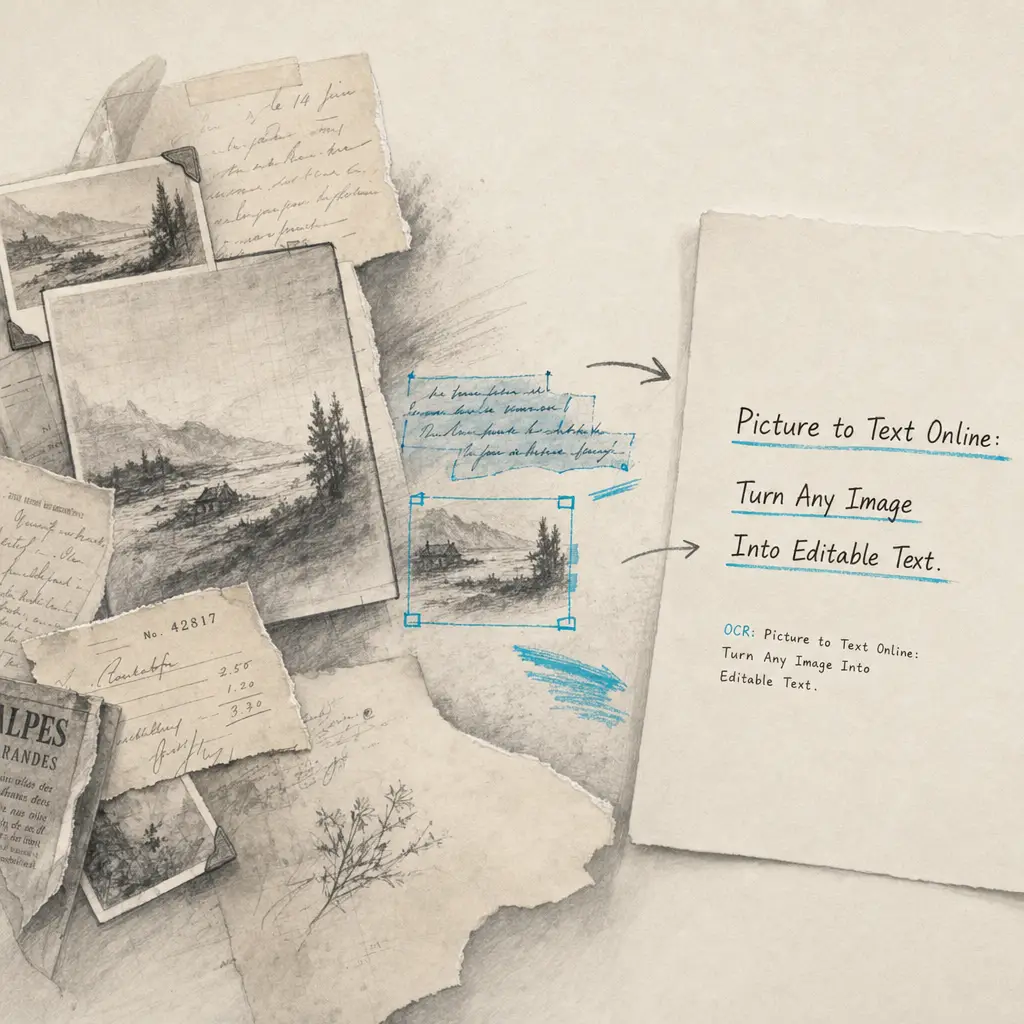
You have a photo with text in it. Maybe it’s a screenshot from a work presentation, a picture of handwritten notes, or a scanned receipt you need to expense. The text is trapped in that image, and retyping it manually feels like a waste of time.
There’s a better way. Picture to text conversion using OCR (optical character recognition) technology can extract that text in seconds, turning any image into editable, searchable digital text. Whether you are working with printed documents, handwritten notes, or smartphone photos, modern tools make the process simple and fast.
This guide shows you exactly how to turn pictures into text online, what to expect from accuracy, and how to choose tools that keep your data private.
Quick Takeaways
- OCR technology extracts text from pictures in seconds, saving hours of manual retyping
- Printed text converts with high accuracy, while handwritten text results depend on writing clarity and quality
- Image quality matters more than file format (clear, high-contrast photos work best)
- Privacy-conscious tools process your images without storing or reusing your data
- Online tools require no downloads or installations and work on any device
What Does “Picture to Text” Mean?
Picture to text conversion is the process of extracting written text from images and turning it into editable digital format. The technology behind this is called OCR, which analyzes the shapes and patterns in an image to recognize letters, numbers, and symbols.
When you upload a picture containing text, the OCR software identifies text regions, recognizes individual characters, and converts them into a format you can edit, search, and copy. This works on photographs taken with your phone, scanned documents, screenshots, and even images pulled from websites or social media.
The difference between printed and handwritten text matters. Printed text follows consistent, standardized letter shapes, making it easier for OCR to recognize with near-perfect accuracy. Handwritten text varies by individual writing style, requiring more advanced AI models to interpret cursive letters, varied spacing, and unique character formations. For detailed guidance on handwritten content specifically, see our comprehensive guide to image to text conversion.
Modern OCR can process a full page of text in under 10 seconds, compared to 15-20 minutes of manual transcription.
Common Uses for Turning Pictures Into Text
Students and Note-Taking
Students capture lecture slides, whiteboard notes, and textbook pages with their phones during class. Converting these pictures to text makes the content searchable, easier to review, and simple to organize in note-taking apps. Nursing students, law students, and graduate researchers particularly benefit from digitizing handwritten study materials and reference notes.
Business and Document Processing
Businesses convert invoices, receipts, handwritten forms, and contracts from pictures to text daily. This streamlines data entry, reduces manual typing errors, and makes document archives searchable. Legal teams digitize case files and contracts. Healthcare providers extract text from prescriptions and medical forms. Financial professionals process receipts and bank documents at scale.
Screenshots and Social Media
People screenshot text from social media posts, articles behind paywalls, error messages, or chat conversations they need to reference later. Converting these screenshots to text makes the content easier to quote, share, or archive. This is particularly useful when you see contact details, quotes, or important information you need to capture quickly. Learn more about screenshot to text conversion for specific platform guidance.
Historical and Personal Records
Family historians and genealogists turn pictures of old letters, diaries, journals, and church records into searchable text. This preserves family history and makes decades-old handwritten documents accessible to future generations. Archives and libraries digitize historical manuscripts to make them available to researchers worldwide. If you are working with historical records and family documents, specialized handwriting OCR provides better accuracy on cursive and aged documents.
How to Turn a Picture Into Text Online
Step 1: Upload Your Image
Choose a picture to text converter and upload your image. Most tools accept common formats like JPG, PNG, and PDF. You can upload from your computer, phone, or cloud storage. Some tools also let you paste images directly from your clipboard or take a photo using your device camera.
For best results, use clear, well-lit photos. If you are scanning documents, use at least 300 DPI resolution. Higher quality images produce more accurate text extraction.
Step 2: Processing and OCR
Once uploaded, the OCR engine analyzes your image. It identifies text regions, separates text from backgrounds, recognizes individual characters, and converts them into digital text. Modern tools use AI models trained on millions of documents to handle various fonts, handwriting styles, and image quality issues.
Processing typically takes 5-30 seconds per page, depending on image complexity and document length. The tool may offer options to select specific regions, choose languages, or adjust settings for handwritten vs printed text.
Your documents remain private during this process. Tools that respect your privacy process images only to deliver results and do not use your data for AI training or share it with third parties.
Step 3: Download or Copy Results
After processing, you receive editable text you can download or copy. Most tools offer multiple export formats including plain text, Word documents, PDFs, or structured data formats like CSV and Excel for tables and forms.
Review the extracted text for accuracy, particularly if the original image had quality issues. You can edit any errors directly in the output or reprocess with adjusted settings if needed.
Picture to Text Accuracy: What to Expect
OCR accuracy depends on several factors related to your image quality and text characteristics:
| Factor | Impact on Accuracy | Recommendation |
|---|---|---|
| Image resolution | Low resolution significantly reduces accuracy | Use at least 300 DPI for scans, avoid zoomed or pixelated photos |
| Text type | Printed text achieves higher accuracy than handwritten | Choose tools optimized for your text type |
| Image clarity | Blur and poor focus significantly reduce results | Use good lighting, steady camera, clear focus |
| Background noise | Busy backgrounds interfere with character recognition | Plain, high-contrast backgrounds work best |
| Text size | Small text (under 10pt) is harder to recognize | Ensure text is readable in the original image |
| Stains or damage | Physical marks obscure characters | Clean scans work better than damaged originals |
Research shows that leading AI-based OCR tools achieve high accuracy for clean, high-resolution documents. Modern OCR tools perform exceptionally well on typed texts. Handwritten text presents more challenges, with accuracy depending on writing clarity and the sophistication of the AI model used.
Clear, high-contrast images with readable text produce the most accurate results, regardless of whether the text is printed or handwritten.
For printed documents with standard fonts, expect near-perfect accuracy. For handwritten notes, accuracy improves when the writing is clear, letters are well-formed, and spacing is consistent. Cursive handwriting requires specialized OCR models, which is exactly what our handwriting to text converter is built for.
Common challenges affecting picture to text conversion include poor lighting, low image resolution, colored backgrounds, stains or physical damage, and documents with multiple languages. Modern tools handle these challenges better than older OCR systems, but image quality remains the most important factor you control.
Privacy Matters When Converting Pictures to Text
When you upload pictures to an online converter, those images often contain sensitive information. Receipts have financial details. Business documents contain confidential data. Personal letters and family records are deeply private.
Not all picture to text tools handle your data the same way. Some store your images indefinitely. Others use your uploaded documents to train their AI models, meaning your private information becomes part of their system. Many services share data with third parties or keep files longer than necessary.
You should know what happens to your pictures after you upload them. Look for tools that clearly state your data remains yours, is processed only to deliver your results, and is deleted promptly after processing.
HandwritingOCR processes your documents with privacy built in. Your files remain private and are not used for training AI models. They are processed only to extract text and deliver results to you. This matters when you are working with medical records, legal documents, financial information, or irreplaceable family history.
Your documents are processed only to deliver your results. They remain yours and are not reused or shared.
Picture to Text vs Other Conversion Methods
Converting pictures to text online offers several advantages over other methods. Mobile apps require downloads and often have usage limits or subscription fees. Desktop software needs installation and maintenance. Manual transcription is accurate but takes 15-20 minutes per page compared to seconds with OCR.
Online tools work immediately on any device without downloads. You upload, process, and download results without installing software or creating complex workflows. This makes them ideal for occasional use or when you need fast results.
For regular high-volume processing, dedicated software or API integration may offer better value. For one-time conversions or exploring whether OCR fits your needs, online tools provide the fastest path to results.
Frequently Asked Questions
Can I turn a picture into text for free?
Yes, many online OCR tools offer free options for converting pictures to text. HandwritingOCR provides free credits when you sign up, allowing you to process images without upfront payment. The quality and privacy protections vary between tools, so choose one that keeps your data secure.
Does picture to text work on handwritten notes?
Picture to text tools work on both printed and handwritten text, but accuracy varies. Modern OCR achieves high accuracy on clear printed text and strong results on handwritten documents. Handwritten text requires more advanced AI models to interpret individual writing styles and cursive letters accurately.
What image formats work for picture to text conversion?
Most picture to text converters accept common image formats including JPG, JPEG, PNG, PDF, TIFF, and BMP. PNG typically provides the best results because it preserves image quality without compression artifacts. For scanned documents, TIFF is also excellent.
How long does it take to turn a picture into text?
Converting a single picture to text typically takes 5-30 seconds with modern online tools. Processing time depends on image size, resolution, document complexity, and how many pages you are processing. Batch processing of multiple images takes longer but is still faster than manual transcription.
Is it safe to upload my pictures to an online text converter?
Safety depends on the tool you choose. Look for services that clearly state your data remains private, is not used for AI training, and is deleted after processing. HandwritingOCR processes your documents only to deliver results and does not share or reuse your data.
Turn Your Pictures Into Text Today
Picture to text conversion saves time, preserves information, and makes content trapped in images accessible and editable. Whether you are digitizing business documents, preserving family history, or simply avoiding the tedious work of retyping, OCR technology makes the process simple and fast.
The key is choosing a tool that delivers accurate results while keeping your data private. Your pictures should remain yours throughout the entire process.
HandwritingOCR converts pictures to text with accuracy and privacy built in. Your documents are processed only to deliver results, never used for training, and never shared. Get started with free credits and see how quickly you can turn images into editable text at Try HandwritingOCR with free credits.
Frequently asked questions
Can I turn a picture into text for free?
Yes, many online OCR tools offer free options for converting pictures to text. HandwritingOCR provides free credits when you sign up, allowing you to process images without upfront payment. The quality and privacy protections vary between tools, so choose one that keeps your data secure.
Does picture to text work on handwritten notes?
Picture to text tools work on both printed and handwritten text, but accuracy varies. Modern OCR achieves high accuracy on clear printed text and strong results on handwritten documents. Handwritten text requires more advanced AI models to interpret individual writing styles and cursive letters accurately.
What image formats work for picture to text conversion?
Most picture to text converters accept common image formats including JPG, JPEG, PNG, PDF, TIFF, and BMP. PNG typically provides the best results because it preserves image quality without compression artifacts. For scanned documents, TIFF is also excellent.
How long does it take to turn a picture into text?
Converting a single picture to text typically takes 5-30 seconds with modern online tools. Processing time depends on image size, resolution, document complexity, and how many pages you are processing. Batch processing of multiple images takes longer but is still faster than manual transcription.
Is it safe to upload my pictures to an online text converter?
Safety depends on the tool you choose. Look for services that clearly state your data remains private, is not used for AI training, and is deleted after processing. HandwritingOCR processes your documents only to deliver results and does not share or reuse your data.