
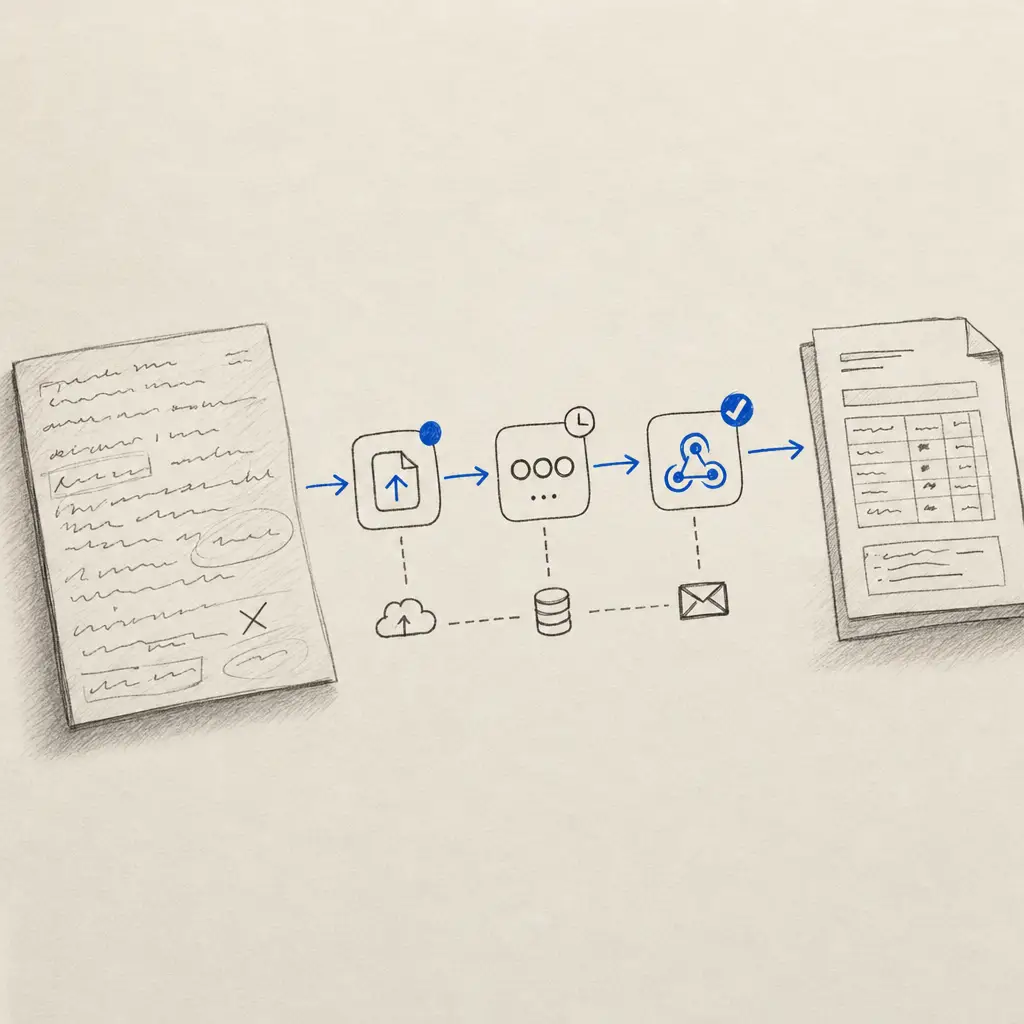
An OCR API workflow is asynchronous. Your application submits a document, stores the returned document ID, waits for processing to finish, and then saves or exports the result. A webhook is the cleanest way to receive that completion event without repeatedly polling the API.
This guide covers the complete path:
PDF or image -> upload -> document ID -> signed webhook -> result -> your systemAPI access is available on every Handwriting OCR plan, including the five-page free trial. Start with the API reference when you need the complete endpoint and response schema.
1. Create an API token
Create a token in Settings, API and keep it in a secret manager or environment variable. Do not put it in browser-side JavaScript, source control or a public automation template.
The examples below read the token from HANDWRITING_OCR_TOKEN.
2. Upload the document and request a webhook
Send the document as multipart form data to the v3 documents endpoint. The action controls the workflow:
transcribefor complete texttablesfor tabular dataextractorwith anextractor_idfor selected fields
Pass webhook_url on the request when this job needs a specific callback. You can instead configure one global URL in Document settings.
curl --request POST 'https://api.handwritingocr.com/v3/documents' \
  --header "Authorization: Bearer $HANDWRITING_OCR_TOKEN" \
  --form 'action=transcribe' \
  --form 'file=@./scanned-notes.pdf' \
  --form 'webhook_url=https://example.com/webhooks/handwriting-ocr'
The accepted response includes a document ID and a queued status. Store that ID beside your own job or customer reference. It is the key used to correlate the completion event with the upload that started it.
3. Verify the webhook before trusting it
Webhook requests include an X-Signature header generated with HMAC-SHA256. Verify the signature against the raw request body using the secret from Document settings before parsing or acting on the payload.
In Node.js with Express:
import crypto from 'node:crypto';
import express from 'express';

const app = express();

app.post(
  '/webhooks/handwriting-ocr',
  express.raw({ type: 'application/json' }),
  (request, response) => {
    const received = request.get('X-Signature') ?? '';
    const expected = `sha256=${crypto
      .createHmac('sha256', process.env.HANDWRITING_OCR_WEBHOOK_SECRET)
      .update(request.body)
      .digest('hex')}`;

    const receivedBytes = Buffer.from(received, 'utf8');
    const expectedBytes = Buffer.from(expected, 'utf8');
    const valid =
      receivedBytes.length === expectedBytes.length &&
      crypto.timingSafeEqual(receivedBytes, expectedBytes);

    if (!valid) return response.sendStatus(401);

    const event = JSON.parse(request.body.toString('utf8'));
    // Queue internal work using the document ID. Respond promptly.
    response.sendStatus(204);
  },
);
Keep the raw request body available until verification is complete. Parsing and serialising the JSON first can change whitespace or key ordering and produce a different signature.
4. Make completion handling idempotent
Production webhook handlers should expect retries and duplicate delivery. Treat the document ID as an idempotency key:
- Look up the document ID in your jobs table.
- Ignore a completion that has already been handled successfully.
- Record the event before starting a long download or import.
- Return a fast success response, then continue the expensive work in a queue.
Do not use “the latest processed document” to decide which result belongs to which upload. Explicit document-ID correlation prevents one customer’s result or one concurrent batch item from being attached to the wrong workflow.
5. Download or store the result
Once the job is processed, request the document in the format required by the workflow. Transcription can return TXT, DOCX, PDF or JSON. Tables can return XLSX or JSON. Custom Extractors can return XLSX, CSV or JSON.
Use the download-result endpoint for the exact path and response options. Store the export in your own application, object store, CRM or document-management system before the account’s retention window expires.
The default automatic deletion period is seven days and can be configured from 15 minutes to 14 days. The upload request also supports delete_after when a job needs a specific shorter window.
Polling as a recovery path
For a first test, you can request the document status by ID until it reaches processed. In production, avoid a tight loop:
- use the webhook as the normal completion path
- add exponential backoff when polling
- respect
Retry-Afterafter a429response - stop retrying on a terminal failure
- reconcile delayed jobs with the document-list endpoint
Starter and Pro accounts allow two requests per second. Business allows five requests per second, with higher limits available by agreement. Webhooks keep status checks from consuming most of that allowance.
Failure and review boundaries
A reliable OCR integration also defines what happens after recognition:
- refund and retry logic for failed pages
- review rules for names, identifiers, totals and other critical values
- supported file and size checks before upload
- an audit record connecting the source, document ID and stored result
- deletion only after the export has been saved successfully
The API accepts PDF, JPG, PNG, GIF, HEIC and TIFF files up to 20 MB. For large collections, split source material into manageable PDFs of roughly 100 pages and test representative documents before starting the full run.
Start with one end-to-end document
The first useful API test is not merely a successful upload. Confirm that one real document reaches the webhook, passes signature verification, correlates to the correct internal job, produces the required export and is stored before deletion.
Create a free account and use the included five pages for that end-to-end test, then move to the complete API documentation.
Frequently asked questions
Does the Handwriting OCR API support webhooks?
Yes. Set a global webhook URL in Document settings or pass webhook_url with an individual upload. Completion requests include an HMAC-SHA256 signature in the X-Signature header.
Is the handwriting OCR API available on the free trial?
Yes. API access is available on every plan, including the five-page free trial. Each processed page uses one credit.
What files can the API accept?
The API accepts PDFs and common image formats including JPG, PNG, GIF, HEIC and TIFF, with a 20 MB limit per upload.
Should I poll the API or use a webhook?
Use a webhook for production workflows because it avoids repeated status requests. Polling is useful for a first test or as a recovery path, and should use backoff rather than a tight loop.