
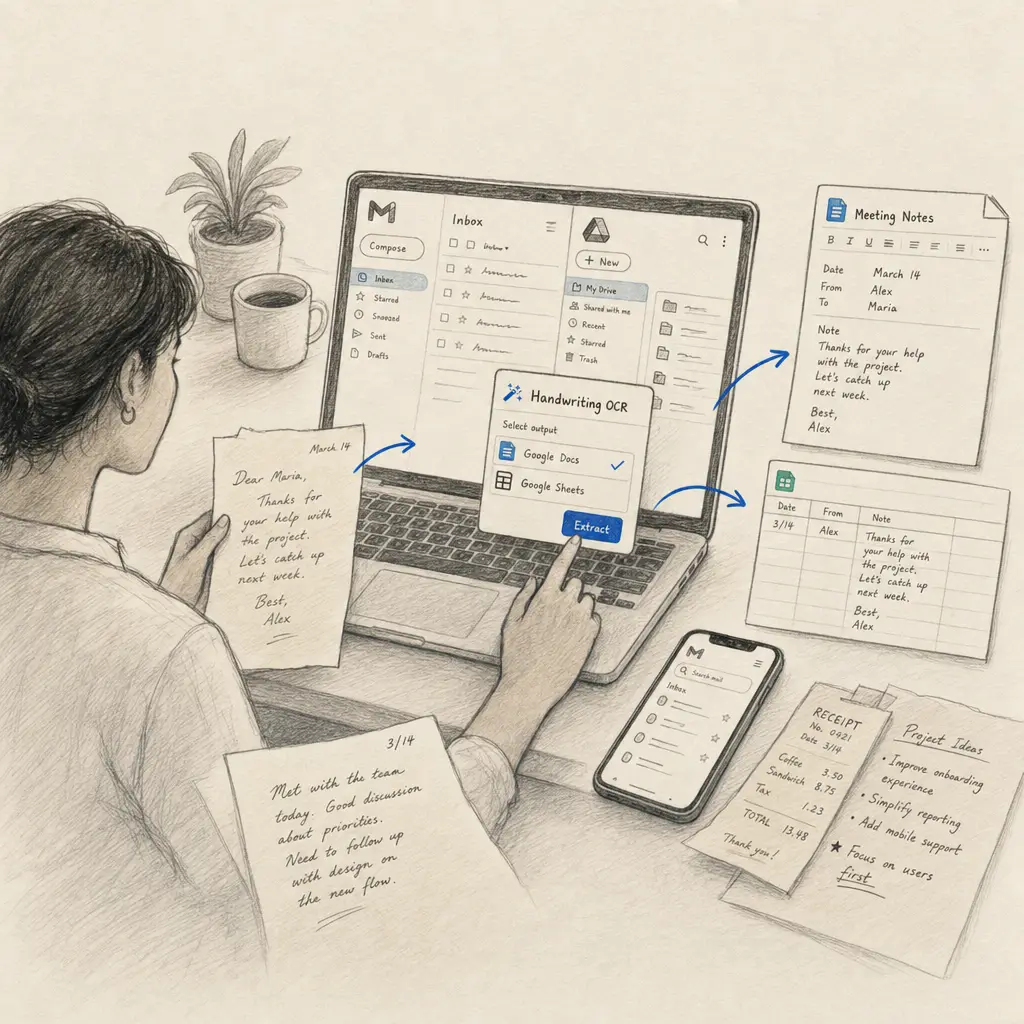
TL;DR: Handwriting OCR is now a Google Workspace add-on. Select a scanned PDF or image in Google Drive, or an attachment in Gmail, choose transcribe, translate, tables or a custom extractor, and the result lands in your Drive as a Google Doc or Google Sheet. It reads the cursive and messy handwriting that Google’s own OCR misses, it uses your existing credits, and it never gets access to the rest of your Drive. Install it from the Marketplace.
Most scanned documents already live in Google Drive, or arrive as an email attachment. Until now, getting the handwriting out of them meant downloading the file, uploading it somewhere else, and pasting the text back. That round trip is gone.
Our Workspace add-on is live on the Google Workspace Marketplace. It runs in the Drive sidebar and in Gmail, and it writes the finished transcription straight back to your Drive.
Why an add-on, when Drive already has OCR
Google Drive can already turn an image or PDF into a Google Doc with “Open with Google Docs”. On printed text it does a good job. On handwriting it does not: word accuracy on everyday cursive typically lands between 40% and 60%, and below 30% on faded or historical scripts. We have a full breakdown of what Google’s OCR returns on a real handwritten letter, broken proper nouns and all.
Search the Marketplace for “OCR” and you will find plenty of add-ons. The useful question is not whether one runs inside Google, it is whose engine it calls when it does. Most of them wrap Google’s own OCR, so they change the number of clicks and nothing else. Ours brings a different engine, trained on handwriting, which is why the output changes rather than the workflow.
What you can ask it for
| Action | What it does | Saved to Drive as |
|---|---|---|
| Transcribe | Handwritten and printed text extracted in full | Google Doc, Word (.docx) or plain text |
| Translate | Transcribes and translates in the same pass, 25 languages | Google Doc, Word (.docx) or plain text |
| Tables | Handwritten tables and forms turned into structured rows | Google Sheet or Excel (.xlsx) |
| Extractors | Named fields pulled out with your own template | Google Sheet, Excel, CSV or JSON |
Transcription and translation are available on every plan. Tables and custom extractors need a Pro or Business plan, the same as everywhere else in the product.
Using it in Google Drive
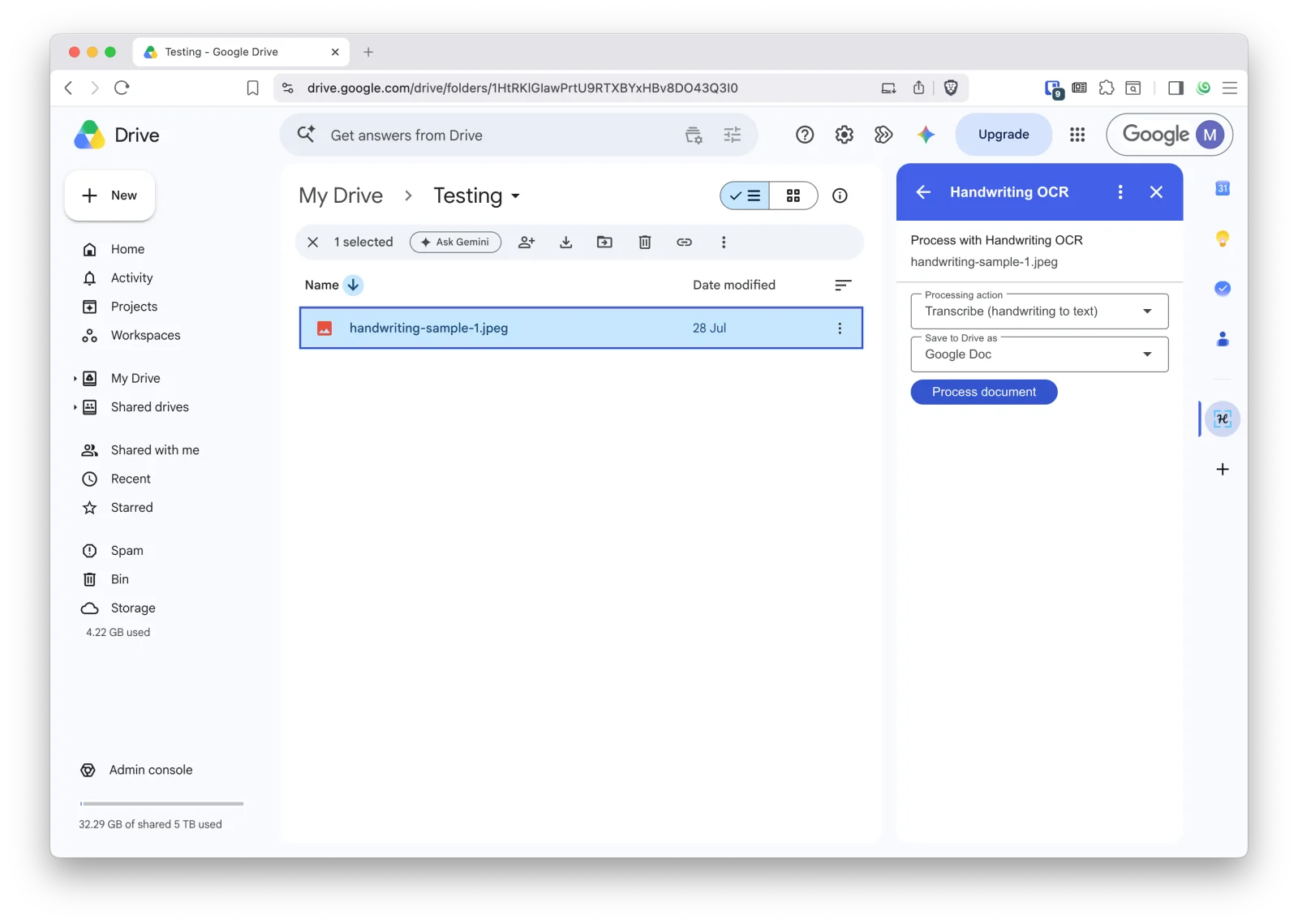
- Select a scanned PDF or image in Drive and open Handwriting OCR from the side panel. Drive asks you to grant access to that one file.
- Connect your account the first time you use it. That is a browser sign-in with your existing Handwriting OCR account, no API keys to copy.
- Choose a processing action and an output format, then press Process document.
- Wait a few seconds. Most single pages finish while the card is still open. Longer documents show a “Processing” card with a Check again button, so you can carry on and come back to it.
- Done. The finished file is saved to your Drive alongside the original, and the card offers a button to open it.
Because the saved file comes from the same export endpoint the web app uses, it carries your own export settings, and it opens as a native, editable Google Doc or Google Sheet rather than an attachment you have to convert.
Using it in Gmail
Open a message with a scanned attachment and the add-on lists the attachments on that message. Pick one, choose an action, and the transcription is saved to your Google Drive. There is no download-then-reupload step, and the original message is left alone.
This pairs well with the scan-to-email workflows a lot of people already have. If your scanner or note-taking tablet emails documents to you, you can process them from the message itself. If you would rather skip the inbox entirely, emailing documents straight to your account also works.
What it can see, and what it cannot
The add-on asks for very little, on purpose:
- In Drive, it sees the name and type of the item you have selected, plus the contents of files you explicitly grant access to with the “Allow access to this file” prompt. It cannot browse, search or list your Drive.
- In Gmail, it sees the attachments on the single message you have open, and only while you have it open. It has no access to the rest of your mailbox.
- It requests no restricted Google scopes. Any add-on asking for blanket Drive or mailbox access is asking for more than this job needs.
Documents are processed on our servers and follow your account’s auto-deletion setting, which is 7 days by default. Full detail is in our privacy policy.
Good to know
- It uses your existing credits. 1 credit per processed page, drawn from the same balance as the web app and the API.
- Formats and size. PDF, JPG, PNG, TIFF, BMP, GIF, WEBP and AVIF, up to 20 MB per file. Oversized files are caught before the upload rather than after it.
- Everything lands in your dashboard too. Documents processed through the add-on appear at dashboard.handwritingocr.com alongside anything you upload the usual way.
- For archives, use the web app. The add-on handles one file at a time. For a batch of scans, or anything over 20 MB, the web app takes files up to 100 MB and processes them together.
- Admins can deploy it domain-wide. The listing supports individual and administrator installation.
Install it
Install the add-on from the Google Workspace Marketplace, then run it on the hardest page you have. If the output matches what you can read by eye, the rest of the archive will behave the same way.
If you do not have an account yet, start free with 5 credits, no card required. And if you would rather work from an AI assistant or a script instead of a sidebar, there is also an MCP server and a documented API.
Frequently asked questions
What does the Handwriting OCR Google Workspace add-on do?
It brings our handwriting OCR engine into Google Drive and Gmail. Select a scanned PDF or image in Drive, or open a message with an attachment in Gmail, pick an action (transcribe, translate, tables, or one of your custom extractors) and an output format, and the finished file is written to your Google Drive next to the document you started from. You need a Handwriting OCR account, which the add-on connects to with a one-time browser sign-in.
Does the add-on work inside the Google Docs editor?
Not inside the editor itself. It runs in Google Drive and in Gmail, which is where scanned files and attachments actually live. The output is a Google Doc (or Google Sheet), so you end up in Docs either way, you just start from the file rather than from an empty document.
How much does it cost to use?
The add-on is free to install and draws on your existing Handwriting OCR credit balance at the usual 1 credit per processed page, exactly like a dashboard upload or an API call. Transcription and translation work on every plan. Tables extraction and custom extractors require a Pro or Business plan.
Can the add-on read my whole Google Drive or my inbox?
No. It can see the single file you select and grant access to, and the attachments on the one Gmail message you have open. It cannot browse, search or list the rest of your Drive, and it cannot read any other message in your mailbox. That is a deliberate design choice: the add-on requests no restricted Google scopes at all.
What file types and sizes does the add-on accept?
PDF, JPG, PNG, TIFF, BMP, GIF, WEBP and AVIF, up to 20 MB per file. For files larger than that, or for batches of documents in one go, use the web app at dashboard.handwritingocr.com, which accepts up to 100 MB per file.
Can a Workspace admin install it for the whole domain?
Yes. The Marketplace listing supports both individual installs and domain-wide installation by a Workspace administrator, so an admin can make the add-on available to everyone in the organisation. Each person still connects their own Handwriting OCR account, and processing is billed to that account.