
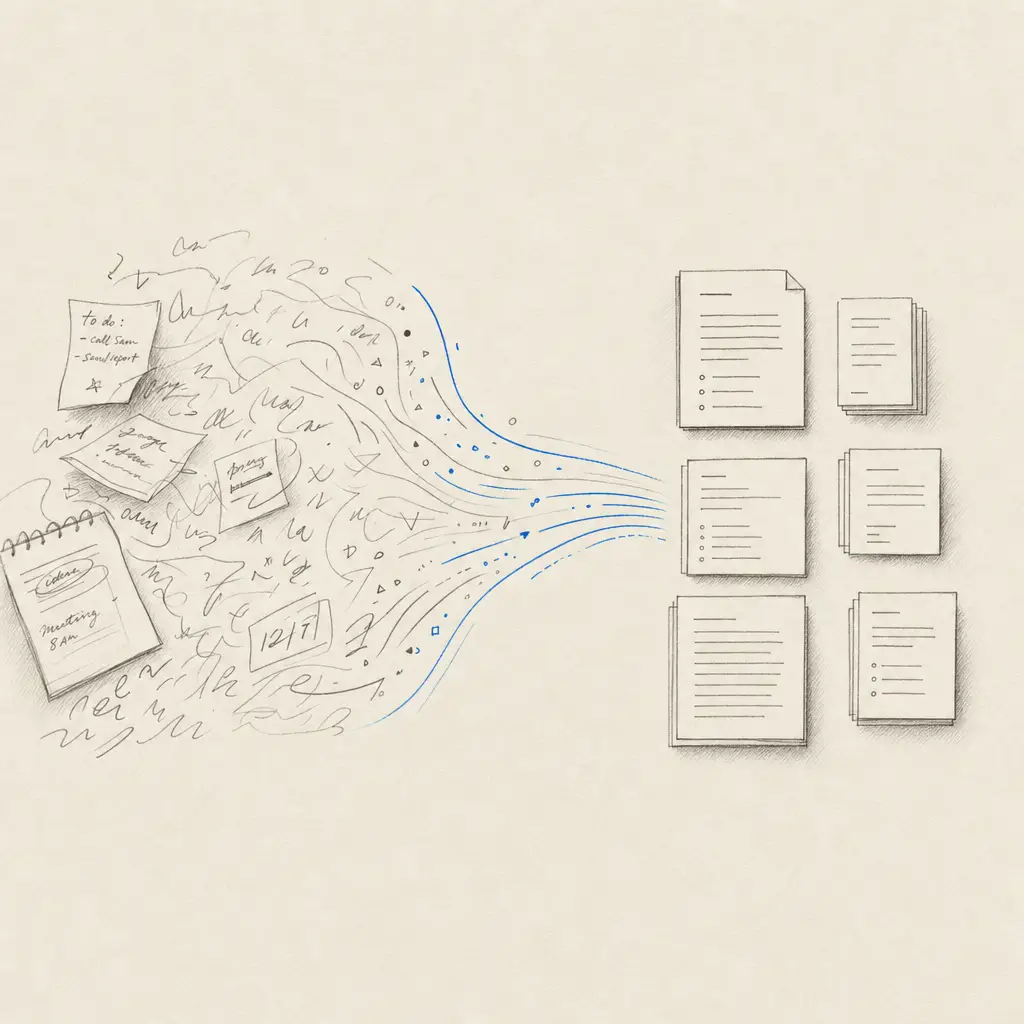
Google Drive already stores the scans, photographed notes, forms and archive material that teams need to transcribe. Handwriting OCR gives you two ways to process them without a download-and-reupload routine:
- Automated folders with Zapier: watch a selected folder, process each supported new file, and return the finished result to another folder.
- Files chosen by a person: open the Handwriting OCR Google Workspace add-on in Drive and process the file you select.
Automate a Google Drive folder with Zapier
Use the two official templates together for a complete round trip:
- Google Drive to Handwriting OCR watches an input folder and submits each new supported PDF or image.
- Handwriting OCR to Google Drive watches for completed documents and saves the downloadable result to your results folder.
Both are two-step Zaps. You do not need a separate Filter step: the Handwriting OCR action checks the original filename before calling the API.
Open the Google Drive and Handwriting OCR templates.
Keep input and results separate
Extract handwritten tables to Excel
Confirm your Handwriting OCR account has Pro or Business Tables access and enough page credits before turning on this Zap. If access or credits later run out, the step safely halts without processing the file; restore access and resubmit it. Sign in to Zapier before opening the guided template; Zapier shows signed-out visitors a 404 page for guided-template links.
If the source file contains a grid, use the Google Drive table-extraction template. It keeps the same two-step intake pattern but locks Extract Tables as the processing action. Pair it with the existing Google Drive results template to save the finished .xlsx file to a separate folder. Tables can be tested with trial credits; ongoing table extraction needs a Handwriting OCR Pro or Business plan. This is a Handwriting OCR plan requirement, not a Zapier multi-step requirement.
Use the cloud-folder table extraction guide for setup and review checks. For prose or letters, use the transcription intake template above.
Create two folders, such as Handwriting OCR - Input and Handwriting OCR - Results. The intake Zap watches the first; the return Zap writes to the second. This prevents a finished result from being treated as a new source document and gives the team a clear audit trail.
The intake action accepts PDF, JPG/JPEG, PNG, TIF/TIFF, BMP, GIF, WebP and AVIF. A PowerPoint, spreadsheet or other unsupported file stops before the Handwriting OCR API upload, so it does not create a failed document or use processing credits.
Decide which results return
The return template defaults to Zapier uploads only. That setting keeps a paired folder workflow focused on documents created by the intake Zap.
Choose All documents if Google Drive should archive everything completed in your Handwriting OCR account, including dashboard, email, API and other integration uploads.
Automatic formatting uses:
- Word (.docx) for transcription and translation;
- Excel (.xlsx) for table extraction;
- Excel (.xlsx) or CSV (.csv) for custom extractors.
Use the Workspace add-on for one-at-a-time work
If a person should decide which file to process, install the Google Workspace add-on. It works inside Google Drive and Gmail, uses your existing Handwriting OCR credits, and can write results back as a Google Doc or Google Sheet.
For a detailed comparison with Google Drive’s built-in OCR, see the guide to converting handwriting in Google Docs.
Create a Handwriting OCR account, explore the Google Drive Zapier templates, or see all integrations.
Frequently asked questions
Can Google Drive automatically convert handwriting to text?
Yes. A two-step Zapier template watches a chosen Drive folder and sends each supported file to Handwriting OCR. A matching return template saves completed results to another Drive folder.
Is there a manual Google Drive option too?
Yes. The Handwriting OCR Google Workspace add-on lets you choose a file inside Google Drive and save the result back as a Google Doc or Sheet. Use Zapier when you want a folder watched automatically.
Does the Google Drive automation need a paid multi-step Zap?
No. Each direction is a two-step Zap. Unsupported file types are checked inside the Handwriting OCR action, so no separate Zapier Filter step is required.
Which output formats can be saved to Google Drive?
Automatic output uses Word (.docx) for transcription and translation, Excel (.xlsx) for table extraction, and Excel (.xlsx) or CSV (.csv) for custom extractors. The Workspace add-on can instead create Google Docs and Google Sheets.