
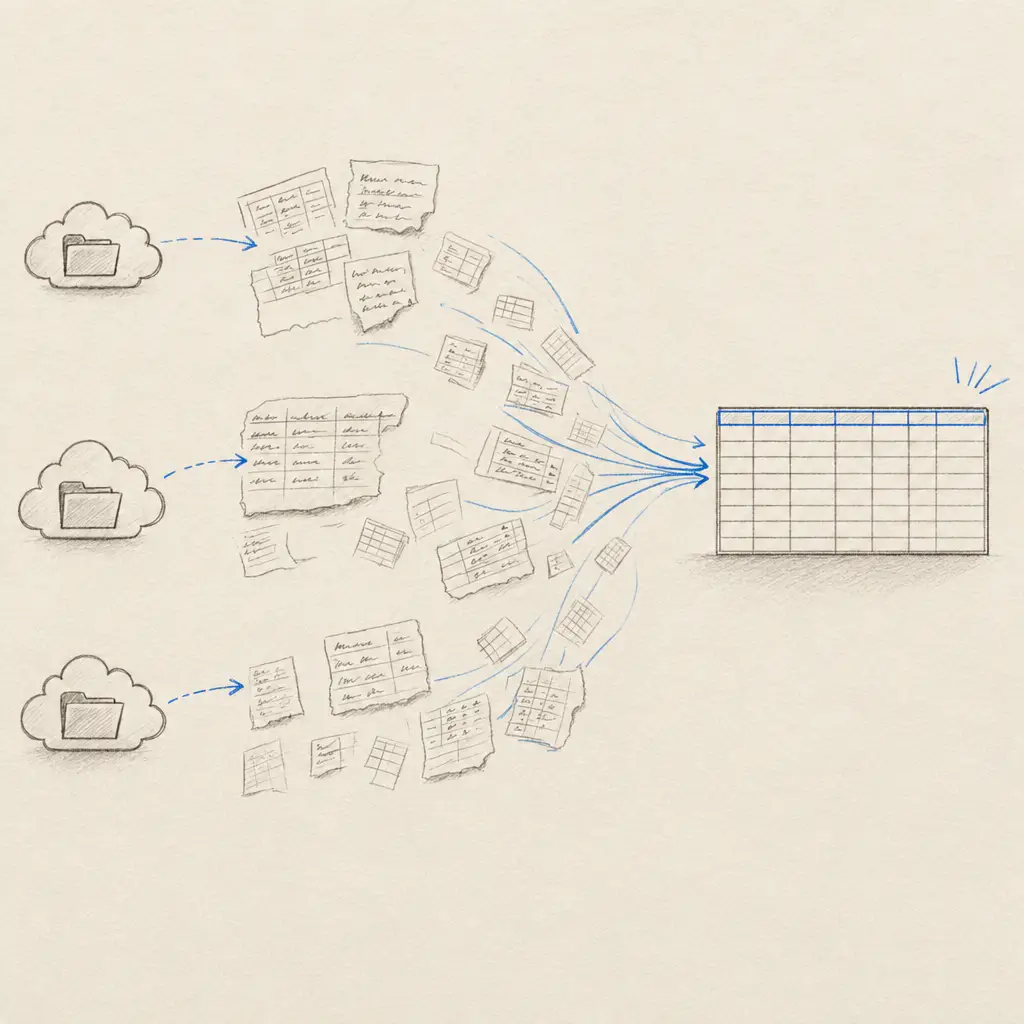
If scanned logs, ledgers or field sheets land in a shared cloud folder, you can submit them for table extraction as they arrive. Handwriting OCR reads the rows and columns and returns an Excel (.xlsx) file. This workflow is for documents that already contain a table; for named fields on repeated forms, compare Tables and Custom Extractors first.
Pick your two-step intake template
Before you turn on an intake Zap, confirm your Handwriting OCR account has Pro or Business access to Tables and enough page credits. Trial credits can be used for a small test. If access or credits later run out, the Handwriting OCR step safely halts: the file is not processed, and you must restore access and resubmit it. Then sign in to Zapier and open a template in the same browser. Zapier shows a 404 page for guided-template links when you are signed out, even when the template is shared with everyone who has the link.
| Input folder | Template | Trigger detail |
|---|---|---|
| Google Drive | Extract tables from new Google Drive files | New File in Folder |
| Dropbox | Extract tables from new Dropbox files | New File in Folder; file contents pass without a public sharing link |
| OneDrive | Extract tables from new OneDrive files | New or Updated File; an in-place update can cause a second job |
Each intake Zap has only two steps: the storage trigger and Handwriting OCR’s Upload Document action, with Extract Tables selected. The templates preserve the source filename and extension. Handwriting OCR checks whether the file type is supported before the API upload, so a separate Zapier Filter step is unnecessary. Supported inputs are PDF, JPG/JPEG, PNG, TIF/TIFF, BMP, GIF, WebP and AVIF.
The template submits the file; it does not contain the completed workbook in the upload step. Processing happens asynchronously.
Save the workbook back to cloud storage
Add the matching completed-results template on Zapier for your provider. That is another two-step Zap: New Processed Document in Handwriting OCR, then a file upload to your selected storage folder. Automatic format selection saves table extraction as .xlsx. Set Document Source to Zapier uploads only if the return workflow should ignore documents submitted through the dashboard or API.
Put input and results in separate folders. A returned Excel file should never land in the folder watched by the intake Zap. The returned file is a new output, not an update to the source.
Test with a representative table
- Choose a small PDF or image that includes the handwriting and table layout you actually need to process.
- Connect your storage account and Handwriting OCR account in the intake template. Select the input folder; leave Extract Tables set.
- Add the matching result template and choose a different results folder.
- Run one file through the whole workflow. Confirm that the result is an
.xlsxworkbook with the expected filename. - Compare important names, dates, numbers and totals with the original before using the spreadsheet downstream. For OneDrive, also edit a test source file and inspect whether a second job appears in Zap history.
Trial credits allow a small Tables test. Ongoing table extraction requires a Handwriting OCR Pro or Business subscription; Starter and pay-as-you-go credits do not include Tables. These are Handwriting OCR entitlements, distinct from Zapier’s two-step workflow limit. A free Zapier plan also has its own task and polling limits, so check those against your expected volume.
Try Handwriting OCR with your own table, or read the broader Zapier integration guide.
Frequently asked questions
Can a cloud folder automatically send handwritten tables to Excel?
Yes. Choose a two-step intake template for Google Drive, Dropbox or OneDrive. It submits supported files to Handwriting OCR with Extract Tables selected. A separate two-step return template can save the finished XLSX file to another folder after processing completes.
Do these templates need Zapier Pro?
Each template has only two steps and uses the same non-Premium storage apps as our existing folder workflows, avoiding Zapier's paid multi-step requirement. Other Zapier plan limits can still apply. Handwriting OCR Tables can be tested with trial credits, but continued use requires a Handwriting OCR Pro or Business subscription.
Should I use Tables for handwritten forms?
Use Tables when the source is a grid of rows and columns. If repeated forms contain named fields in different positions, use a Custom Extractor instead. Review critical values against the original file.
How do I prevent files from processing twice?
Keep the results folder outside the watched input folder. OneDrive's New or Updated File trigger may also run again if a source file changes in place, so keep inputs stable and inspect Zap history for duplicates.