
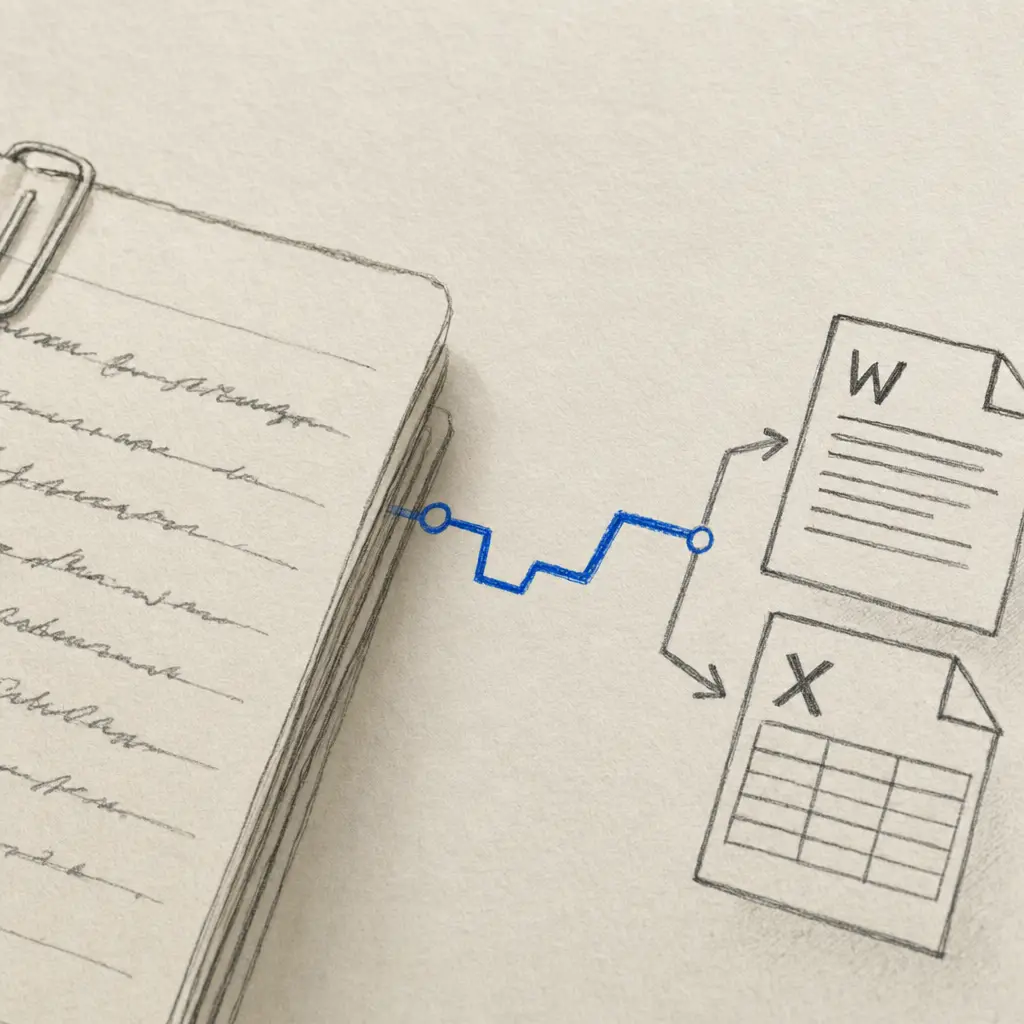
Your scanned forms, notebooks, letters, and field notes often already arrive in a shared cloud folder. The official Handwriting OCR integration for Zapier can pick them up, convert the handwriting, and put the finished file back without anyone downloading and re-uploading it.
We publish ready-made templates for Google Drive, Dropbox, and OneDrive. Each provider has a transcription intake template, a table-extraction intake template, and a return template:
- Cloud storage to Handwriting OCR: watch a folder and send each new supported file for transcription or table extraction.
- Handwriting OCR to cloud storage: watch for completed documents and save the result to the folder you choose.
Both sides are two-step Zaps. You do not need to add a separate Zapier Filter step just to keep unsupported files away from the API.
The table templates produce Excel files and can be tried with Handwriting OCR trial credits. Continued Tables use requires a Handwriting OCR Pro or Business plan. This is separate from Zapier’s plan: a two-step Zap avoids Zapier’s multi-step requirement, although other Zapier plan limits still apply.
Choose your cloud-storage workflow
| Storage service | Send files to Handwriting OCR | Save completed results back |
|---|---|---|
| Google Drive | Watch a selected Drive folder | Save the finished file to a selected Drive folder |
| Dropbox | Watch a selected Dropbox folder | Save the finished file to a selected Dropbox folder |
| OneDrive | Watch a selected OneDrive folder | Save the finished file to a selected OneDrive folder |
Use a dedicated input folder and a different output folder. Keeping them separate makes the workflow easy to audit and prevents a saved result from being mistaken for a new input.
Unsupported files stop before the API
A watched folder can receive anything: a handwritten PDF, a scan, a spreadsheet, or a PowerPoint deck. The storage trigger itself does not always provide a file-type filter, and adding Zapier’s separate Filter step would turn the workflow into a multi-step Zap.
The file check therefore happens inside the Handwriting OCR action. It accepts PDF, JPG/JPEG, PNG, TIF/TIFF, BMP, GIF, WebP, and AVIF. If another type appears, Zapier stops that run before the Handwriting OCR API upload. No failed document is created and no processing credit is used.
The API still validates every accepted upload as the final safety check.
Save only Zapier jobs, or archive everything
The return template defaults to Zapier uploads only. That is the safe choice when you pair an input folder with an output folder: it returns the results created by that automation without copying unrelated documents.
You can change Document Source to All documents if your goal is broader. For example, an archive team may want every document processed through the dashboard, email inbox, API, or another integration to land in its cloud-storage folder automatically.
The return trigger can include the finished download in the same step. Automatic format selection uses:
- Word (.docx) for transcription and translation
- Excel (.xlsx) for table extraction
- Excel (.xlsx) or CSV (.csv) for custom extractors
You can choose another compatible result format when setting up the template.
How to set it up
- Open the Handwriting OCR app on Zapier and choose the template for your storage service.
- Connect your storage account and your Handwriting OCR account.
- Choose a dedicated input folder for the intake template.
- Choose a different output folder for the return template.
- Leave Document Source as Zapier uploads only, or switch it to All documents when you want a complete archive.
- Test the workflow with one supported PDF or image before relying on it for a live folder.
Handwriting OCR uses one credit per processed page. New accounts include five free trial credits, so you can test the complete round trip on your own handwriting before choosing a plan.
Start with Handwriting OCR on Zapier, or create a Handwriting OCR account first.
See every supported connection on the Handwriting OCR integrations page.
Frequently asked questions
Can Zapier send files to Handwriting OCR automatically?
Yes. Use a ready-made two-step template to watch a folder in Google Drive, Dropbox, or OneDrive and submit each supported PDF or image to Handwriting OCR for processing.
Can Zapier save the finished transcription back to cloud storage?
Yes. A matching two-step return template watches for completed Handwriting OCR documents and saves the finished Word or Excel file to the cloud folder you choose.
What happens if a PowerPoint or another unsupported file appears in the watched folder?
The Handwriting OCR Zapier action checks the original filename first and stops unsupported file types before making an API upload. This avoids creating a failed Handwriting OCR document or using processing credits.
Will the return workflow save only files uploaded by Zapier?
That is the default for the paired templates, but it is optional. Change Document Source to All documents if you want to archive every completed document, including dashboard, email, API, and other integration uploads.