
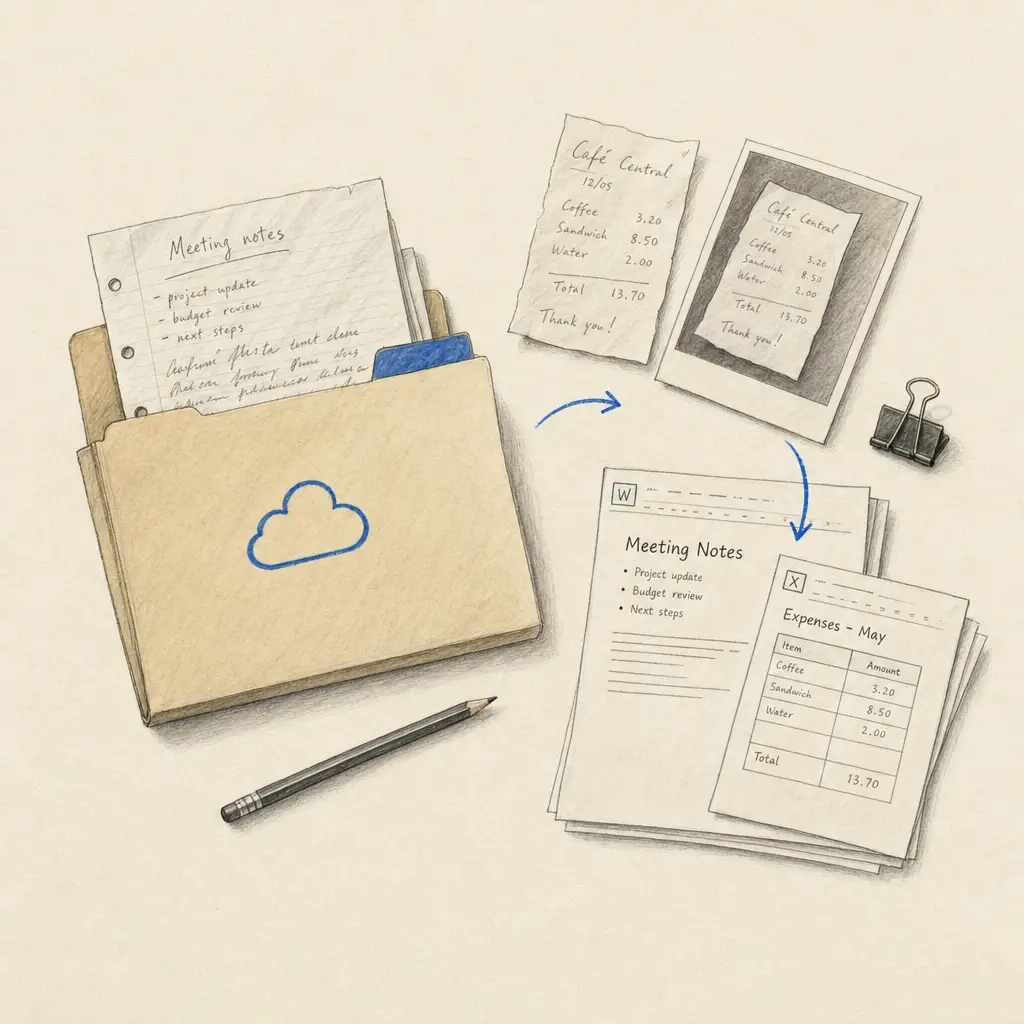
Handwritten documents often arrive in OneDrive long before anyone has time to process them: scanned forms from a multifunction printer, photographed notes from field staff, meeting notebooks, signed records, or archived correspondence. Moving every file through an OCR website by hand adds another queue.
The official OneDrive and Handwriting OCR integration on Zapier turns that folder into an automatic handwriting-processing workflow.
The two OneDrive workflows
Use the two templates together for a complete round trip:
- OneDrive to Handwriting OCR: watch a selected OneDrive folder and send each new supported PDF or image for transcription.
- Handwriting OCR to OneDrive: watch for completed documents and save the downloadable result to a selected OneDrive folder.
Each workflow contains only two steps. The intake template does not need a separate Zapier Filter step because the Handwriting OCR action checks the original filename before it calls the API.
Use separate input and output folders
Extract handwritten tables to Excel
Confirm your Handwriting OCR account has Pro or Business Tables access and enough page credits before turning on this Zap. If access or credits later run out, the step safely halts without processing the file; restore access and resubmit it. Sign in to Zapier before opening the guided template; Zapier shows signed-out visitors a 404 page for guided-template links.
The OneDrive table-extraction template locks Extract Tables in a two-step intake Zap. Pair it with the existing OneDrive results template to save the finished .xlsx file in a different folder. OneDrive’s New or Updated File trigger can run again if a source file changes in place. Use a stable input folder and review Zap history for duplicate uploads. Tables can be tested with trial credits; ongoing use requires Handwriting OCR Pro or Business. This product-plan requirement is separate from Zapier’s two-step plan eligibility.
See the cloud-folder table extraction guide for setup and validation. Use the transcription intake template for notes and prose.
Create two folders, for example:
Handwriting OCR - InputHandwriting OCR - Results
The intake Zap watches the first folder. The return Zap writes to the second. This separation makes processing easy to audit and prevents a finished Word or Excel file from being mistaken for a new source document.
Add a small supported test file before relying on a live team folder. Once the round trip works, people can keep using the familiar OneDrive folder without learning a separate upload process.
Unsupported files stop before processing
A shared OneDrive folder may contain more than scans. Someone might add a PowerPoint deck, an existing Word document, or a spreadsheet. Sending those files to an image-and-PDF OCR endpoint would create avoidable failures.
The Handwriting OCR Zapier action accepts PDF, JPG/JPEG, PNG, TIF/TIFF, BMP, GIF, WebP and AVIF. Other extensions stop inside the action before the Handwriting OCR API upload. No failed document is created and no processing credit is used for the rejected file.
The API still validates accepted uploads as the final safety check.
Choose which completed documents return to OneDrive
The return template starts with Zapier uploads only. That is the safest setting for a paired input-and-output workflow because it returns only documents created by Zapier.
Choose All documents instead when OneDrive should be your central archive. That broader option can save results created from the Handwriting OCR dashboard, email uploads, API integrations and other connected tools as well.
The trigger can include the completed download directly, so saving the result remains the second step rather than requiring an extra download action.
Word and Excel output
With automatic result formatting:
- transcription and translation return as Word (.docx) files;
- table extraction returns as an Excel (.xlsx) file;
- custom extractors return as Excel (.xlsx) or CSV (.csv) files.
You can select another compatible result format while setting up the Zap. The original source file stays in the input folder; the processed result is added to the output folder.
Set up OneDrive handwriting OCR
- Open the OneDrive and Handwriting OCR integrations page.
- Choose the template that sends new OneDrive files to Handwriting OCR.
- Connect your Microsoft account and Handwriting OCR account.
- Select a dedicated input folder and leave the processing action as transcription, or choose another action you use.
- Add the return template and select a different OneDrive results folder.
- Keep Document Source set to Zapier uploads only, unless you intentionally want every completed document.
- Test the round trip with one supported PDF or image.
Handwriting OCR uses one credit per processed page. New accounts include five trial credits, so you can test the folder workflow with your own handwriting before choosing a plan.
For the equivalent Google Drive and Dropbox options, supported formats and folder-safety guidance, read the complete Handwriting OCR Zapier guide.
Connect OneDrive to Handwriting OCR on Zapier, or create a Handwriting OCR account first.
See every supported connection on the Handwriting OCR integrations page.
Frequently asked questions
Can OneDrive automatically convert handwriting to text?
Yes. Connect OneDrive to Handwriting OCR with Zapier. One two-step template watches a folder and sends each new supported file for processing; a second two-step template saves completed results back to the OneDrive folder you choose.
Does the OneDrive automation need a paid multi-step Zap?
No. Each direction is a two-step Zap: OneDrive to Handwriting OCR, or Handwriting OCR to OneDrive. Unsupported file types are checked inside the Handwriting OCR action, so a separate Zapier Filter step is not required.
Which OneDrive files can Handwriting OCR process?
Supported inputs are PDF, JPG/JPEG, PNG, TIF/TIFF, BMP, GIF, WebP and AVIF. If a PowerPoint, spreadsheet or another unsupported file appears in the watched folder, the Zap stops before uploading it to Handwriting OCR.
What file does the OneDrive workflow save?
Automatic output uses Word (.docx) for transcription and translation, Excel (.xlsx) for table extraction, and Excel (.xlsx) or CSV (.csv) for custom extractors. You can choose another compatible result format during setup.
Can I save every completed Handwriting OCR document to OneDrive?
Yes. The return template defaults to Zapier uploads only, which keeps a paired folder workflow tidy. Change Document Source to All documents if you want OneDrive to archive results from dashboard, email, API and other uploads too.