Converting Boox handwriting to text is more involved than it first appears. Onyx Boox tablets offer built-in handwriting recognition, but the on-device engine has a hard accuracy ceiling, covers only 59–66 languages, and produces output with no clean path to an editable DOCX or TXT file. For quick single-page notes in English, it may be enough. For anything more demanding, it usually isn't.
This guide explains how the built-in Onyx Boox OCR works, where it falls short, and how to boox convert handwriting to fully editable text using a dedicated service. It covers every step: exporting your notes from the device, transferring files, and getting reliable results without a page-by-page manual workflow. If the built-in tool has been frustrating you, the better approach is straightforward once you know the options.
Quick Takeaways
- Boox has built-in handwriting recognition, but it processes everything on-device, which limits accuracy and language support to around 59–66 languages.
- There is no direct export to editable DOCX or TXT from handwritten notes without running the AI conversion first inside the app. Even then, the results can drop words.
- Boox exports notes as PDF or PNG, both of which work directly with dedicated OCR services.
- Because Boox runs full Android, you can sync via Google Drive or Dropbox, or upload directly from the Boox browser. This makes the workflow easier than on other e-ink devices.
- A dedicated OCR service supports 300+ languages and returns editable DOCX or TXT output, solving the main gaps in Boox's built-in tool.
What Boox's Built-In Handwriting Recognition Actually Does
Boox offers three ways to convert handwriting to text within the device itself. Understanding each one helps you decide when the built-in tool is enough and when it isn't.
The Notes App AI Recognition
The most common route is through the Notes app. Write your notes as normal, then use the Lasso tool to select a section of handwriting. Tap the AI icon that appears, then choose Text Recognition. The device processes the selected text and shows you an editable result. This works page by page. There is no batch option for converting an entire multi-page notebook in one step.
NeoReader Annotations
If you are annotating a PDF in NeoReader, double-tapping on a handwritten annotation triggers text recognition for that annotation only. This is useful for short margin notes, but it is not practical for converting a full document of handwritten content.
Handwriting Keyboard Input
Boox also offers a handwriting keyboard for input fields anywhere in the Android interface. You write characters and the device converts them in real time. This is fine for short text entry but has no role in bulk note conversion.
All three methods share one core characteristic: processing happens entirely on the device, with no internet connection required. That is a genuine advantage for privacy-conscious users. The trade-off is that on-device processing is resource-constrained compared to cloud-based recognition.
Because Boox handles all handwriting conversion on the device, it stays fully offline. That is useful, but it also means accuracy has a hard ceiling set by the hardware.
The built-in engine supports approximately 59–66 languages depending on your firmware version. Common European languages are well covered. Arabic, Hebrew, and most Indian scripts are not supported at all.
The Limitations Boox Users Actually Run Into
The built-in recognition is honest about what it is: a quick, on-device conversion for simple notes. Problems arise when users need more than that.
Dropped Words After Firmware Updates
Several firmware updates have introduced regression bugs that cause the recognition engine to silently skip words. You end up with text that looks plausible but has gaps, and you have to manually compare it against your original handwriting to find them. This makes the output unreliable for anything that needs to be accurate.
No Searchable PDF or Editable Export
Boox does not produce a searchable PDF from handwritten notes. If you export without running the AI recognition first, you get a rasterized image PDF: visually intact, but not searchable and not editable. Even after running the in-app recognition, getting clean editable output in DOCX or TXT format requires extra manual steps. This is a significant gap for anyone who wants to search their notes or paste content into another application.
"The ability to export handwritten notes as a searchable PDF is basic functionality for a note-taking device." This is one of the most consistent complaints in the Boox user community, and it remains unresolved.
Page-by-Page Manual Workflow
Converting a multi-page notebook requires repeating the Lasso-and-tap process on every page. There is no "convert entire notebook" button. For a 30-page set of lecture notes, this is a significant time investment. For researchers or students with hundreds of pages, it becomes genuinely impractical.
Language Limitations
The 59–66 language ceiling matters more than it seems at first. Writers working in Arabic, Hebrew, Tamil, Telugu, or similar scripts are simply unable to use the built-in recognition at all. Even users writing in supported languages find that cursive handwriting and non-standard letterforms reduce accuracy noticeably.
To be fair to Boox: for clean, printed handwriting in English or a major European language, the built-in tool works reasonably well for short conversions. If that describes your use case and you only need occasional quick transcriptions, the built-in option may be sufficient.
How to Export Your Onyx Boox Notes for External Processing
Getting your notes off the device is straightforward once you know the options. Boox offers three native export formats from the Notes app: PNG (single page), PDF (all pages), and the proprietary .note format. For OCR purposes, PDF is the right choice for multi-page notebooks, and PNG works fine for single pages.
Export From the Notes App
Open the note you want to export. Tap the three-dot menu in the top right corner and select Share or Export. Choose PDF to export all pages as a single file, or PNG for the current page only. The .note format is only useful if you are moving between Boox devices.
Getting Files to a Computer
There are three practical routes.
The first is a USB cable. Connect your Boox to a computer and it appears as a storage device. Navigate to the exported file and copy it across. This is reliable but requires a cable.
The second is cloud sync. Boox syncs natively with Google Drive, Dropbox, OneDrive, and WebDAV services. Export your PDF, then save it to the cloud folder of your choice. Open it from your computer's cloud app as normal. This is the most convenient option for regular use.
The third is uploading directly from the Boox device itself. Because Boox runs full Android, you can open a browser on the device and upload your notes to an online tool without involving a computer at all. More on this below.
This Android advantage is worth noting. Compared to other e-ink tablets, such as reMarkable 2, Supernote, or Kindle Scribe, Boox is notably less locked down. Getting files into cloud storage is simpler, and the ability to run Android handwriting apps or access web tools directly on the device is a genuine differentiator.
Using HandwritingOCR to Convert Boox Notes to Editable Text
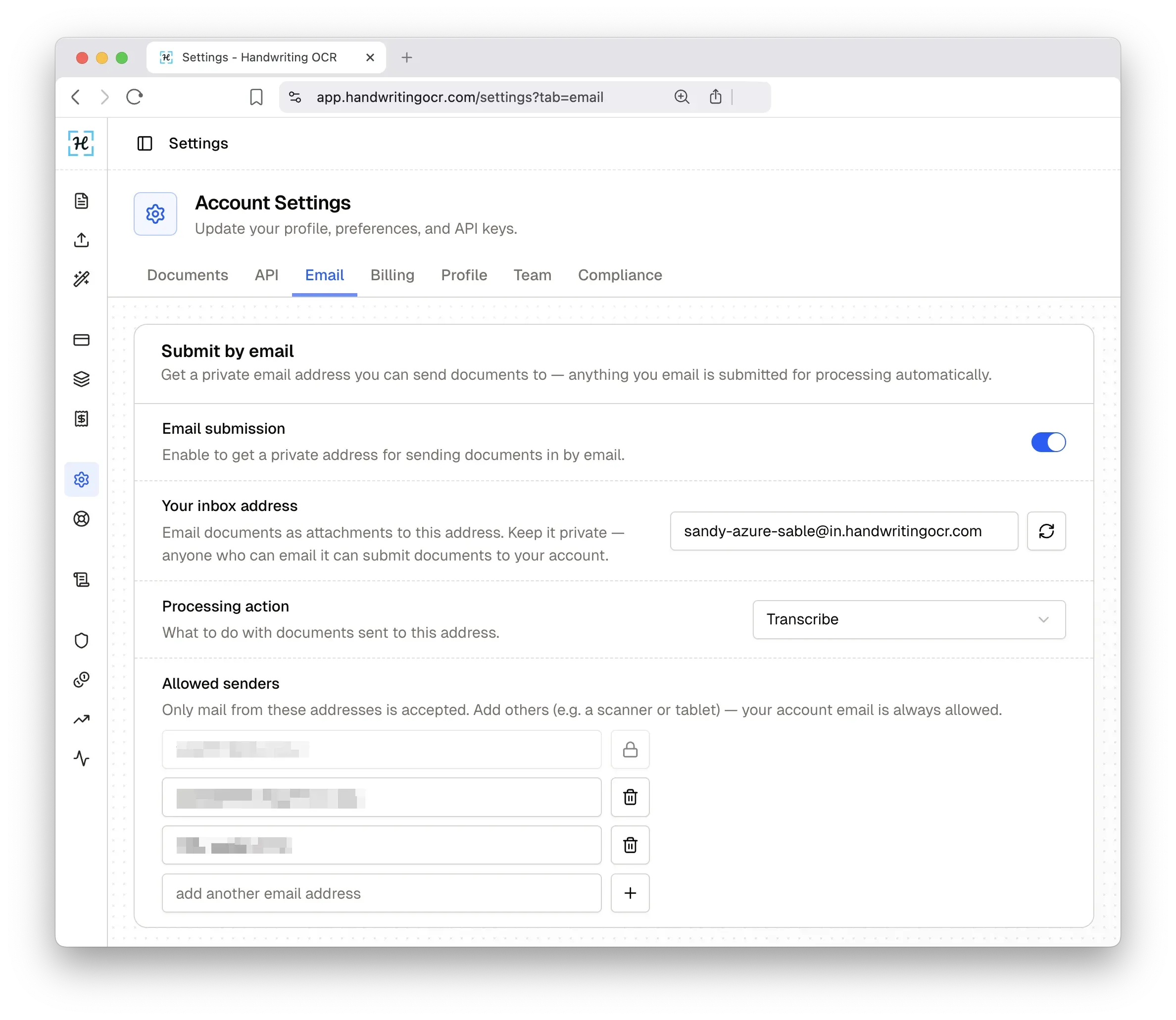
Once you have your exported PDF or PNG, the process with HandwritingOCR is simple. There is no app to install and no account required to start. You get five free trial credits to test it with your own notes.
Here is the full workflow.
- Export your Boox notes as a PDF (all pages) from the Notes app.
- Transfer the file to your computer via USB or cloud sync, or keep it on your Boox device if you plan to upload directly from the browser.
- Go to HandwritingOCR and upload your file. Accepted formats include PDF, PNG, JPG, and other image formats up to 20MB.
- Select Transcribe as your processing action.
- Wait roughly 15–20 seconds for results.
- Download your output as DOCX or TXT.
The DOCX output is immediately editable in any word processor. The TXT version pastes cleanly into any application. Both solve the "no editable export" problem that Boox's built-in tool leaves unsolved.
Your notes remain private throughout. Documents are processed only to deliver your results and are not used to train models. Files are deleted after seven days by default, or sooner if you delete them manually.
One additional advantage: HandwritingOCR supports over 300 languages, including Arabic, Hebrew, and non-Latin scripts that Boox's built-in tool cannot handle. If you write in one of the languages excluded from Boox's recognition engine, this is the most practical path to editable text. You can also convert handwriting online from any device with a browser.
Boox Built-In OCR vs. HandwritingOCR: When to Use Each
| Boox Built-In Recognition | HandwritingOCR | |
|---|---|---|
| Processing location | On-device, fully offline | Cloud-based |
| Languages supported | ~59–66 | 300+ |
| Multi-page notebooks | Page by page manually | Full PDF in one upload |
| Output formats | In-app text only | DOCX, TXT, PDF |
| Arabic / Hebrew support | No | Yes |
| Internet required | No | Yes |
| Searchable PDF output | No | Yes |
| Privacy | On-device | Processed only for you, not used for training |
| Free to try | Yes (built into device) | Yes (5 free credits) |
The built-in tool is the right choice for a quick single-paragraph conversion in a supported language when you have no internet access. HandwritingOCR is the right choice for multi-page notebooks, non-Latin scripts, or any time you need a genuinely editable output file. You can read about the best AI OCR tools if you want a broader comparison across services.
Tips for Best Results with Boox and HandwritingOCR
A few practical habits make a noticeable difference in output quality.
Use lined or grid templates when writing. Boox offers several built-in note templates. Lined templates encourage consistent baseline alignment, which helps any recognition engine segment words more cleanly. Freeform notes on a blank canvas tend to produce less consistent results.
Export as PDF rather than PNG for multi-page notes. A single PDF keeps all your pages together for upload, and HandwritingOCR processes the full document in one pass. Uploading individual PNGs for a 20-page notebook is possible but takes more time.
Sync via cloud rather than USB when file quality matters. USB transfers are reliable, but using Google Drive or Dropbox means your PDF is already in the cloud and accessible from any device. It also removes the step of physically connecting a cable.
Do not worry about contrast adjustments. Boox's e-ink display tends to produce clean, dark ink on a white background when exported as PDF. HandwritingOCR handles contrast automatically during preprocessing, so even if your exported PDF looks slightly washed out, the recognition engine compensates.
Conclusion
Boox's built-in handwriting recognition is a useful starting point, but it has real constraints: dropped words, no editable export formats, a page-by-page manual workflow, and a language ceiling of 59–66 supported scripts. For quick single-page conversions in English or common European languages with no internet access, the built-in tool does the job. For everything else, exporting your notes as a PDF and processing them with a dedicated service gives you consistently better results.
HandwritingOCR accepts your Boox PDF or PNG directly, returns editable DOCX or TXT output in around 15–20 seconds, and supports over 300 languages. Your notes are processed only to deliver your results and are not used for training. Ready to convert your Boox notes to editable text? Try HandwritingOCR free with five complimentary credits. No app install and no credit card required.
Frequently Asked Questions
Have a different question and can’t find the answer you’re looking for? Reach out to our support team by sending us an email and we’ll get back to you as soon as we can.
Why does Boox's built-in handwriting recognition drop words?
Boox processes handwriting entirely on-device, which keeps it offline but limits the resources available. Firmware updates have also introduced regression bugs that cause words to be skipped. If you're seeing dropped words after an update, the on-device engine is likely the culprit. Exporting your notes as a PDF and using a dedicated OCR service will give you much more reliable results.
Can I export Boox handwritten notes as a DOCX or TXT file?
Not directly. Boox exports handwritten notes as PNG (single page) or PDF (all pages), neither of which is an editable text format. To get a DOCX or TXT file, you need to either use the in-app AI text recognition first, or export the PDF and upload it to a tool like HandwritingOCR, which returns editable DOCX or TXT output.
Does Boox support Arabic or Hebrew handwriting recognition?
No. Boox's built-in recognition supports approximately 59-66 languages depending on firmware, and Arabic and Hebrew are not included. If you write in a non-Latin script, your best option is to export your notes as a PDF and use a dedicated OCR service that supports your language.
Can I upload a Boox PDF directly to HandwritingOCR?
Yes. HandwritingOCR accepts PDFs and PNGs directly, both of which Boox can export natively. You can upload from a computer after transferring via USB or cloud sync, or you can open the HandwritingOCR website directly in the browser on your Boox device and upload from there, since Boox runs Android.
What is the Boox Android advantage for OCR workflows?
Unlike some locked-down e-ink tablets, Boox runs full Android. This means you can sync files directly to Google Drive, Dropbox, or OneDrive from the device, or open a browser and upload notes to HandwritingOCR without touching a computer at all. The workflow is more flexible than on other e-ink devices.